The MCP Access module bridges your Gigneo marketplace with external AI assistants and agentic clients using the open standard Model Context Protocol (MCP).
With MCP Access enabled, marketplace users—both freelancers and employers—can connect their personal accounts to modern AI tools (such as Claude Desktop, Cursor, Antigravity, or custom agents) using secure, role-restricted personal access tokens. Administrators can also connect AI workflows to moderate content, inspect marketplace metrics, oversee disputes, and manage site operations.
This module requires the Rest APIs module to be active, as all MCP tools execute through Gigneo’s authenticated REST controllers.
This is a Gigneo Pro module and requires a minimum Starter License or higher.
Enable the Module
Before using MCP Access, ensure your Gigneo Pro license is activated and the Rest APIs module is enabled.
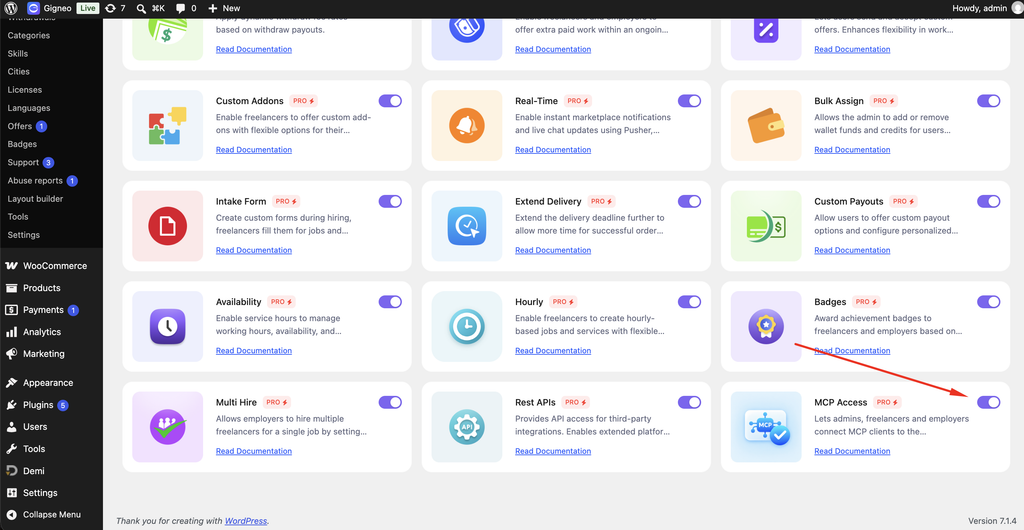
- Navigate to WP Admin → Gigneo → Modules.
- Locate the MCP Access module.
- Toggle the module On. (Also verify that the Rest APIs module is toggled On).
Configure Administrator MCP Settings
Once enabled, site administrators can configure global MCP preferences and generate admin-level tokens.
Navigate to:
WP Admin → Gigneo → Tools → MCP Access
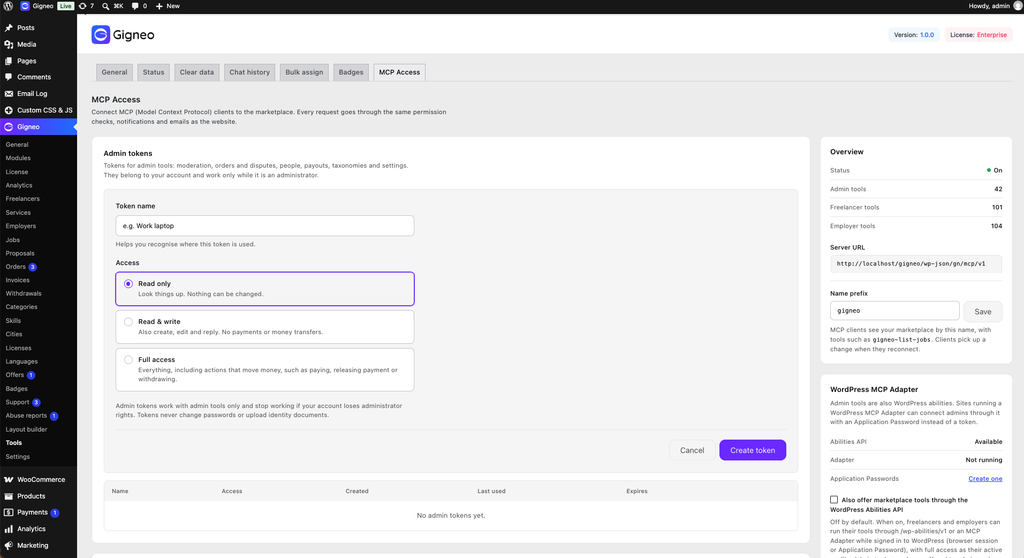
From here, administrators can manage the following settings:
- Tool Prefix: Set a custom prefix for MCP tools and server names (e.g. gigneo or your marketplace brand name). For instance, setting the prefix to gigneo will generate tools like gigneo-list-jobs and gigneo-submit-proposal.
- WordPress Abilities: Toggle whether marketplace tools (freelancer and employer tools) are also exposed as native WordPress Abilities (/wp-abilities/v1) for compatible WordPress MCP adapters.
- Administrator Access Tokens: Generate dedicated admin tokens for site-wide moderation, dispute handling, order management, and financial oversight.
Generating Personal Tokens in the User Dashboard
Both freelancers and employers can create and manage their own MCP tokens directly from their account dashboard.
- Log in to the marketplace dashboard.
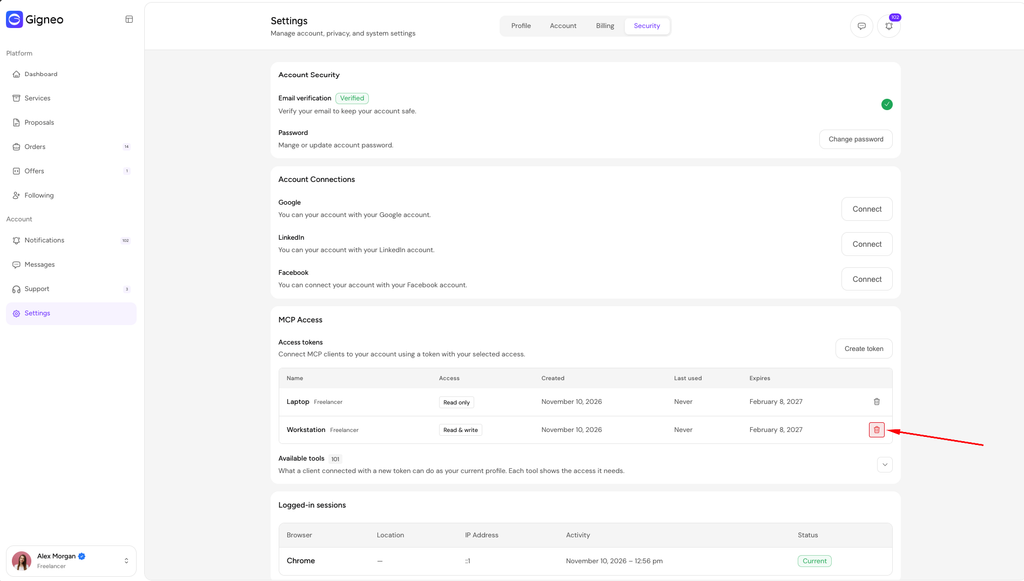
- Navigate to Dashboard → Settings → Security.
- Scroll to the MCP Access section.
- Click the Create token button.
Creating an Access Token
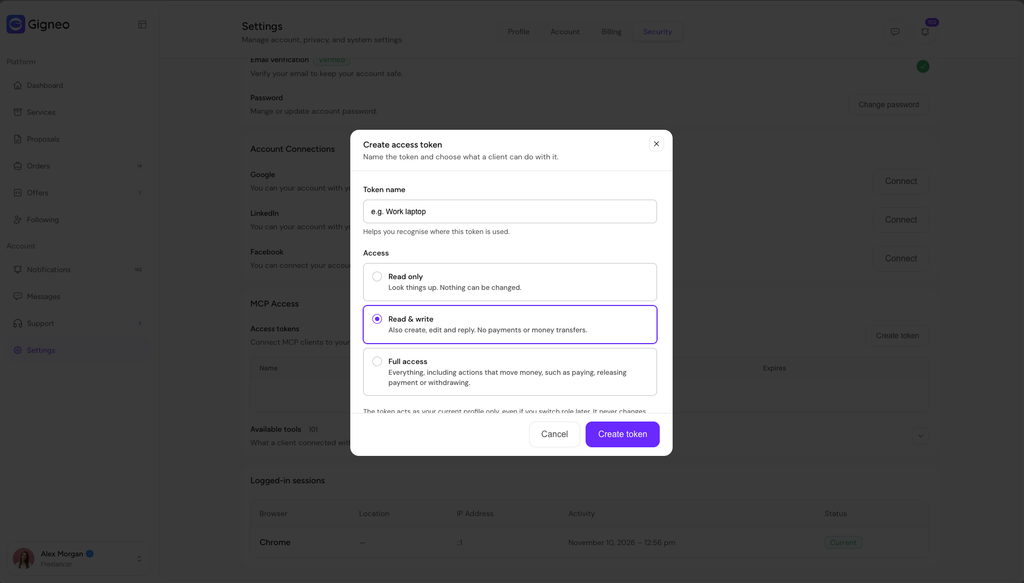
In the modal that appears:
- Token Name: Enter a recognizable label (e.g., Claude Desktop, Coding Agent, Office AI).
- Access Level: Choose the permission level for this token:
- Full access (Read & Write): Allows the AI assistant to view data and perform actions (e.g., submit proposals, post jobs, deliver orders, send messages).
- Read only: Restricts the AI assistant to read-only queries (e.g., browsing jobs, checking earnings, reading profile details).
- Click Create token.
Connecting to an MCP Client
Immediately after generating a token, a connection window displays the secret token alongside ready-to-use configuration snippets.
The access token is displayed only once. Copy and store it securely before closing the modal.
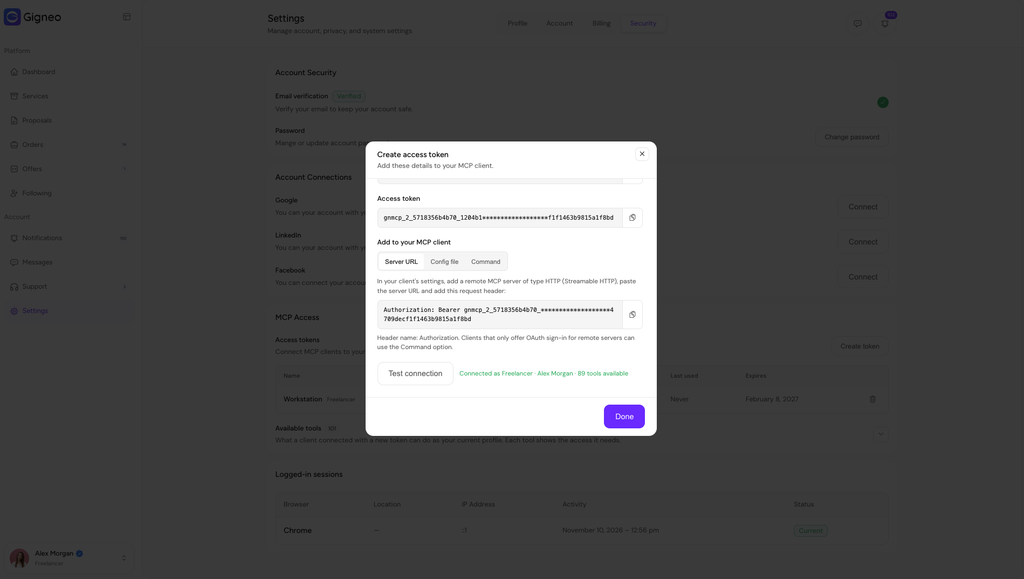
The modal provides three convenient tabs tailored to different MCP client architectures:
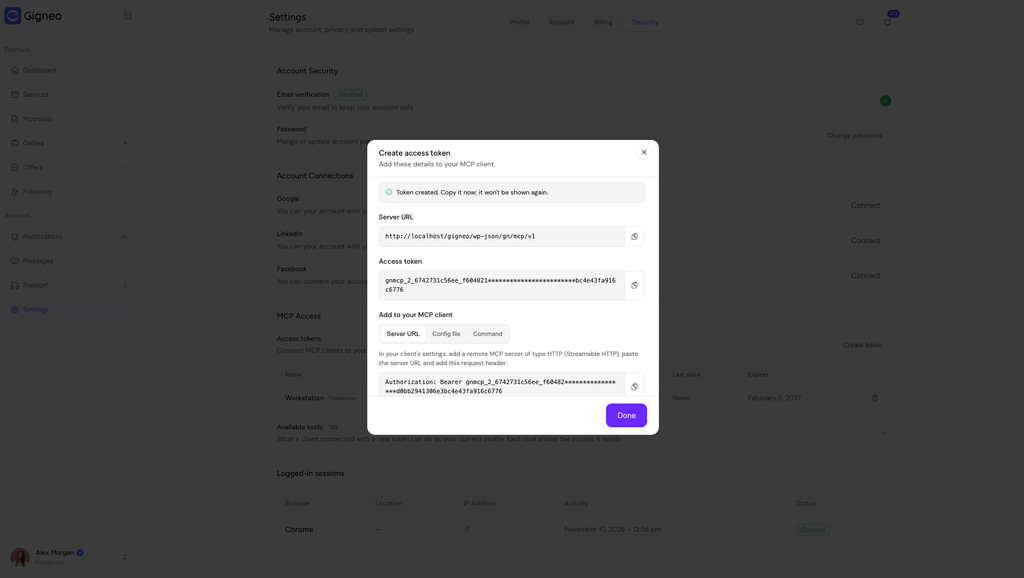
Option 1: Server URL (Streamable HTTP)
For clients that connect directly over Streamable HTTP:
- Server URL: https://yourdomain.com/wp-json/gn/mcp/v1
- Header Name: Authorization
- Header Value: Bearer gnmcp_…
Option 2: Config File (JSON)
For desktop clients that read MCP server definitions from a configuration file (such as Cursor or Antigravity):
{
  "mcpServers": {
    "marketplace": {
      "type": "http",
      "url": "https://yourdomain.com/wp-json/gn/mcp/v1",
      "headers": {
        "Authorization": "Bearer YOUR_ACCESS_TOKEN"
      }
    }
  }
}
Option 3: Command Bridge (mcp-remote for Claude Desktop)
Claude Desktop connects to MCP servers locally via stdio. Because Gigneo’s MCP endpoint is a remote HTTP endpoint requiring an Authorization header, Claude Desktop uses the lightweight mcp-remote bridge (powered by Node.js).
Add the following to your claude_desktop_config.json:
{
  "mcpServers": {
    "marketplace": {
      "command": "npx",
      "args": [
        "-y",
        "mcp-remote",
        "https://yourdomain.com/wp-json/gn/mcp/v1",
        "--header",
        "Authorization:${AUTH_HEADER}"
      ],
      "env": {
        "AUTH_HEADER": "Bearer YOUR_ACCESS_TOKEN"
      }
    }
  }
}
Testing the Connection
Click the built-in Test connection button inside the modal to instantly verify that your endpoint and token authenticate successfully with the server.
Role-Based Tool Capabilities
Gigneo’s MCP server enforces strict role isolation. The tools available to an AI assistant depend on whether the token was generated by a Freelancer, an Employer, or an Administrator.
Users can expand the Available tools accordion on their dashboard to view every tool their token can execute:
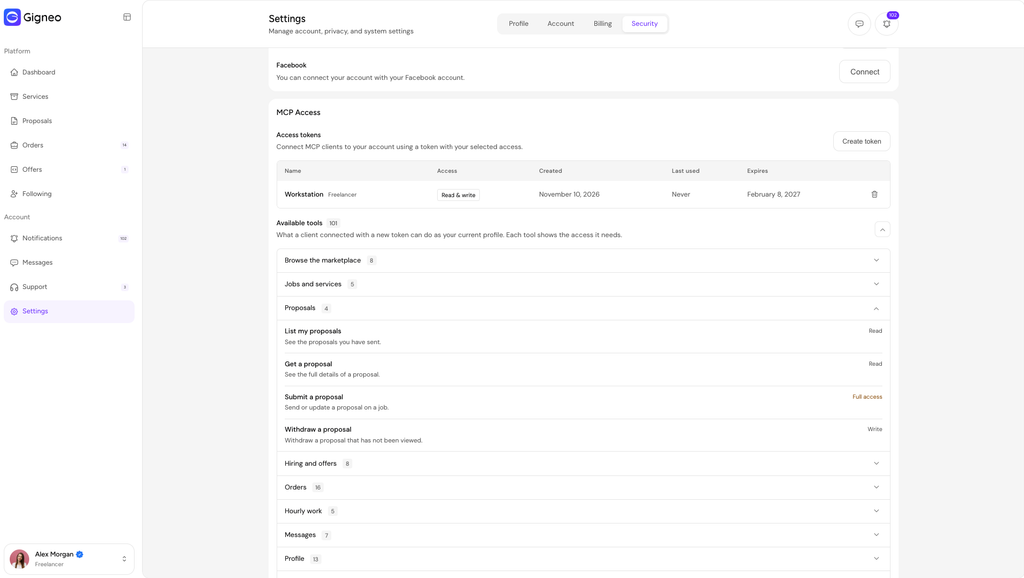
1. Freelancer Capabilities
- Jobs & Opportunities: Browse open jobs, search by category/skills, inspect job details and requirements.
- Proposals: Submit job proposals, calculate quotes, withdraw proposals, and track active bids.
- Orders & Deliveries: Monitor ongoing orders, exchange order chat messages, upload deliverables, and respond to revision requests.
- Hourly Contracts: View timesheets, log working hours, and dispute time logs.
- Services: Manage service listings, add-ons, and pricing.
- Profile & Settings: Update bio, hourly rates, skills, language proficiencies, and vacation mode.
2. Employer Capabilities
- Job Management: Post new jobs, update requirements, review applicant proposals, and shortlist candidates.
- Hiring & Orders: Accept proposals, order services, hire multiple freelancers (Multi-Hire), and send custom offers.
- Order Collaboration: Review delivered work, request revisions, approve milestones, release payments, and submit reviews.
- Contract Management: Manage hourly contract limits, approve weekly timesheets, and handle milestone extensions.
3. Administrator Capabilities
- Moderation: Review and moderate user profiles, reported abuse items, and content listings.
- Dispute Arbitration: Inspect disputed orders, review evidence notes, and execute resolutions.
- Finance & Payouts: Review pending withdrawal requests, adjust wallet balances, and audit commission payouts.
- Platform Operations: Query taxonomy terms, inspect support tickets, and view platform analytics.
Security & Token Management
- Role Pinning: A token is permanently pinned to the profile active when it was generated. Switching roles on the website does not alter the token’s authorized role.
- Instant Revocation: Users can revoke tokens at any time under Settings → Security.
- Automatic Invalidation: Changing an account password, deactivating an account, or closing an account immediately revokes all active MCP tokens associated with that user.
- Brute-Force & Rate Protection: Built-in rate limiting restricts failed authentication attempts per IP address and caps requests per token to protect server stability.