
Gigneo provides flexible authentication options that allow marketplace owners to control how users log in and register on the platform.
Authentication can be configured by navigating to Gigneo → Settings → Auth.
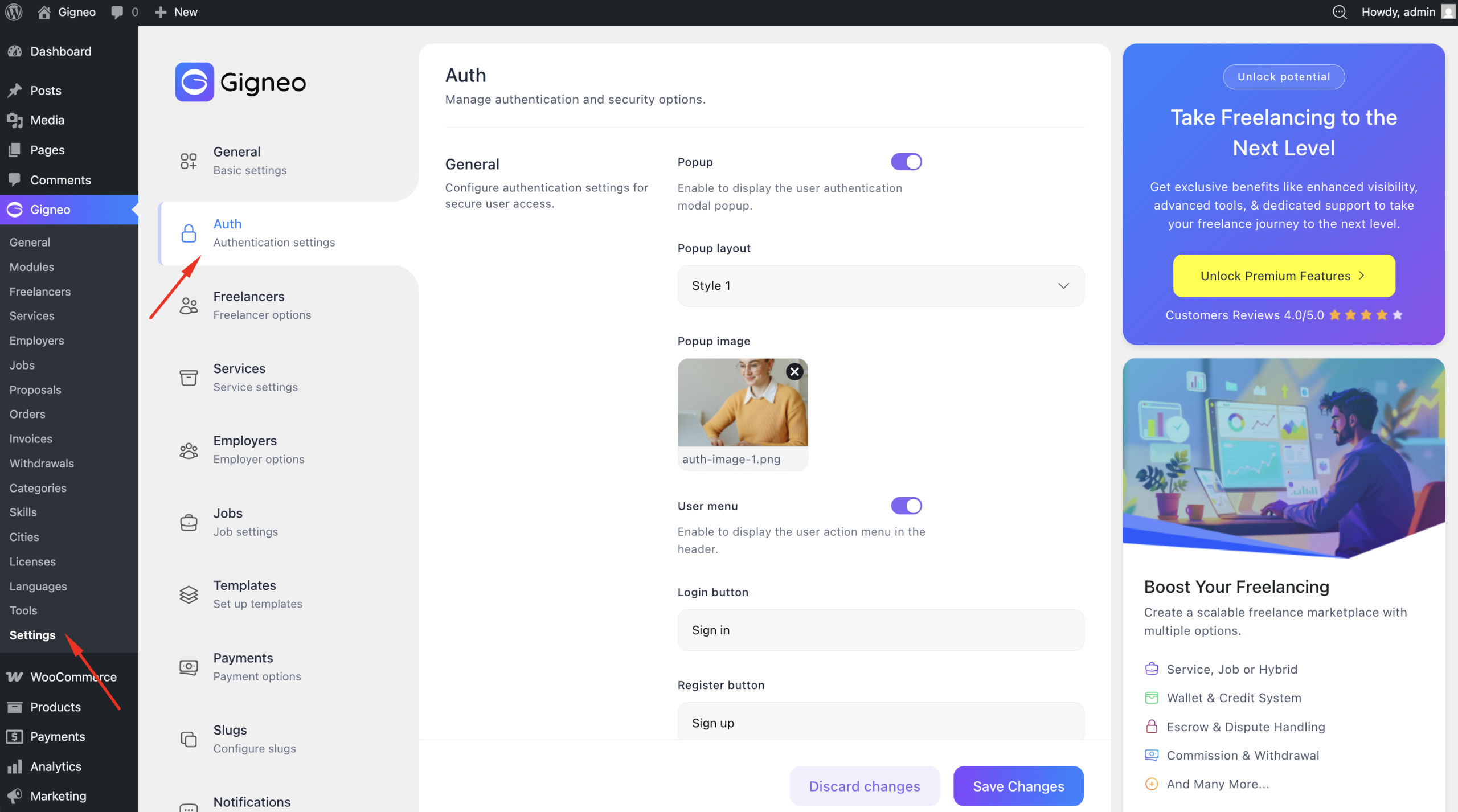
From here, you can choose whether users access authentication through modal popups or dedicated authentication pages.
Modal Authentication
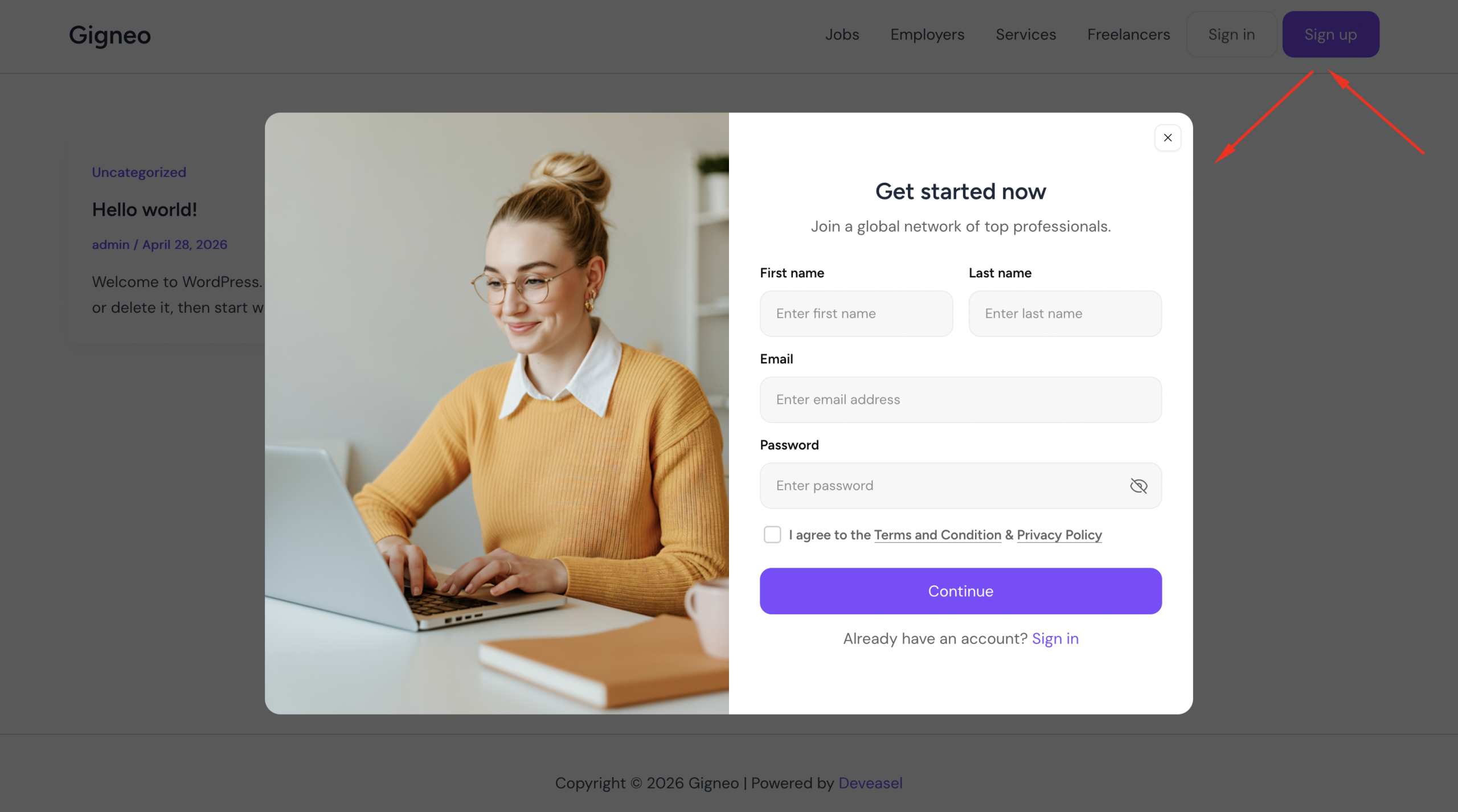
Modal authentication allows users to log in and register through popup forms without leaving the current page.
This creates a faster and smoother authentication experience for users.
To enable modal authentication, navigate to Gigneo → Settings → Auth and select the modal authentication option.
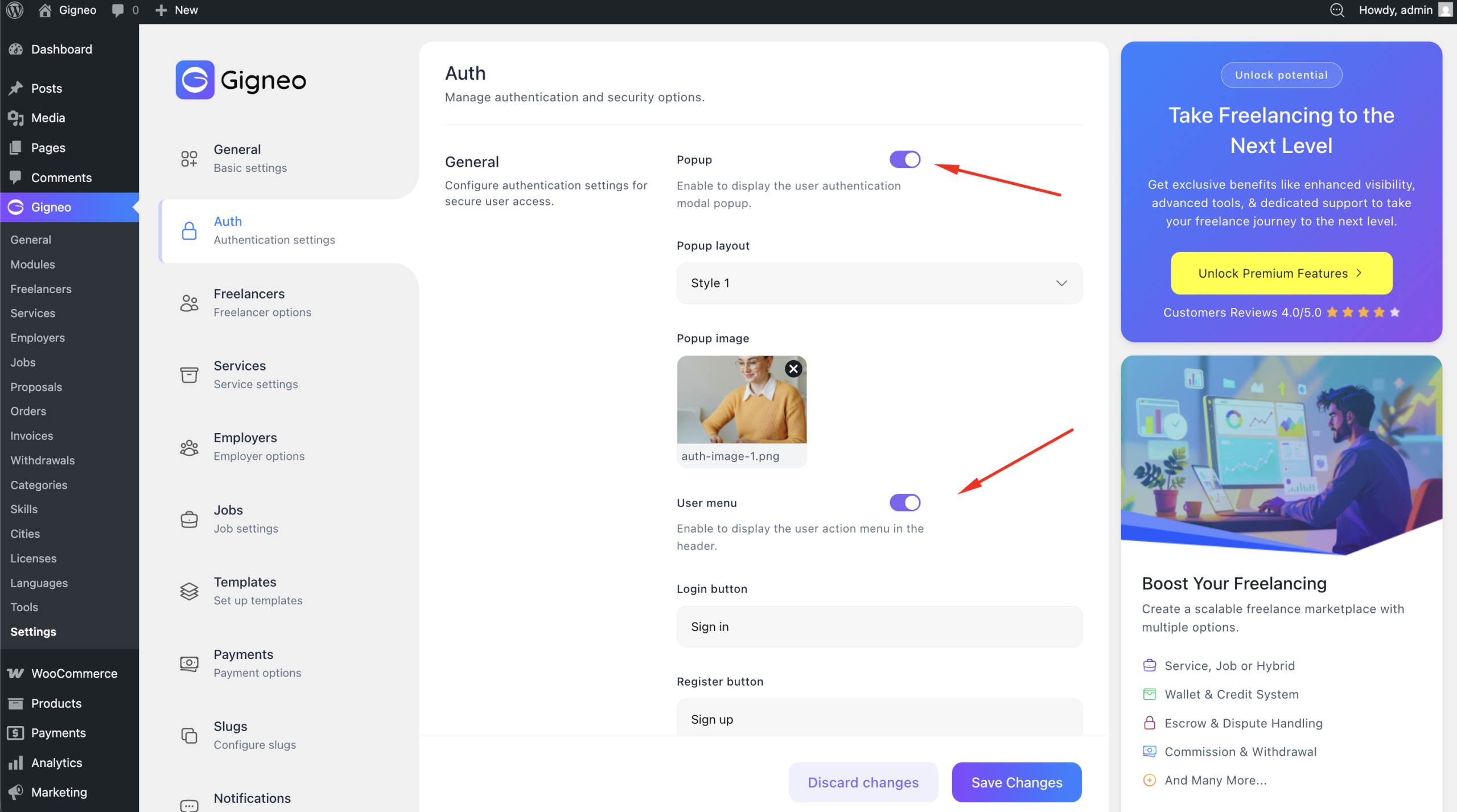
Once enabled, login and registration forms will appear as popup modals across your marketplace wherever authentication is required.
Page-Based Authentication
Page-based authentication allows users to access login and registration through dedicated pages.
This approach is ideal for marketplaces that prefer a traditional account access flow.
To configure page-based authentication, assign your Login and Register pages through Gigneo → Settings → Templates.
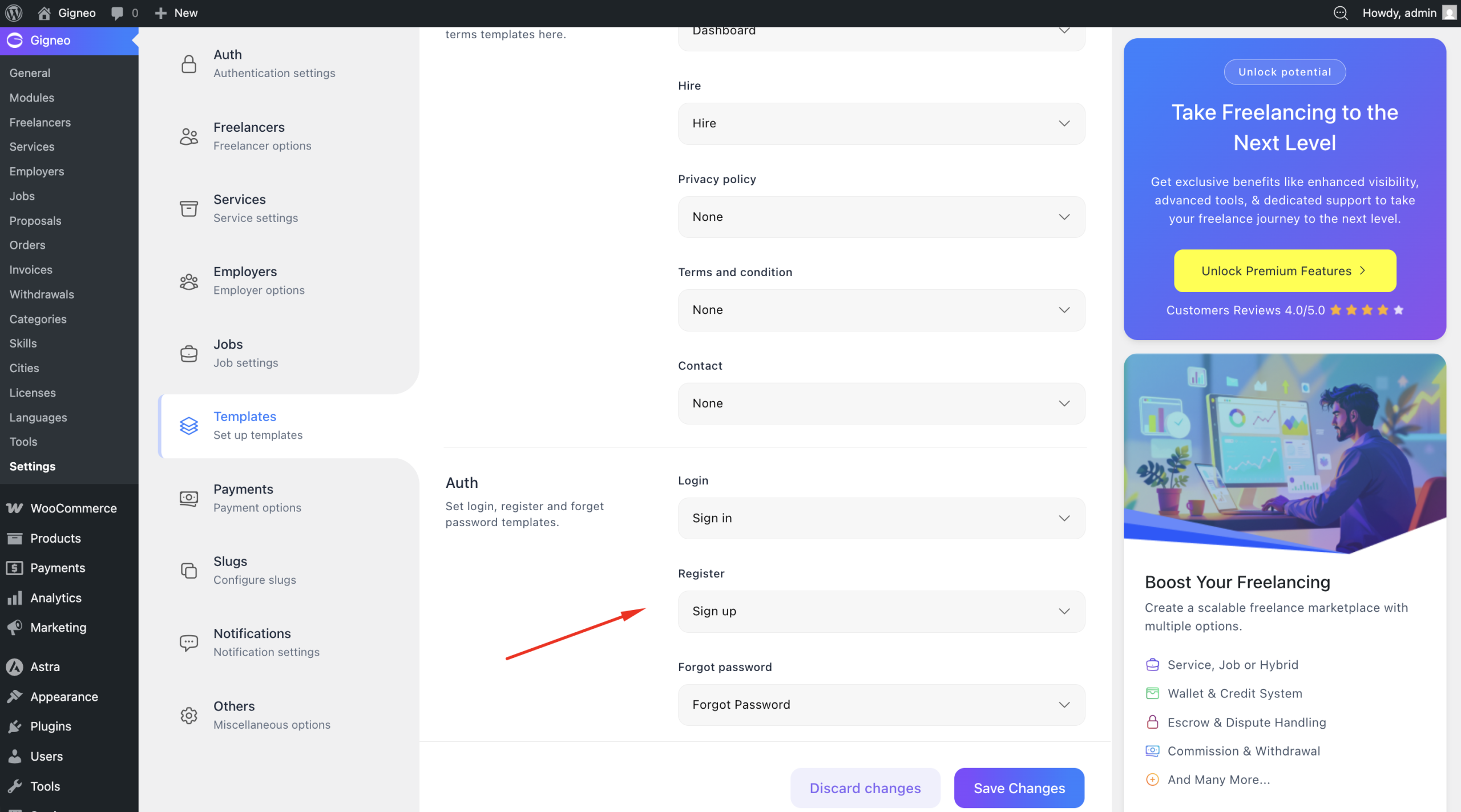
Once configured, users will be redirected to the assigned authentication pages for account access.
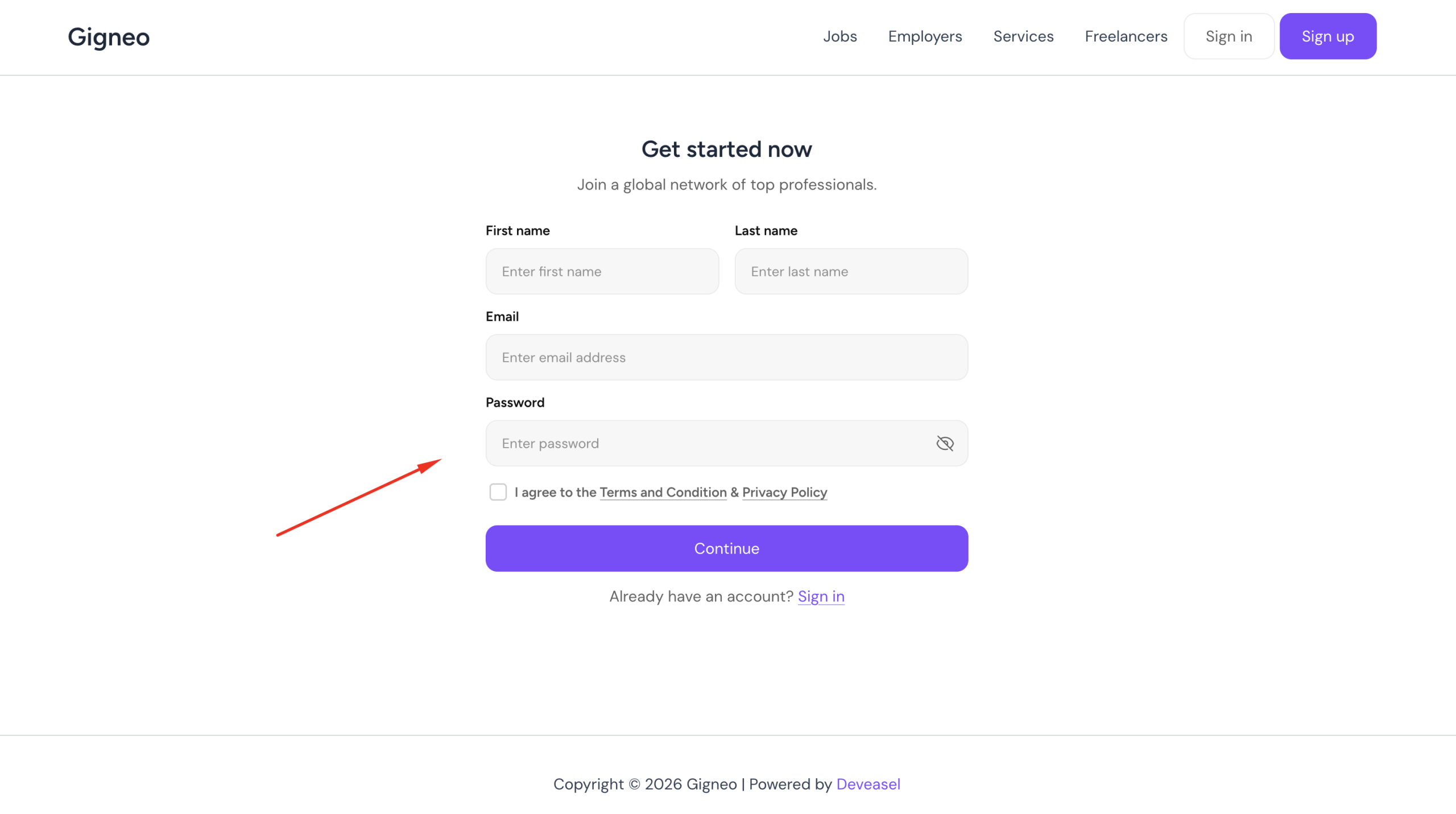
Registration Settings
The Auth Settings section also gives you control over registration behavior.
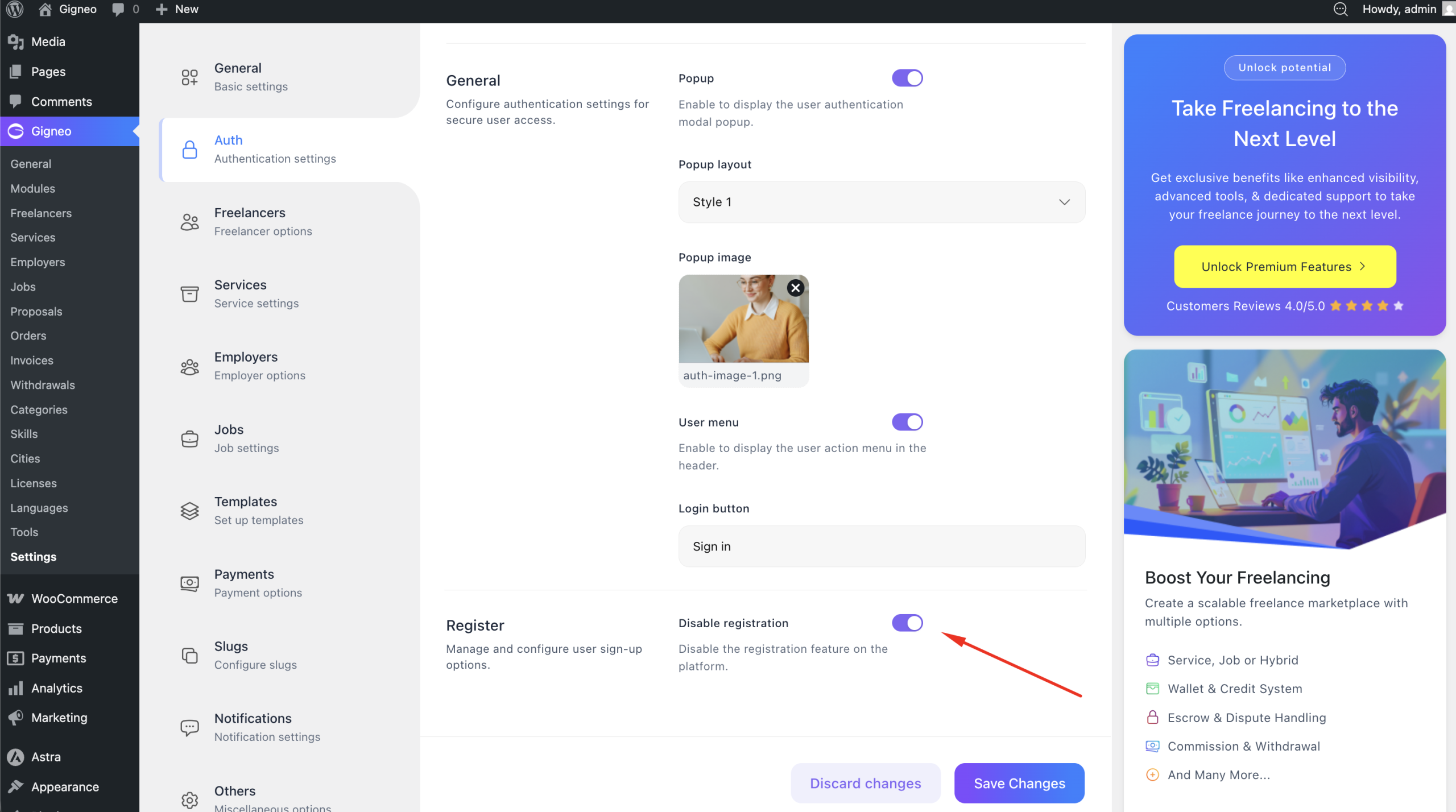
You can enable or disable user registration depending on whether your marketplace allows public account creation.
If registration is disabled, new users will not be able to create accounts through the website.
You can also enable or disable role selection during registration.
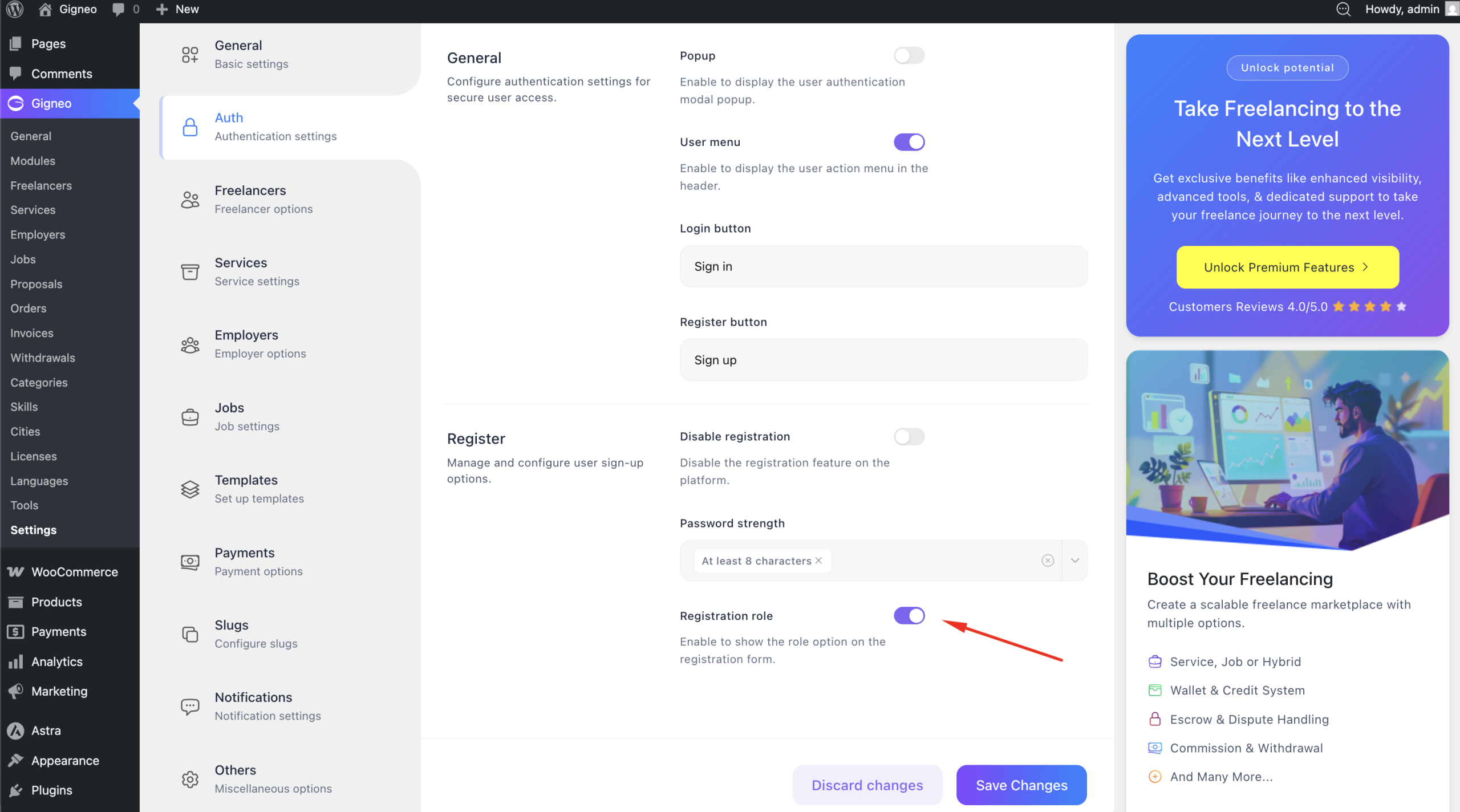
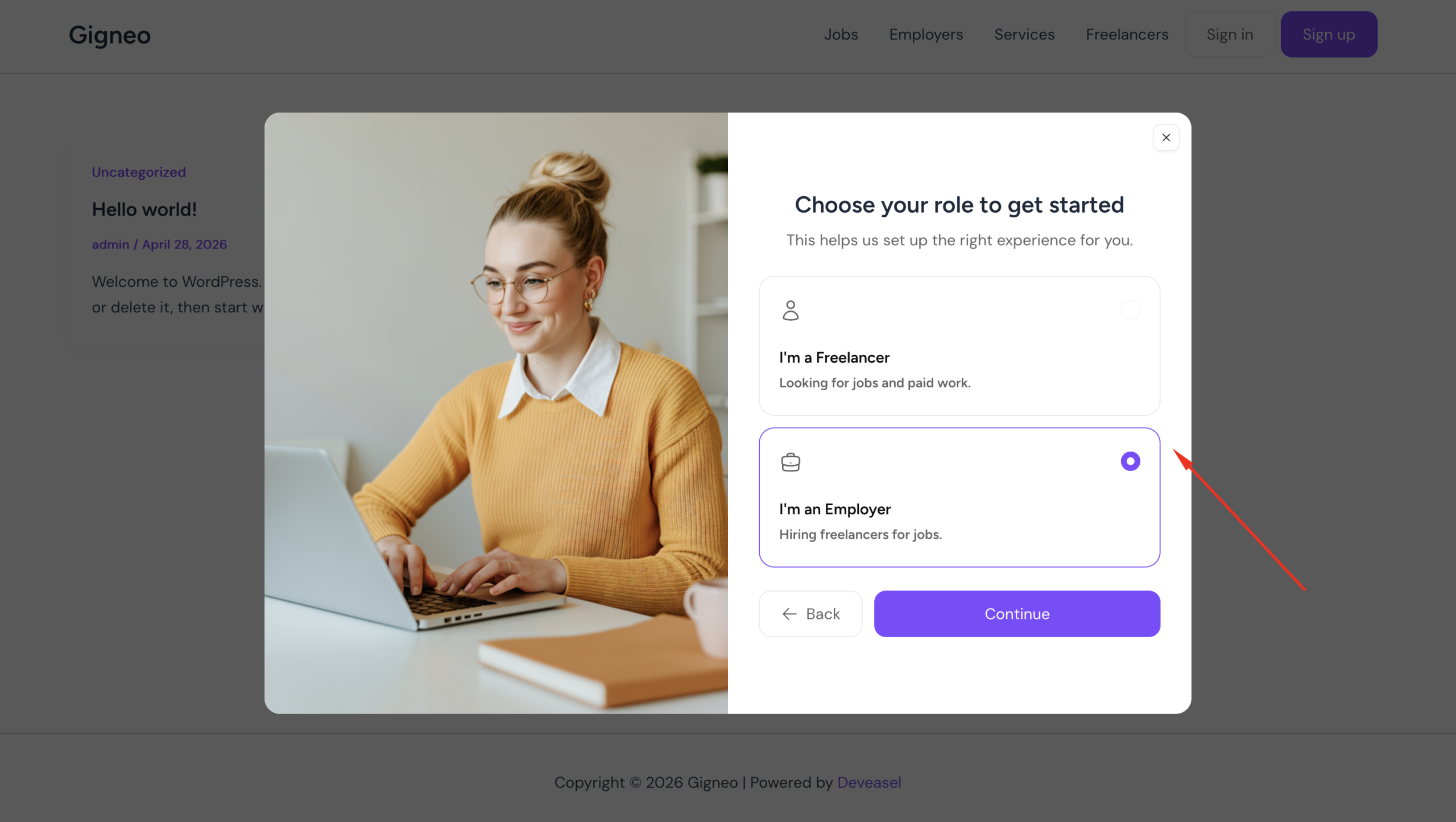
When enabled, users can choose their account role during signup.
When disabled, users will automatically register under the default role configured for the platform.
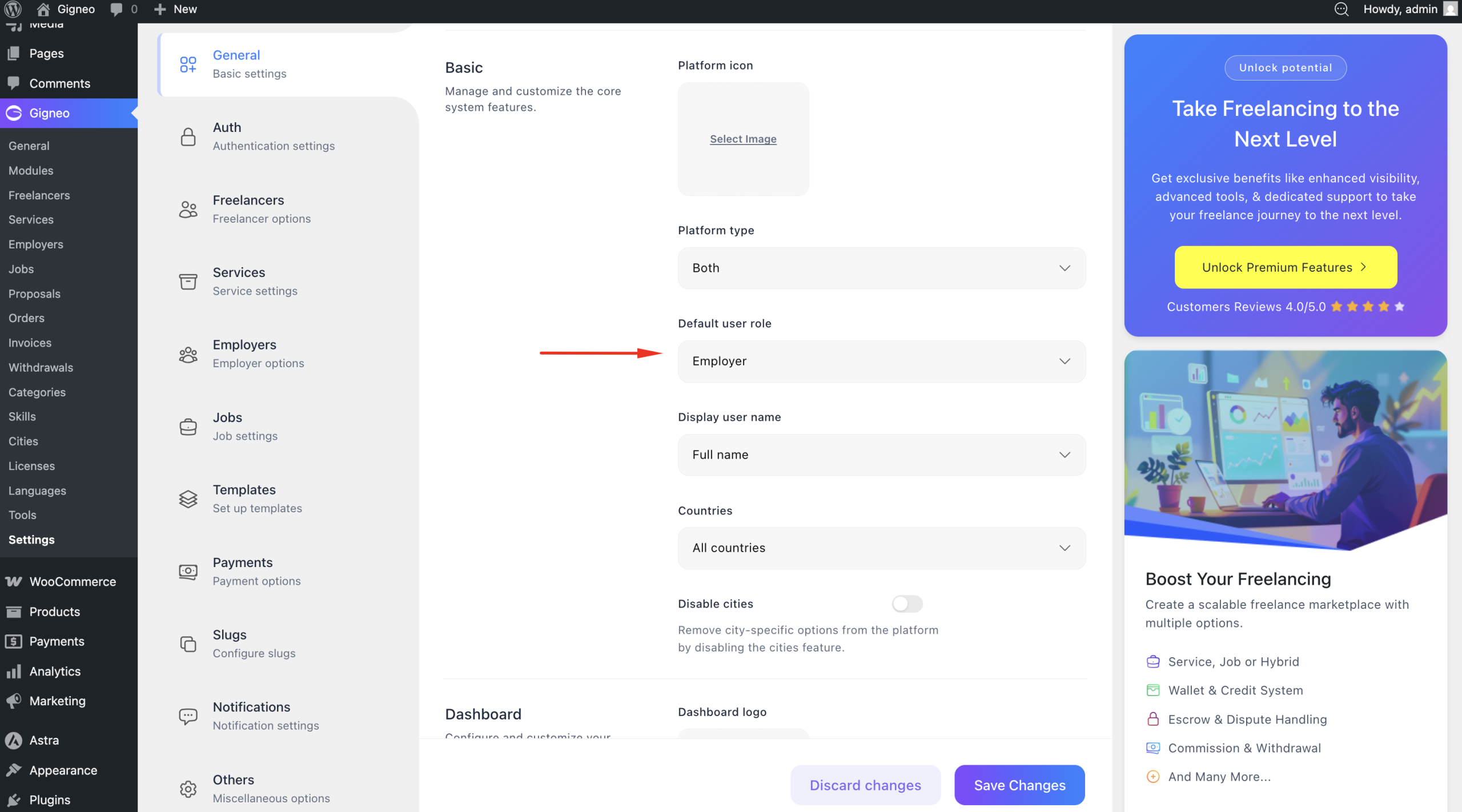
This is particularly useful for controlled marketplace structures such as one-to-many or many-to-one systems.