
Installing Gigneo – Multipurpose Freelance Service Marketplace Builder is simple and can be completed using either the WordPress plugin library or by manually uploading the plugin ZIP file.
Before installing Gigneo, you must first install and activate WooCommerce, as Gigneo depends on it for payment processing, order management, and core marketplace transaction functionality.
Without WooCommerce activated, Gigneo will not function correctly.
System Requirements
Before using Gigneo, make sure your website meets the following system requirements:
PHP Version: 7.0 or higher
MySQL Version: 5.0 or higher
Required Plugin: WooCommerce
WooCommerce must be installed and activated before using Gigneo.
Installing WooCommerce
Log in to your WordPress admin dashboard and navigate to Plugins > Add New.
Search for WooCommerce in the WordPress plugin library.
Click Install Now, then click Activate once installation is complete.
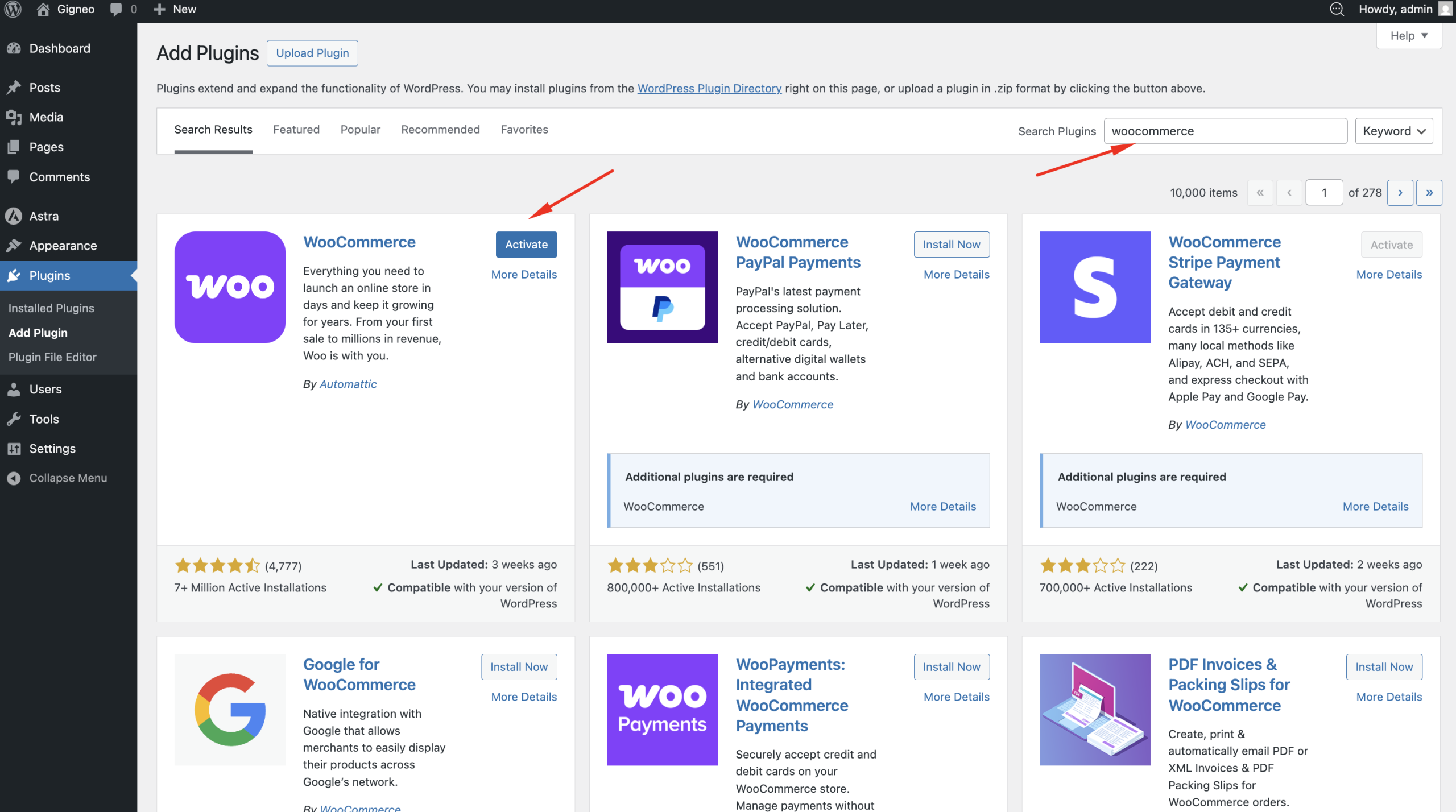
After activation, WooCommerce may launch its setup wizard. You can complete the basic setup or configure it later.
Install Gigneo
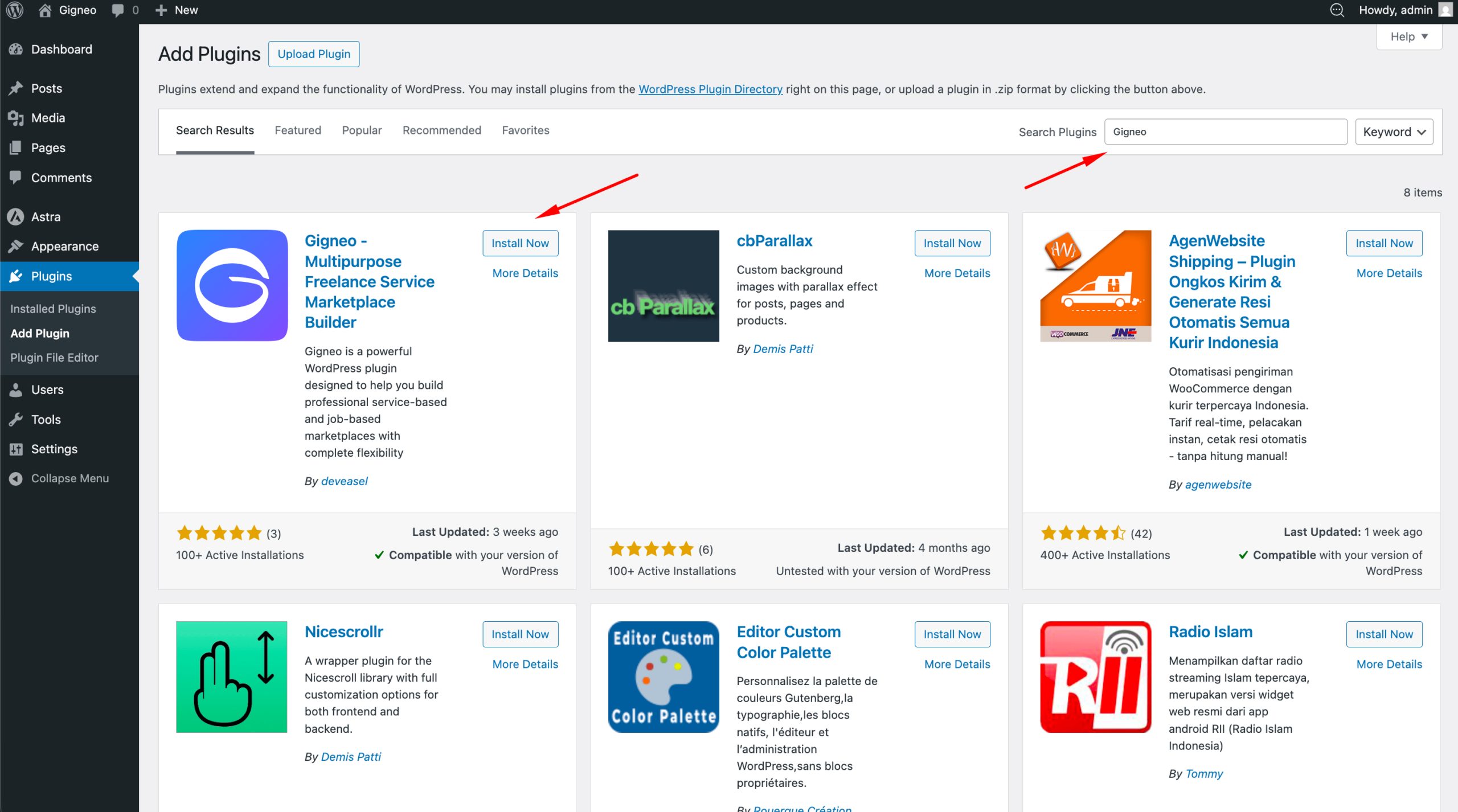
Once WooCommerce is active, navigate to Plugins > Add New.
Search for Gigneo in the WordPress plugin library.
Click Install Now and wait for WordPress to complete the installation.
Once installed, click Activate.
Install Gigneo Manually
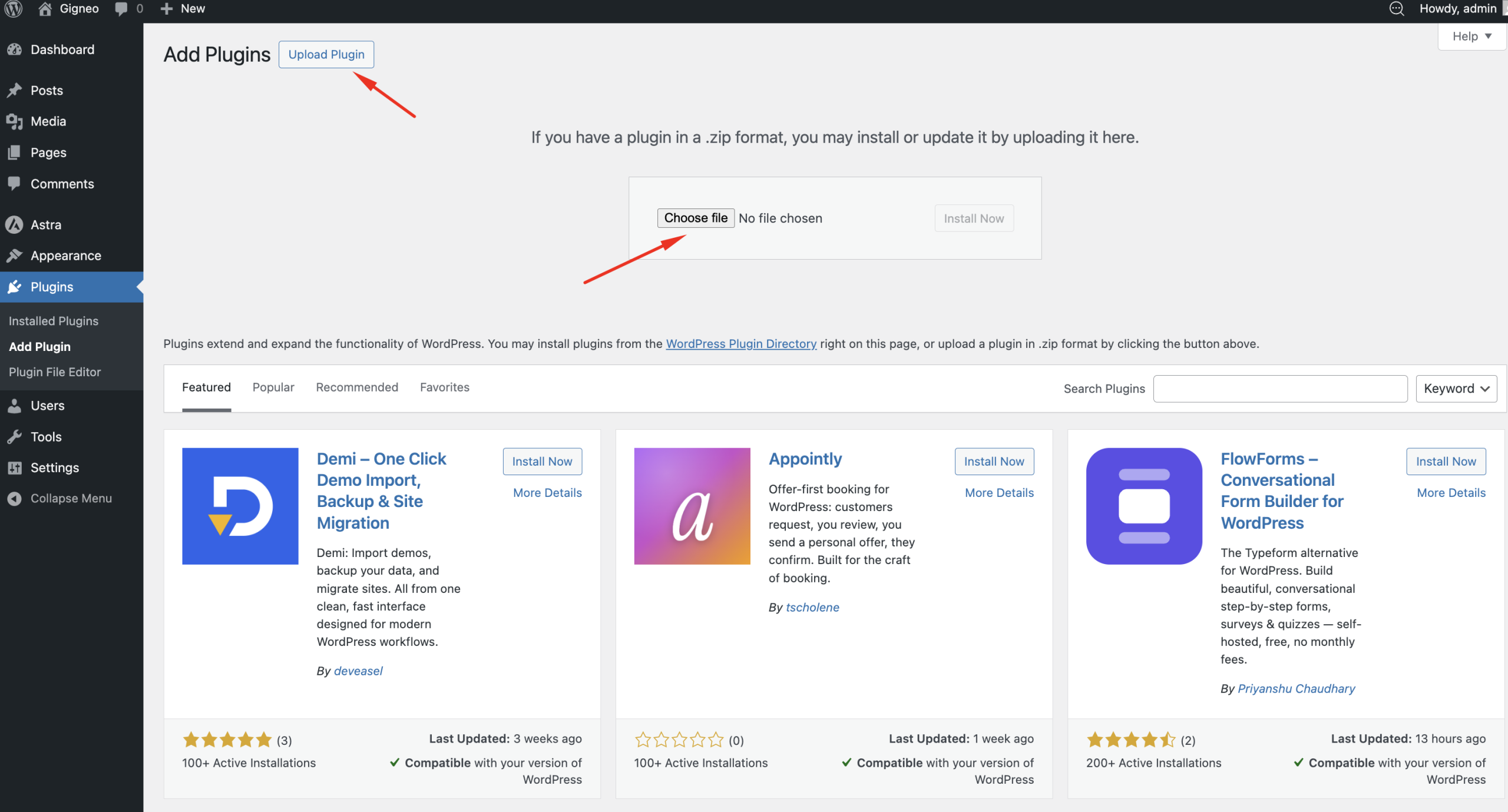
If you have downloaded the Gigneo plugin ZIP file manually, you can install it by uploading it through your WordPress dashboard.
Navigate to Plugins > Add New Plugin, then click Upload Plugin at the top.
Select the Gigneo ZIP file from your computer.
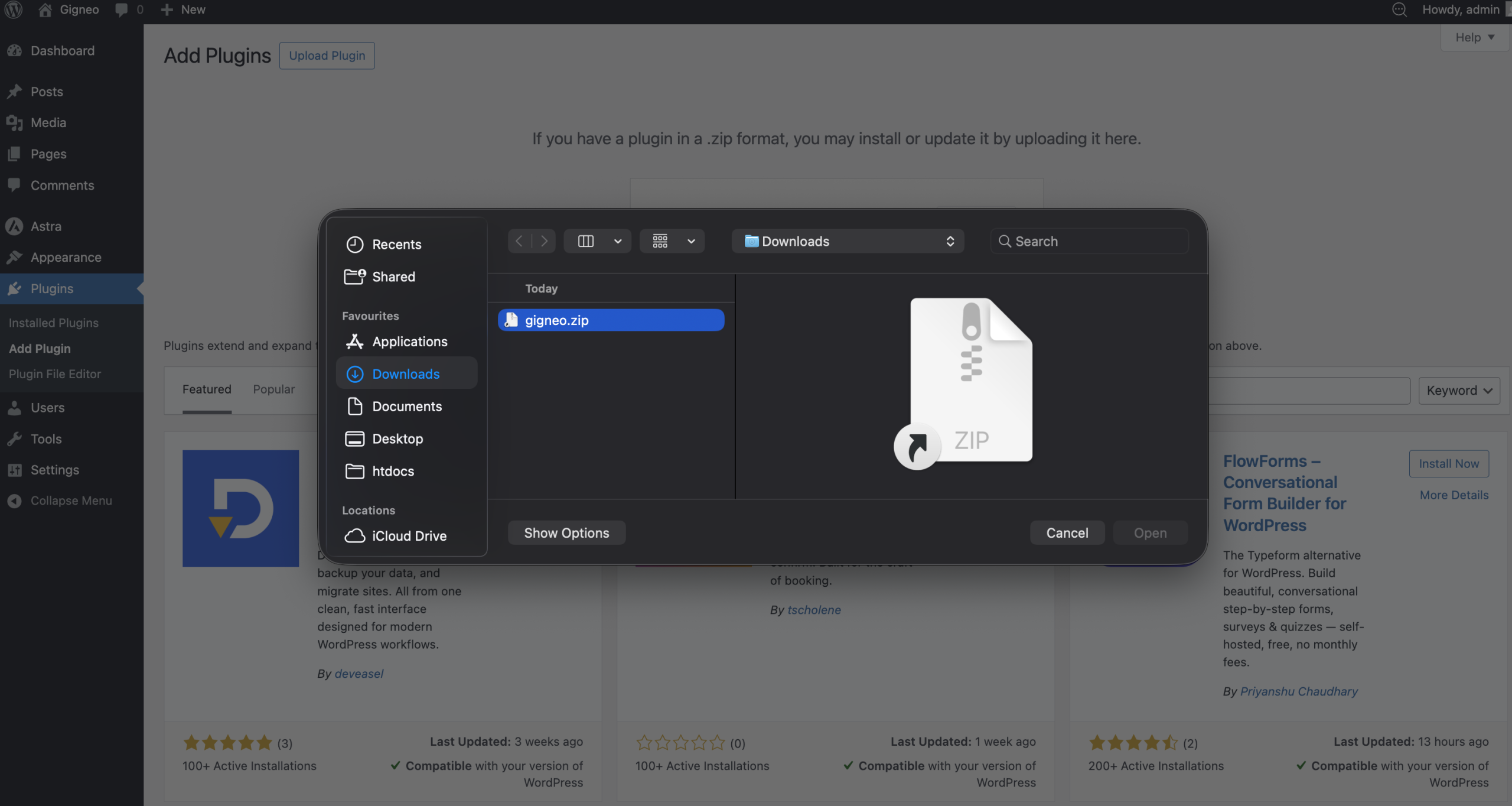
Click Install Now.
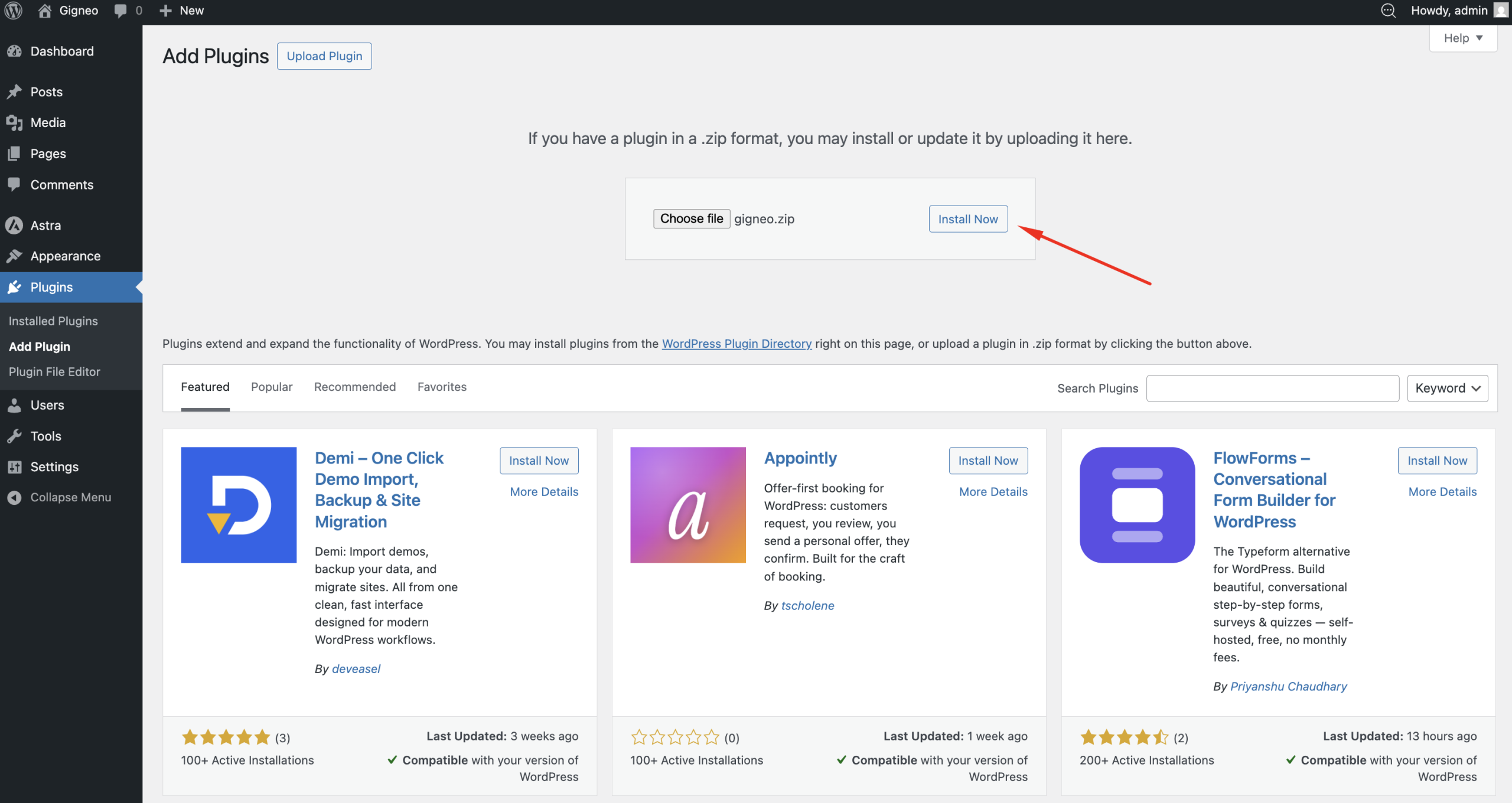
After installation is complete, click Activate Plugin.
After Activation
Once activated, the Gigneo menu will appear in your WordPress admin dashboard.
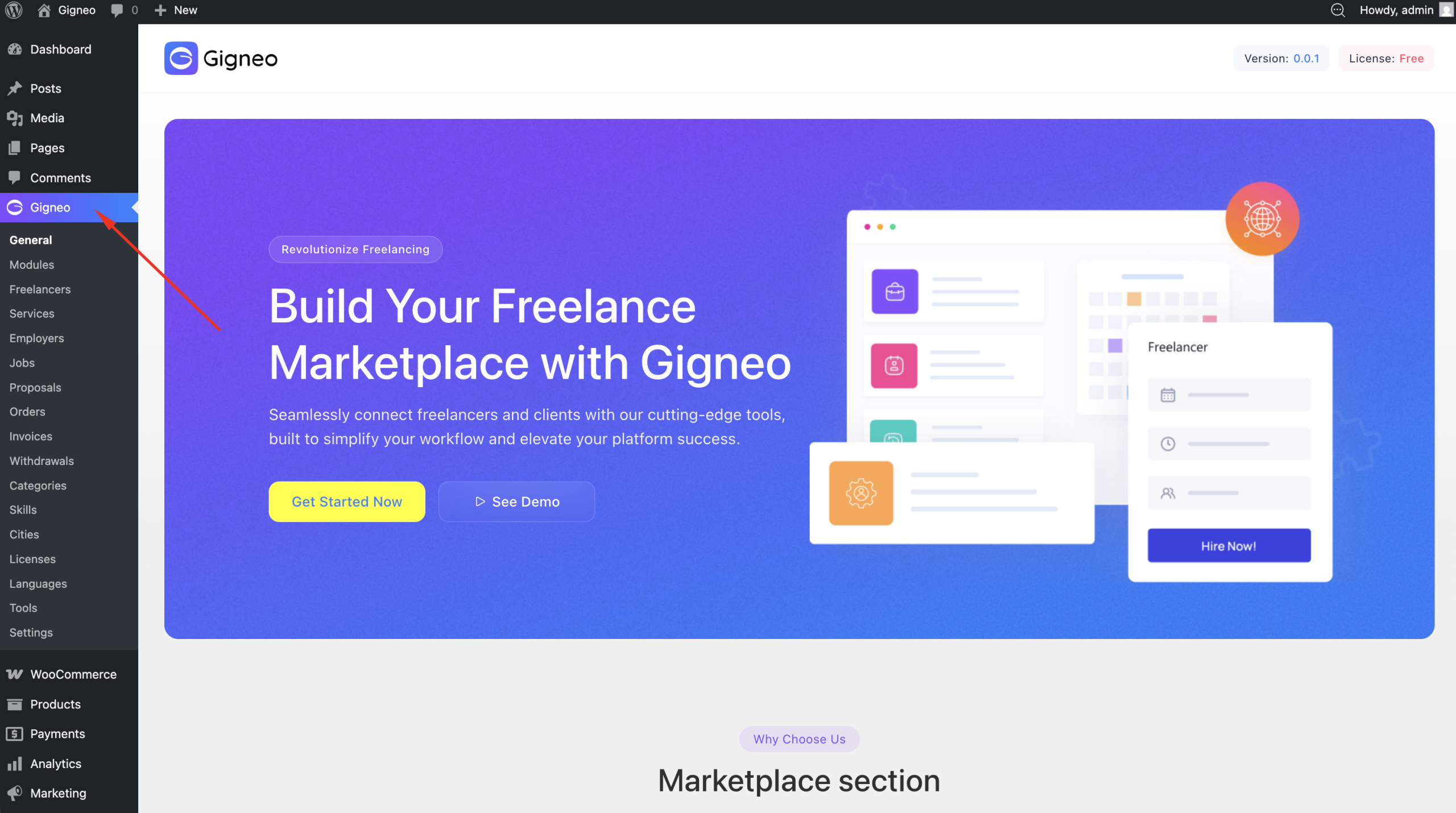
From there, you can begin configuring your marketplace settings and setting up your platform.
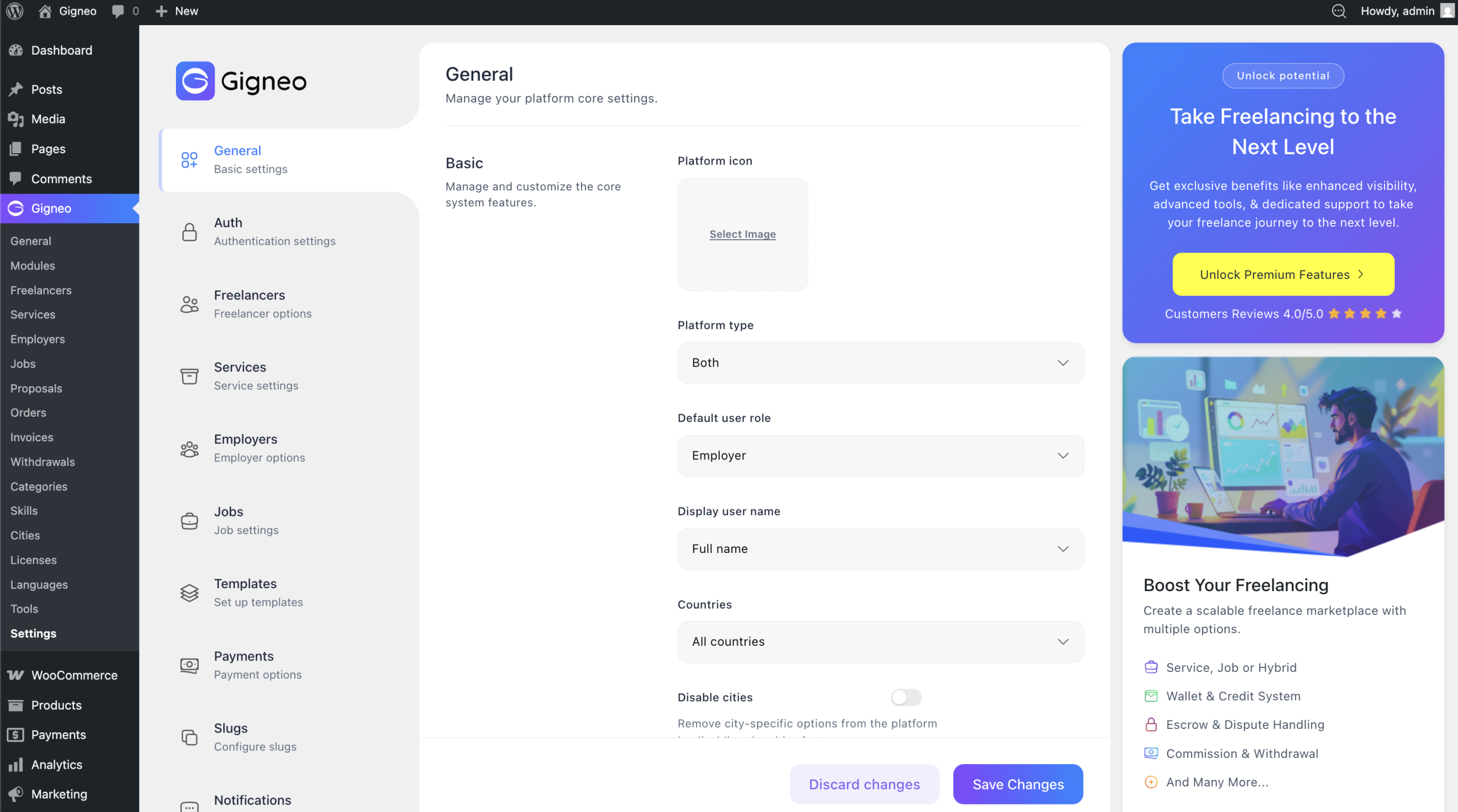
Next Step
After successfully installing Gigneo, you can continue with marketplace configuration and begin setting up your service-based or job-based platform.