
The wallet system in Gigneo allows users to add funds to their account and use their wallet balance for transactions across the marketplace.
Wallet funds can be used throughout the platform for marketplace activities such as hiring services, posting jobs, purchasing credits, and other supported transactions depending on your marketplace configuration.
Before using the wallet system, make sure the wallet product is properly configured in Gigneo → Settings → Payments.
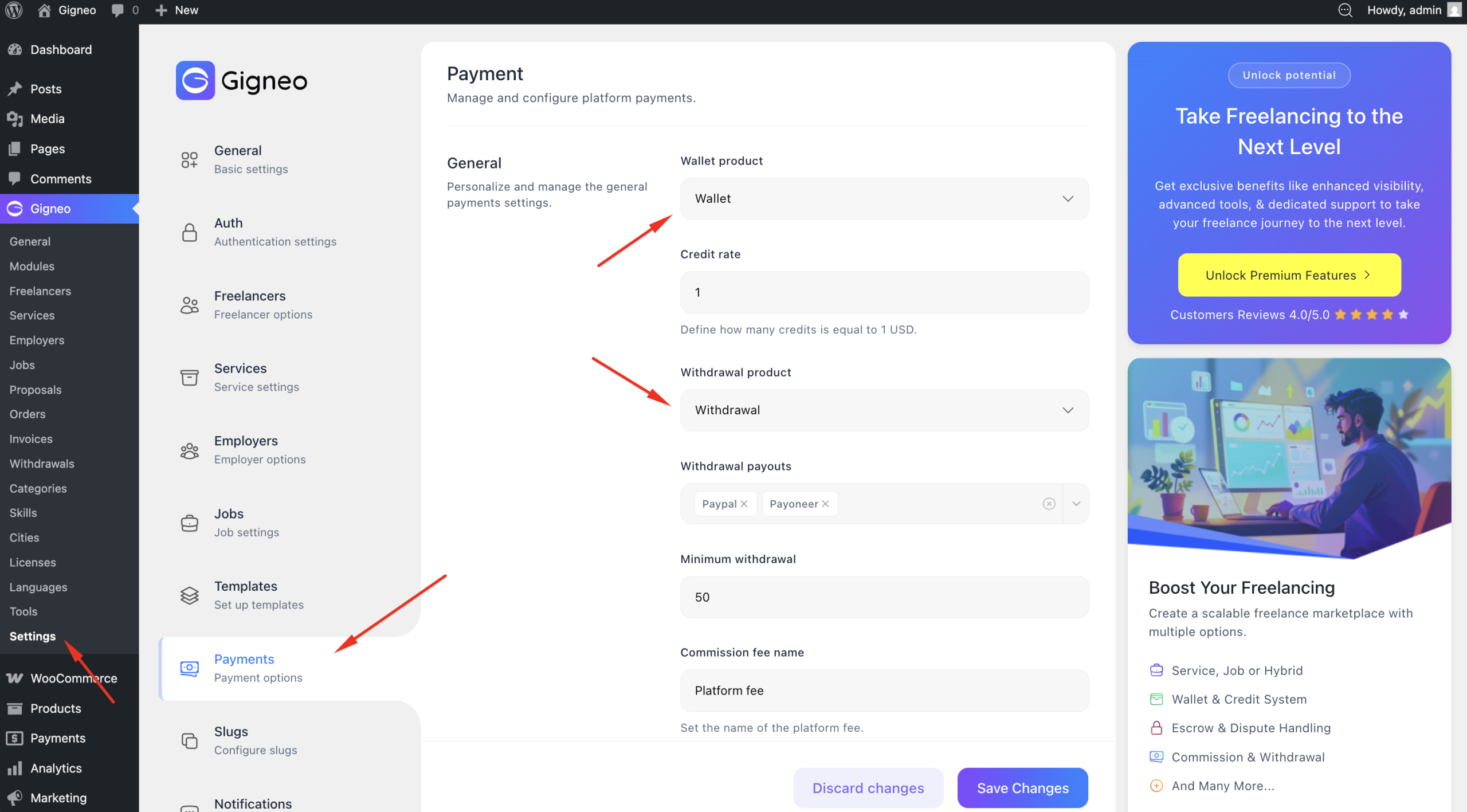
If the wallet product has not been configured yet, please review the Configuration guide to complete the required wallet product setup.
Adding Funds to Wallet
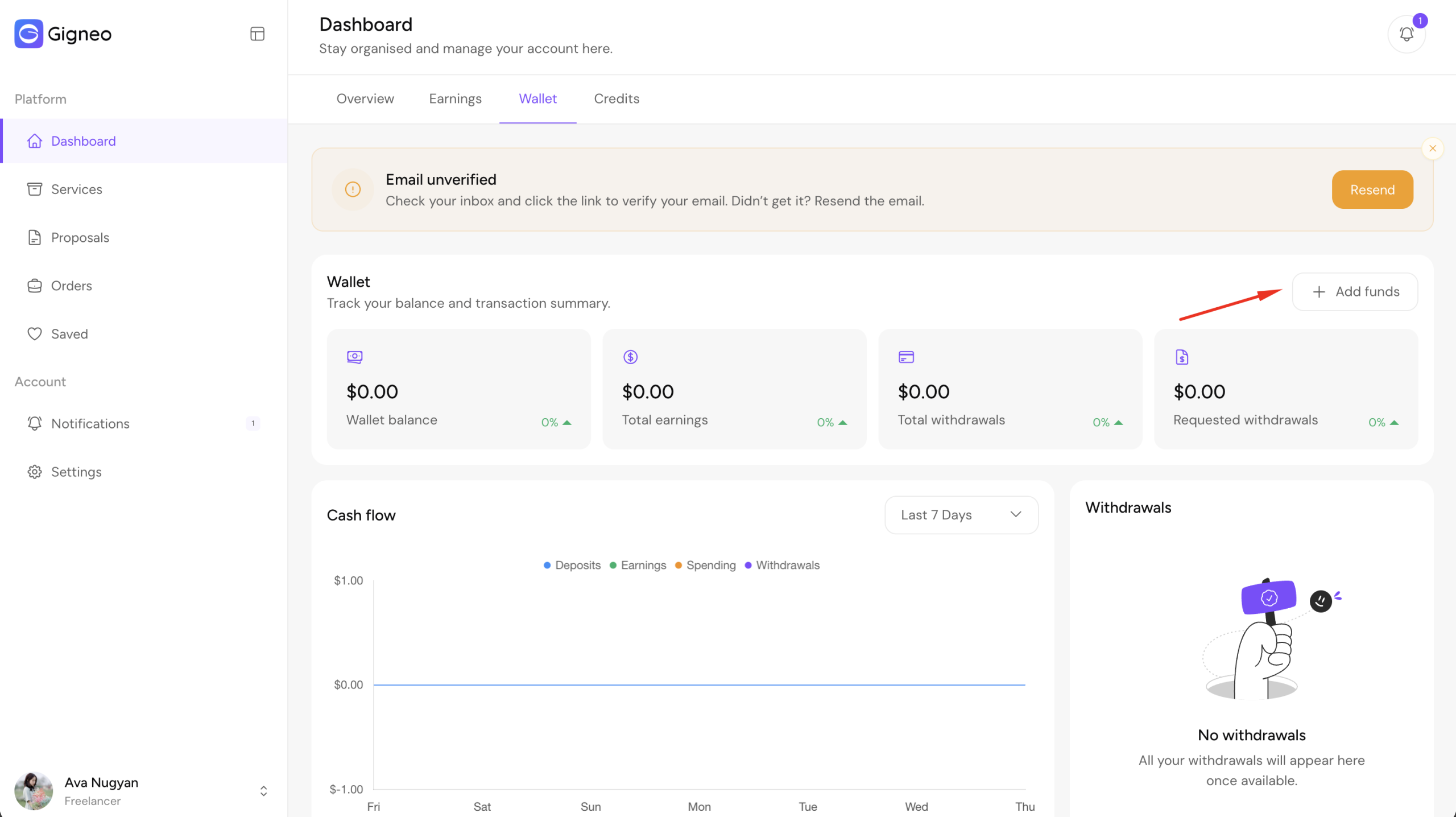
After logging in, users can access their wallet by navigating to Dashboard → Wallet.
From the wallet page, click the Add Funds button.
This will open a fund deposit modal where users can enter the amount they want to add to their wallet.
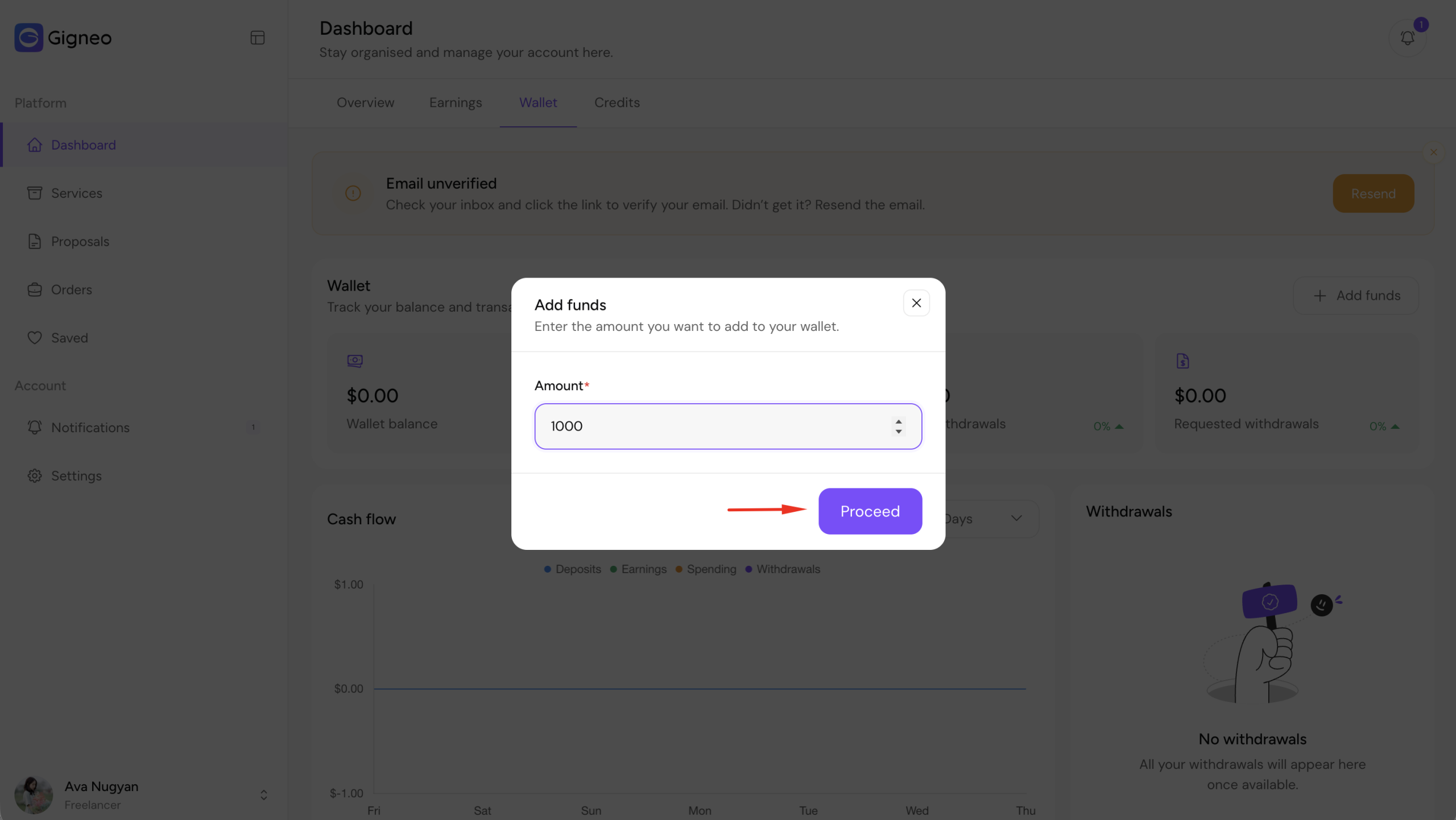
After entering the desired amount, the user will be redirected to the WooCommerce checkout page.
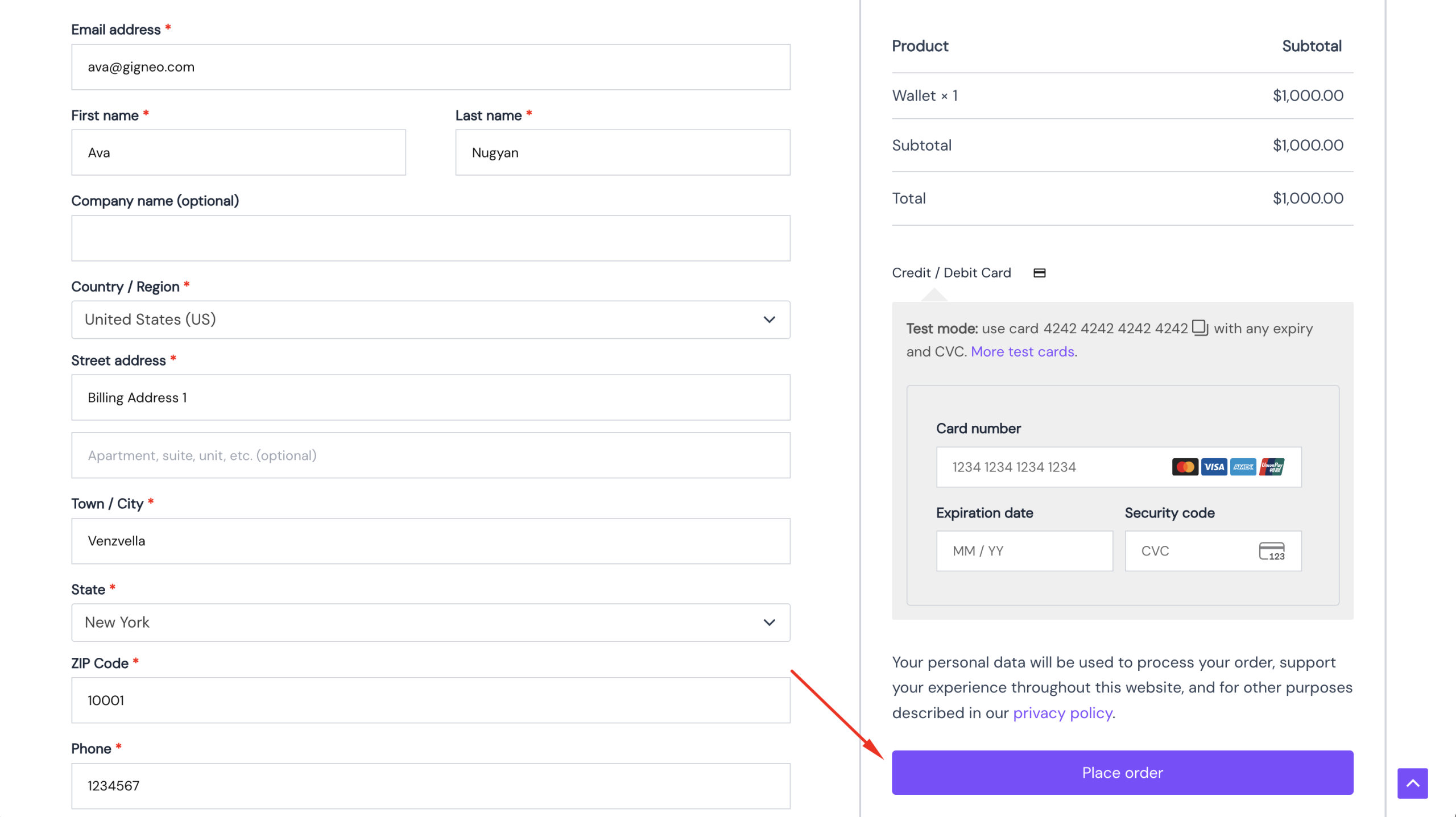
Complete Payment
At checkout, users can complete the payment using any enabled payment method configured on the platform.
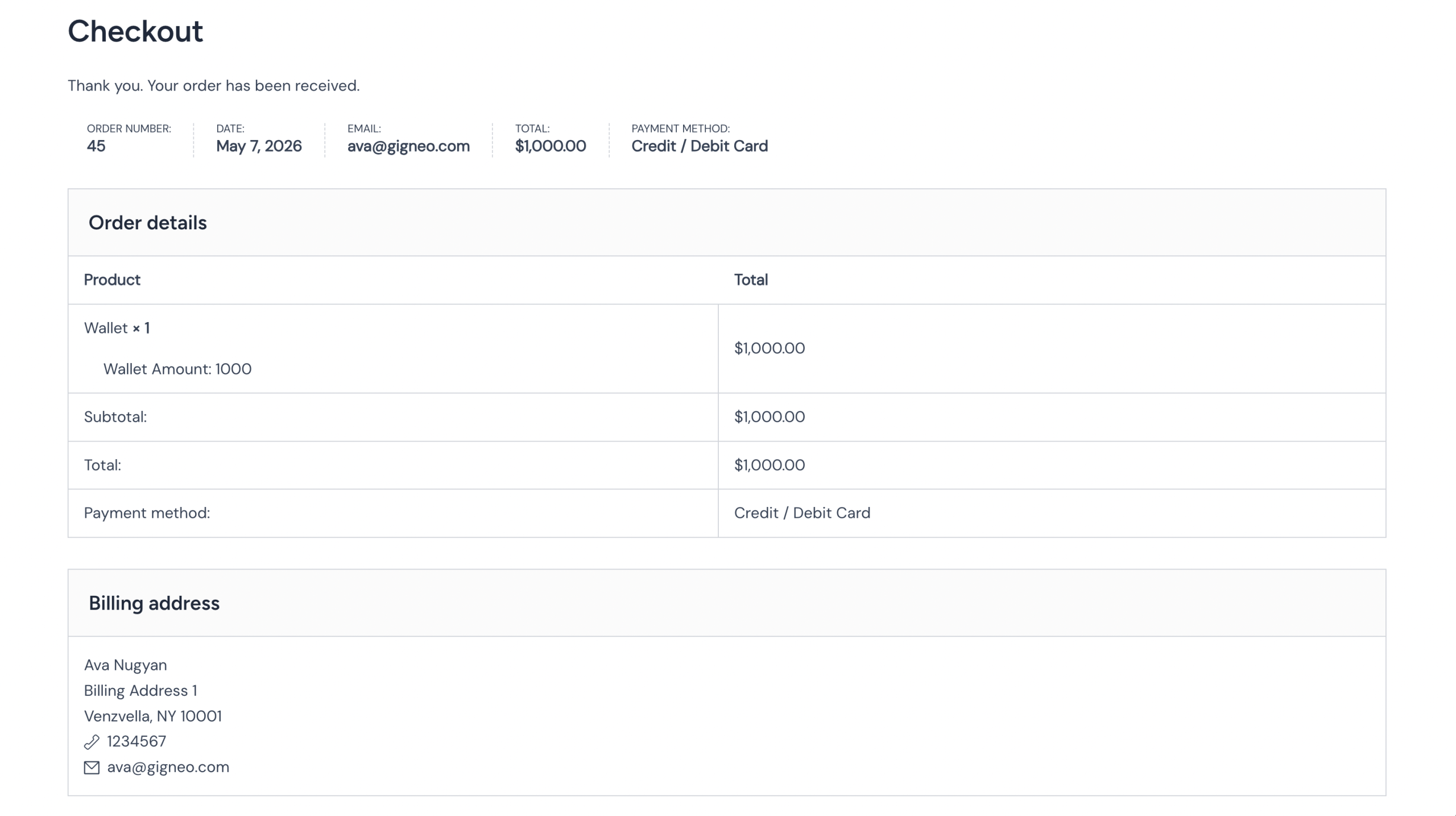
Once the payment is completed successfully, the deposited amount will automatically be added to the user’s wallet balance.
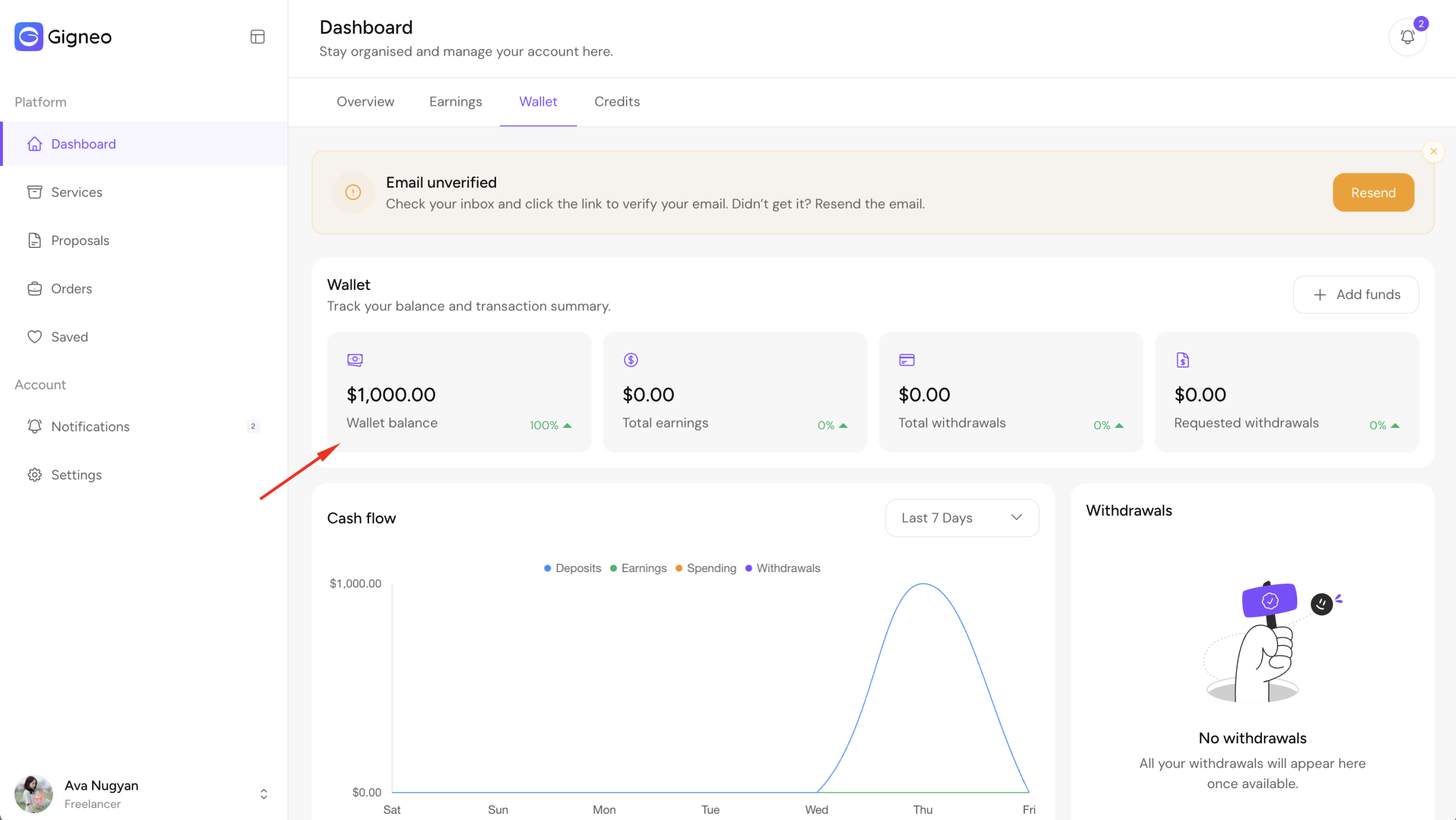
The updated balance will then be available for use across marketplace transactions.
Offline Payment Methods
If your marketplace uses offline payment methods such as bank transfer, check payment, or other manual payment options, wallet funds will not be added automatically after checkout.
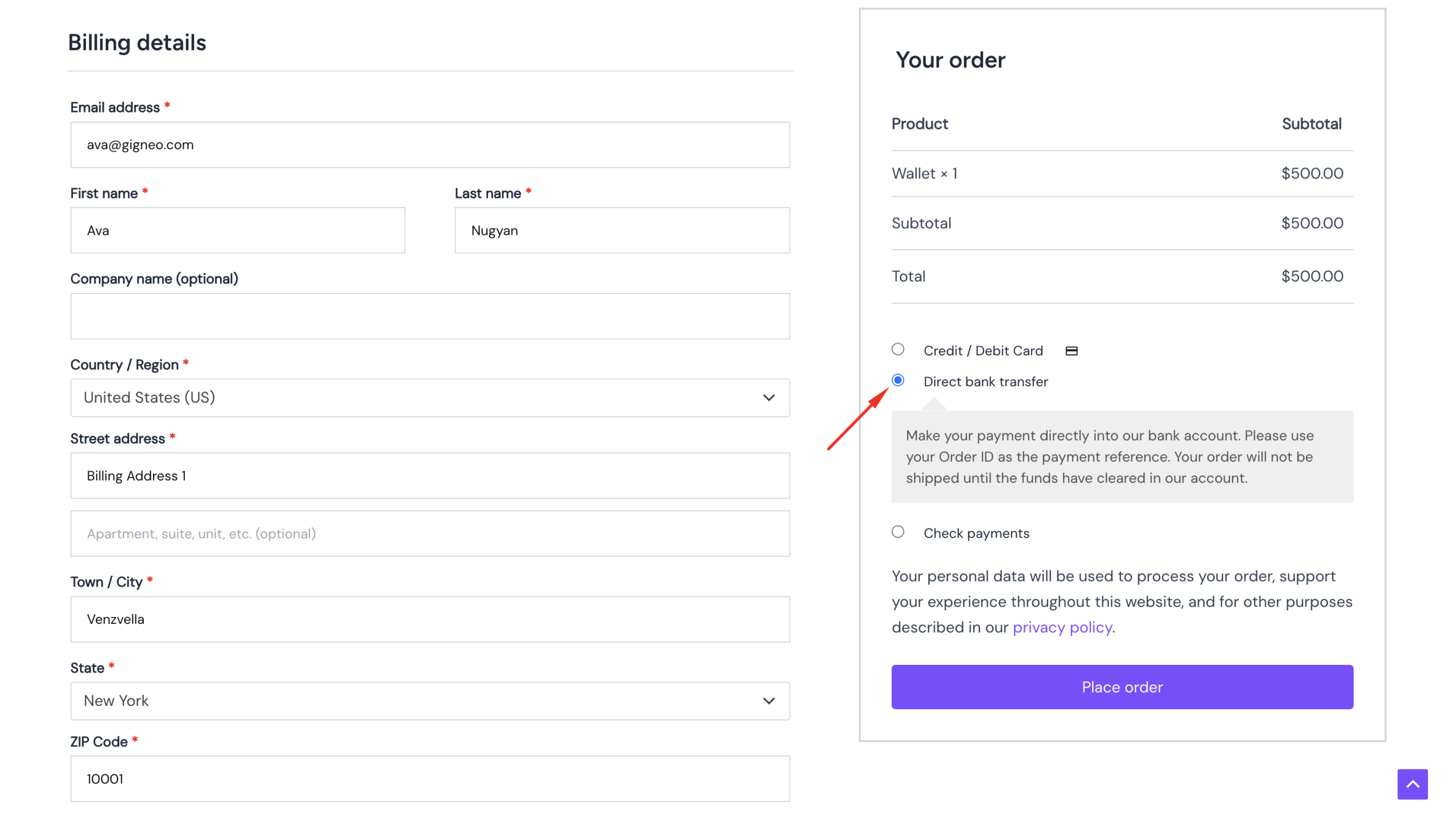
In this case, the marketplace administrator must manually verify the payment.
Once the payment is received, the administrator needs to navigate to the related WooCommerce -> Orders.
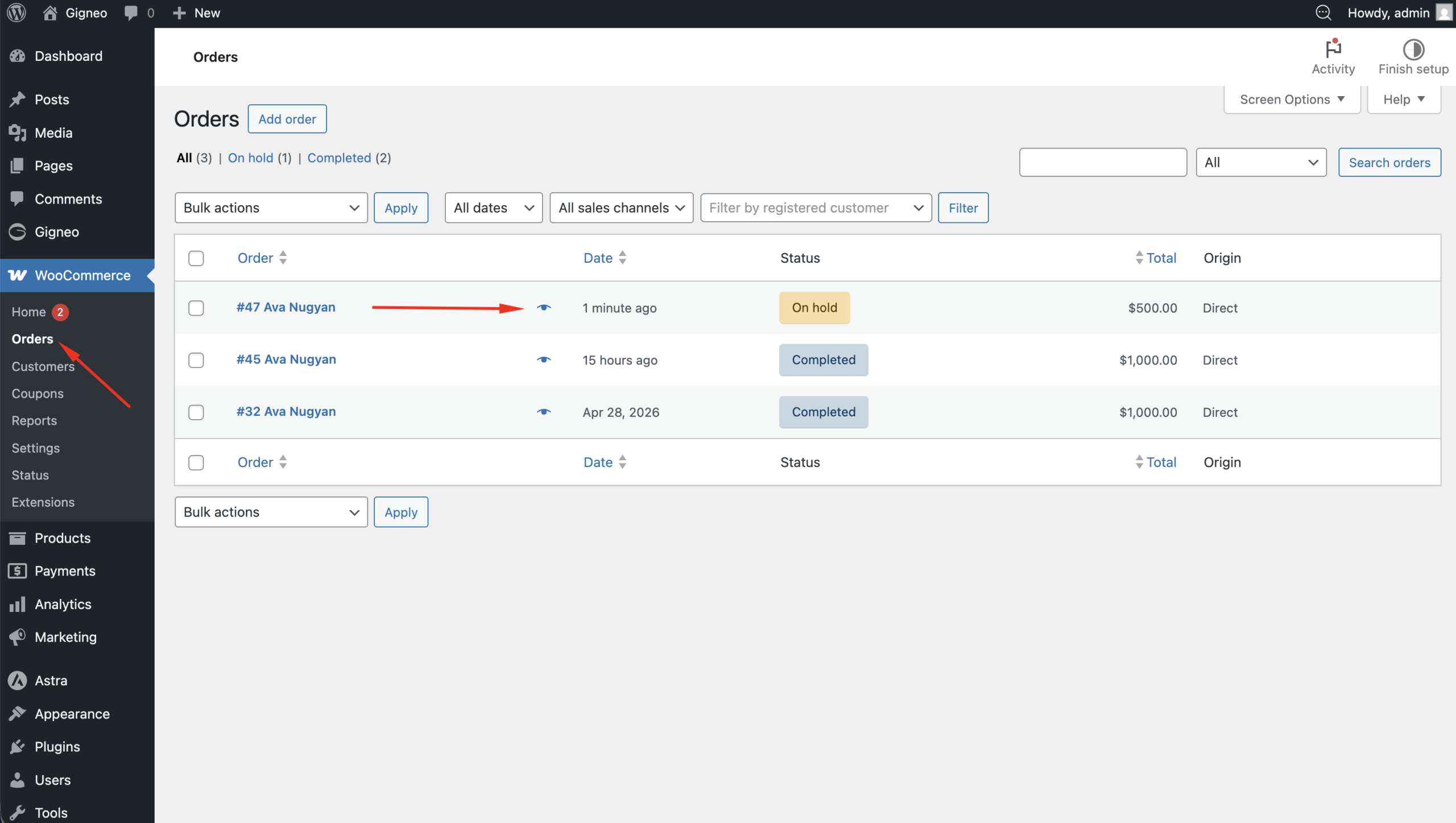
Update the order status to Completed.
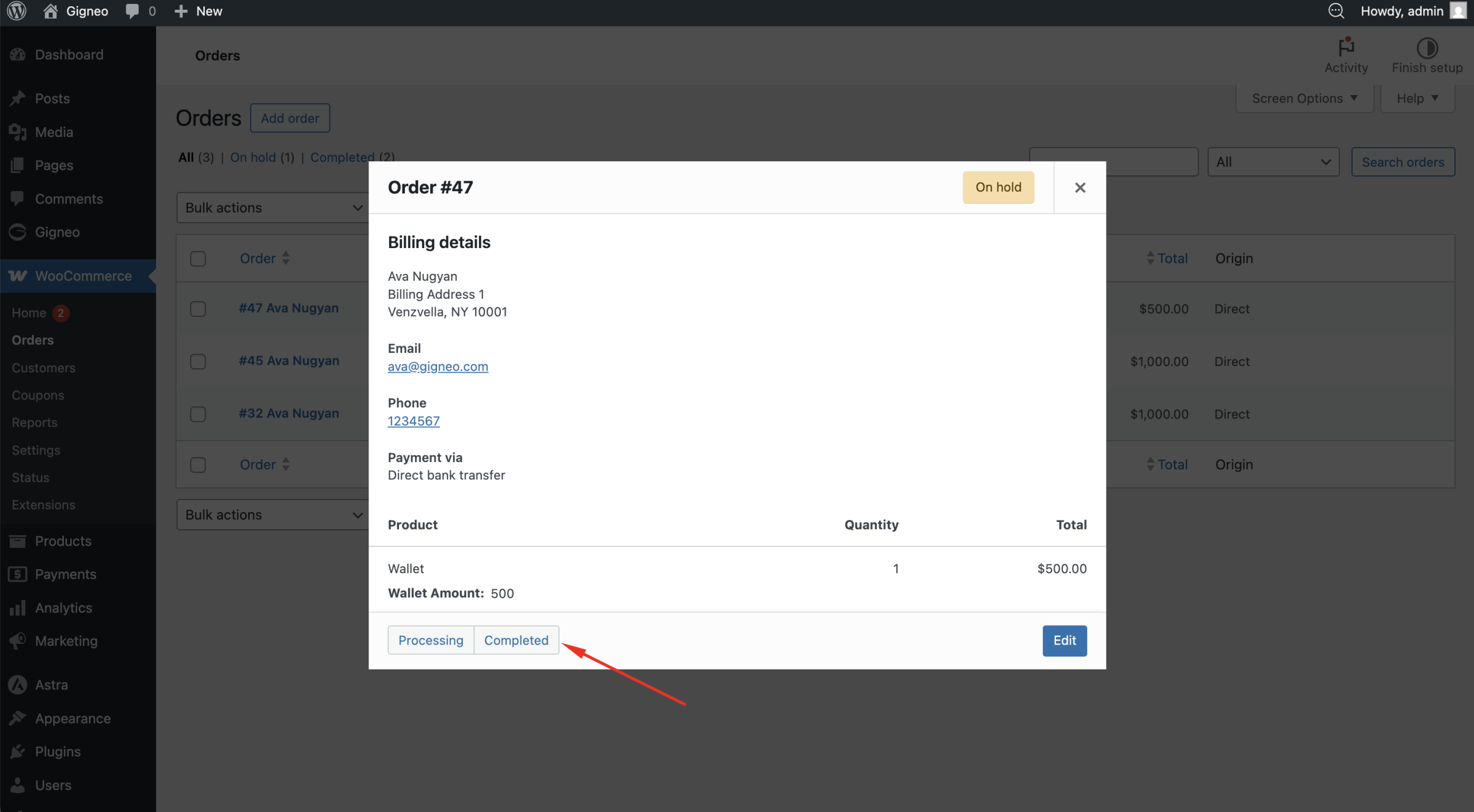
After the order is marked as completed, the wallet balance will be credited to the user’s account.
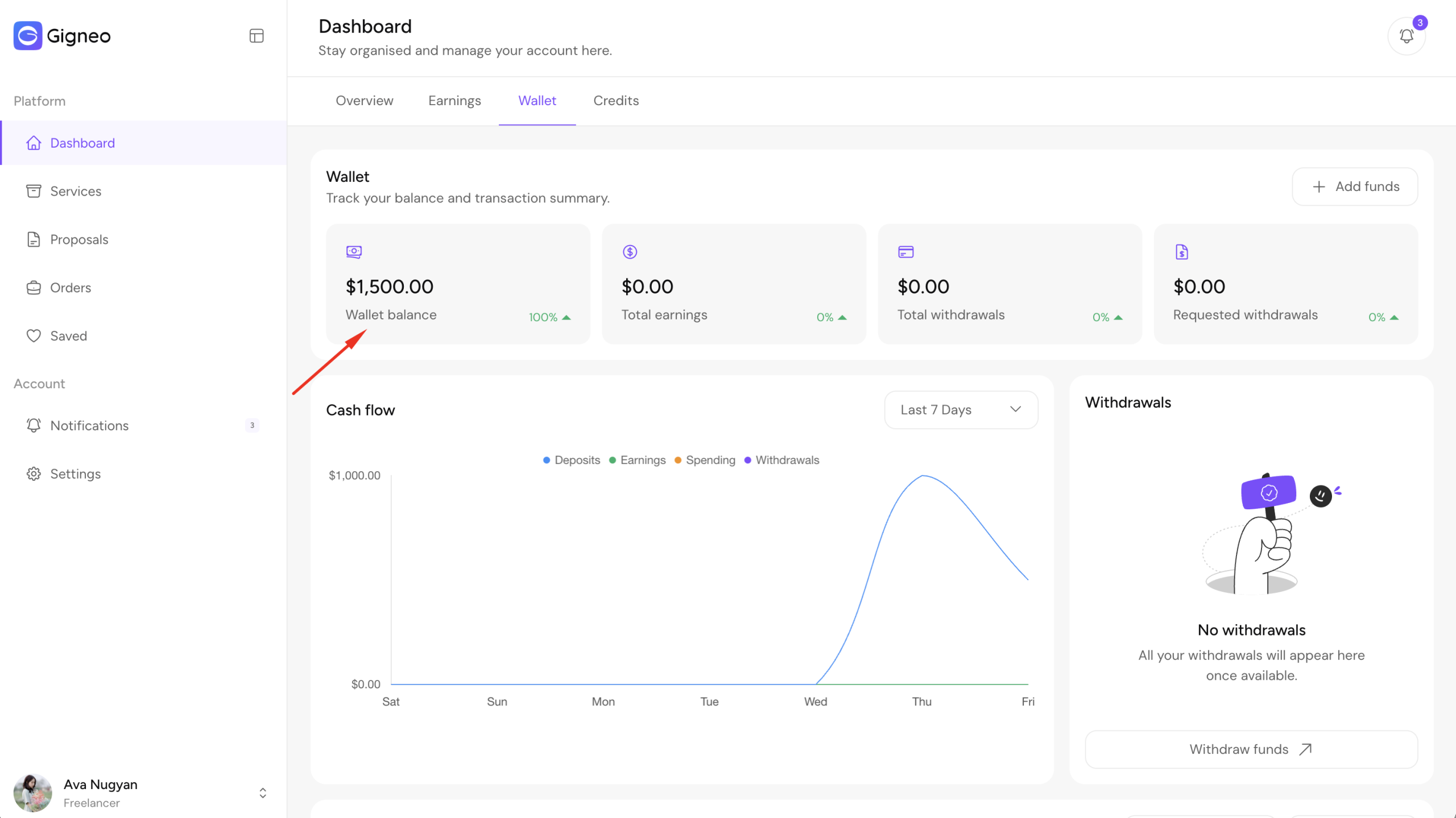
Once payment confirmation is completed, the wallet balance will be updated automatically and will be ready to use for marketplace transactions across the platform.
Users can also withdraw available funds from their wallet balance. For complete instructions on how the withdrawal process works, please refer to the dedicated Withdrawal System guide.