
The Vacation Mode module allows freelancers and employers to temporarily mark themselves as unavailable by scheduling vacation dates.
During the vacation period, a notice is displayed on their public profile, services, and jobs, informing visitors that they are currently away.
Users can also choose whether they want to continue accepting new orders while on vacation.
This is a Gigneo Pro module and requires a minimum Business License or higher.
Enable the Module
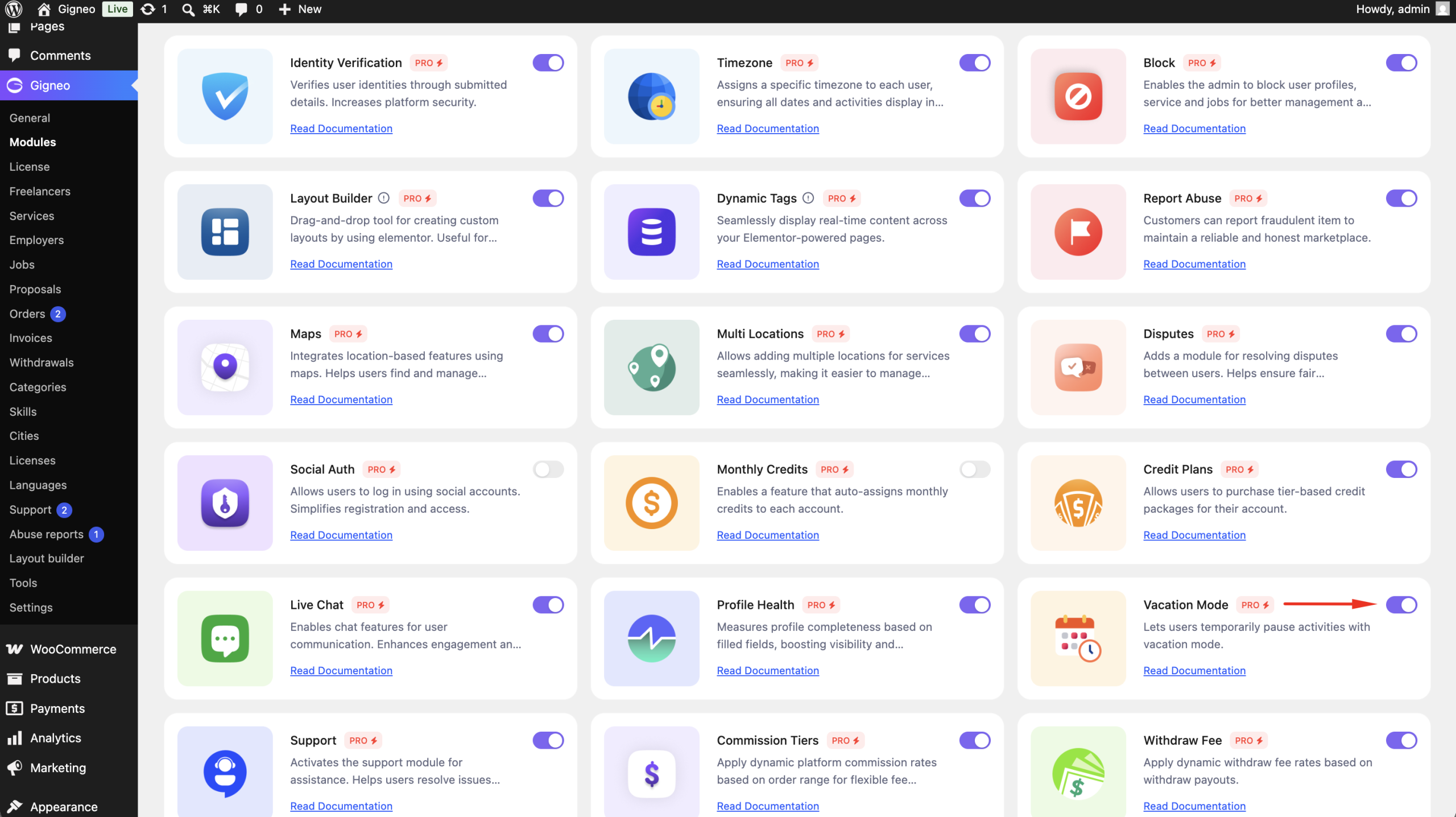
Before using the Vacation Mode module, make sure your Gigneo Pro license is activated.
Navigate to:
WP Admin → Gigneo → Modules
Enable the Vacation Mode module.
Configure Vacation
Freelancers and employers can manage their vacation settings by navigating to:
Dashboard → Settings → Vacation Mode
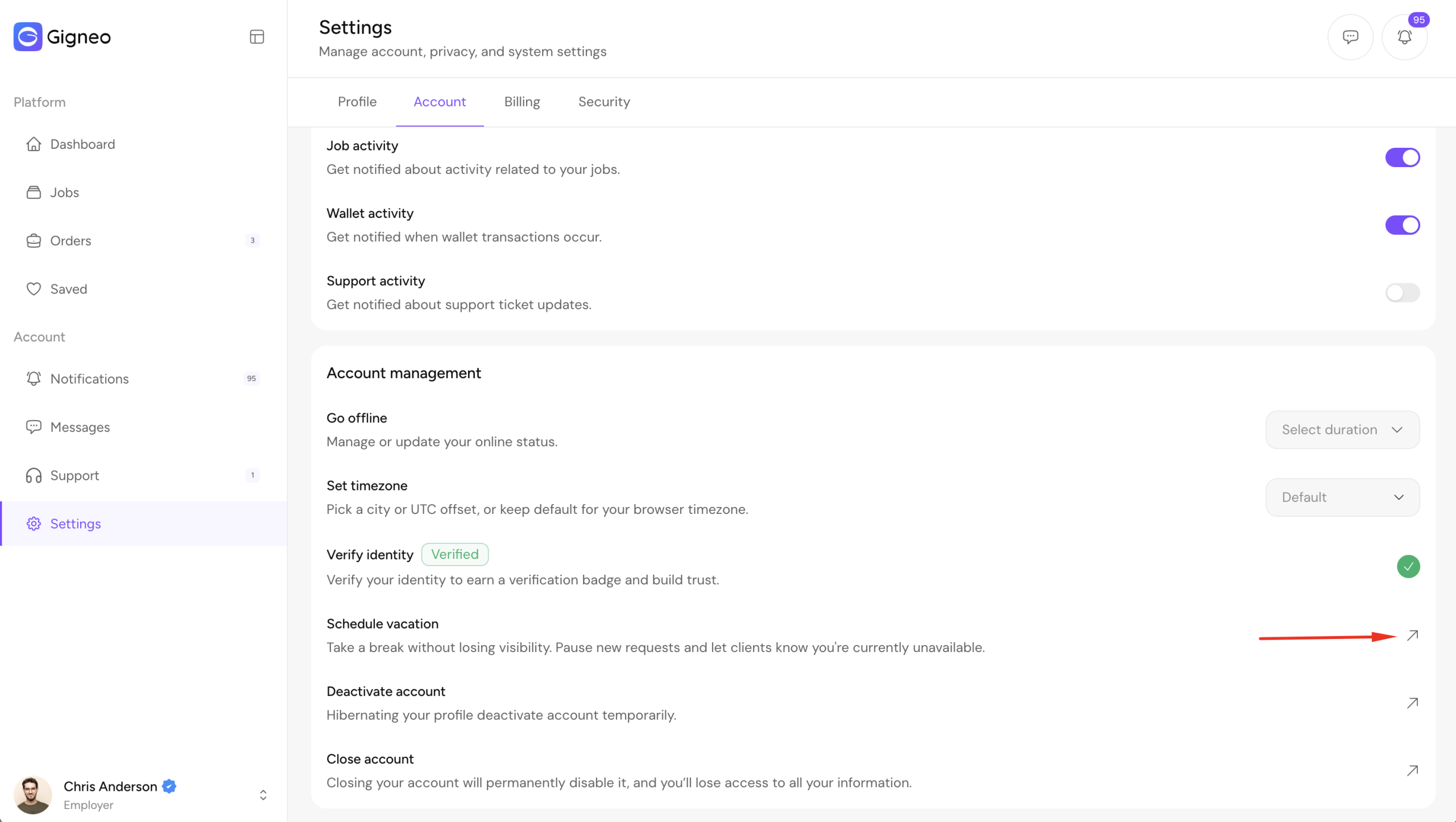
From here, users can configure:
- Vacation duration
- Vacation details
- Accept orders during vacation (Yes/No).
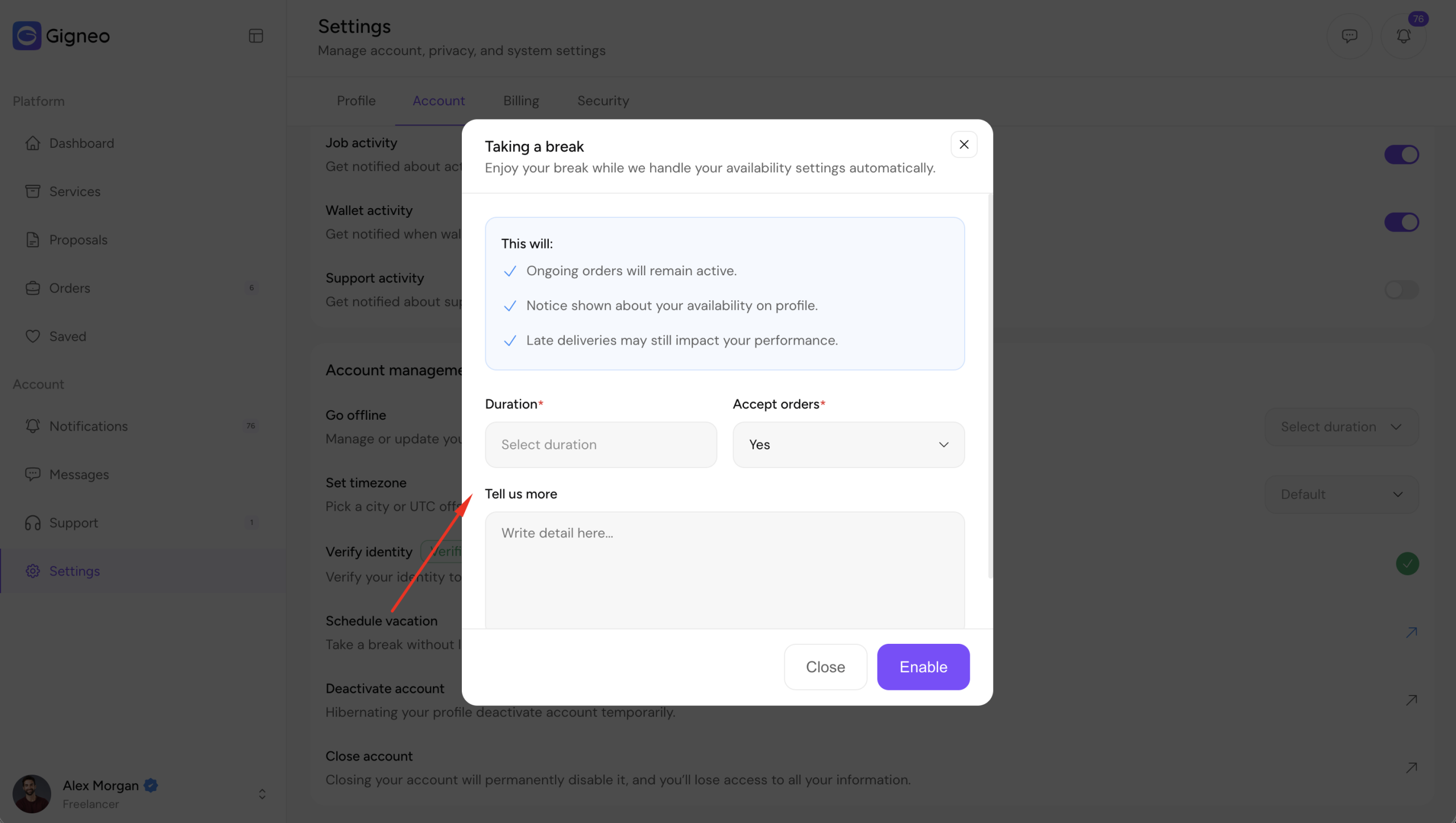
After saving the settings, Vacation Mode will automatically become active during the selected date range.
Vacation Notice
While Vacation Mode is active, a notice is automatically displayed on the user’s:
- Freelancer Profile
- Employer Profile
- Service Pages
- Job Listings
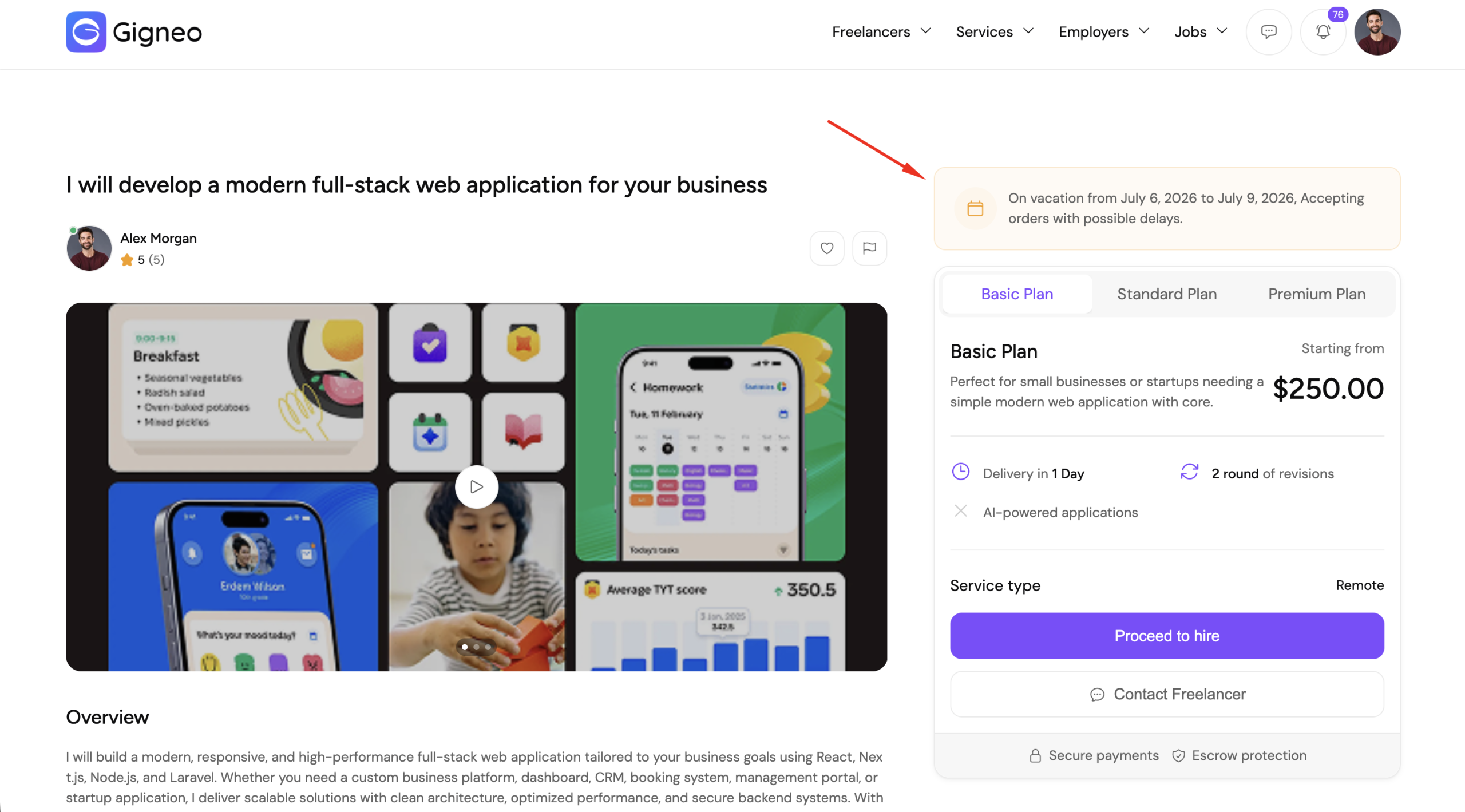
The notice includes the configured vacation message and informs visitors that the user is currently unavailable.
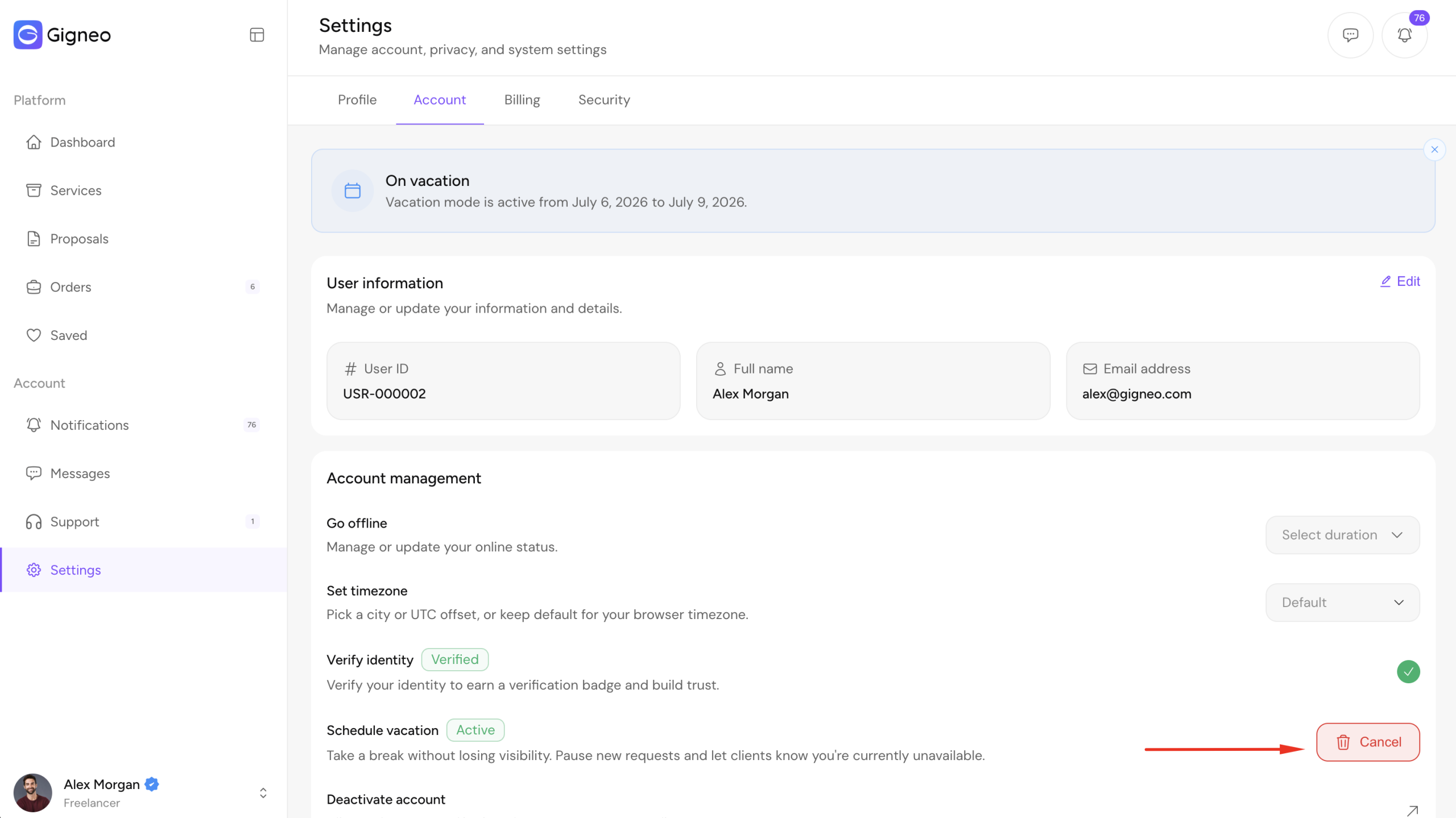
Cancel Vacation
Users can end their vacation at any time before the scheduled end date.
Simply return to:
Dashboard → Settings → Vacation Mode
Disable Vacation Mode or update the vacation dates and save the changes.
The vacation notice will be removed immediately, and normal marketplace activity will resume.
Benefits
The Vacation Mode module allows users to:
- Schedule vacation periods in advance.
- Display vacation notices across profiles, services, and jobs.
- Choose whether to accept new orders while away.
- Resume marketplace activity at any time.
- Keep clients informed about availability.
This module helps freelancers and employers manage their availability professionally while providing clear communication to potential clients.