
Freelancers can create and publish services directly from their dashboard.
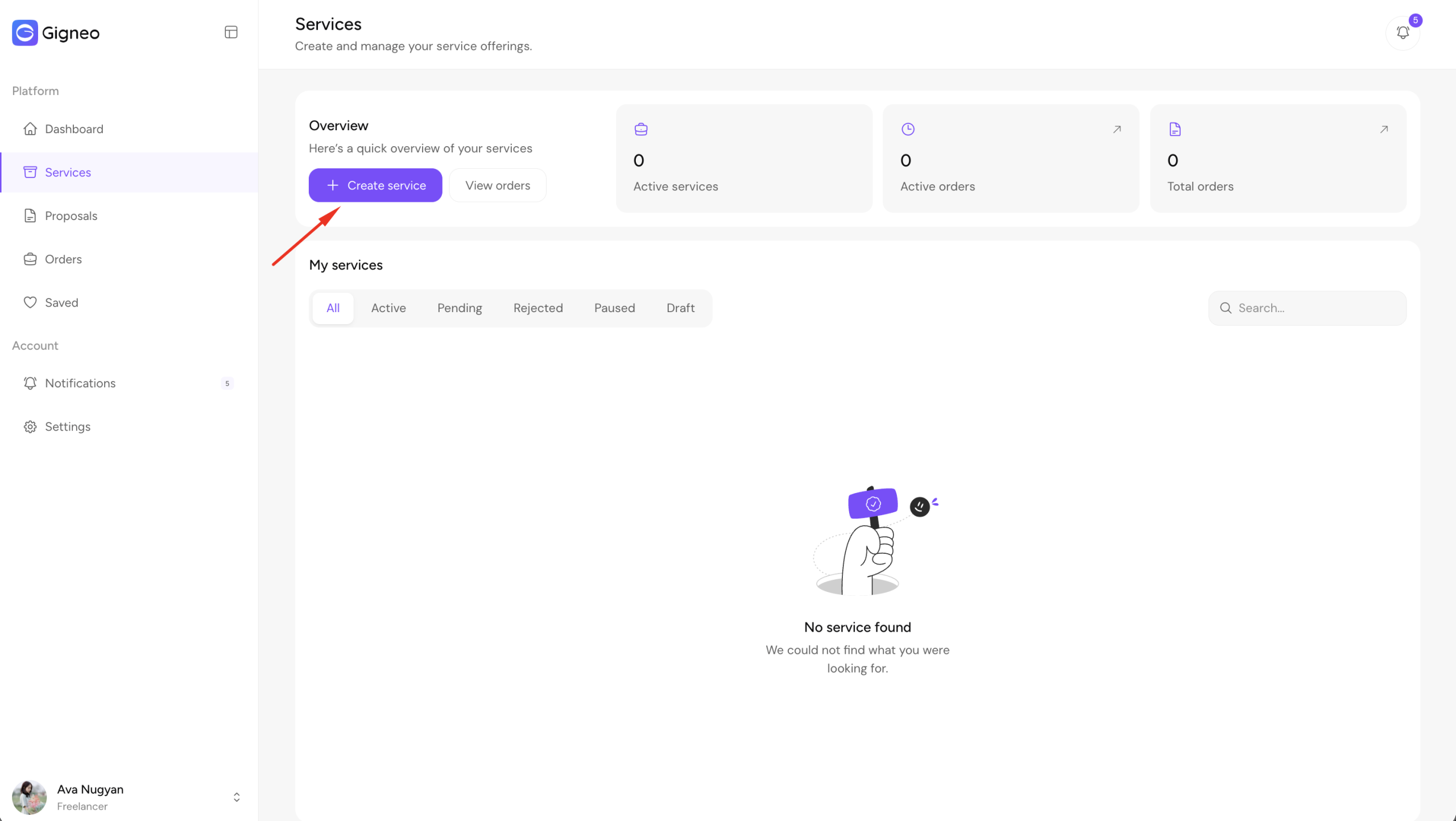
To create a new service, log in as a freelancer and navigate to Dashboard → Services. Click the Create Service button.
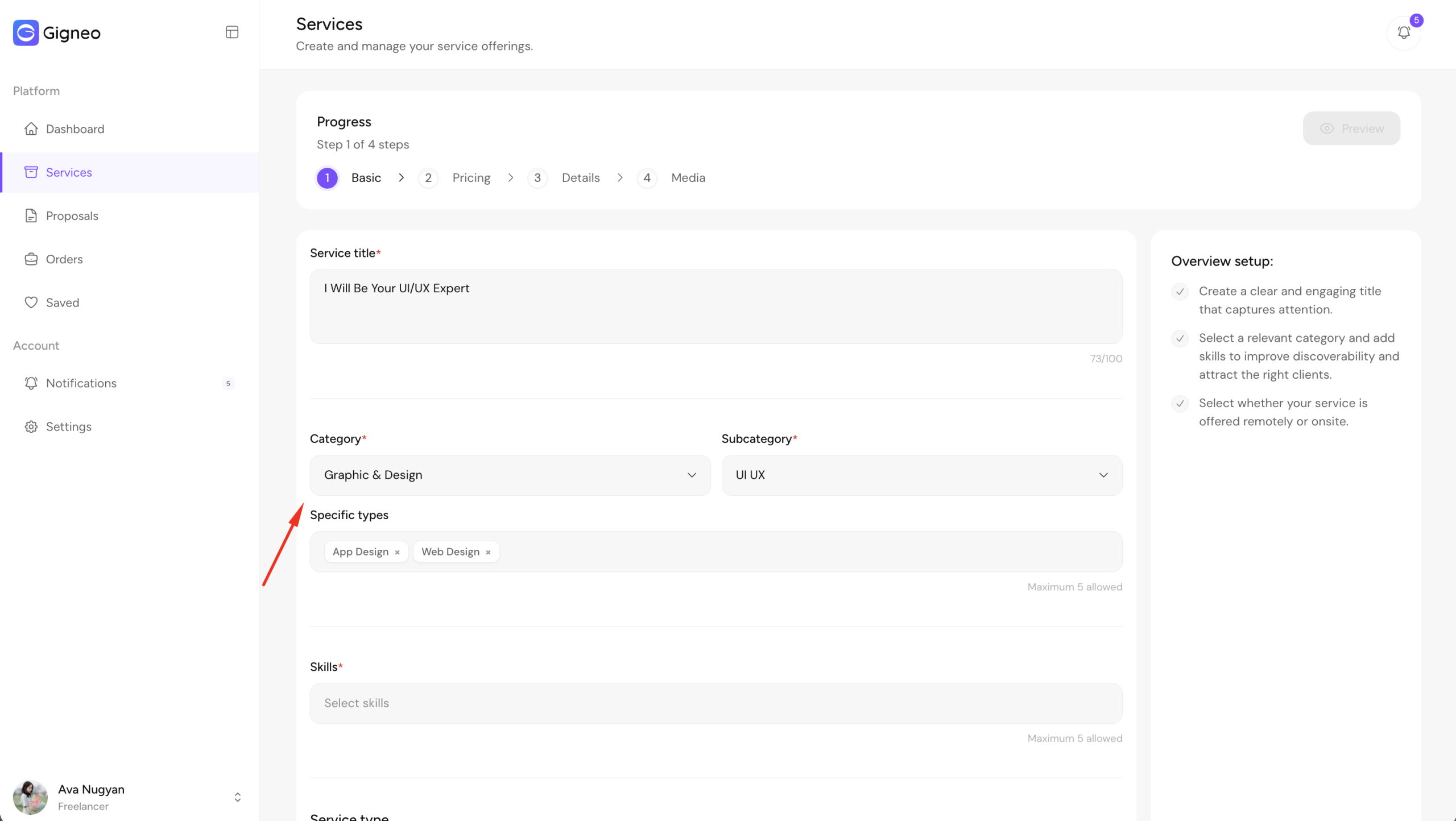
The service creation process is divided into four steps: Basic, Pricing, Details, and Media.
This step-by-step workflow ensures all required service information is completed before publishing.
Basic Step
The Basic step is where freelancers enter the core information for their service.
Here, users must enter the service title and select the appropriate category, subcategory, and specific types.
These categories are managed by the marketplace administrator from Gigneo → Categories.
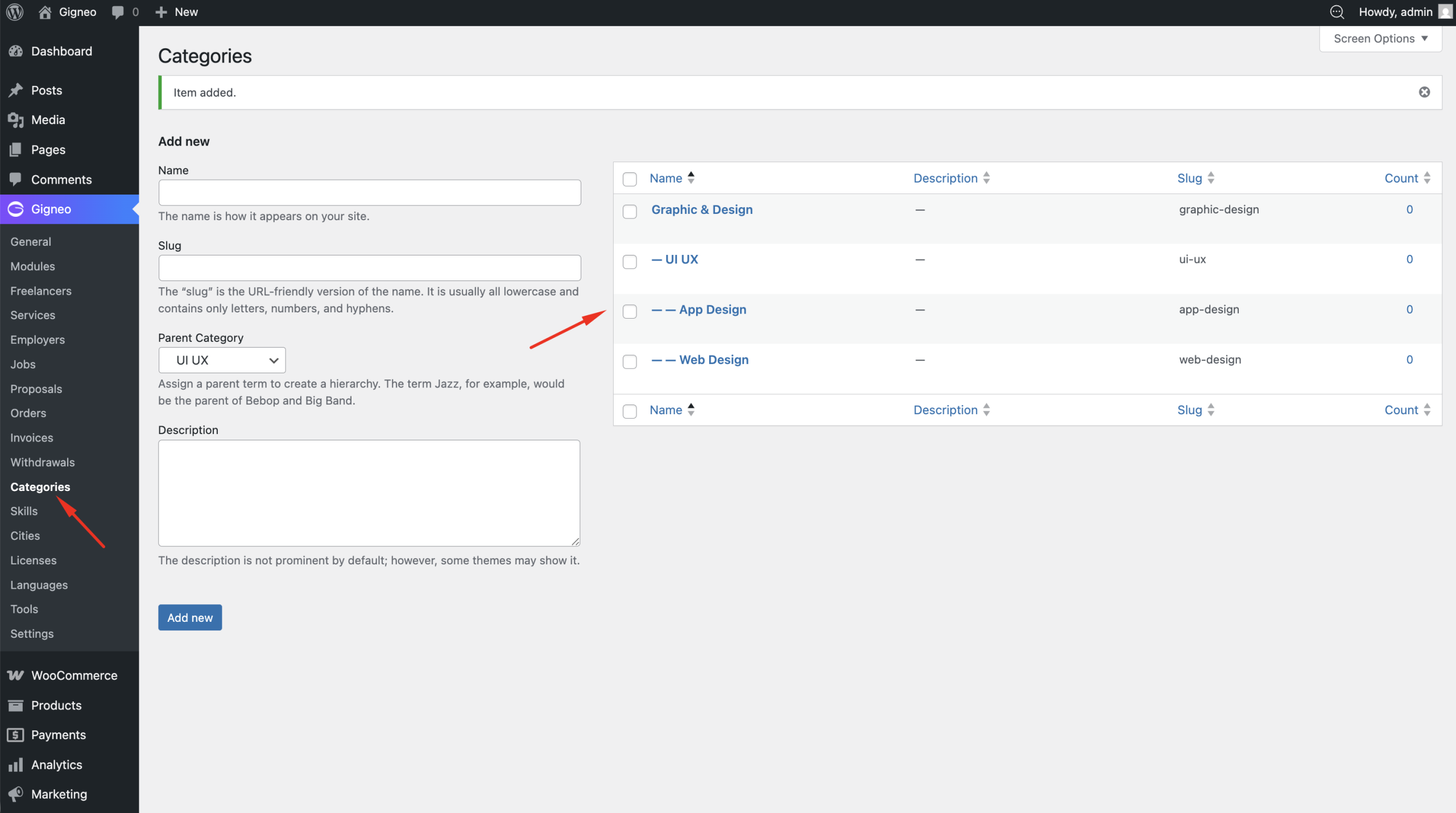
The category structure works as follows:
- Category is the main parent category
- Subcategory is the child category
- Specific Type / Speciality is the child of the selected subcategory
This structure helps organize services properly across the marketplace.
Freelancers can also select relevant skills for their service.
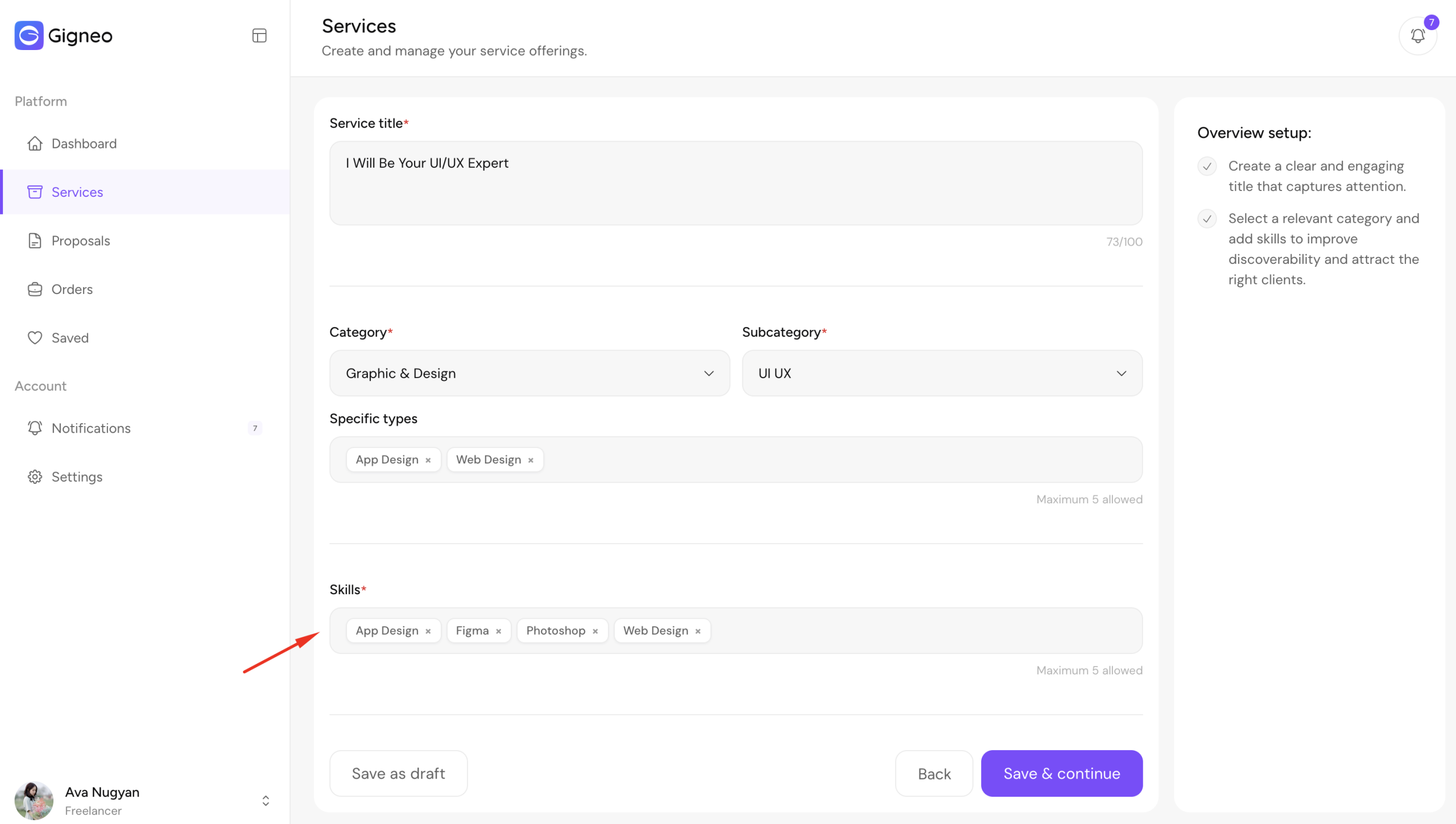
Skills are managed by the administrator and users can choose only from the available skills added to the platform.
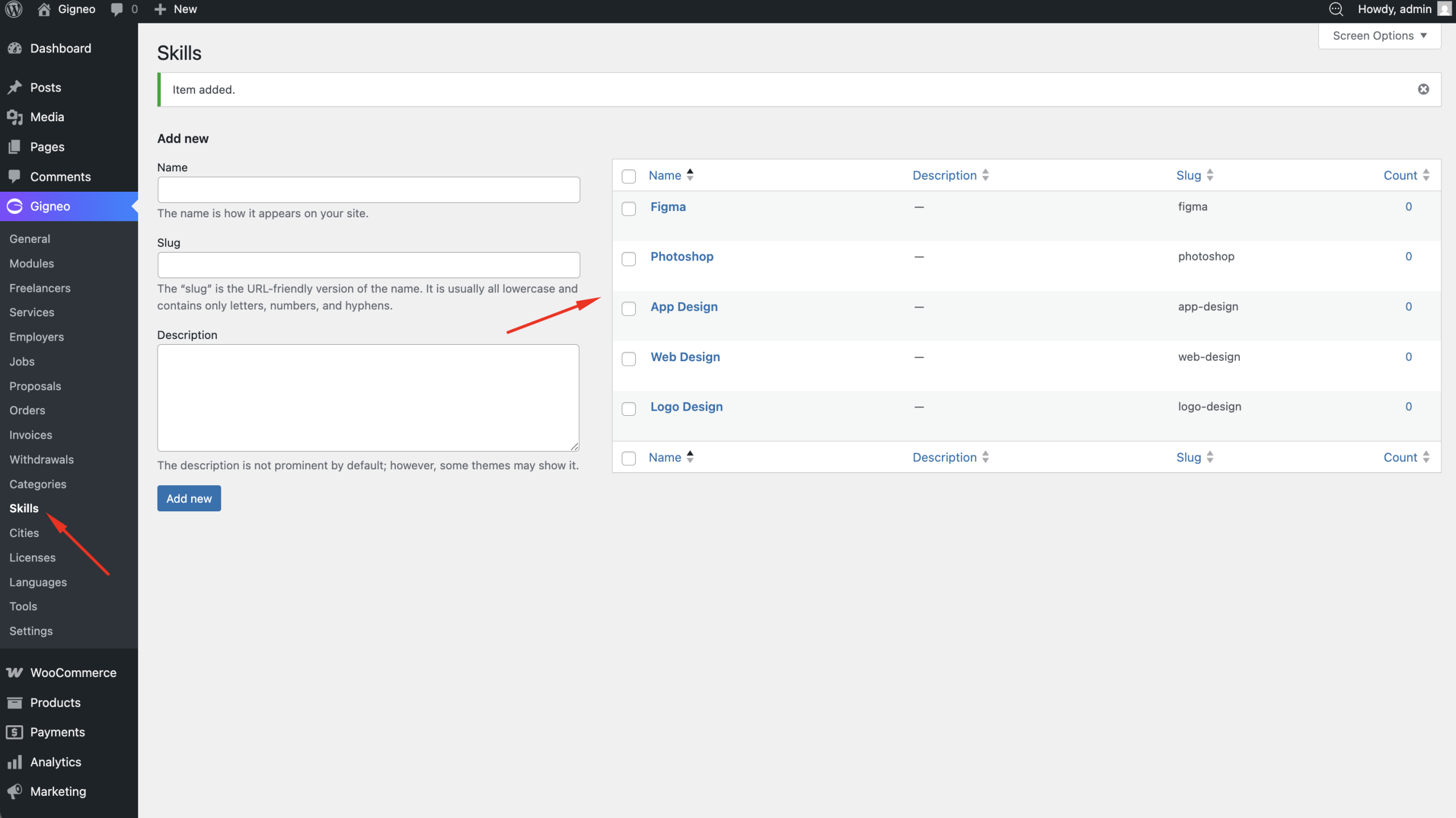
Next, users must select the service type.
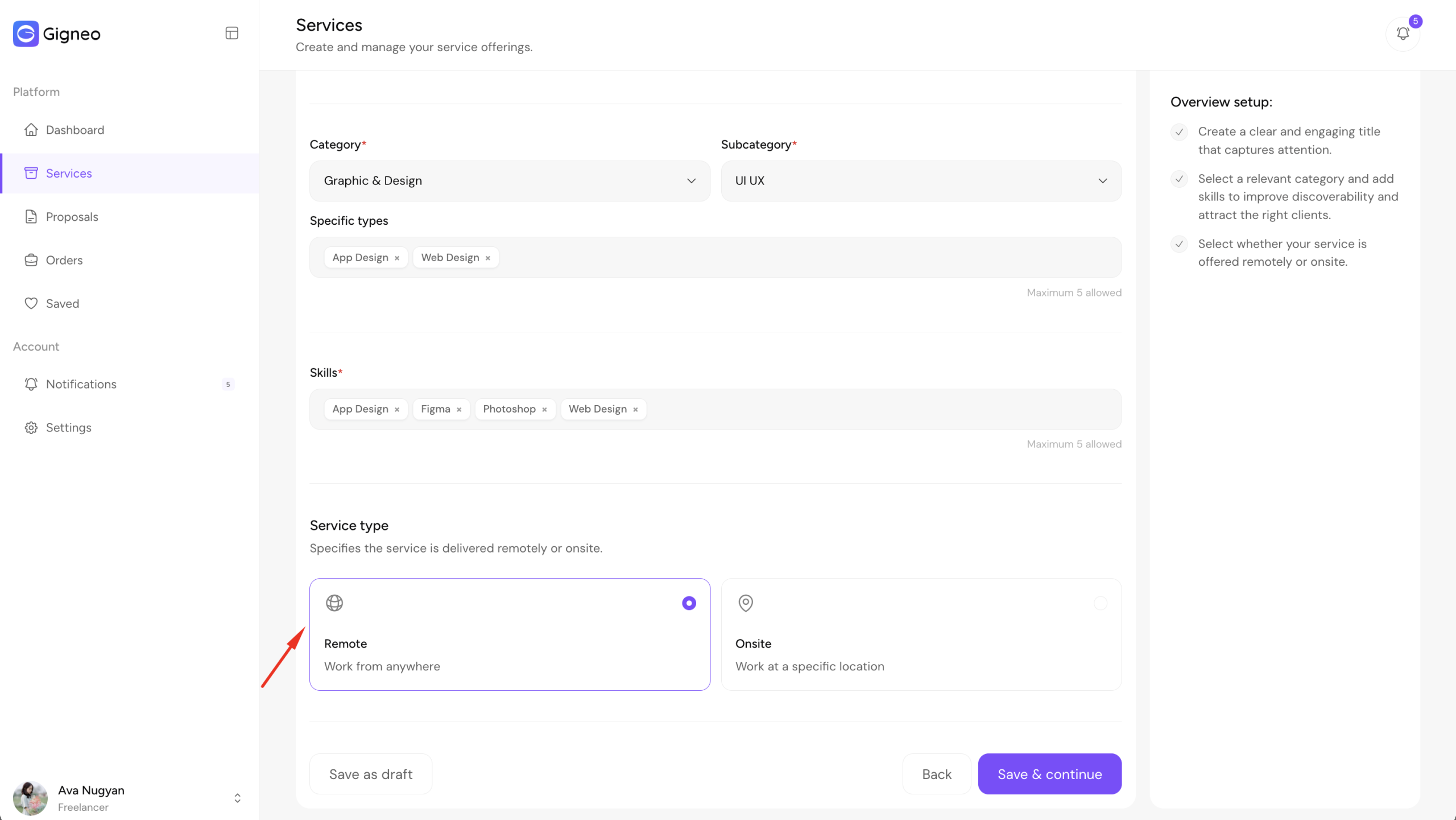
Available service type options depend on the platform configuration.
The marketplace administrator controls these options from Gigneo → Settings → Services.
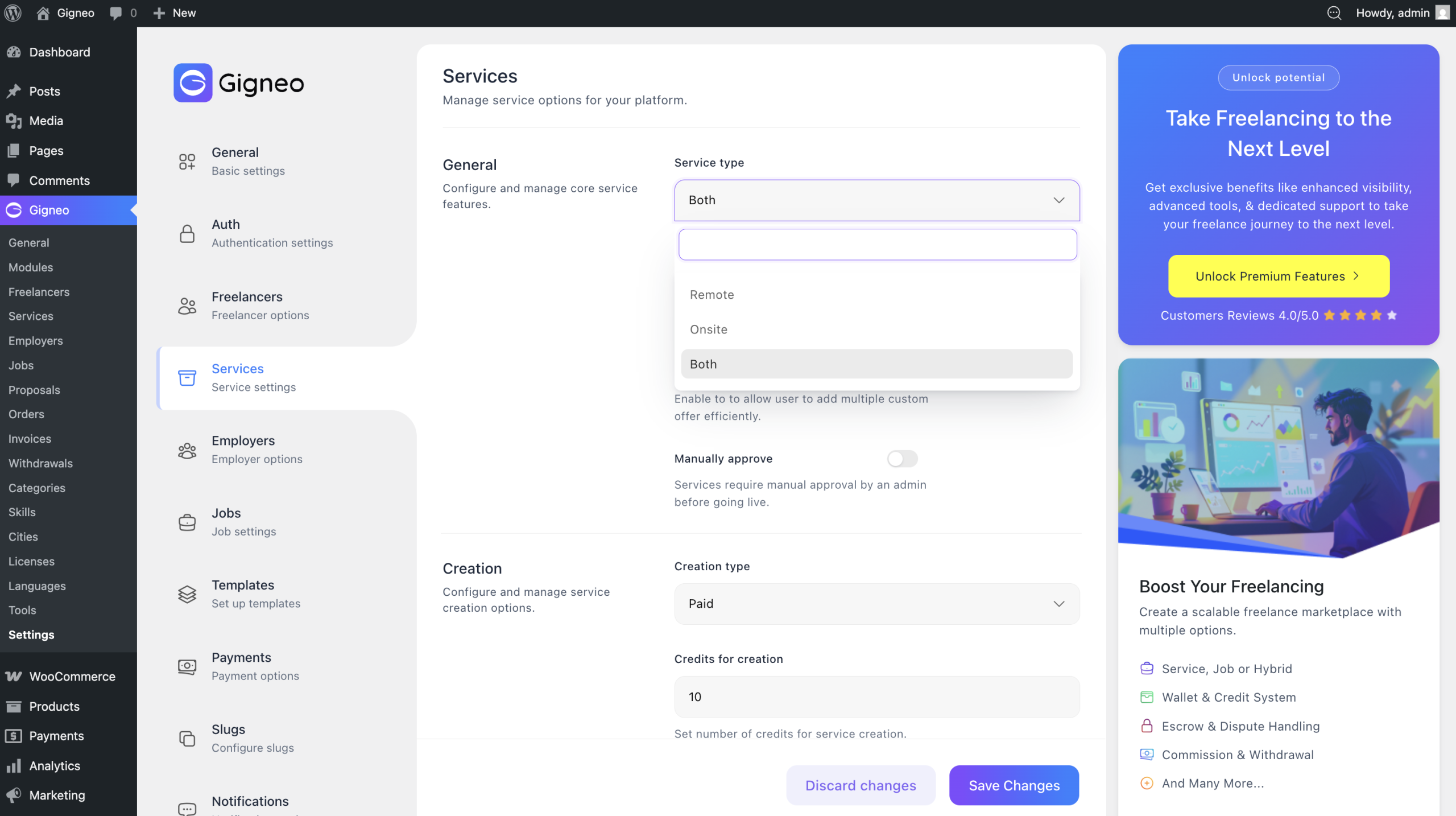
If both service types are enabled, freelancers can choose their preferred option during service creation. If restricted by the administrator, only the allowed service type will be available.
The administrator can also configure service creation conditions from the same Services settings area.
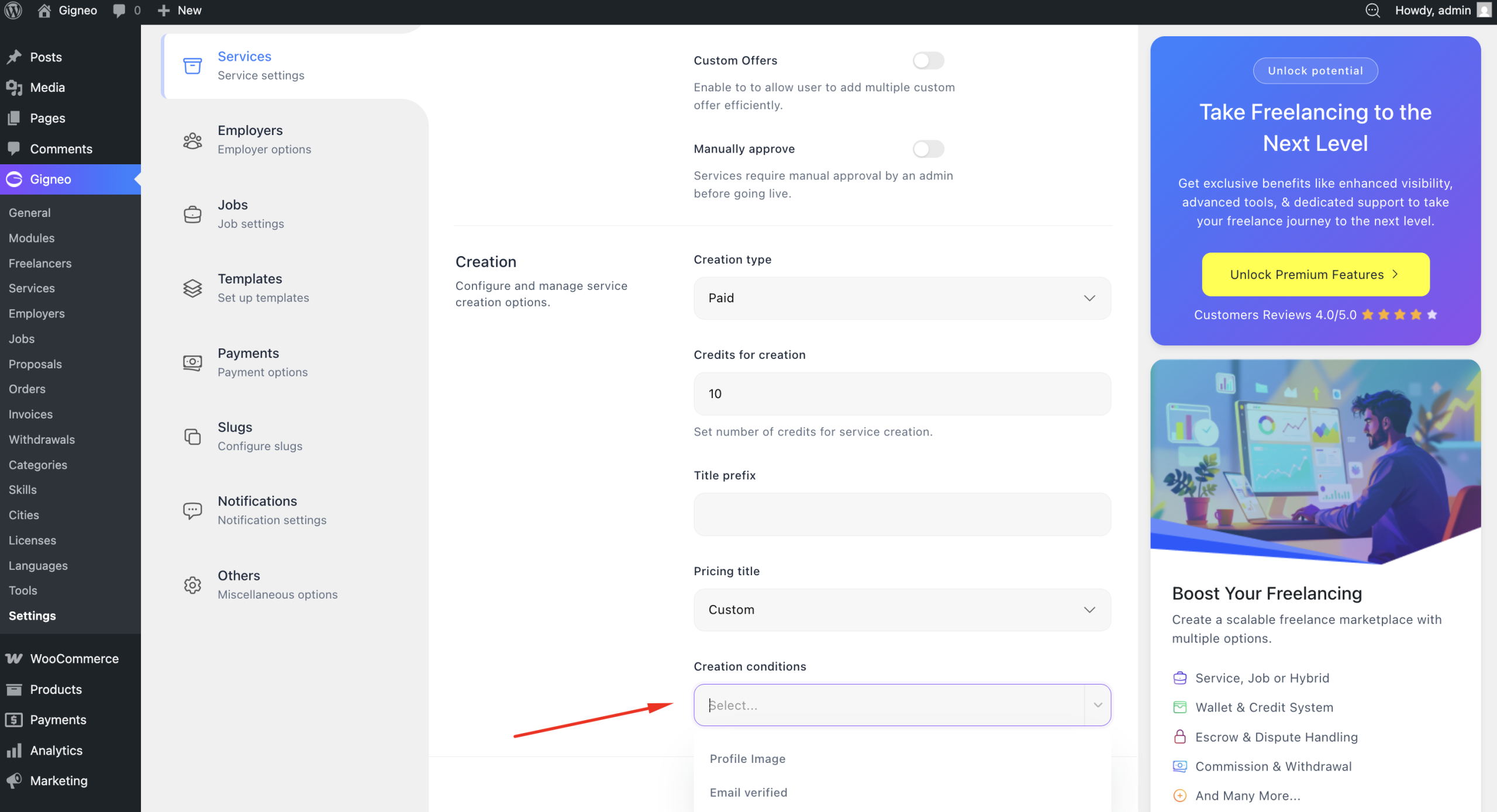
Freelancers can only proceed if the configured creation requirements are met.
Once all required information is completed in the Basic step, click Continue to move to the Pricing step.
Pricing Step
The Pricing step allows freelancers to define how their service will be offered to buyers.
Depending on platform configuration, freelancers can create either a single pricing package or three pricing tiers for their service.
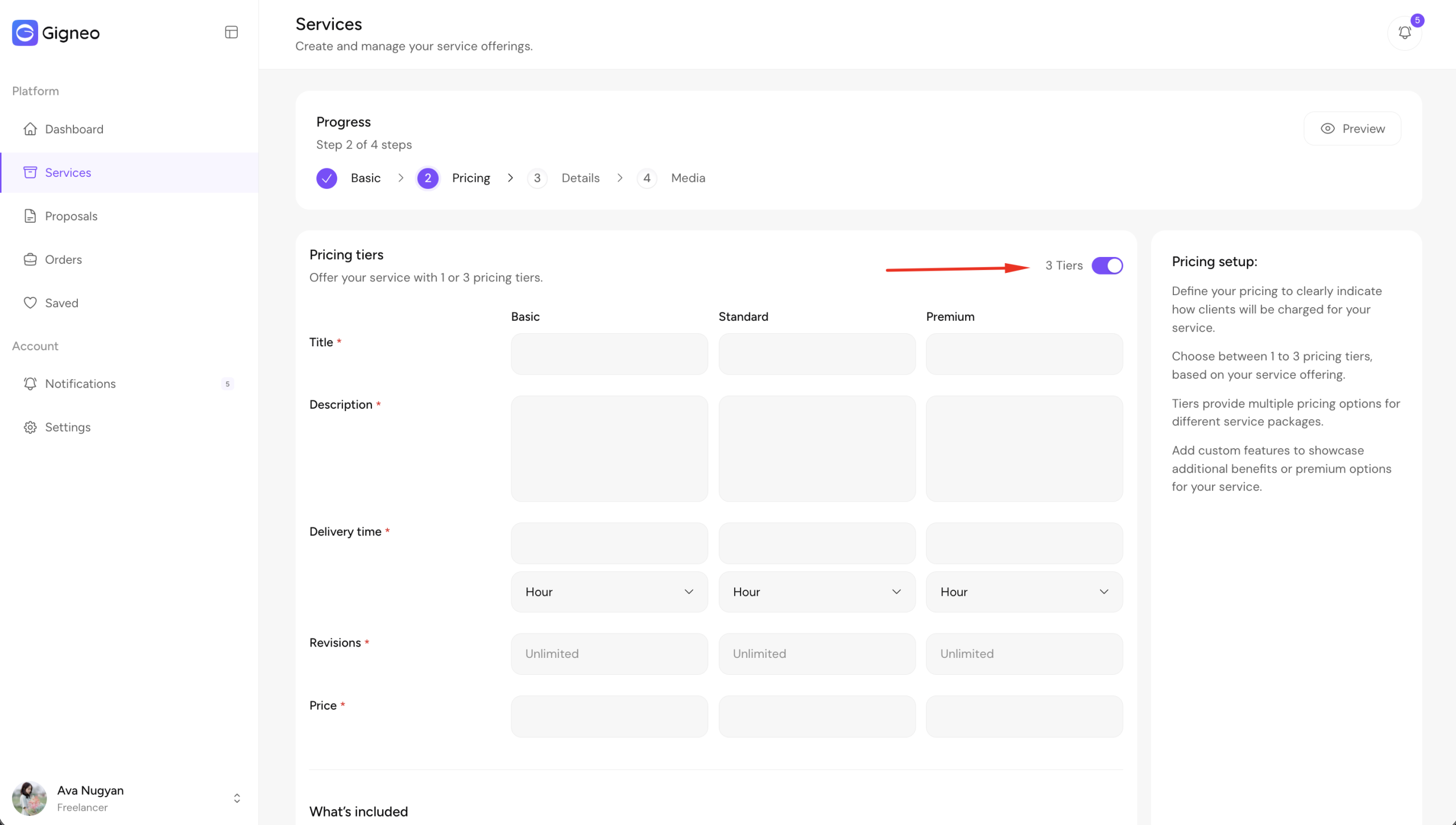
For each pricing tier, freelancers can configure details including pricing title, description, price, delivery time, and revision limit.
This allows freelancers to offer flexible service packages based on different client requirements.
If service features are assigned to the selected category by the marketplace administrator, freelancers will see selectable included features during this step.
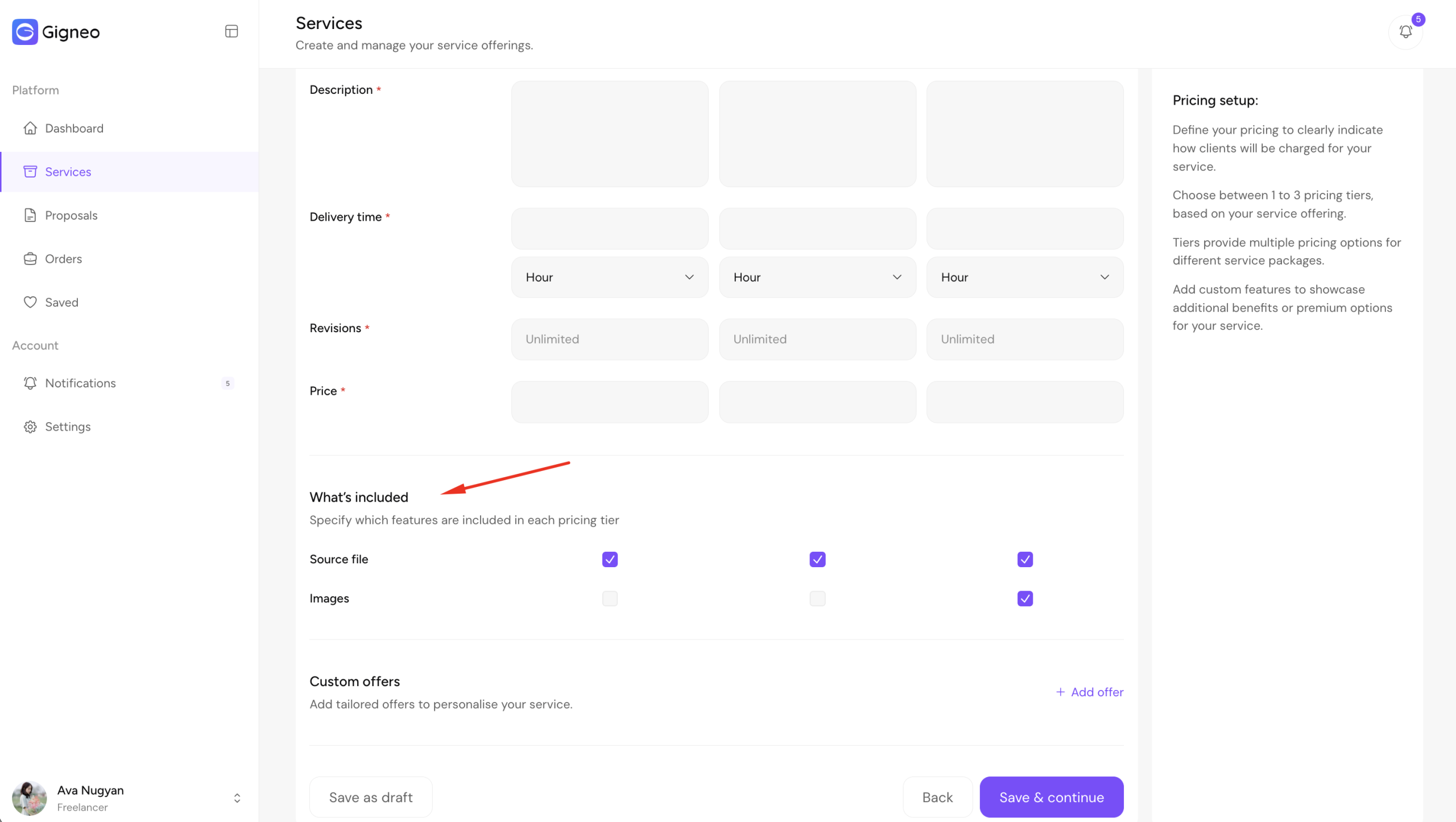
These features are managed by the administrator from Gigneo → Categories → Edit Category , where category-specific service features can be created and assigned.
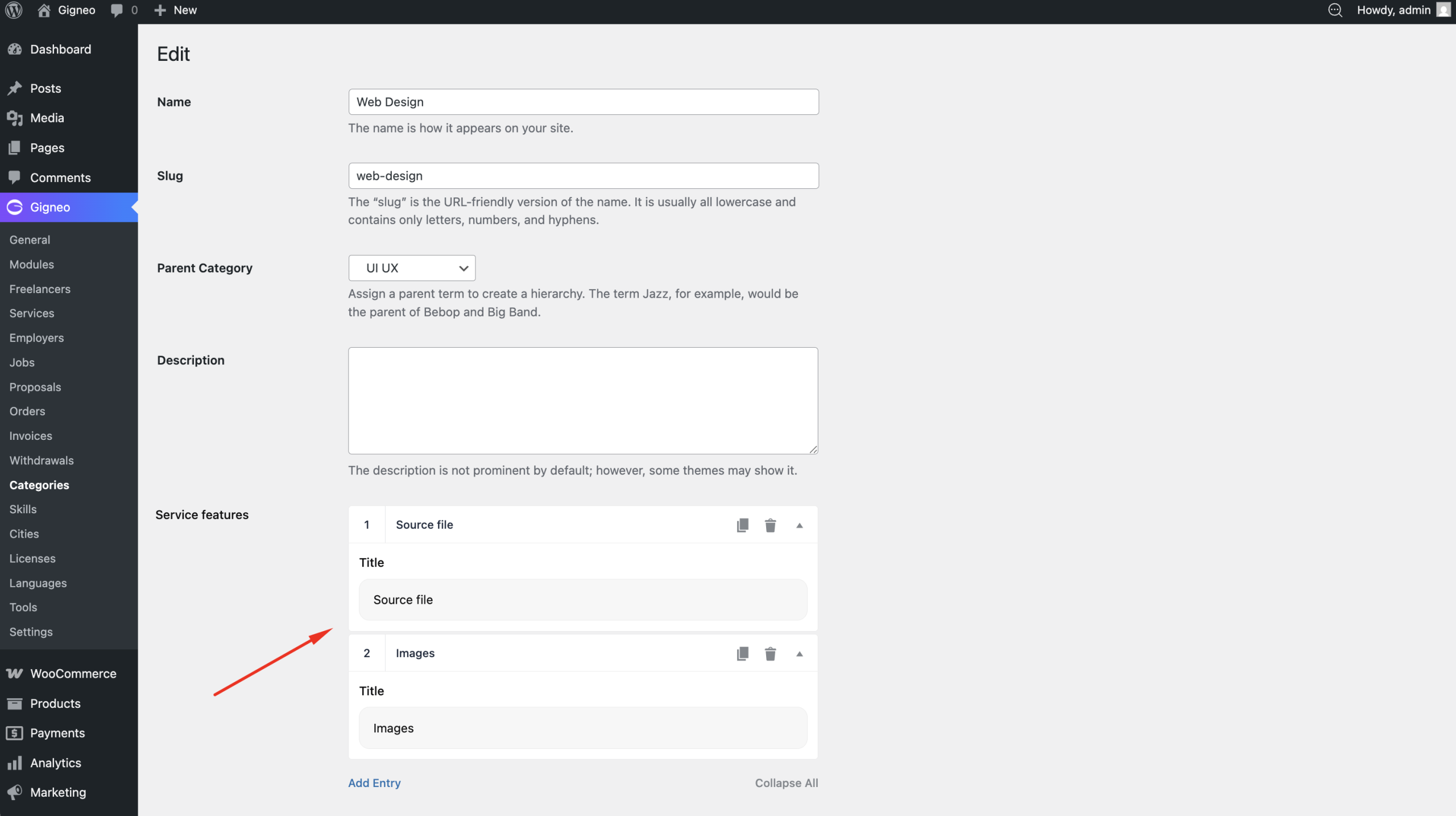
This helps buyers clearly understand what is included with each pricing package.
If the Custom Offers option is enabled, freelancers can allow buyers to request custom offers based on the configured pricing tiers.
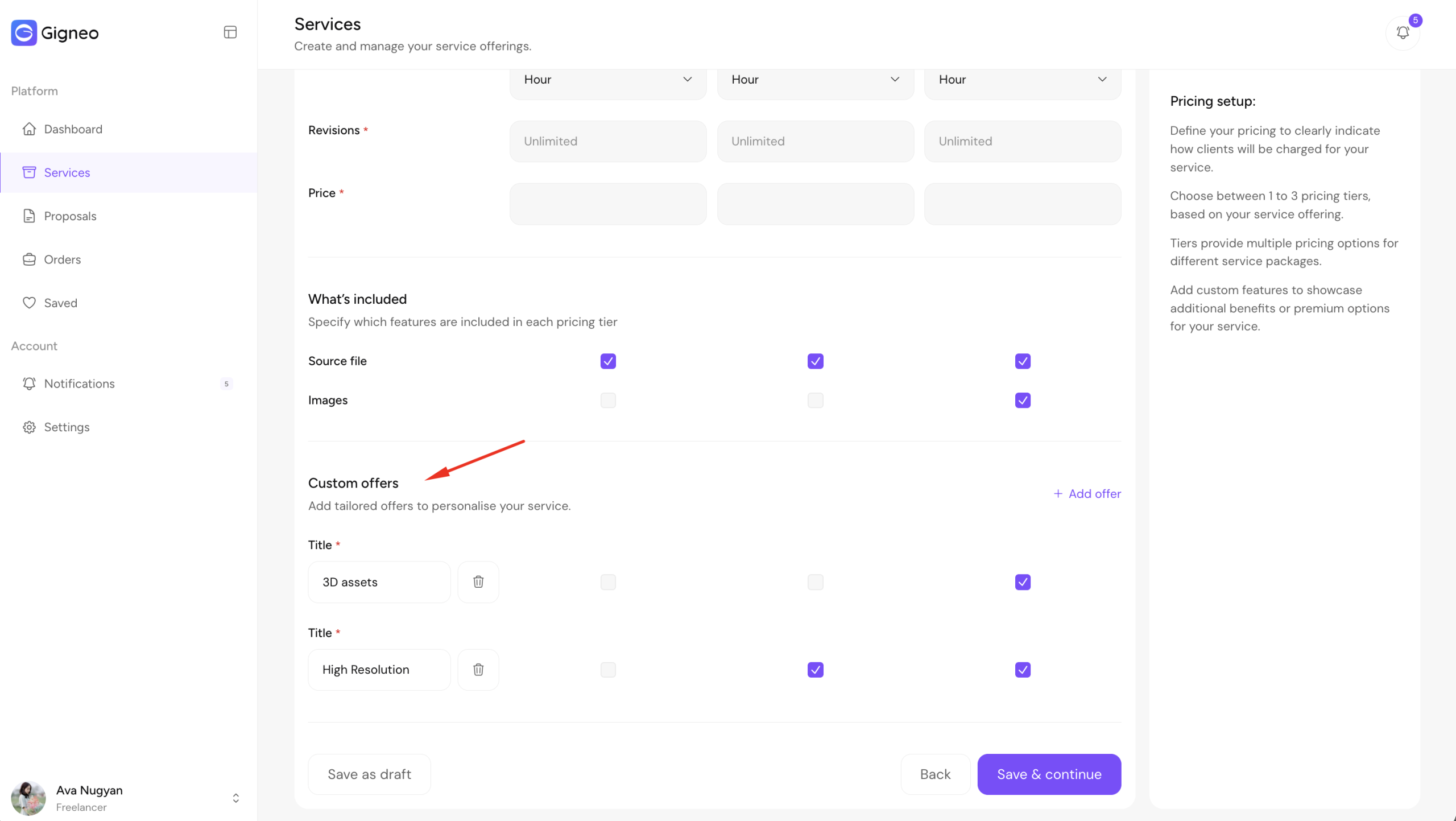
The marketplace administrator can enable or disable this option from Gigneo → Settings → Services.
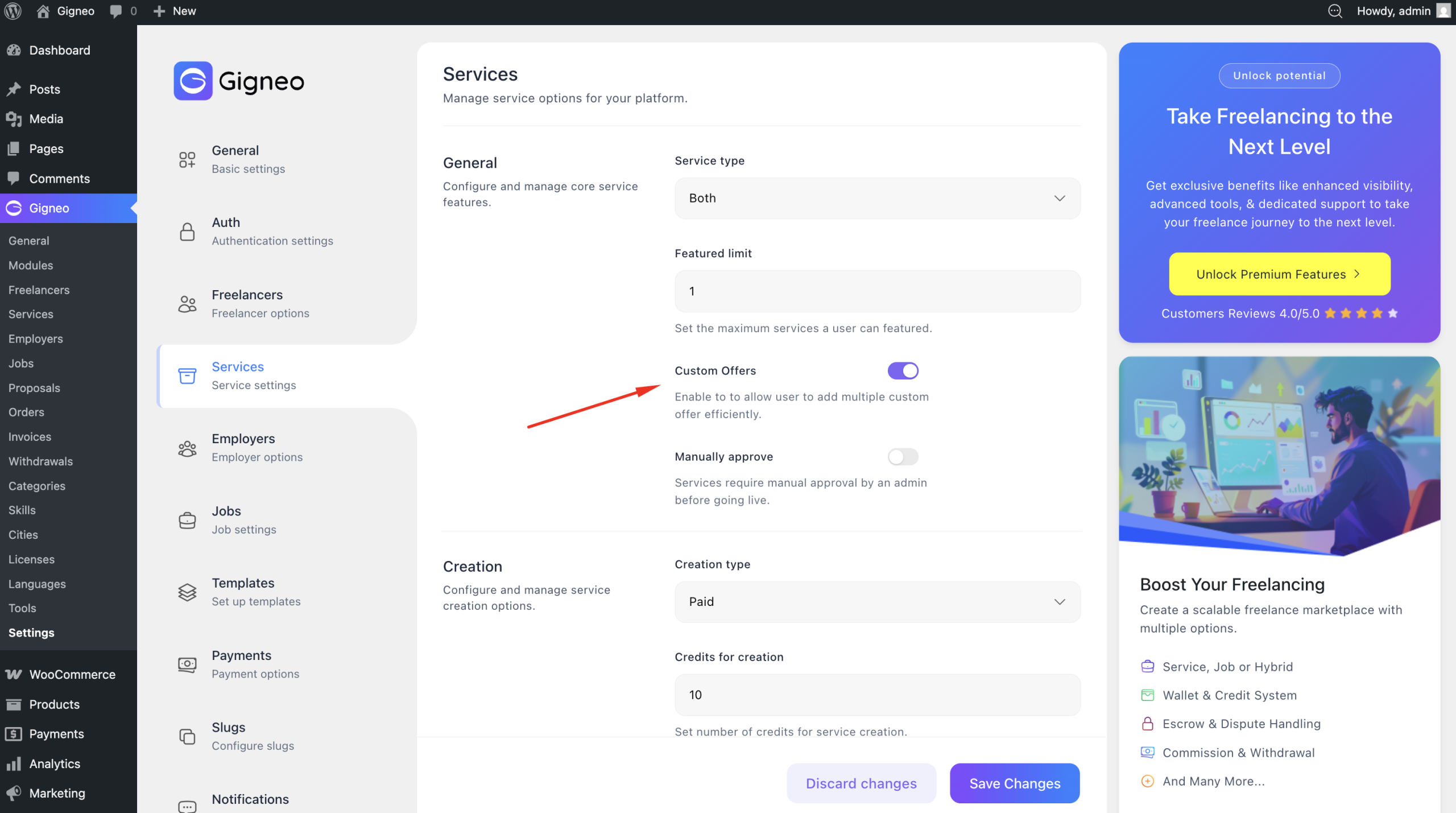
This gives freelancers additional flexibility for services that require tailored pricing or project-specific requirements.
Once all pricing details are configured, click Continue to move to the Details step.
Details Step
The Details step allows freelancers to add additional information that helps buyers better understand the service.
Here, freelancers can add the service description, define available locations, and create FAQs related to the service.
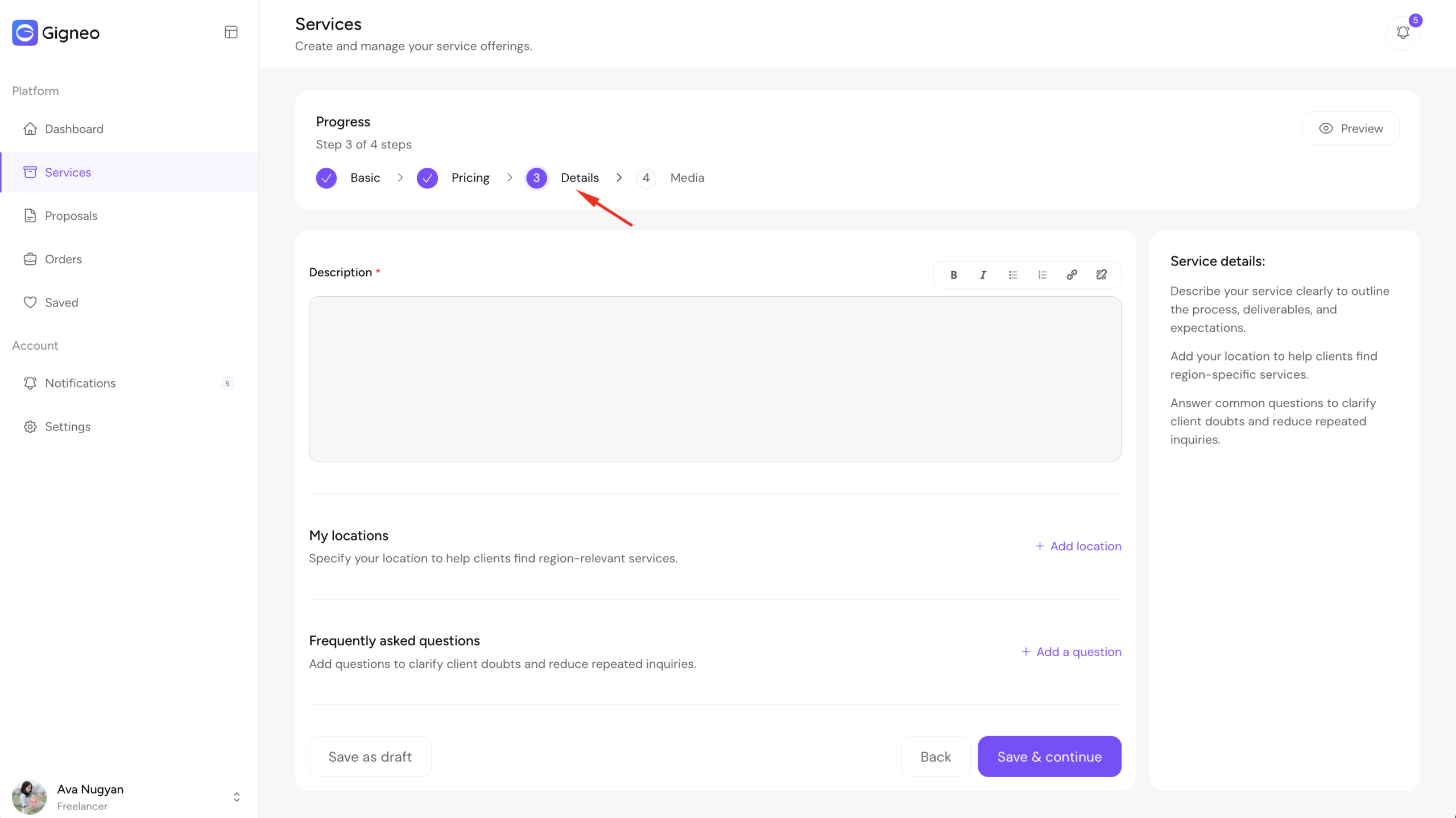
The service description should clearly explain what is being offered, what buyers can expect, and any important information related to delivery or requirements.
A detailed and well-written description helps improve service visibility and builds buyer confidence.
Freelancers can also define service locations depending on the selected service type and marketplace configuration.
This helps buyers understand where the service is available or where it can be delivered.
FAQs can be added to answer common buyer questions in advance.
This reduces confusion, improves communication, and helps buyers make informed purchasing decisions.
Once all details are completed, click Continue to move to the Media step.
Media Step
The Media step allows freelancers to upload all visual and supporting files for their service.
From this step, users can add service images, upload or link service videos, and attach supporting documents.
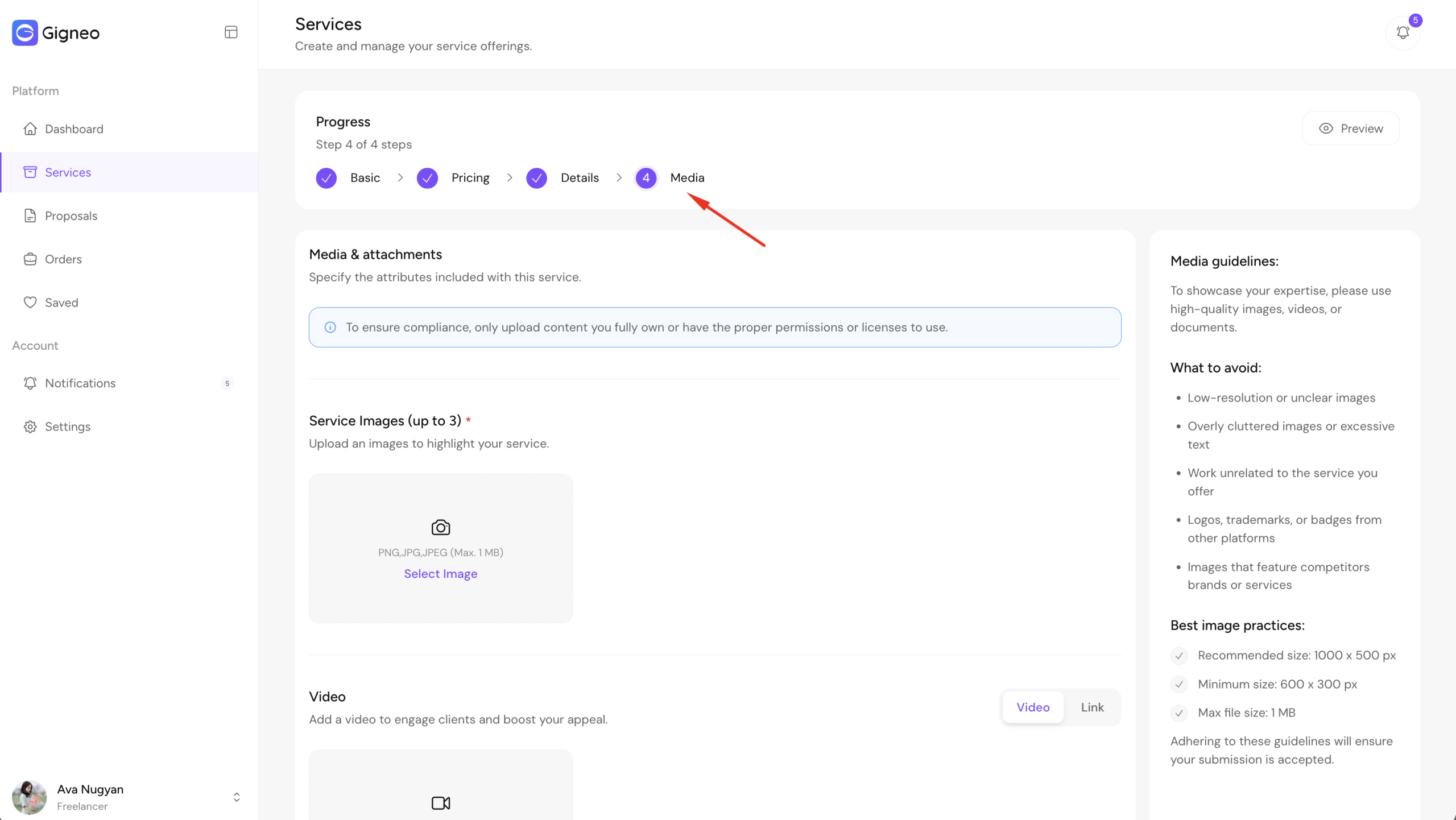
For videos, freelancers can either upload hosted video files directly or provide external video links depending on platform configuration.
Adding high-quality media helps buyers better understand the service and improves overall service presentation.
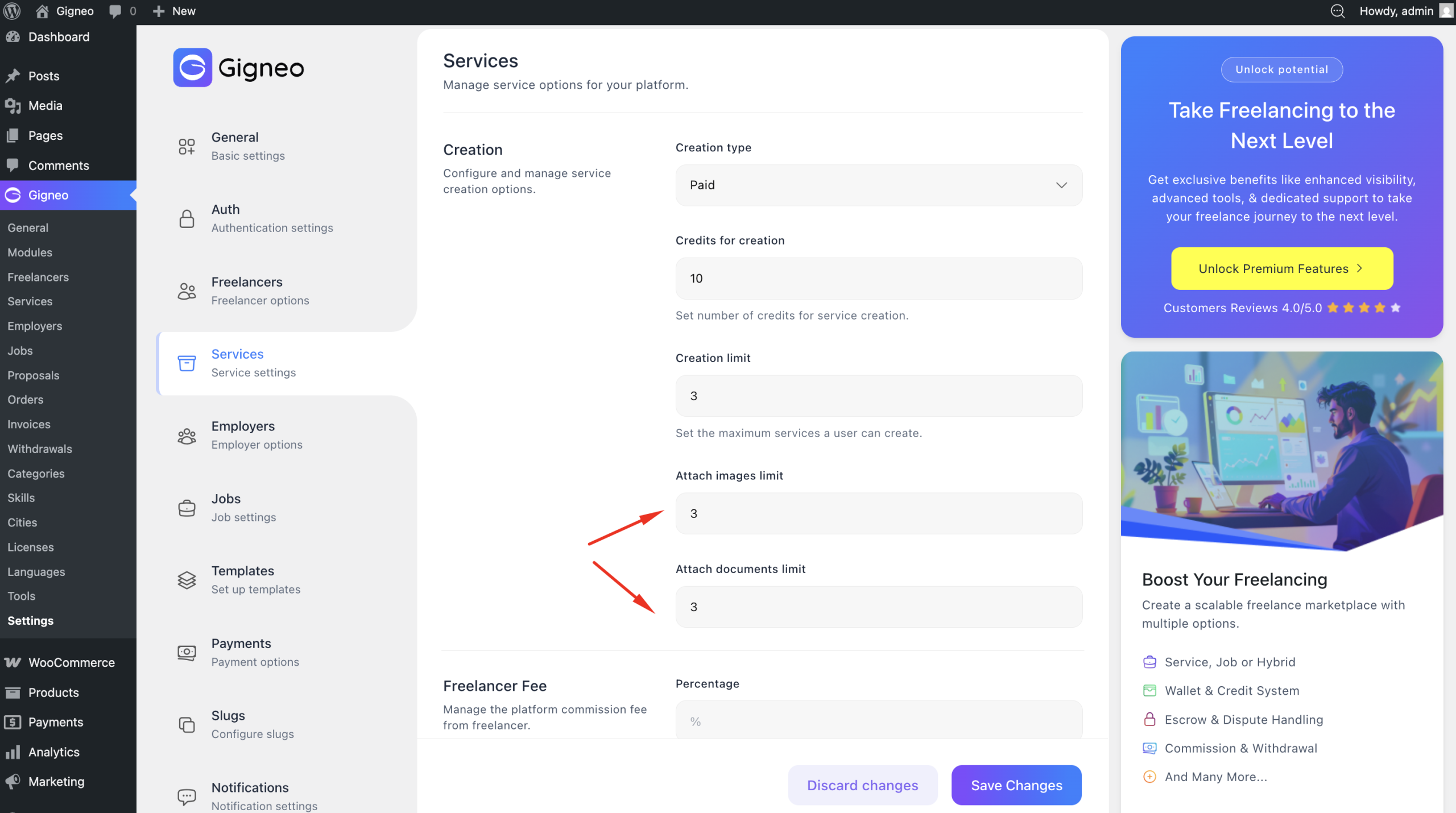
The number of service images and document upload limits are controlled by the marketplace administrator from Gigneo → Settings → Services.
Supported file extensions for images, videos, and documents, along with their maximum upload size limits, are configured by the administrator from Gigneo → Settings → Others.
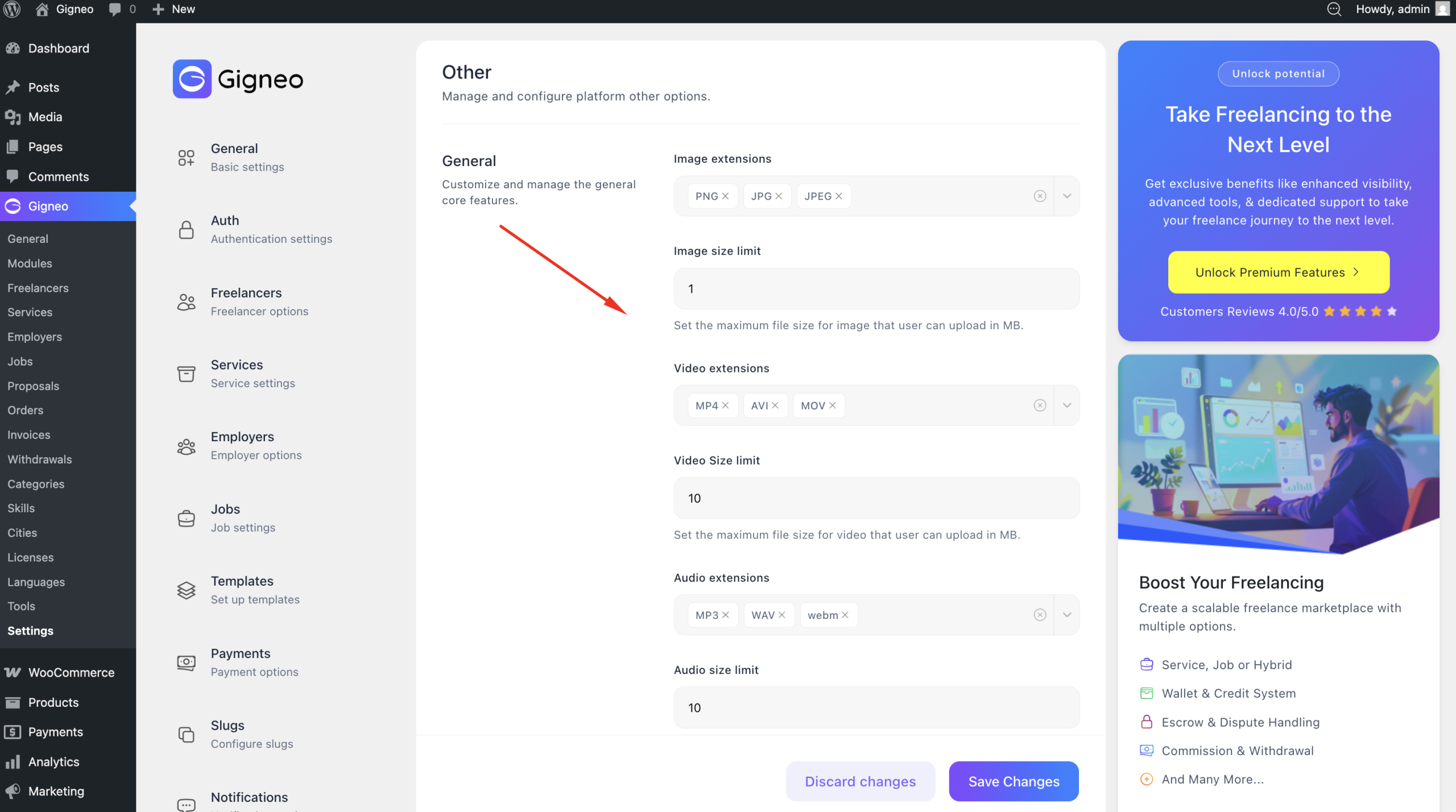
These settings ensure media uploads follow the platform’s file management rules.
Once all media files are uploaded successfully, the freelancer can submit the service for publishing.
Service Publishing
Once all service information is completed, freelancers can submit the service for publishing.
Service publishing can be configured as either free or paid, depending on marketplace settings.
If paid publishing is enabled, the marketplace administrator defines the number of credits required to publish a service from Gigneo → Settings → Services.
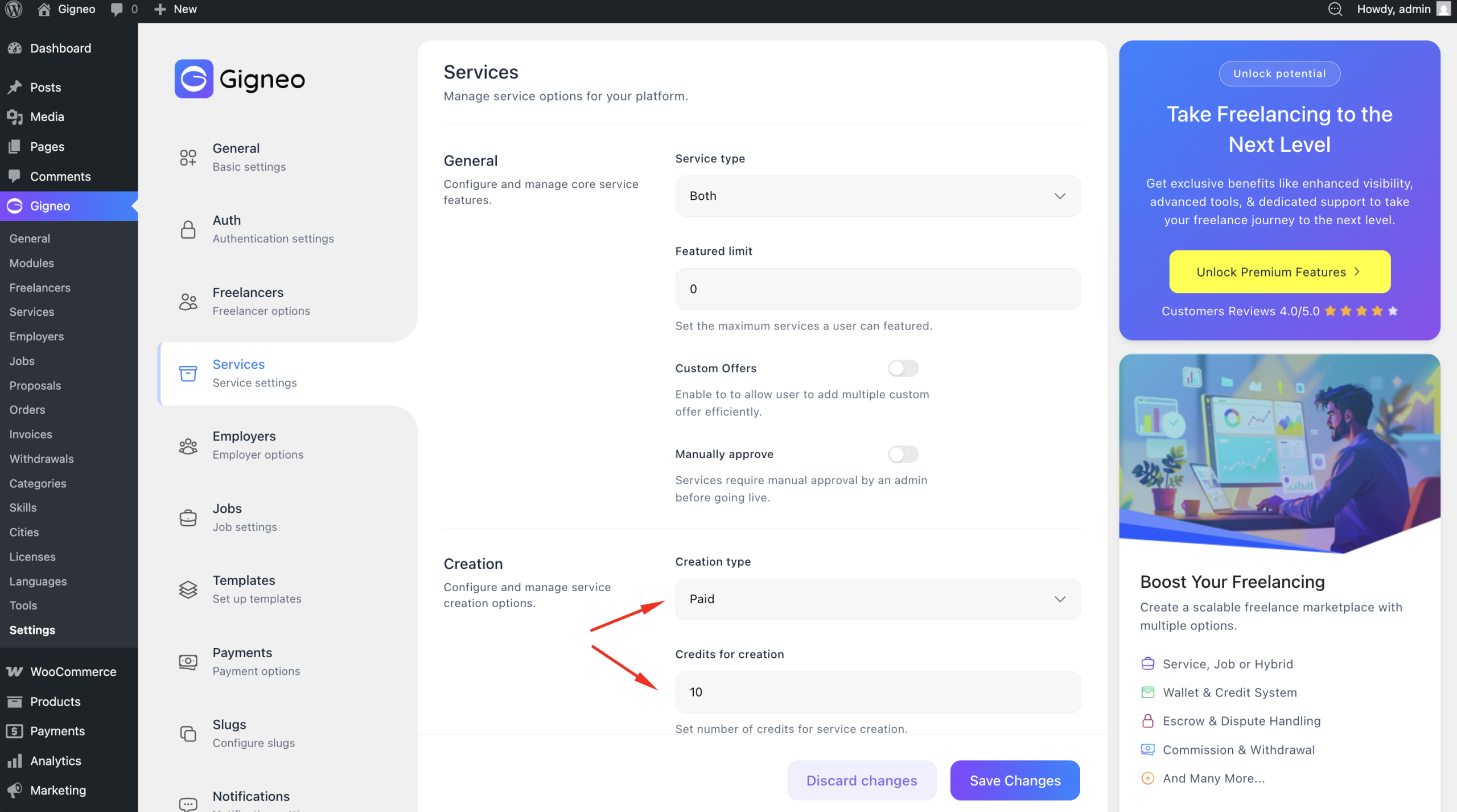
Freelancers must have sufficient credits available before submitting their service.
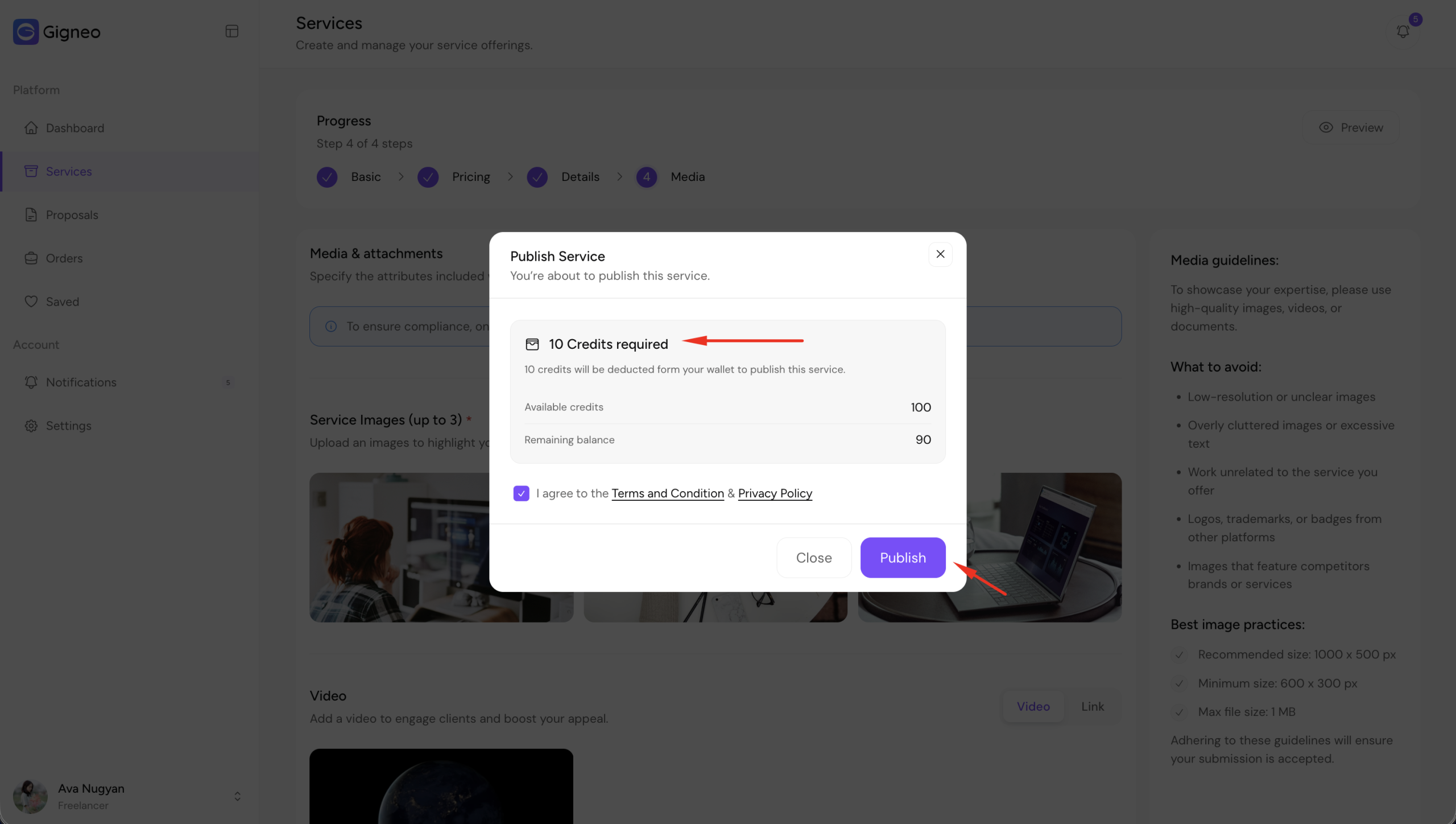
If the required credits are not available, the service cannot be published until enough credits are purchased.
The marketplace administrator can also enable manual approval for service publishing from Gigneo → Settings → Services.
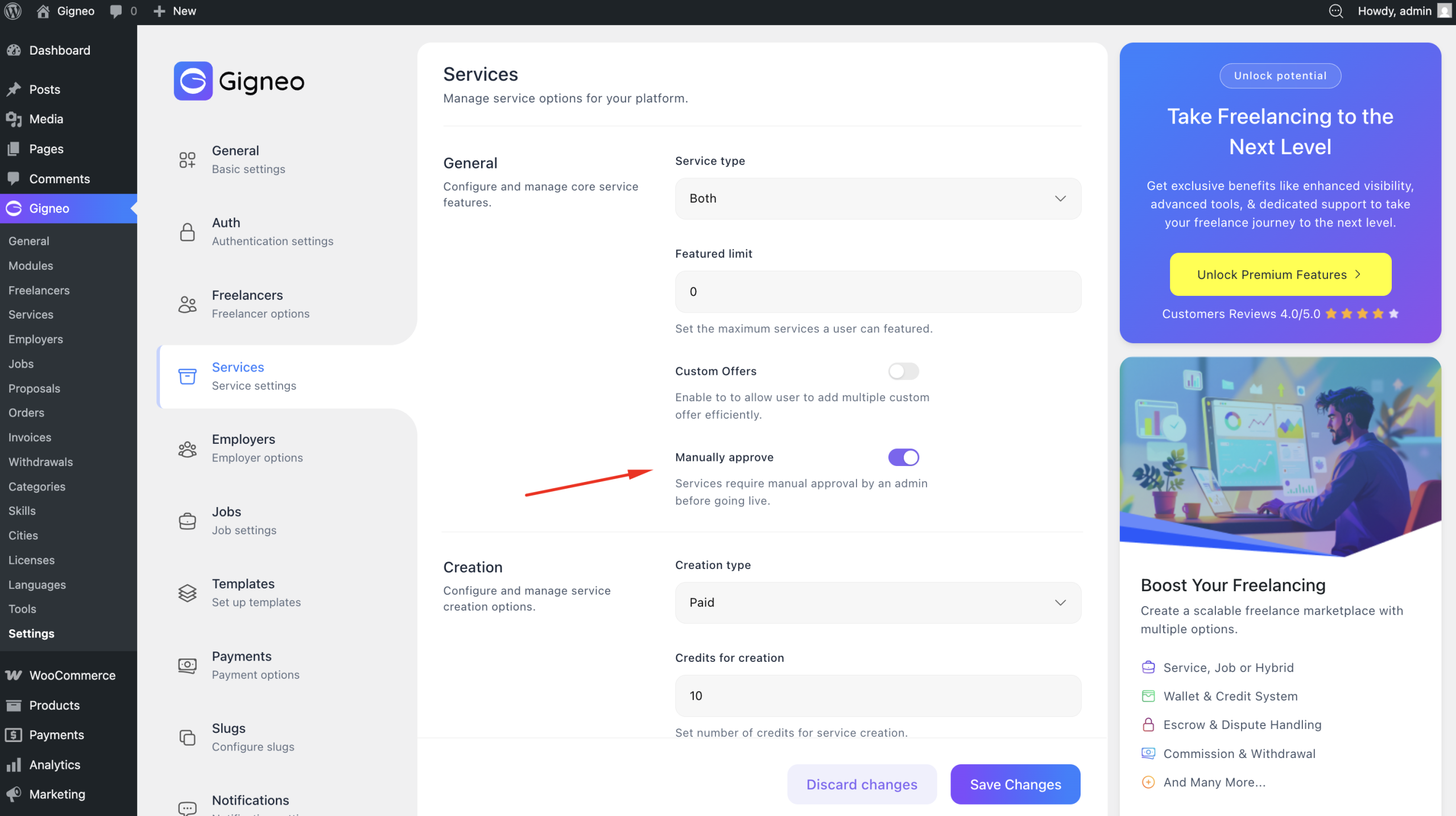
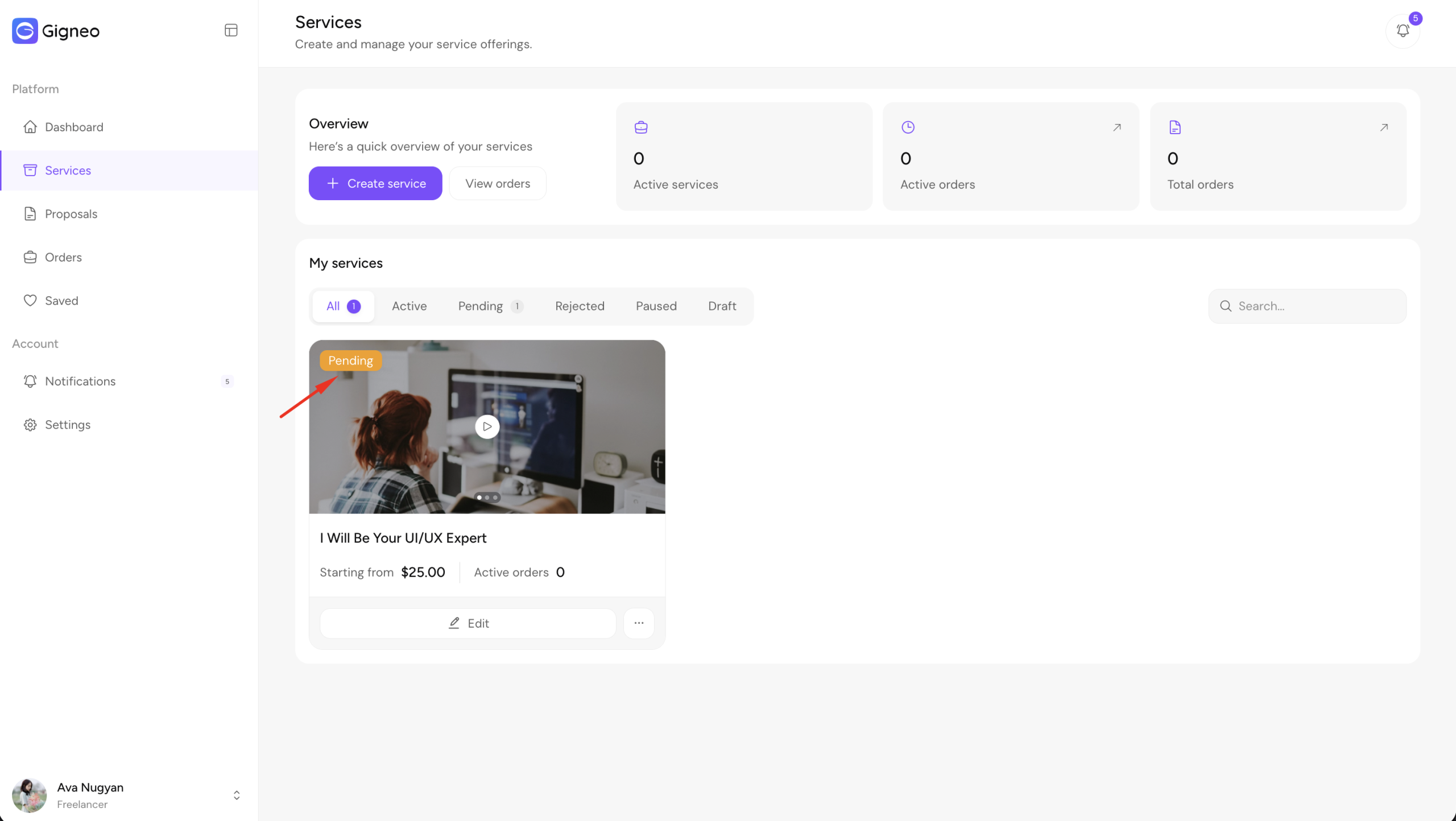
When manual approval is enabled, submitted services will not be published immediately.
Instead, the service is submitted for review by the administrator.
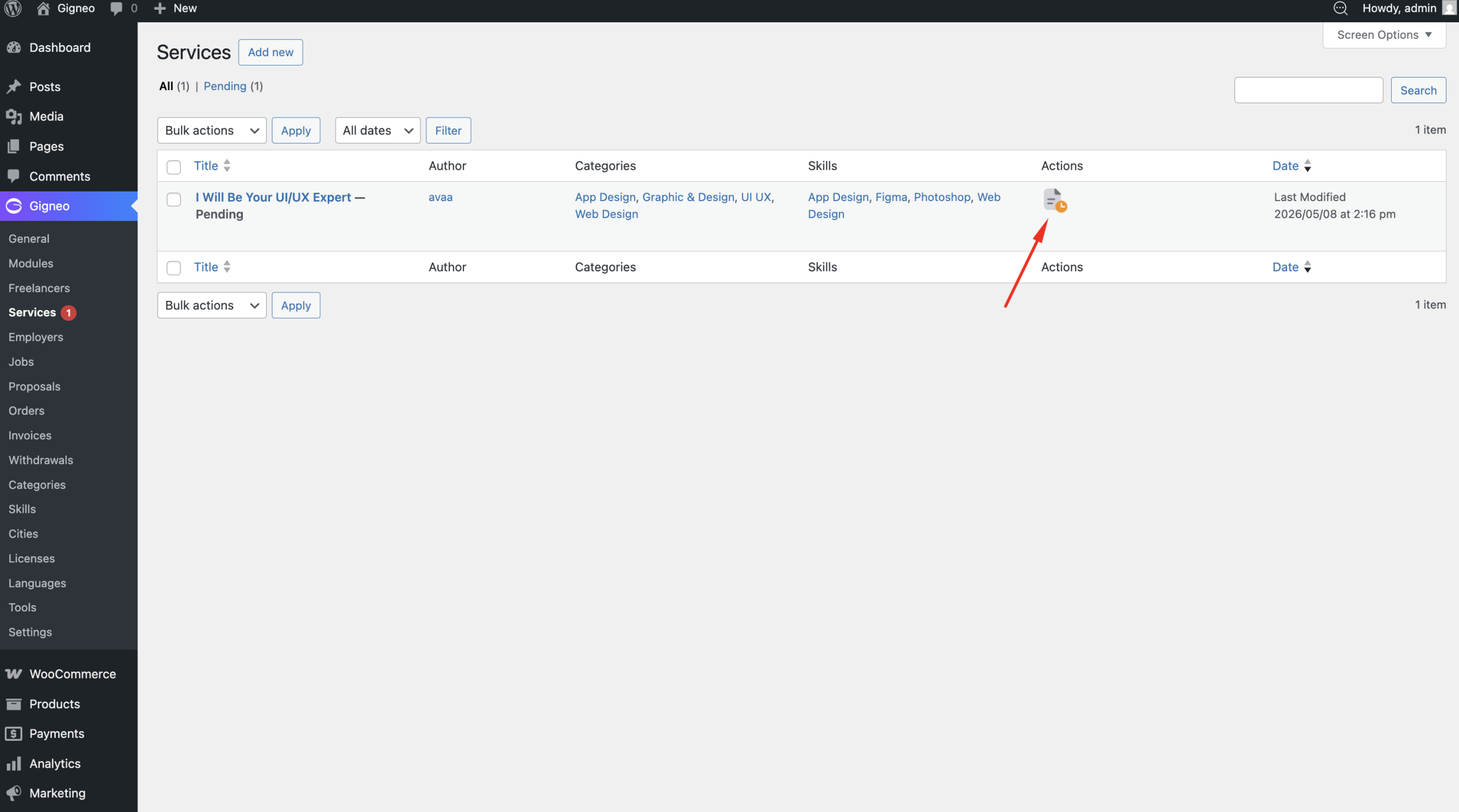
Administrators can review submitted services by navigating to Gigneo → Services and opening the service review details.
During review, administrators have the option to approve or reject the service:
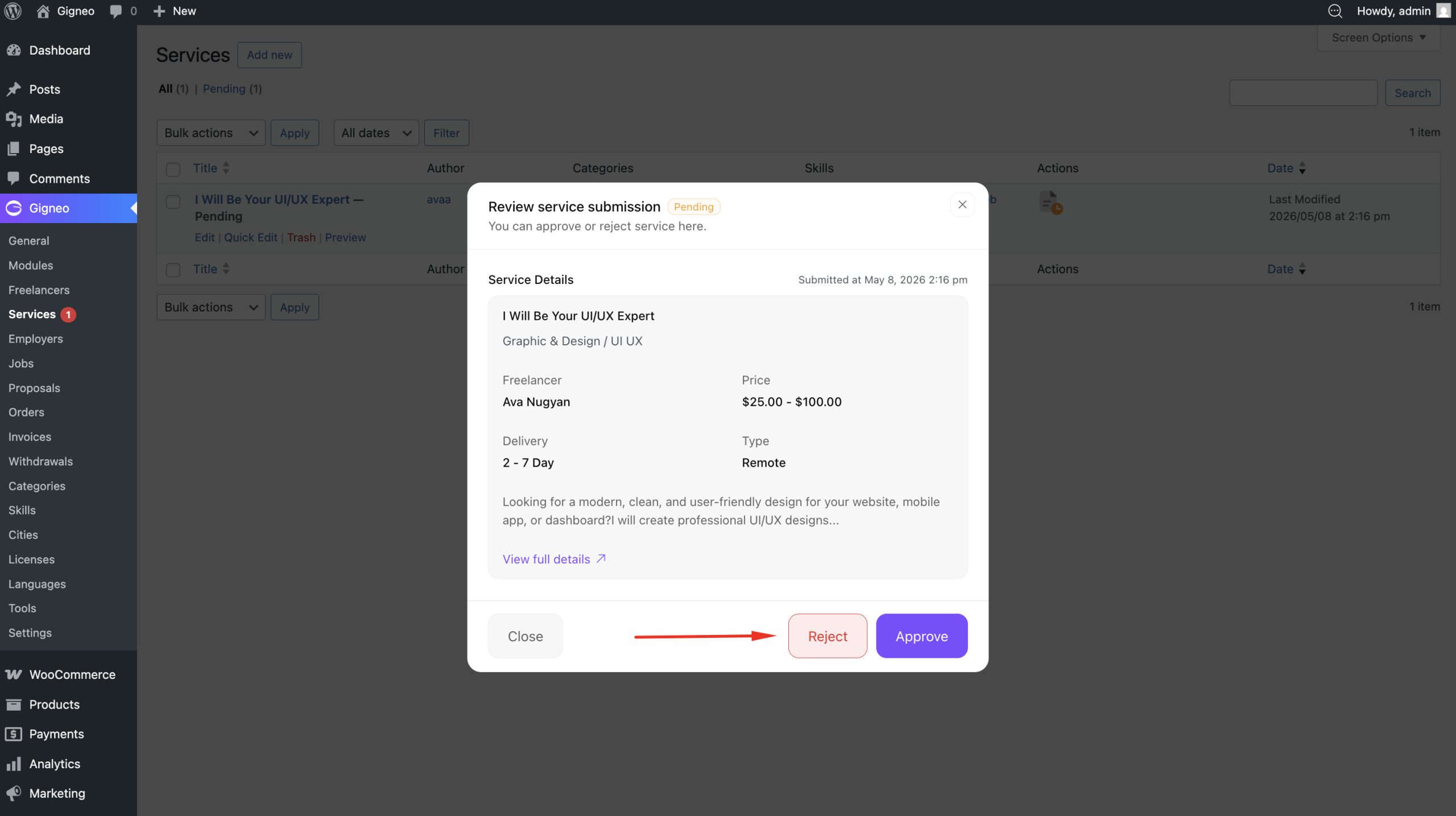
Approve – The service is published and becomes visible on the marketplace.
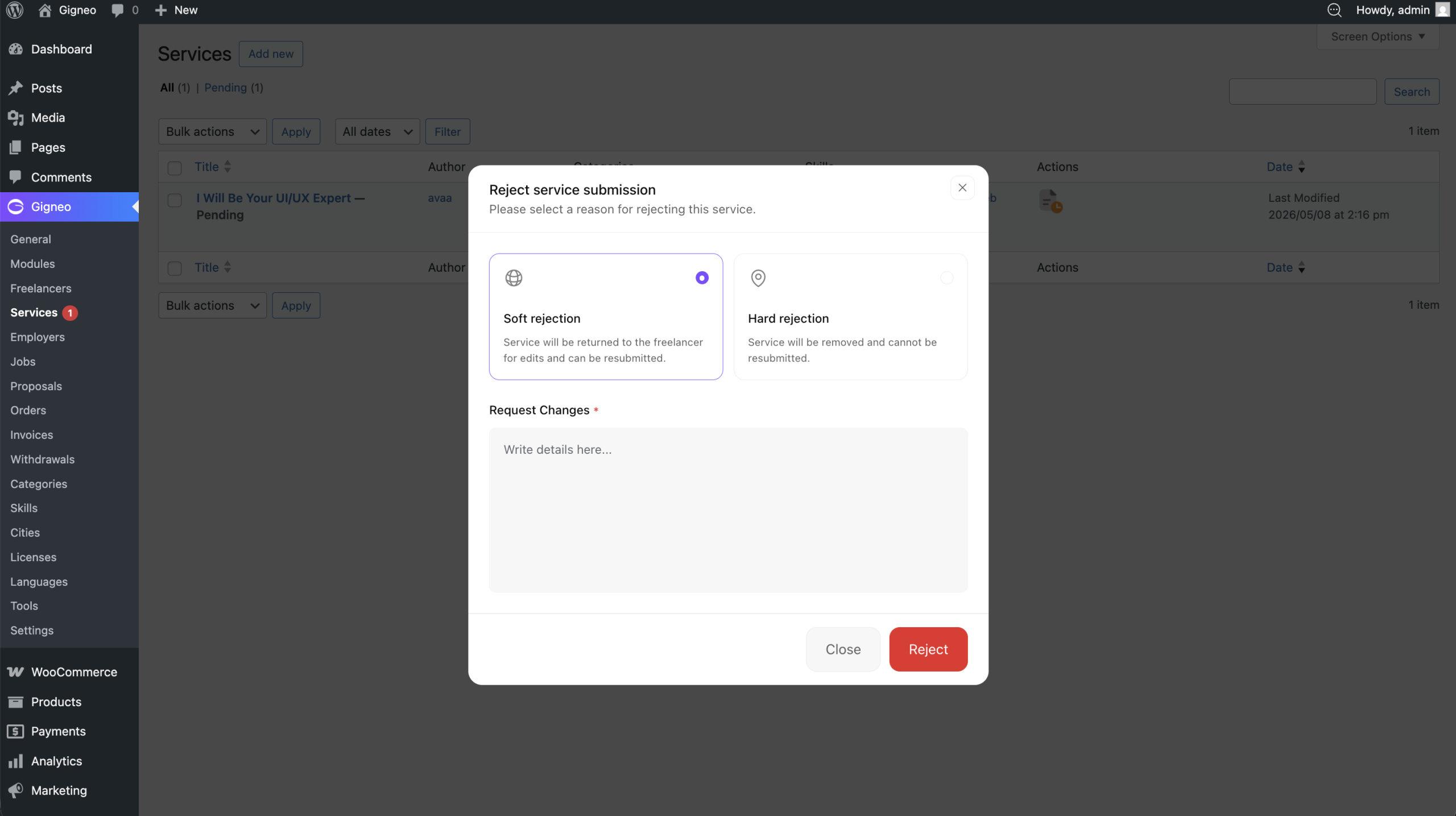
Soft Reject – The administrator can provide feedback or required changes. The freelancer can update the service based on the provided instructions and resubmit it for review.
Hard Reject – The service is moved to trash. The freelancer must create and submit the service again if they want it reviewed.
This review system helps maintain marketplace quality and ensures services meet platform standards before going live.