
The withdrawal system in Gigneo allows users to withdraw available funds from their wallet balance using payout methods enabled by the marketplace administrator.
Before using withdrawals, make sure the withdrawal product is properly configured in Gigneo → Settings → Payments.
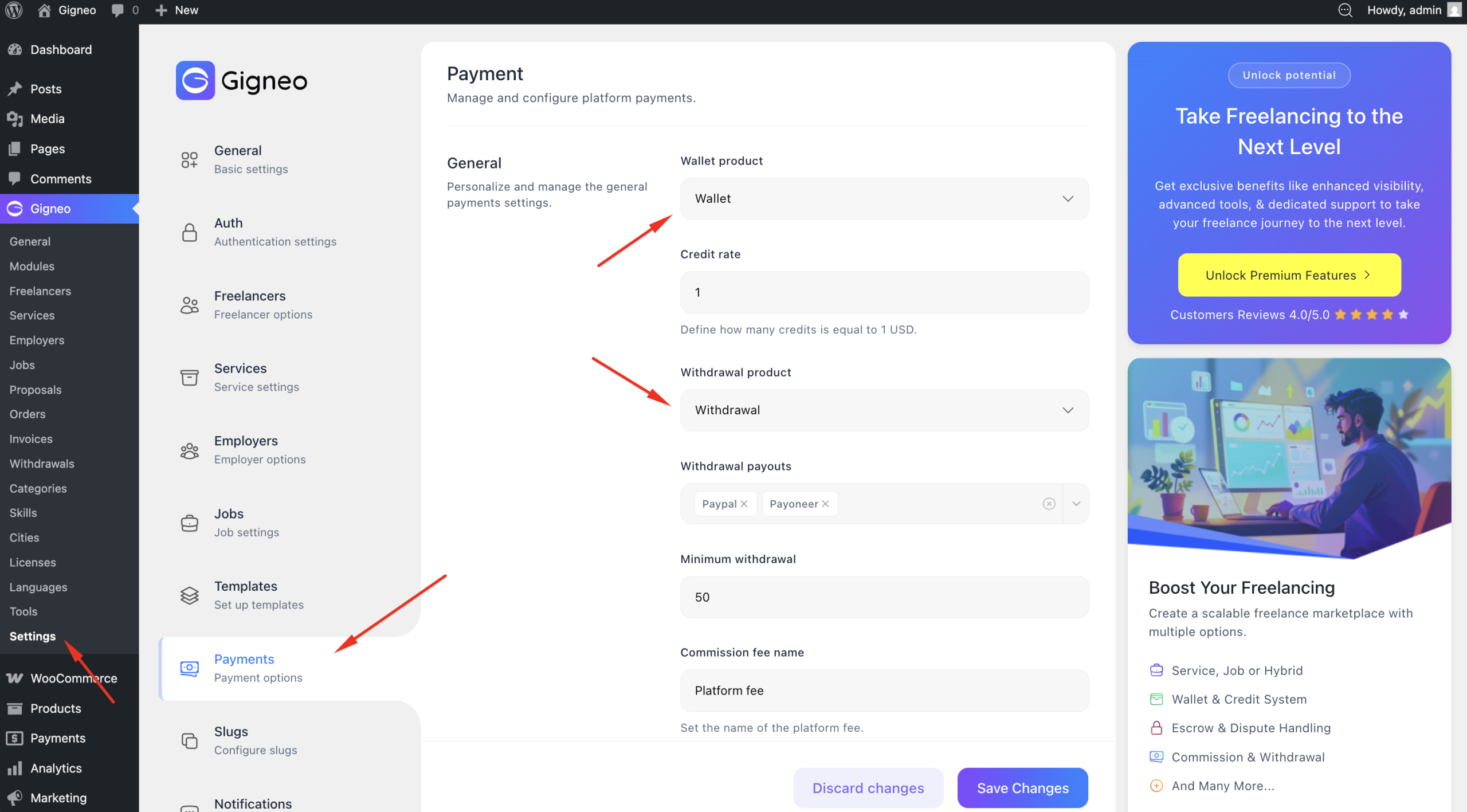
Just like the wallet product, the withdrawal product is required for processing marketplace withdrawal transactions.
If the withdrawal product has not been configured, please review the Configuration guide to complete the setup.
Enable Payout Methods
Marketplace owners can configure available payout methods by navigating to Gigneo → Settings→ Payments.
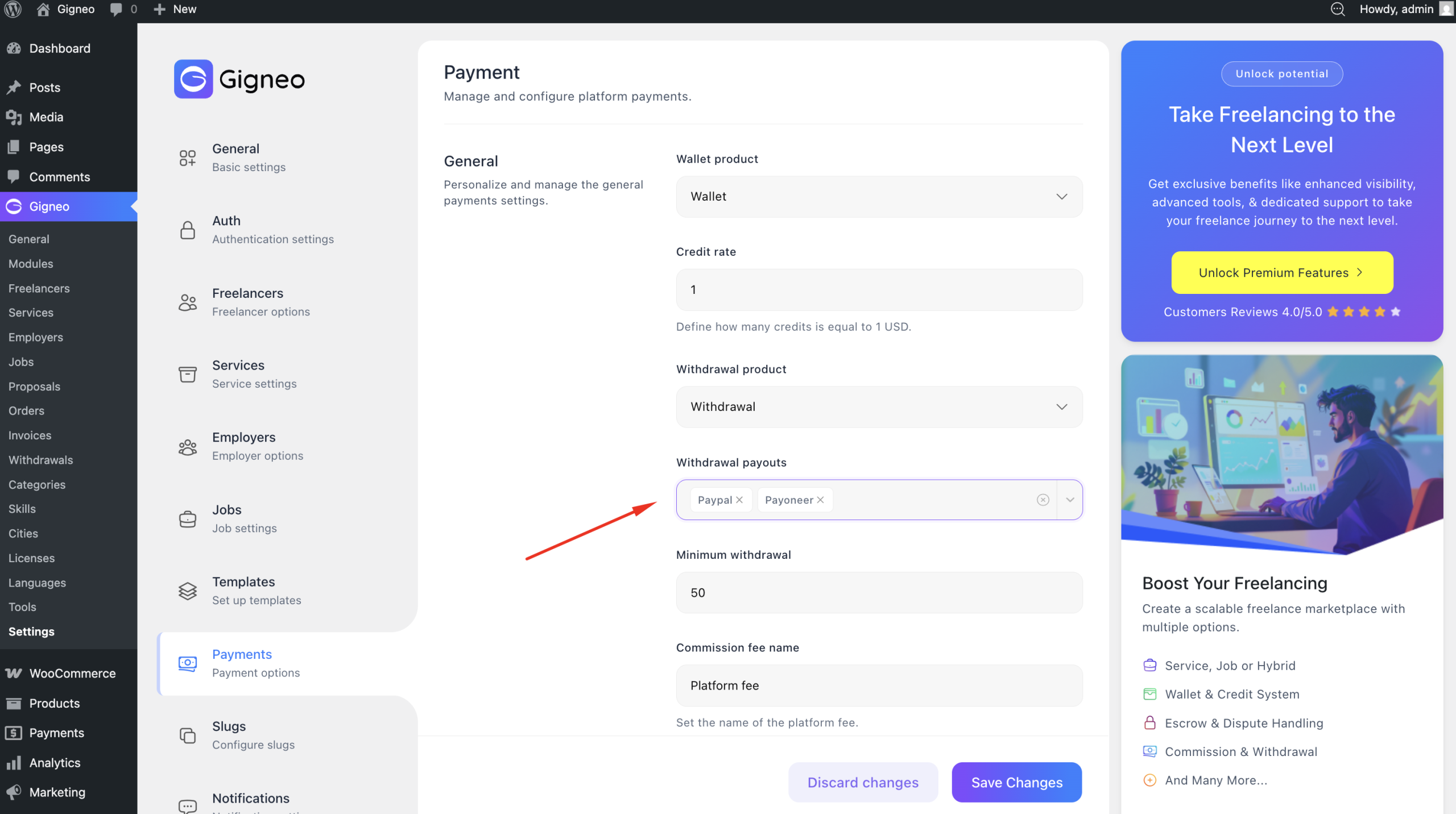
From there, administrators can enable the payout methods users will be allowed to use for withdrawals.
Withdrawal Commission Setup
Administrators can also configure withdrawal commission settings from the same Gigneo → Settings→ Payments..
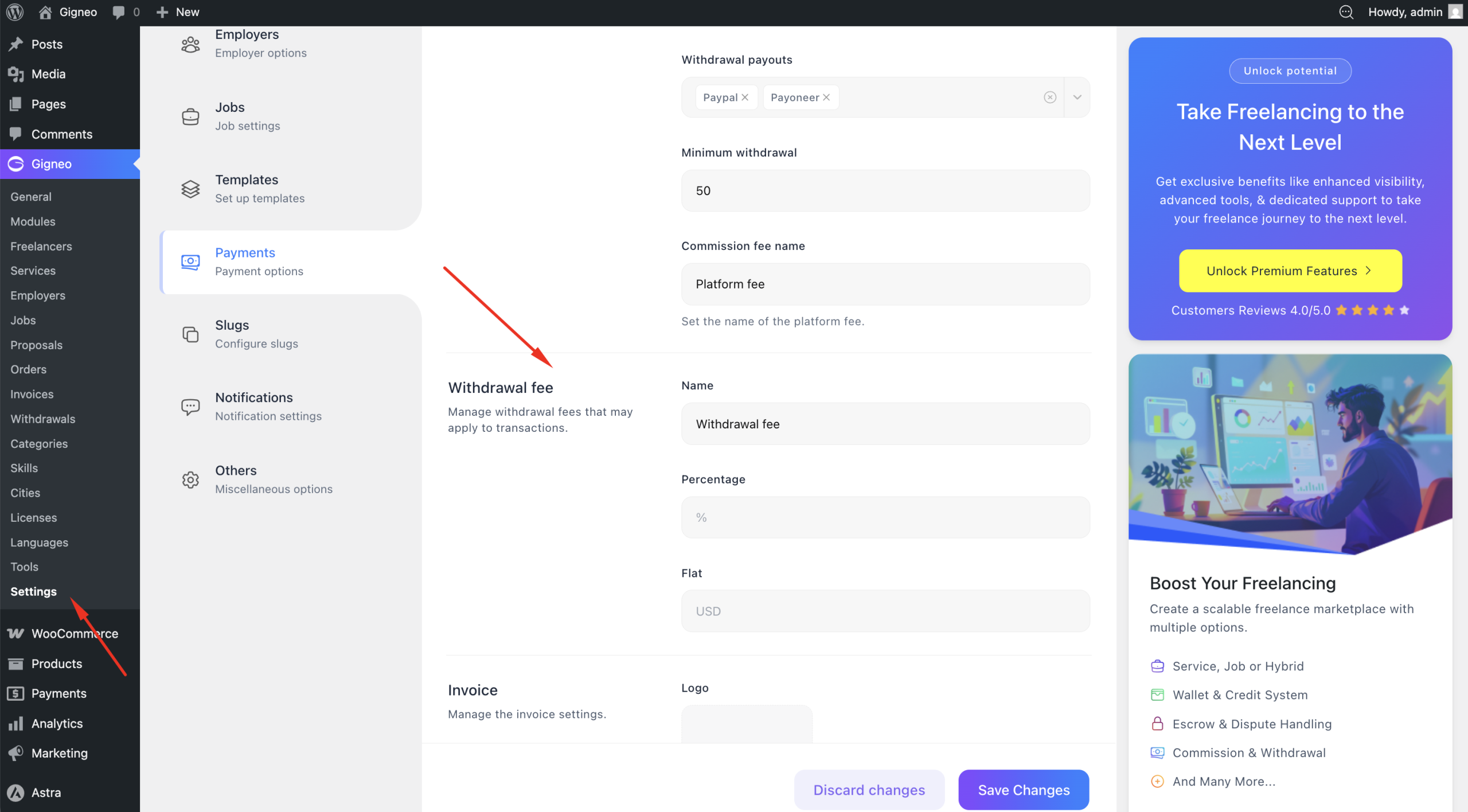
Here you can define withdrawal fees, fee name, fee amount, and minimum withdrawal limits based on your marketplace requirements.
User Payout Setup
Before submitting a withdrawal request, users must configure their payout details.
To do this, users need to navigate to Dashboard → Settings → Billing.
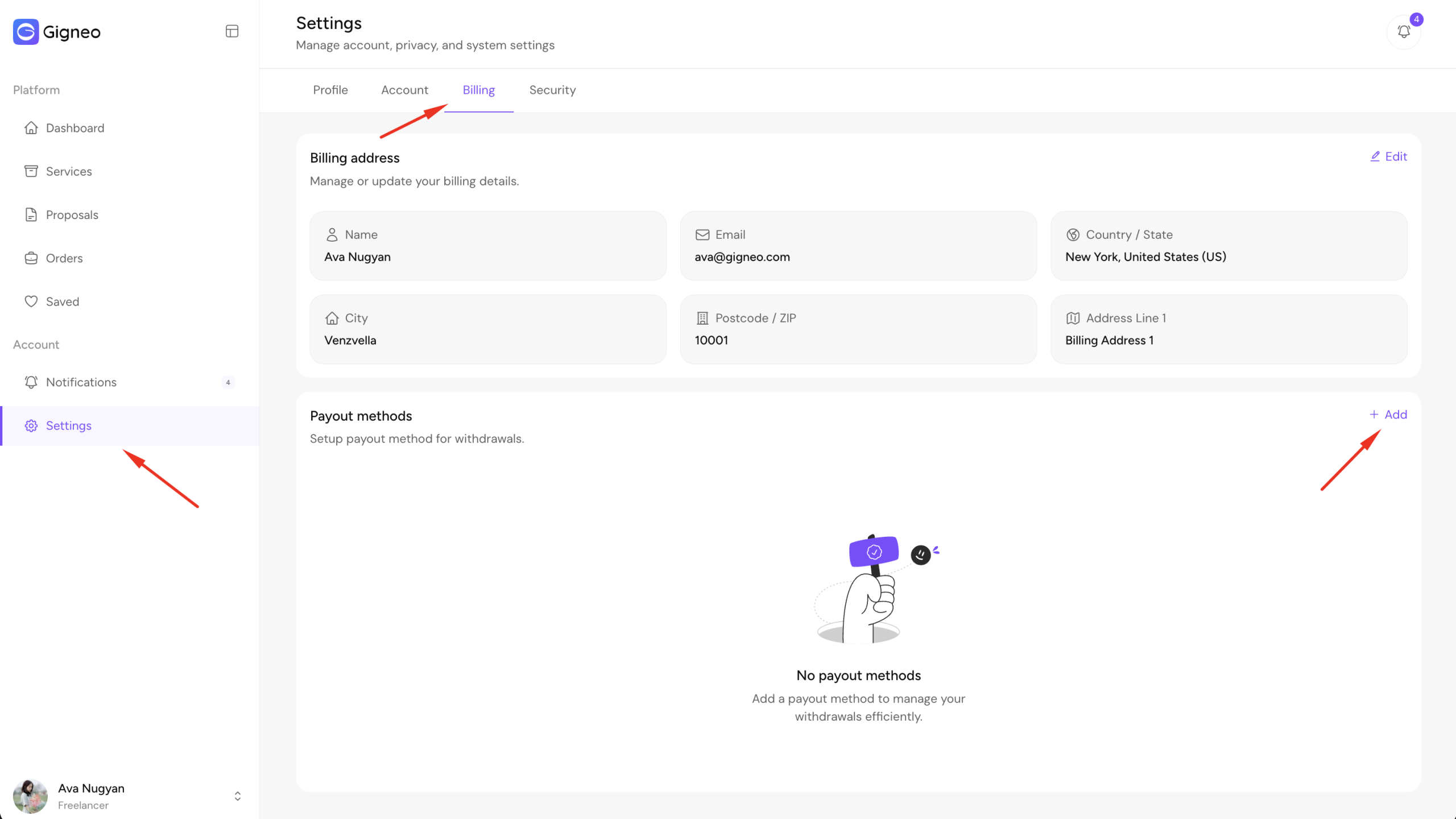
From there, they can set up their payout information using any payout methods enabled by the administrator.
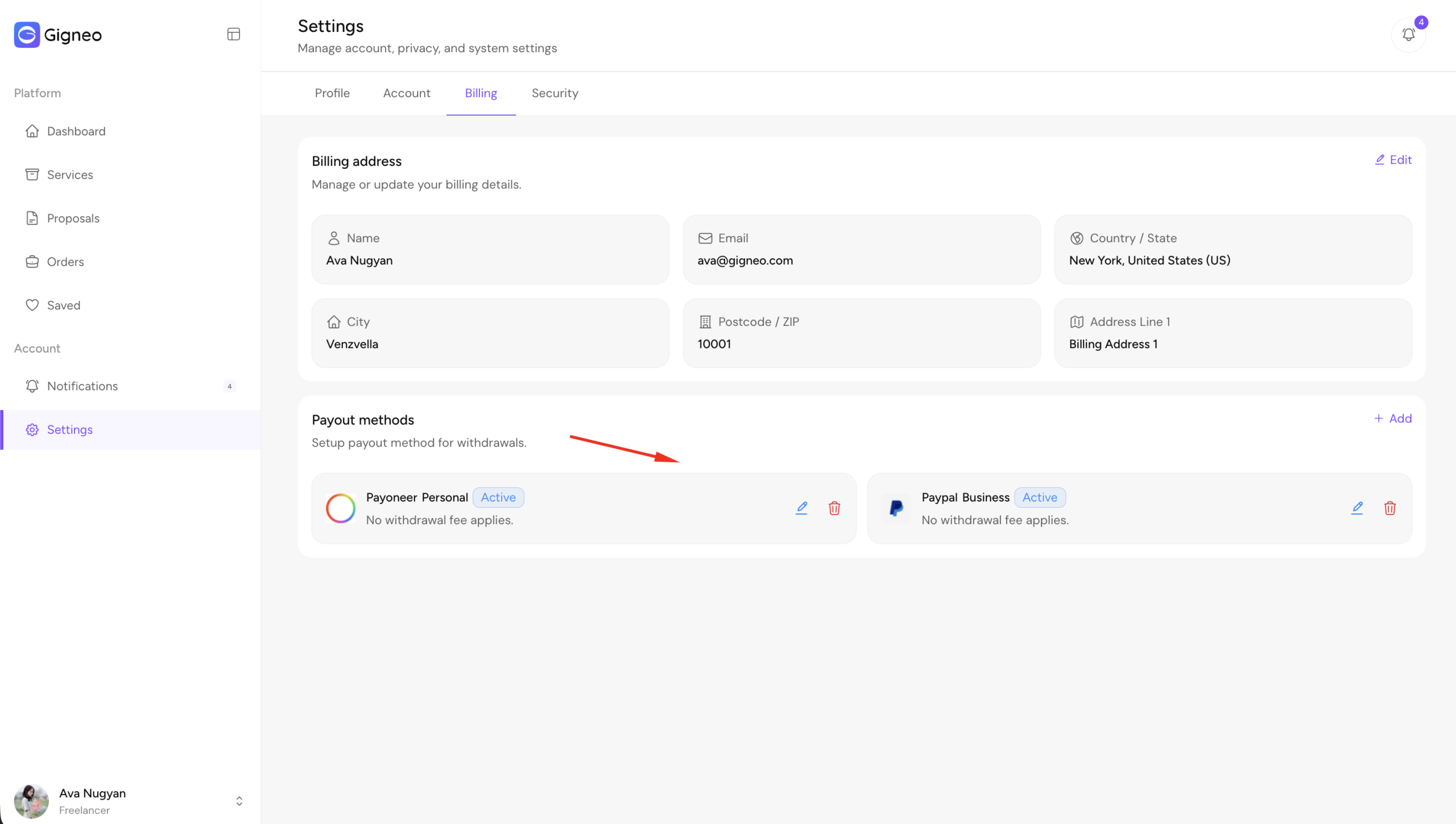
This information is required for successful withdrawal processing.
Submit Withdrawal Request
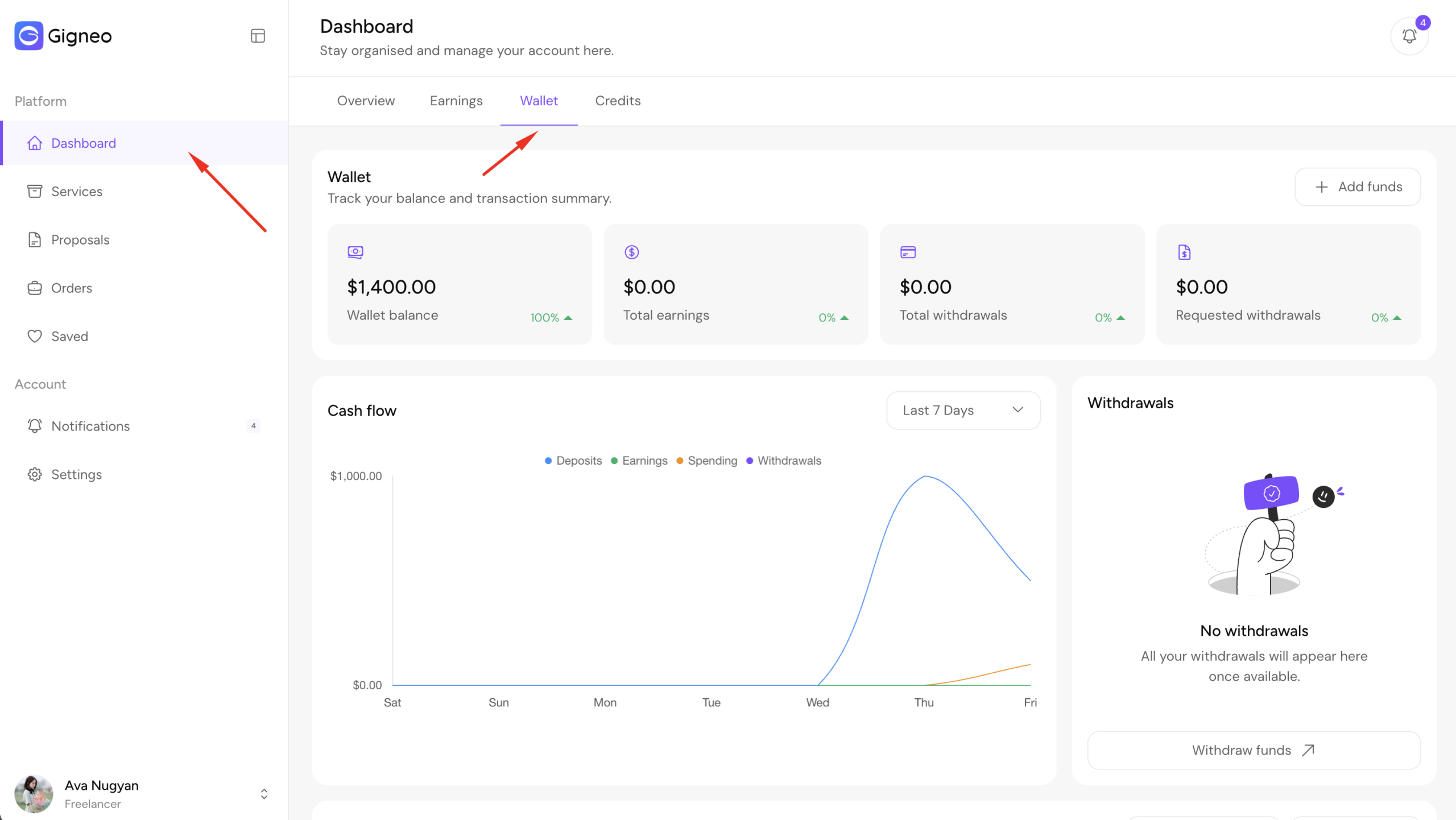
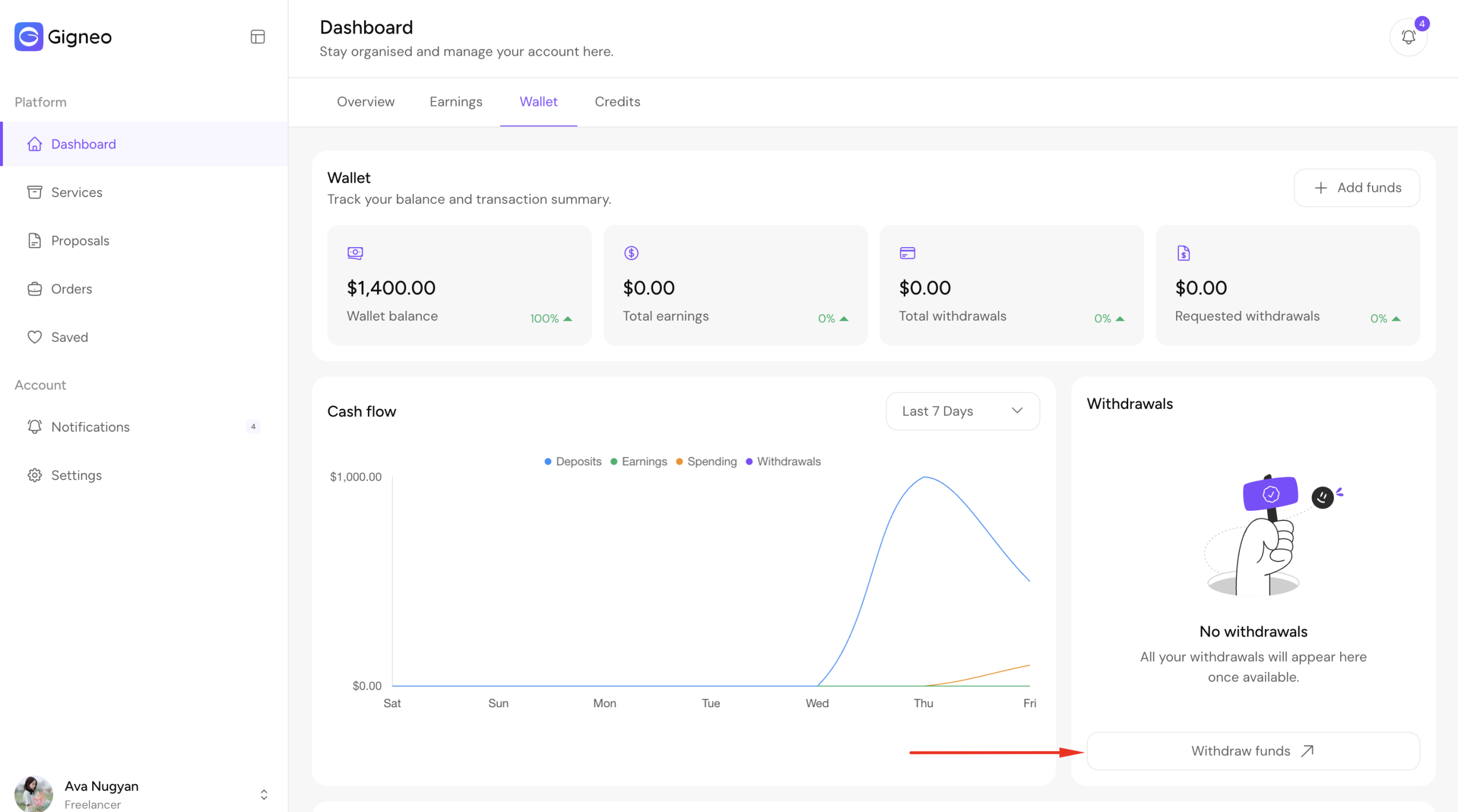
Once payout details are configured, users can request a withdrawal by navigating to User Dashboard → Wallet.
Click the Withdraw Funds button.
This will open the withdrawal request modal.
Users can enter the withdrawal amount, select their preferred payout method, and submit the request.
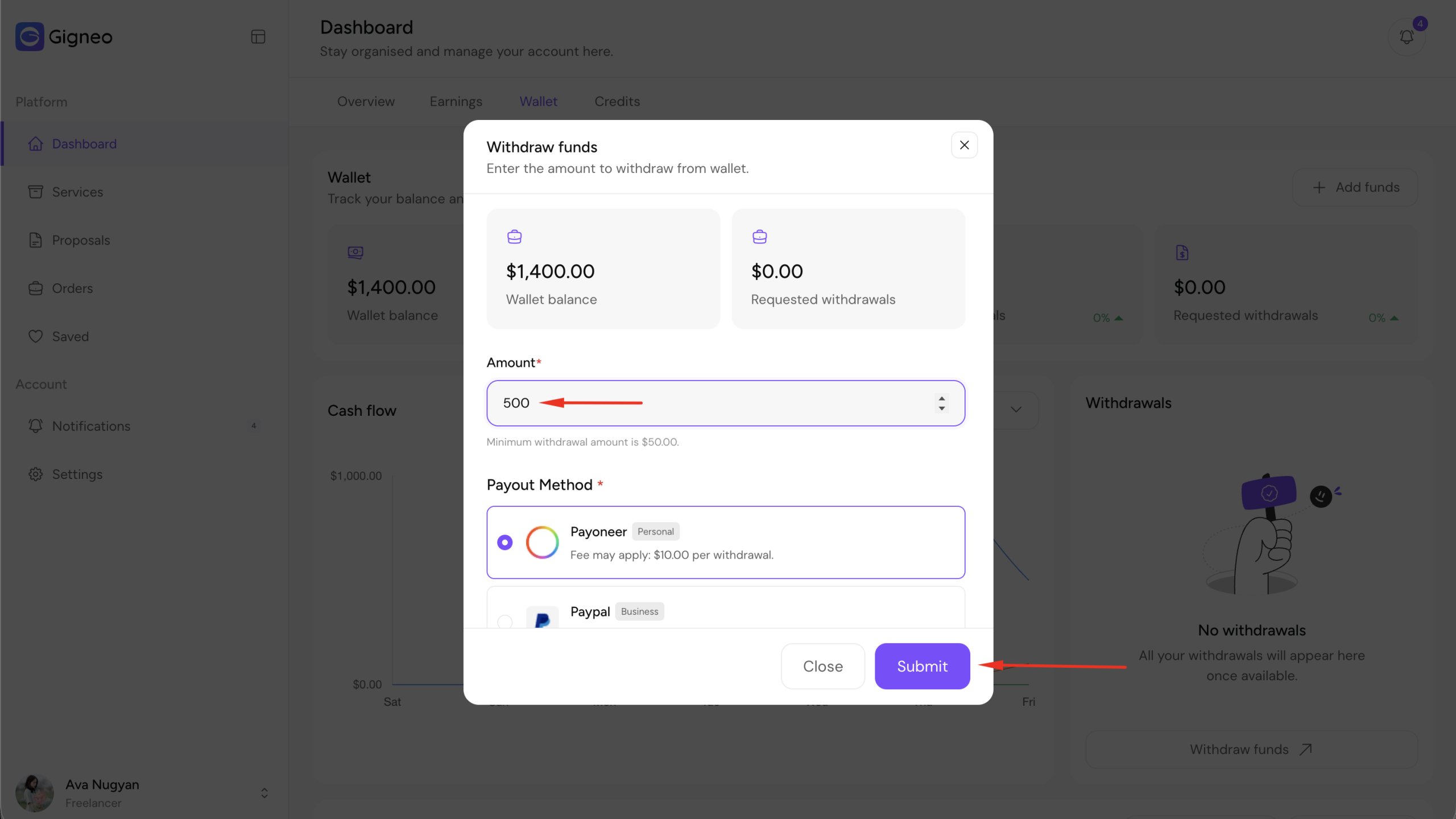
Once submitted, the withdrawal request will be sent for admin review.
Admin Review and Processing
Administrators can review all submitted withdrawal requests from Gigneo → Withdrawals.
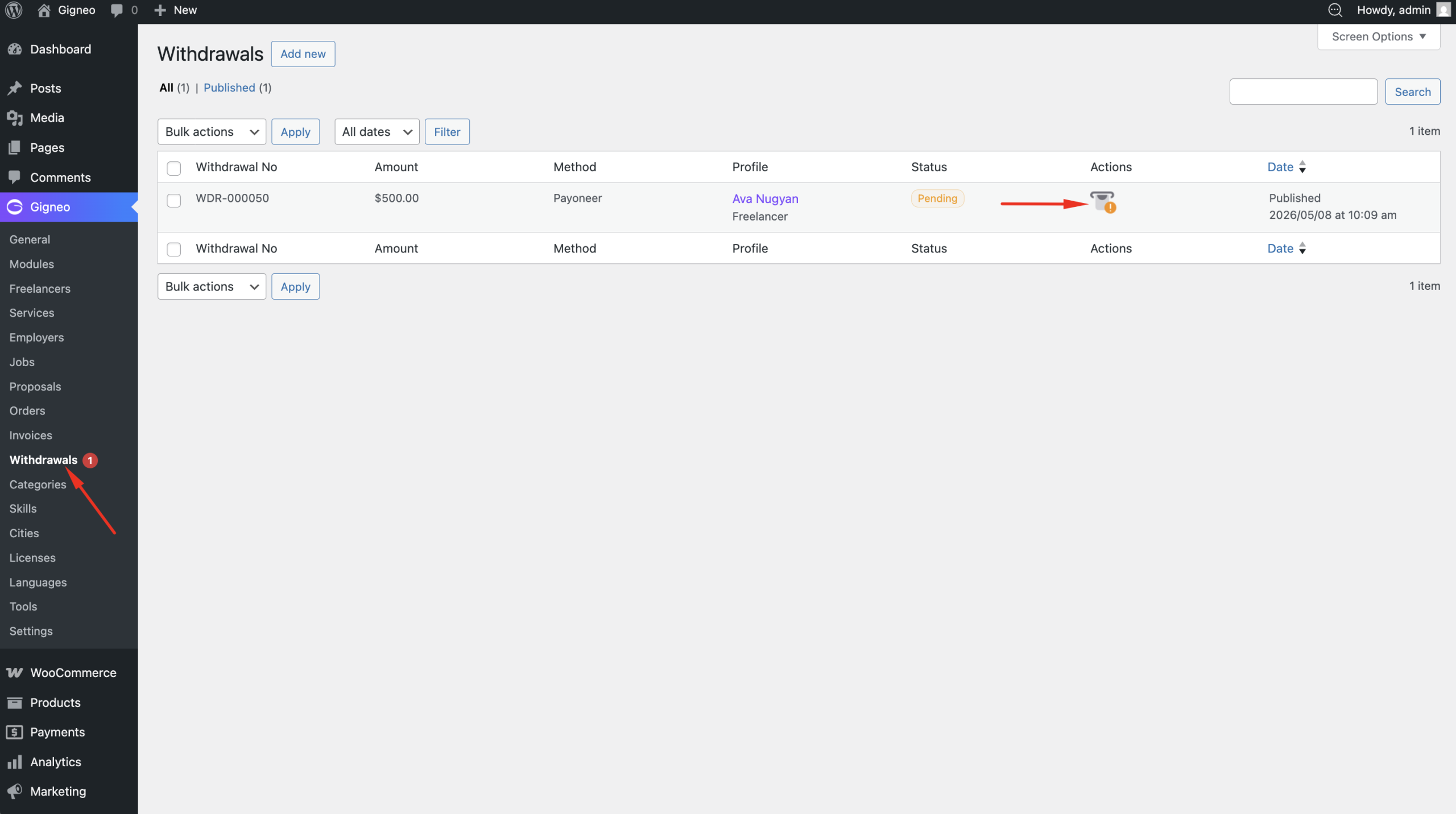
After reviewing the request, the administrator should manually transfer the payment to the user’s payout account.
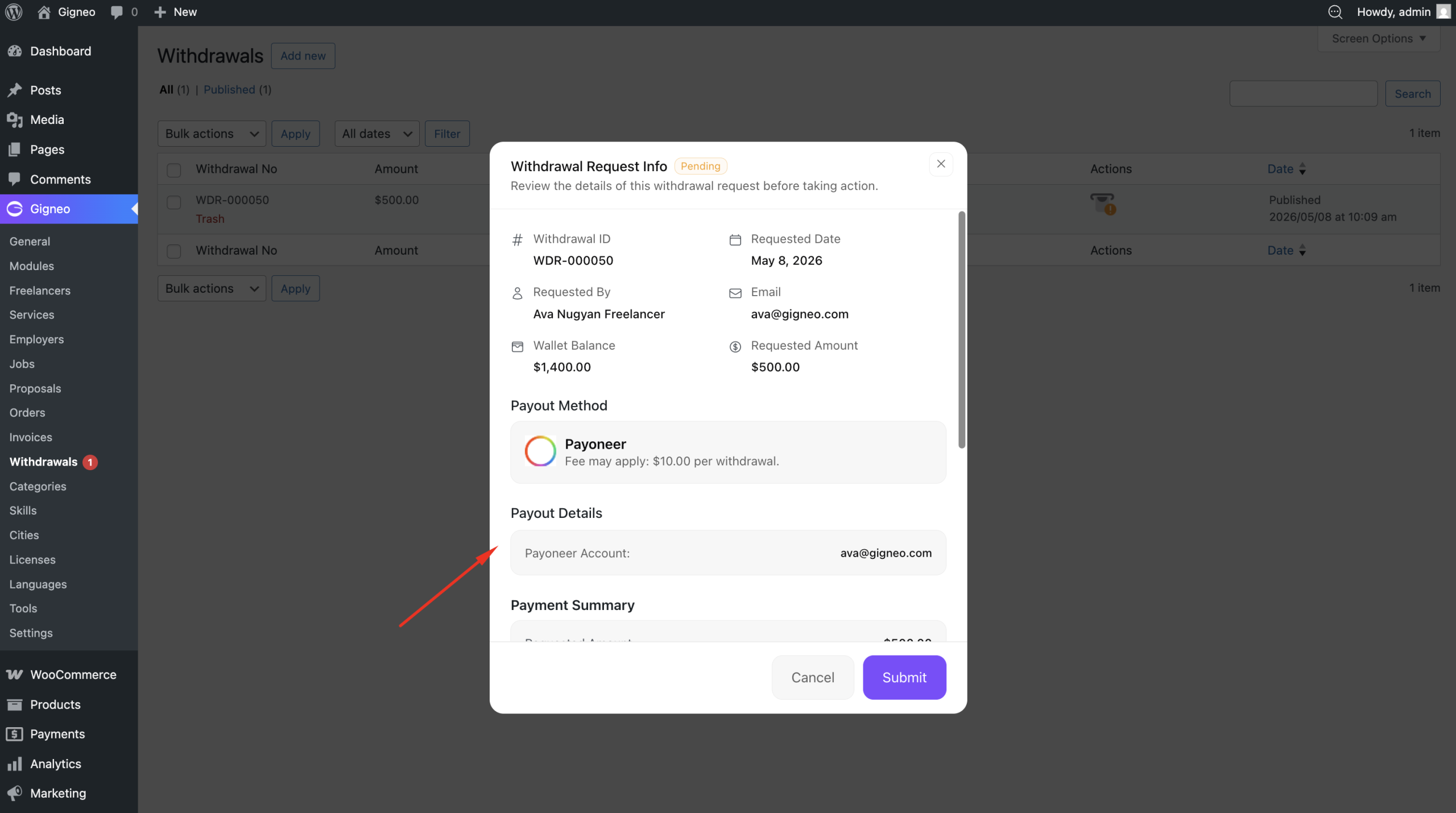
Before sending payment, it is recommended to update the withdrawal status to Processing.
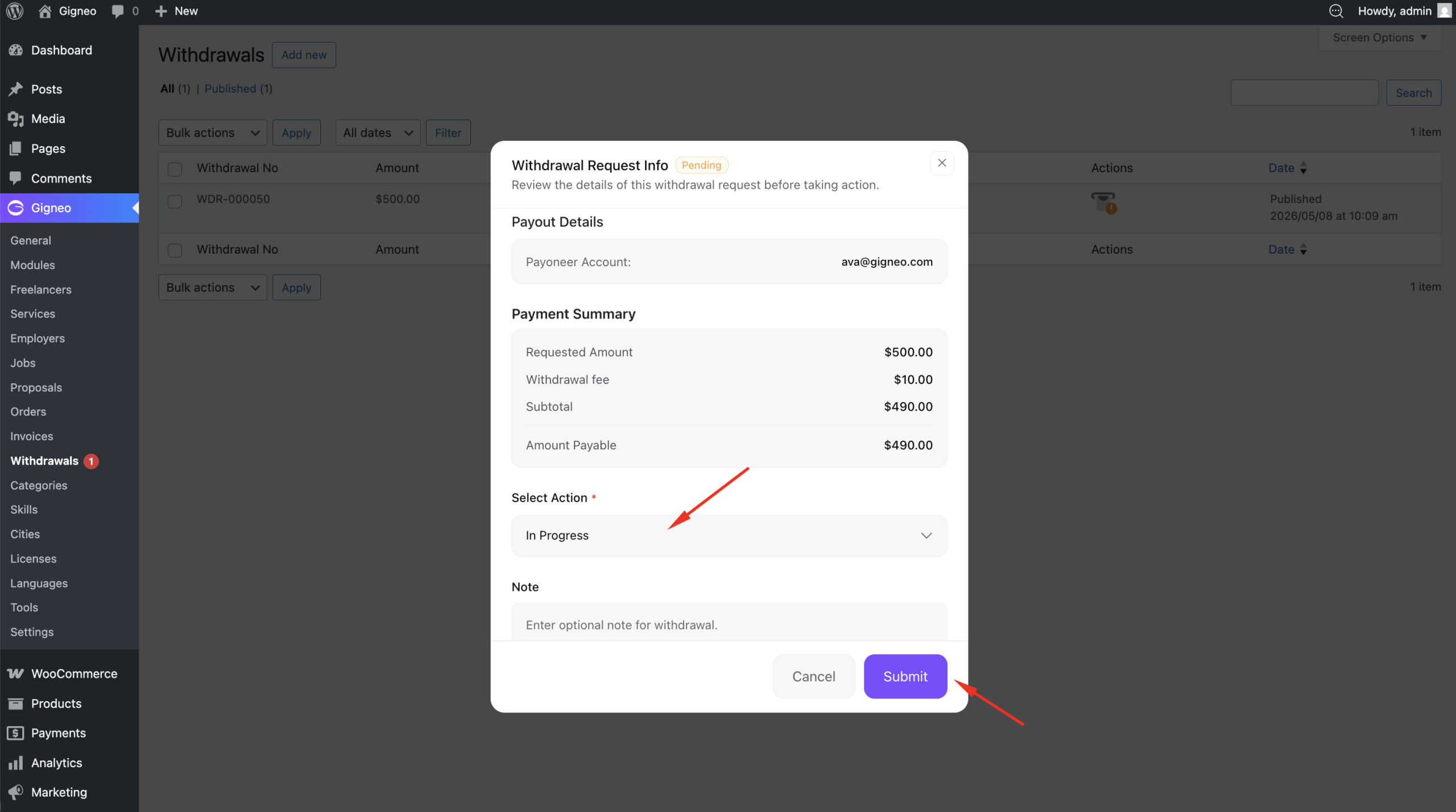
This prevents the user from removing the withdrawal request while payment transfer is in progress.
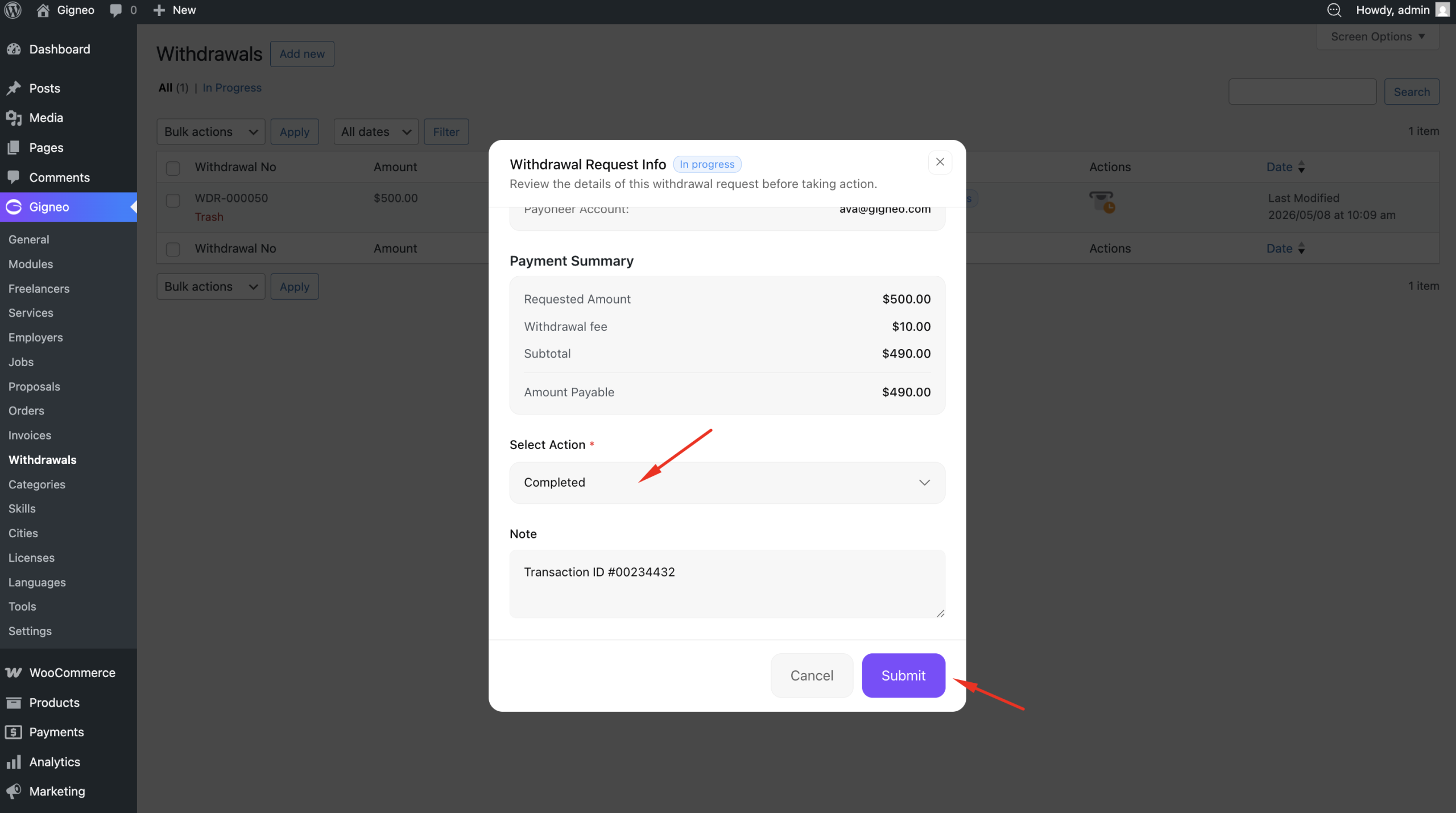
Once the payment transfer is completed successfully, the administrator should update the withdrawal status to Completed.
This finalizes the withdrawal process.
Withdrawal Invoice
Users can also download their withdrawal invoice directly from their dashboard.
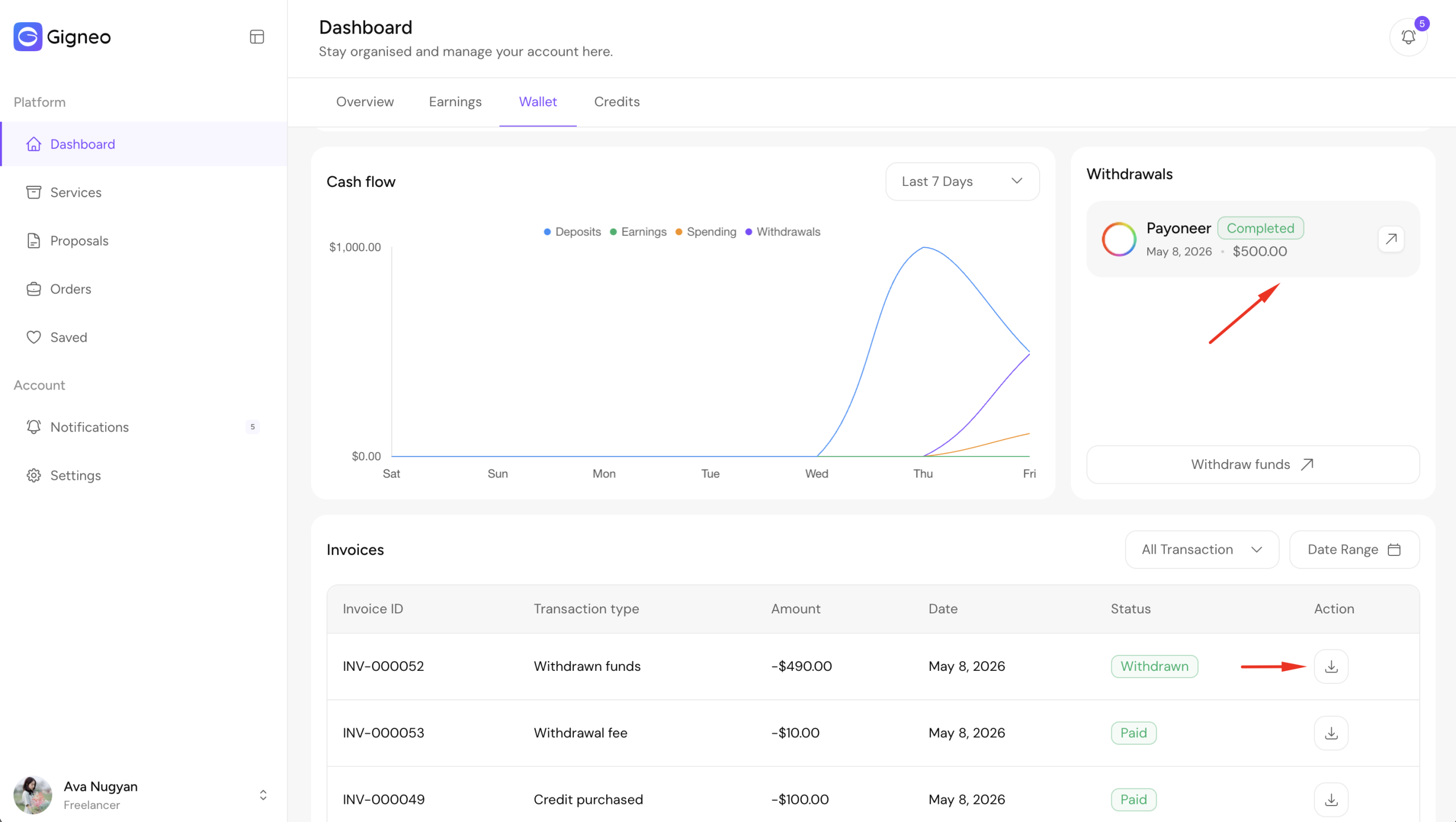
This provides a record of completed withdrawal transactions for tracking and documentation purposes.