
Gigneo provides a complete order management system for freelancers, employers, and administrators.
Both service orders and job orders can be managed from dedicated order management pages.
This centralized workflow allows all parties to track progress, communicate, manage files, review payments, and complete projects efficiently.
Order Listing
Freelancers and employers can access all marketplace orders by navigating to Dashboard → Orders.
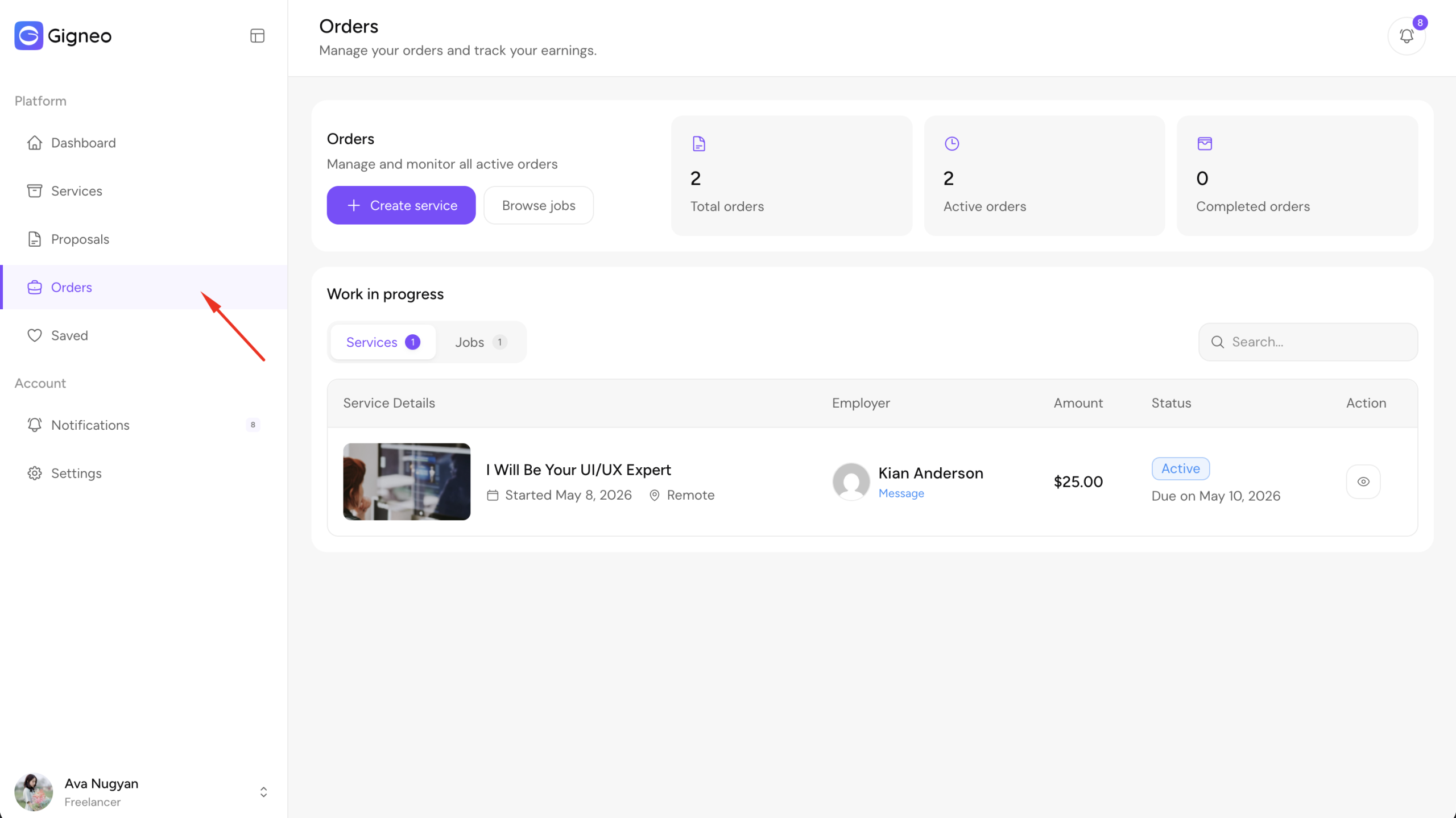
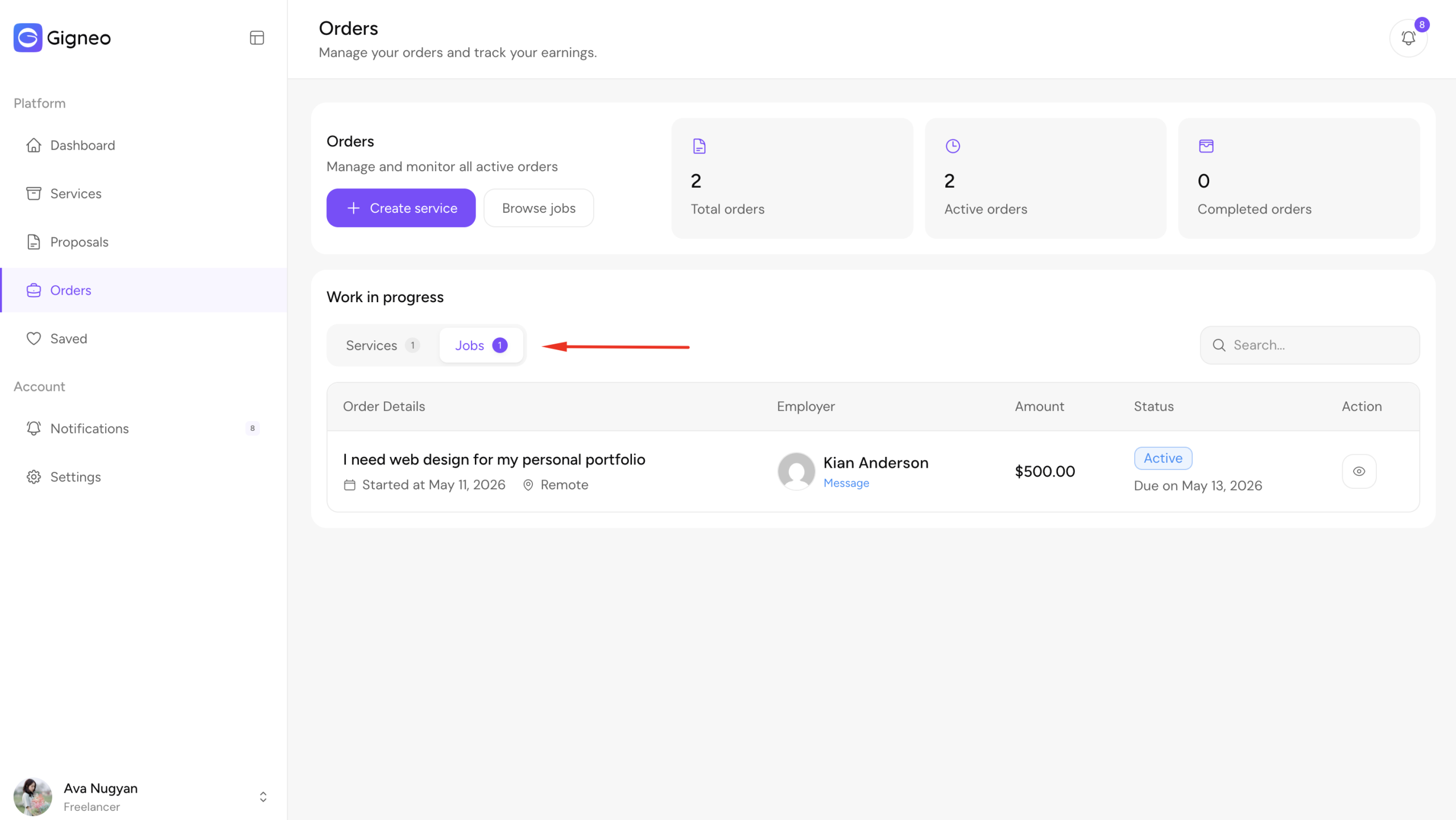
Inside the Orders section, users will find separate tabs for Services and Jobs. Each tab displays the complete list of orders for its respective order type.
Users can open any order to view and manage its complete details.
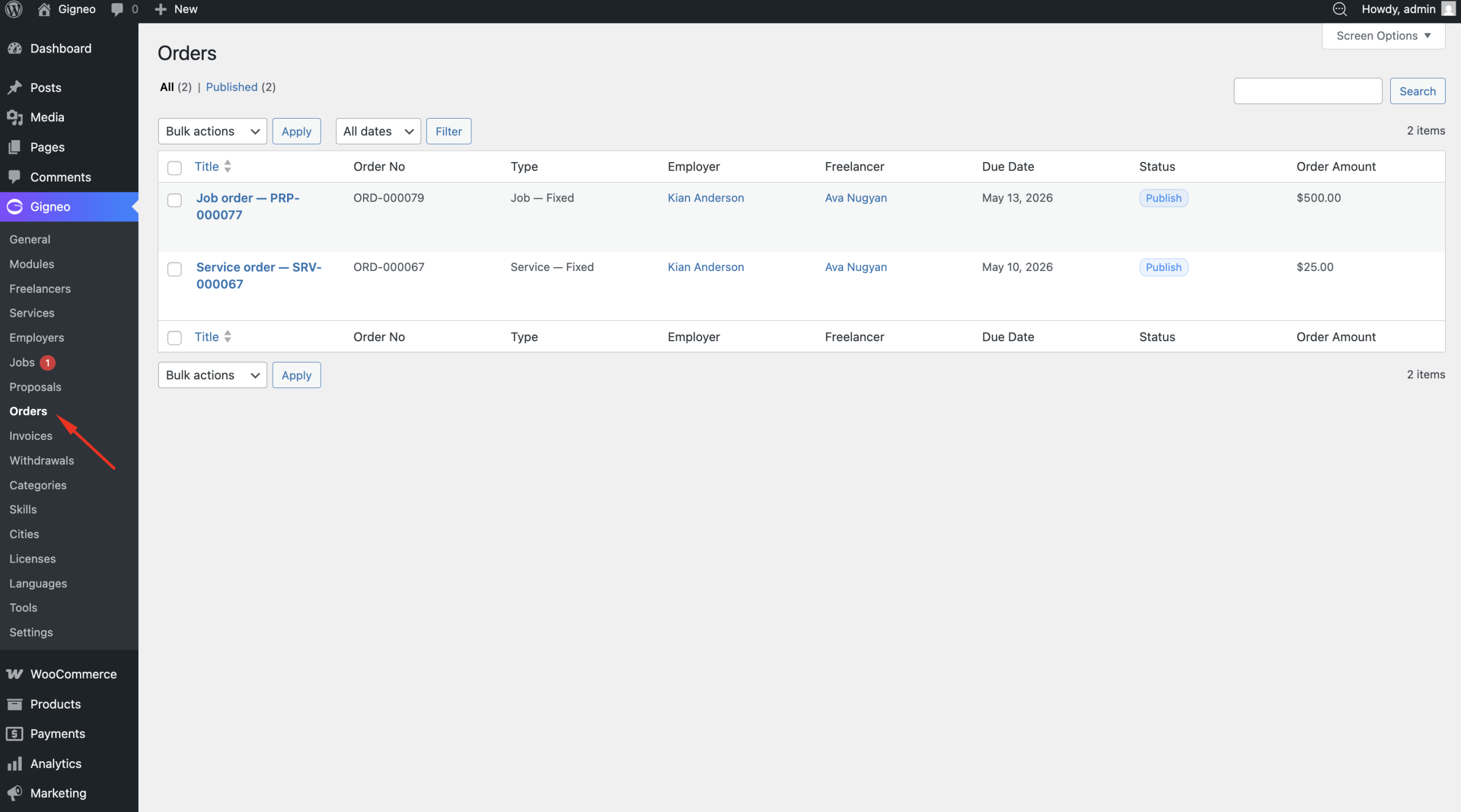
Administrators can manage all platform orders from the Gigneo -> Orders.
Order Details
When opening an order, users are taken to the detailed order management page.
This page contains multiple tabs for managing every part of the project workflow:
- Overview
- Activity
- Messages
- Attachments
- Payments
In addition to these tabs, the order detail page also includes delivery tracking, order progress monitoring, and revision management sections.
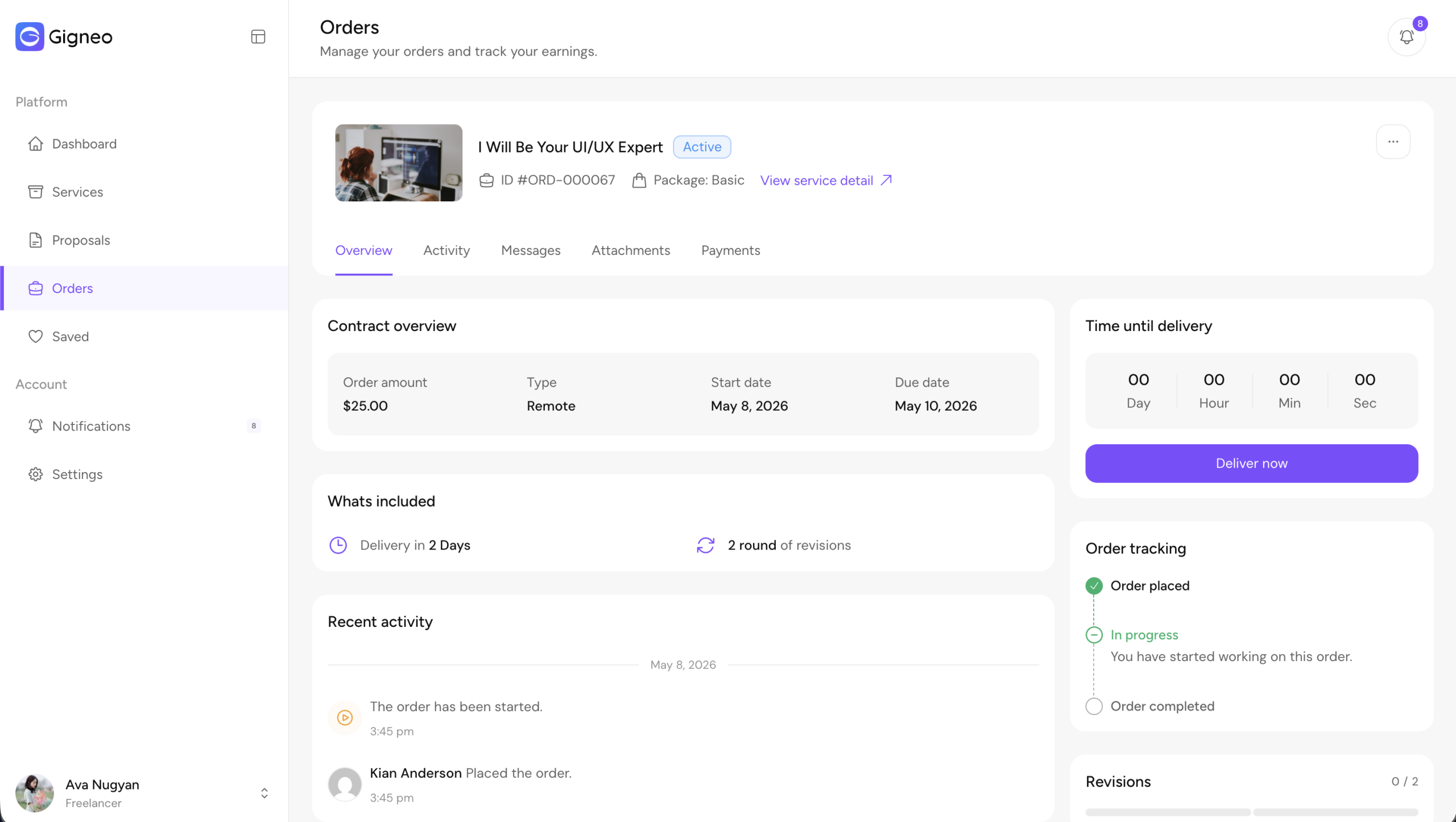
These tools allow freelancers and employers to manage the full order lifecycle.
Overview Tab
The Overview tab provides a complete summary of the active order.
It contains the Contract Overview section, where users can quickly view the most important order details like Order Amount, Type, Start Date & Due Date.
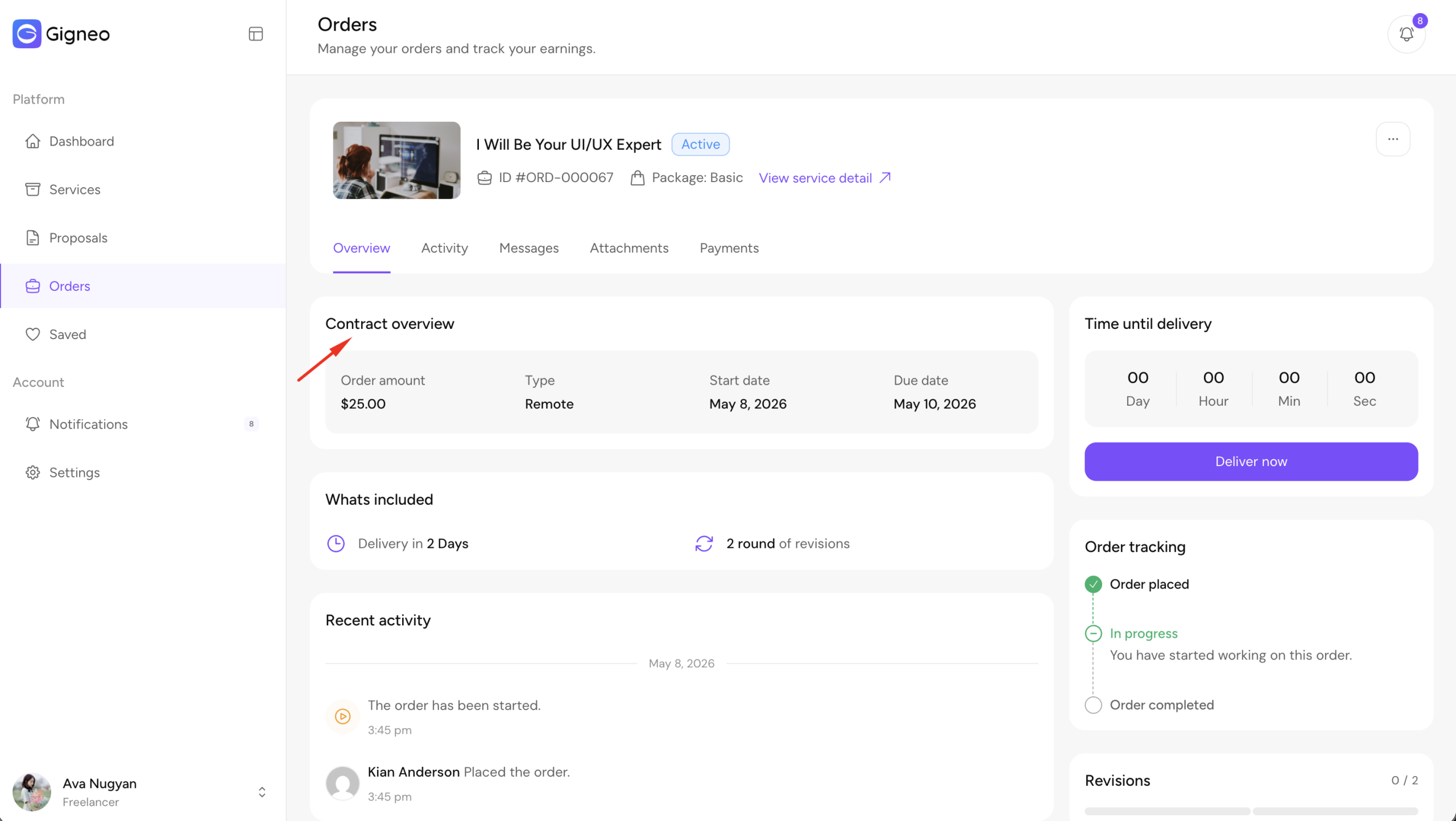
This allows both freelancers and employers to clearly track the order agreement and timeline.
For service orders, the Overview tab also displays everything included in the selected service package.
This includes the selected service features, package details, and the total number of available revisions.
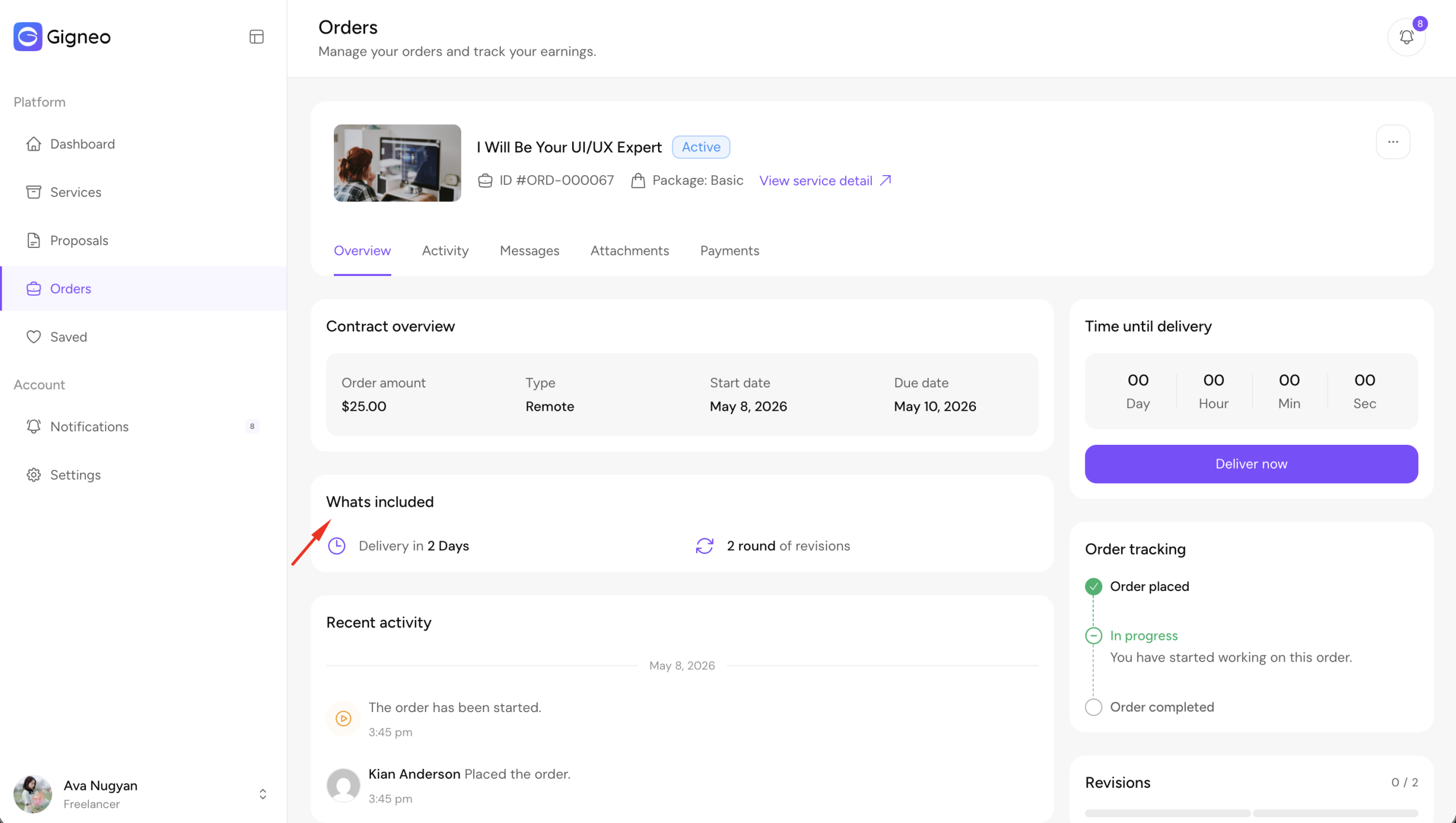
These details help both parties stay aligned with the original service agreement throughout the order lifecycle.
Activity Tab
The Activity tab records all actions and updates related to the order.
Both freelancers and employers can use this section to track the complete order activity history.
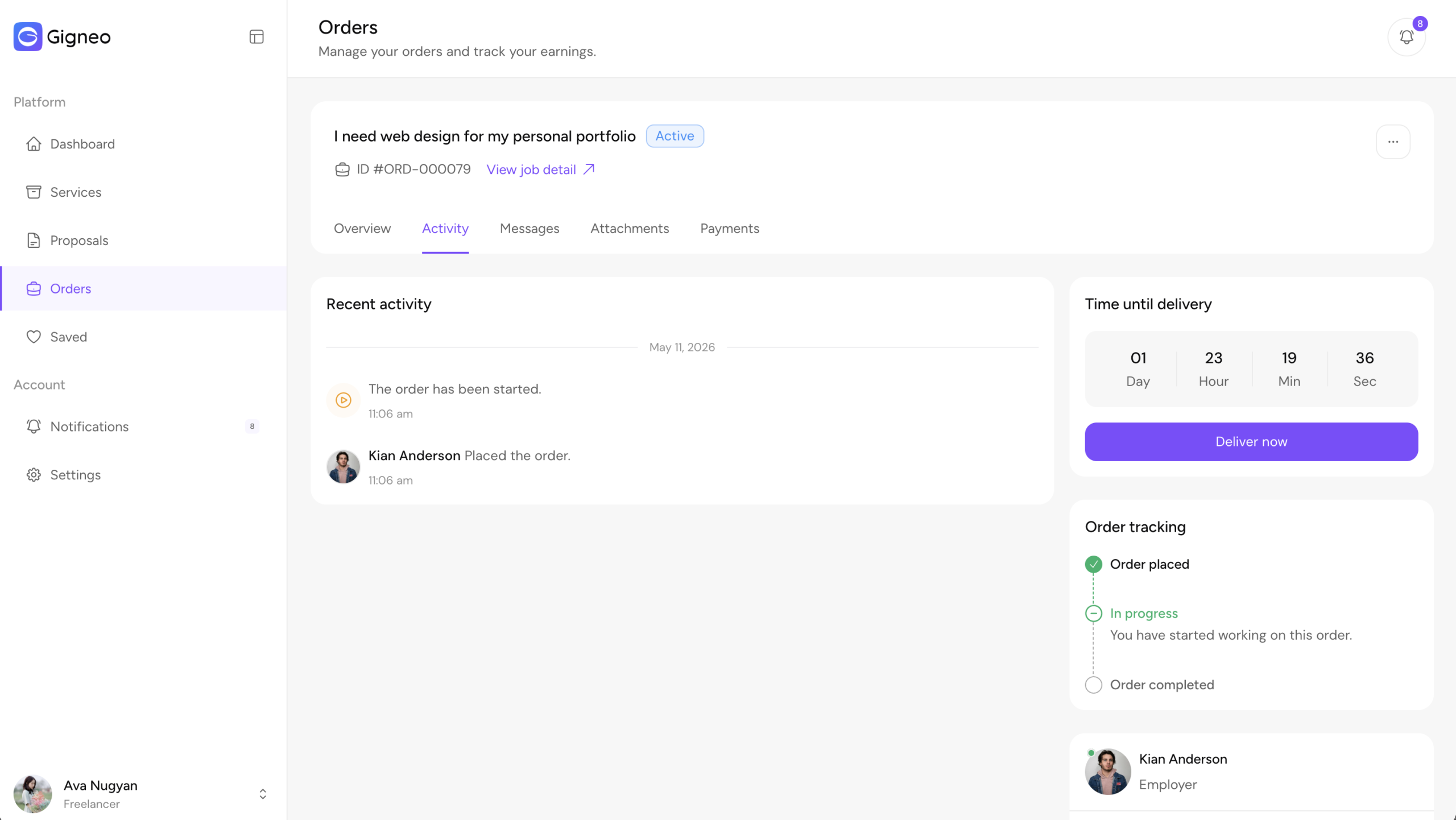
Each activity is recorded with its timeline, allowing both parties to clearly see what actions have been performed throughout the order lifecycle.
This provides full transparency and helps freelancers and employers stay updated on project progress at every stage.
Messages Tab
The Messages tab allows direct communication between freelancer and employer.
Both parties can exchange order-related messages during the order process.
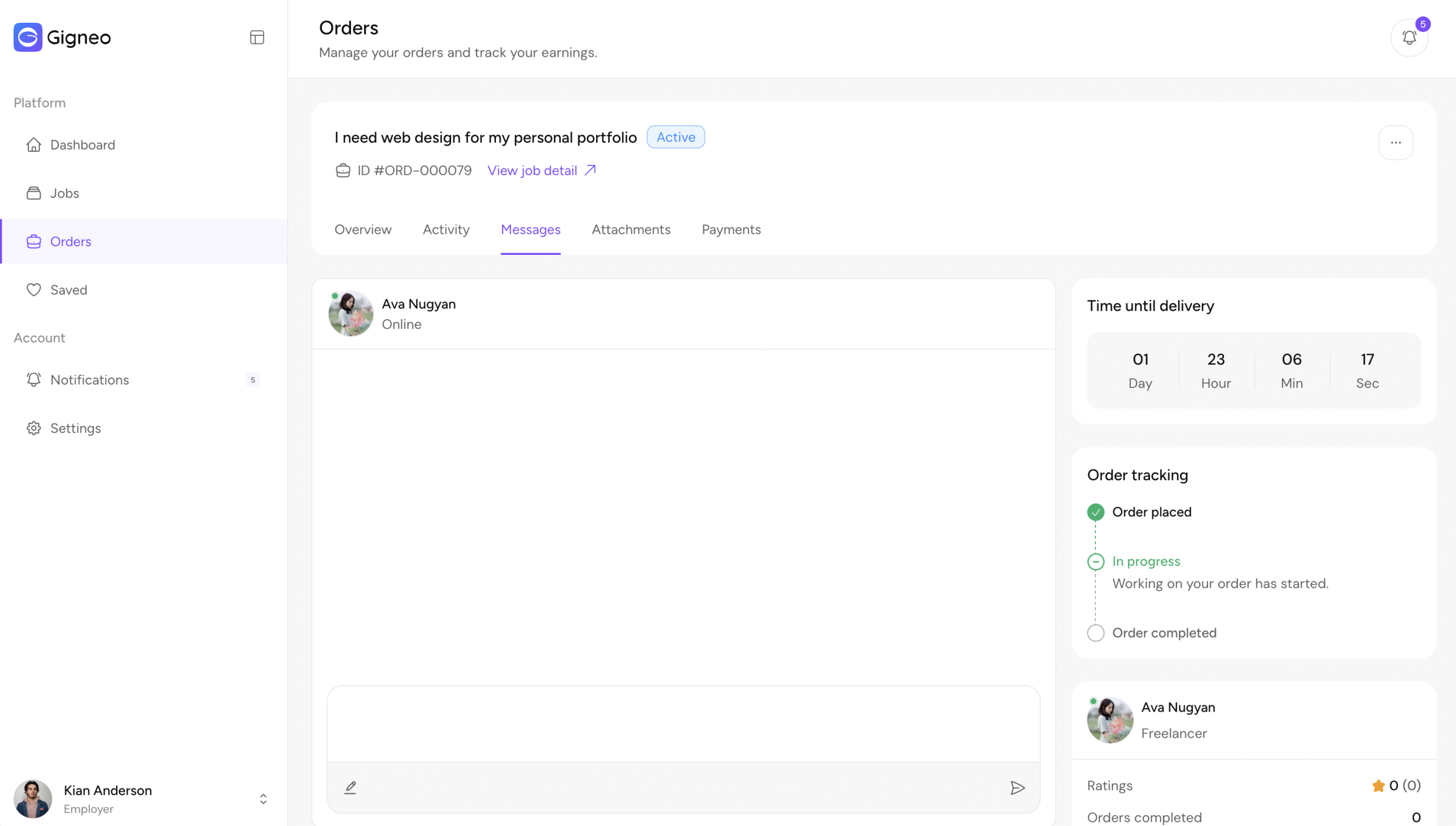
This keeps all communication organized inside the order itself.
Attachments Tab
The Attachments tab allows users to upload and manage project-related files.
This may include project deliverables, revision files, references, instructions, or supporting documents.
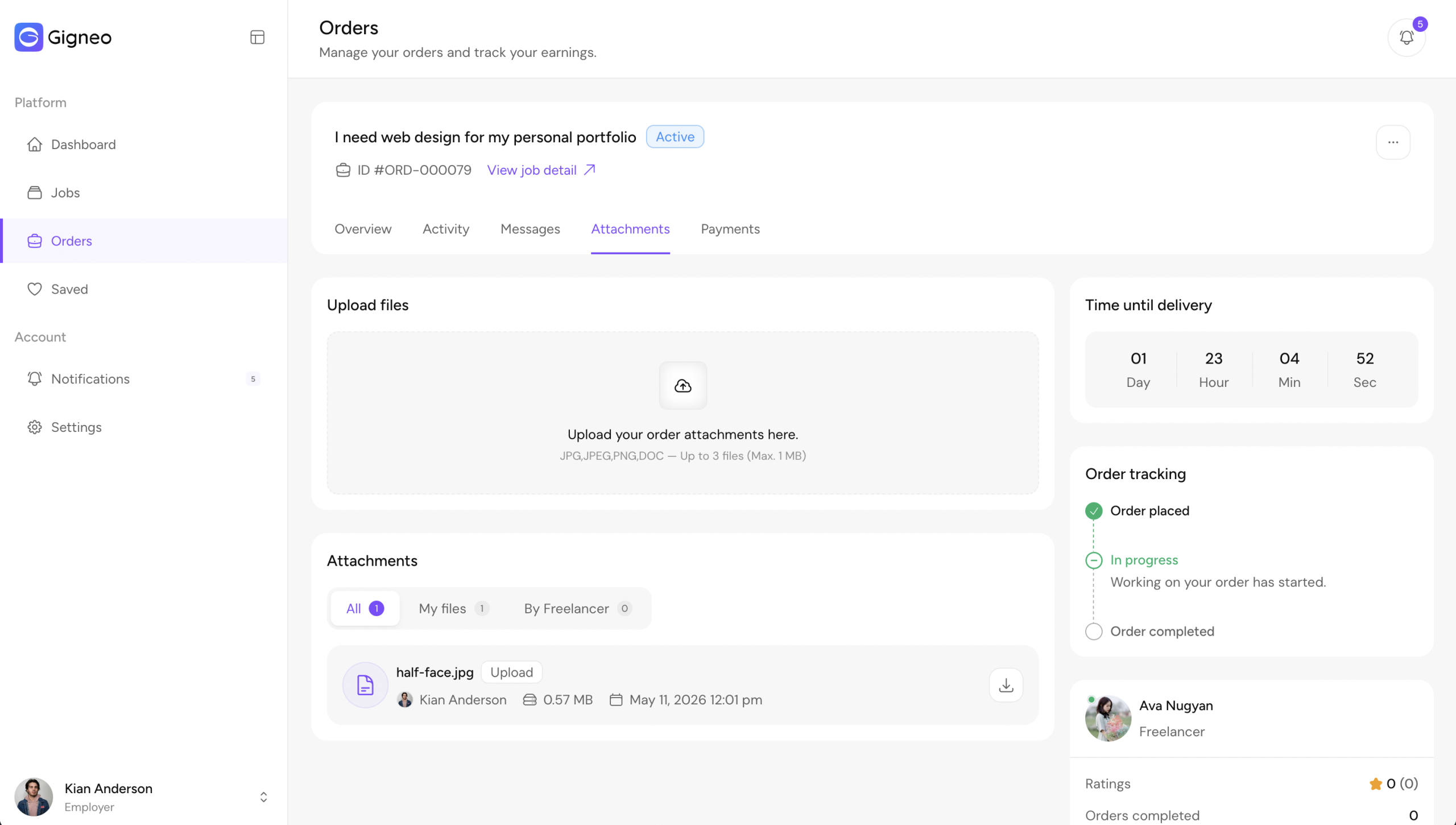
This makes file sharing simple throughout the order workflow.
Payments Tab
The Payments tab displays complete payment information for the order.
This includes order amount, platform commission, payment history, and transaction details.
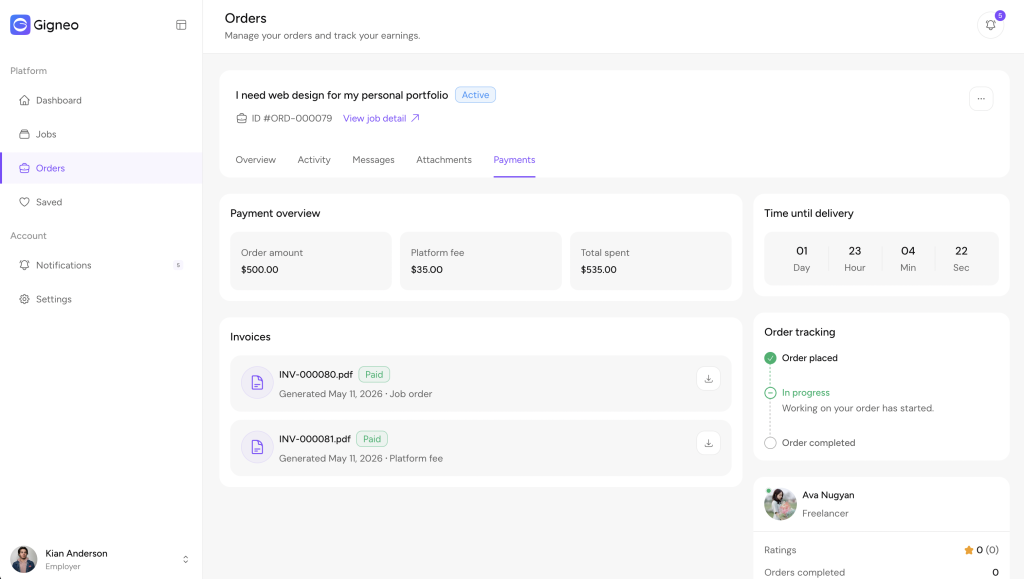
This provides full transparency for both freelancers and employers.
Delivering an Order
Freelancers can submit project deliveries directly from the order detail page.
To deliver work, open the active order detail page and click the Deliver now button.
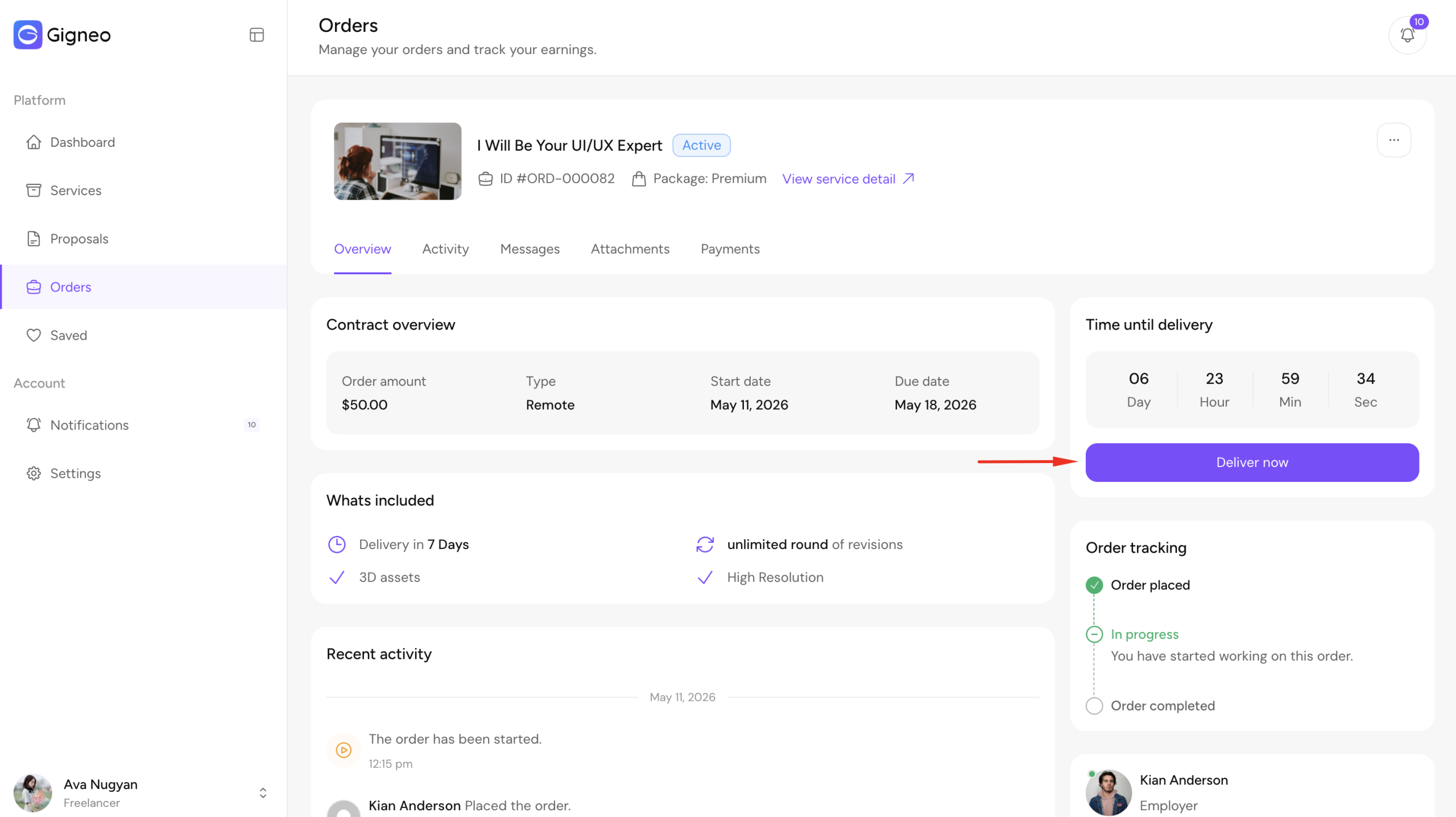
This will open the delivery submission form.
During delivery, freelancers must choose the delivery type.
Available delivery options include:
- Draft Work
- Final Delivery
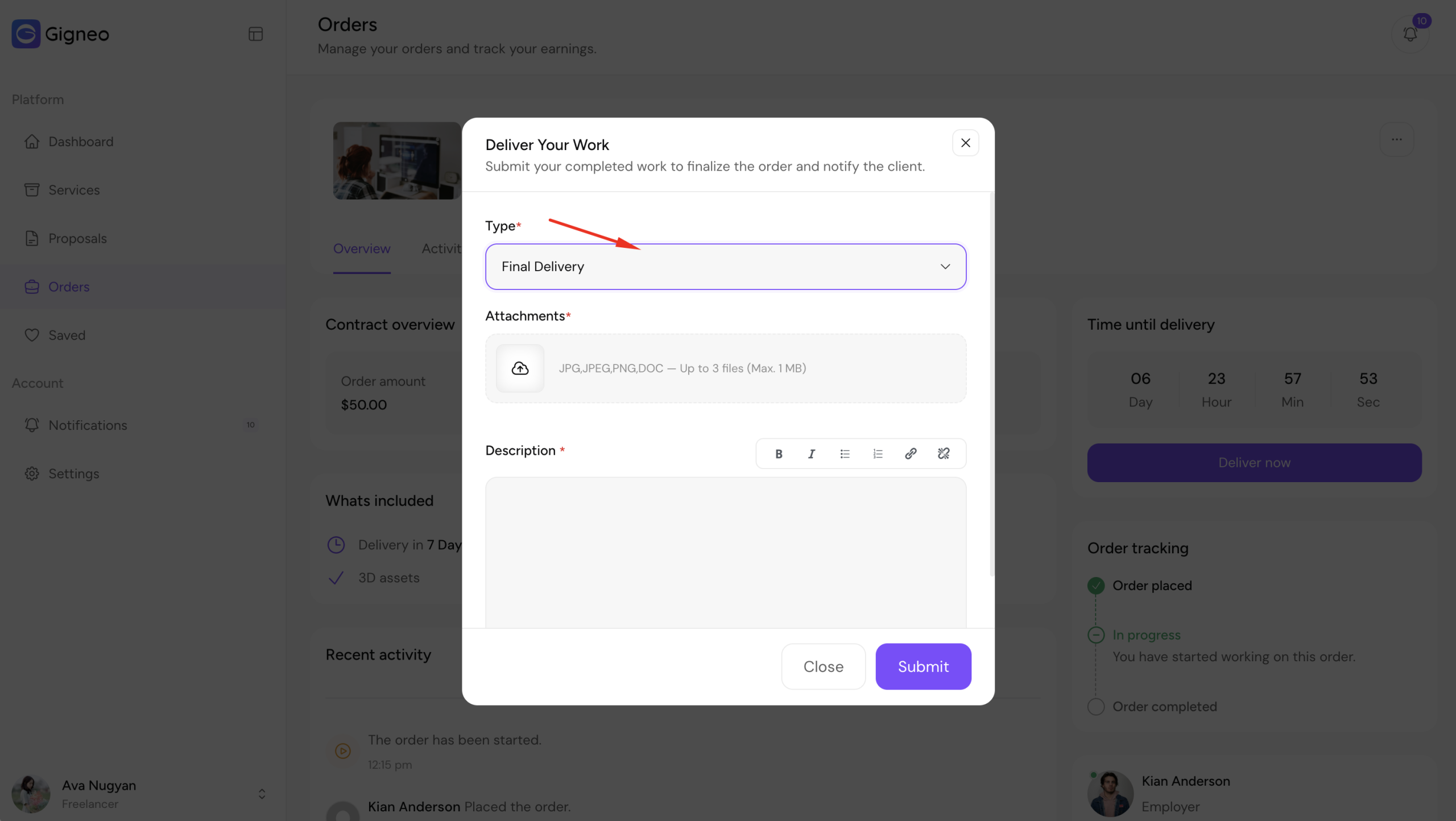
Draft Work can be used when sharing work-in-progress files for review or feedback.
Final Delivery should be used when submitting the completed project for final approval.
Freelancers can also add a delivery description explaining the submitted work.
This helps employers understand what has been delivered and includes any important instructions or notes.
In addition, delivery attachments can be uploaded with the submission.
These files may include completed project files, source files, revisions, or supporting documents.
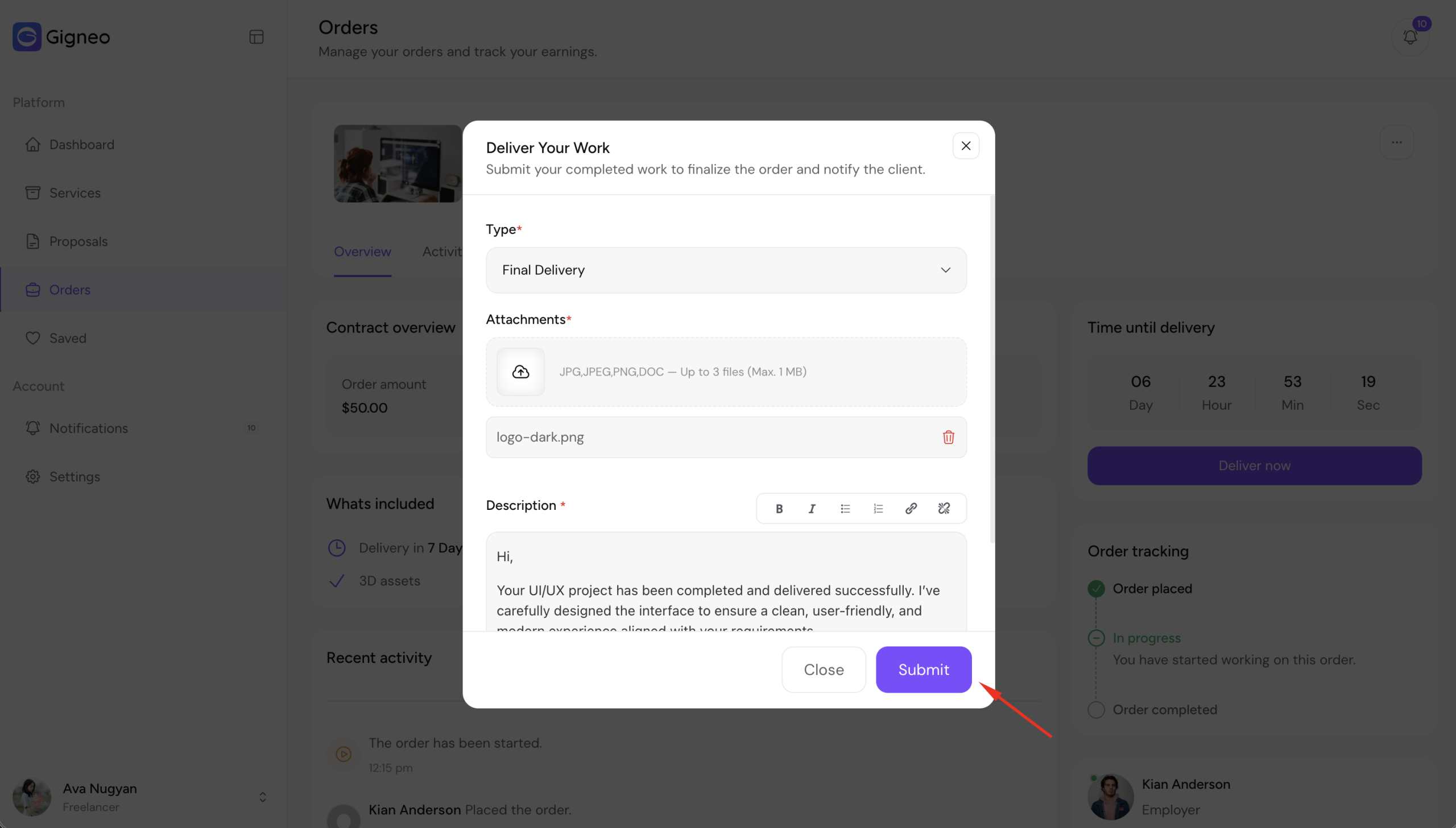
Once everything is completed, click Submit Delivery.
The delivery will then be sent to the employer for review.
The employer can review the submitted work and either approve it or request revisions if revisions are still available for the order.
Reviewing Delivered Work
Once a freelancer submits a delivery, the employer can review it directly from the order detail page.
The submitted delivery will include the delivery type, delivery description, and all attached files provided by the freelancer.
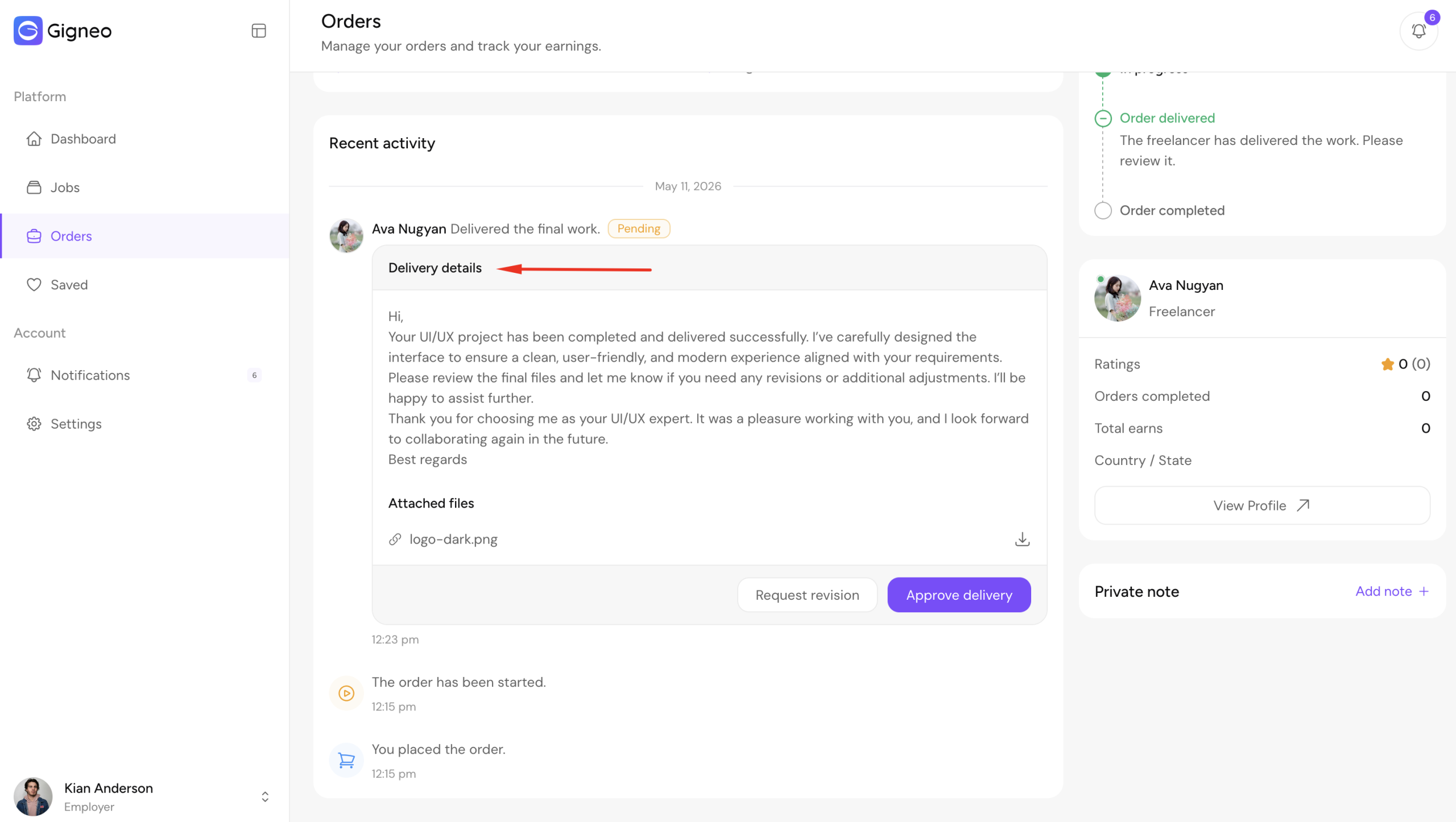
After reviewing the submitted work, the employer can either request revisions or approve the delivery.
Requesting a Revision
If changes are needed, the employer can request a revision.
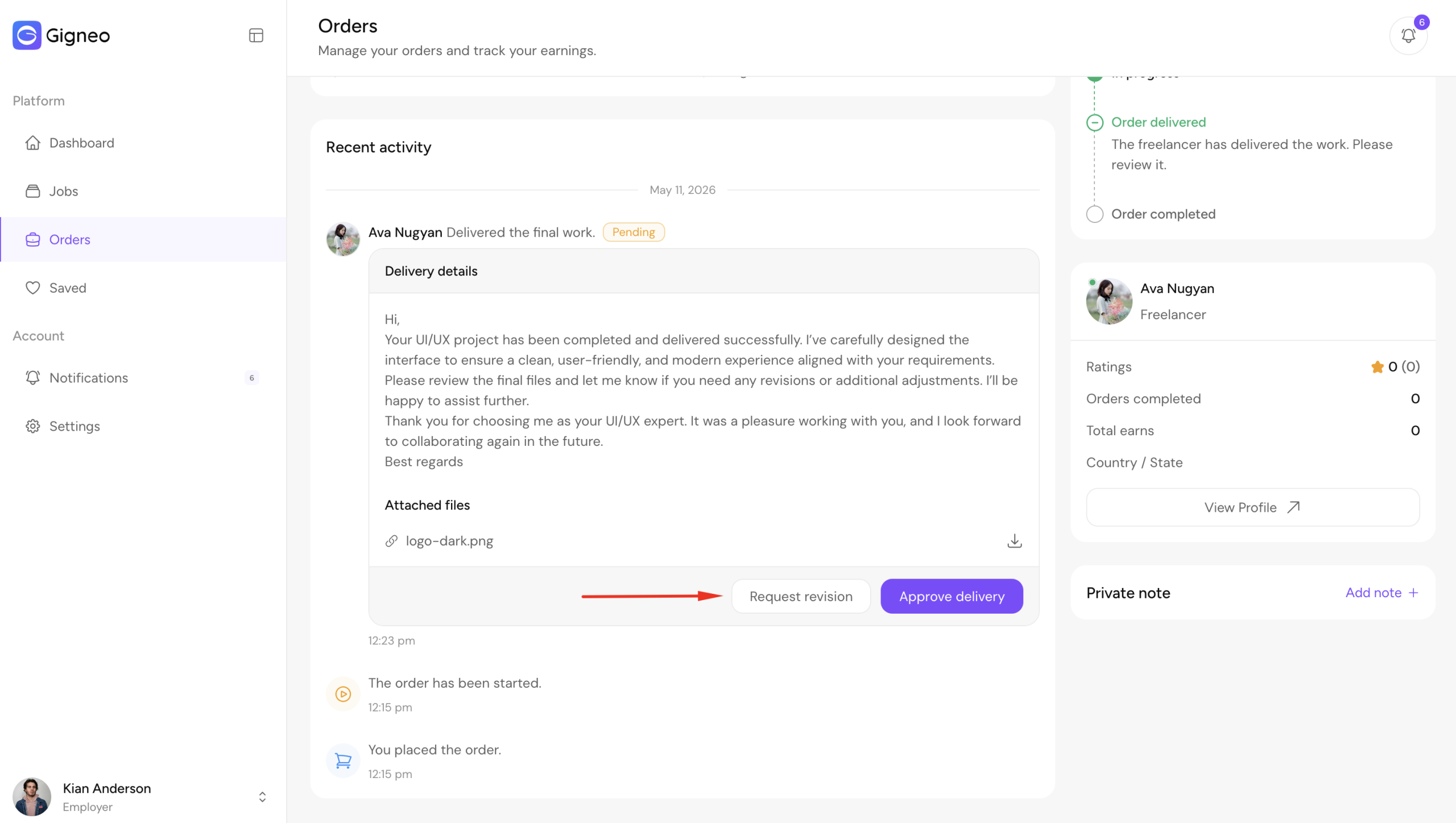
When submitting a revision request, the employer can provide detailed instructions explaining what updates or corrections are required.
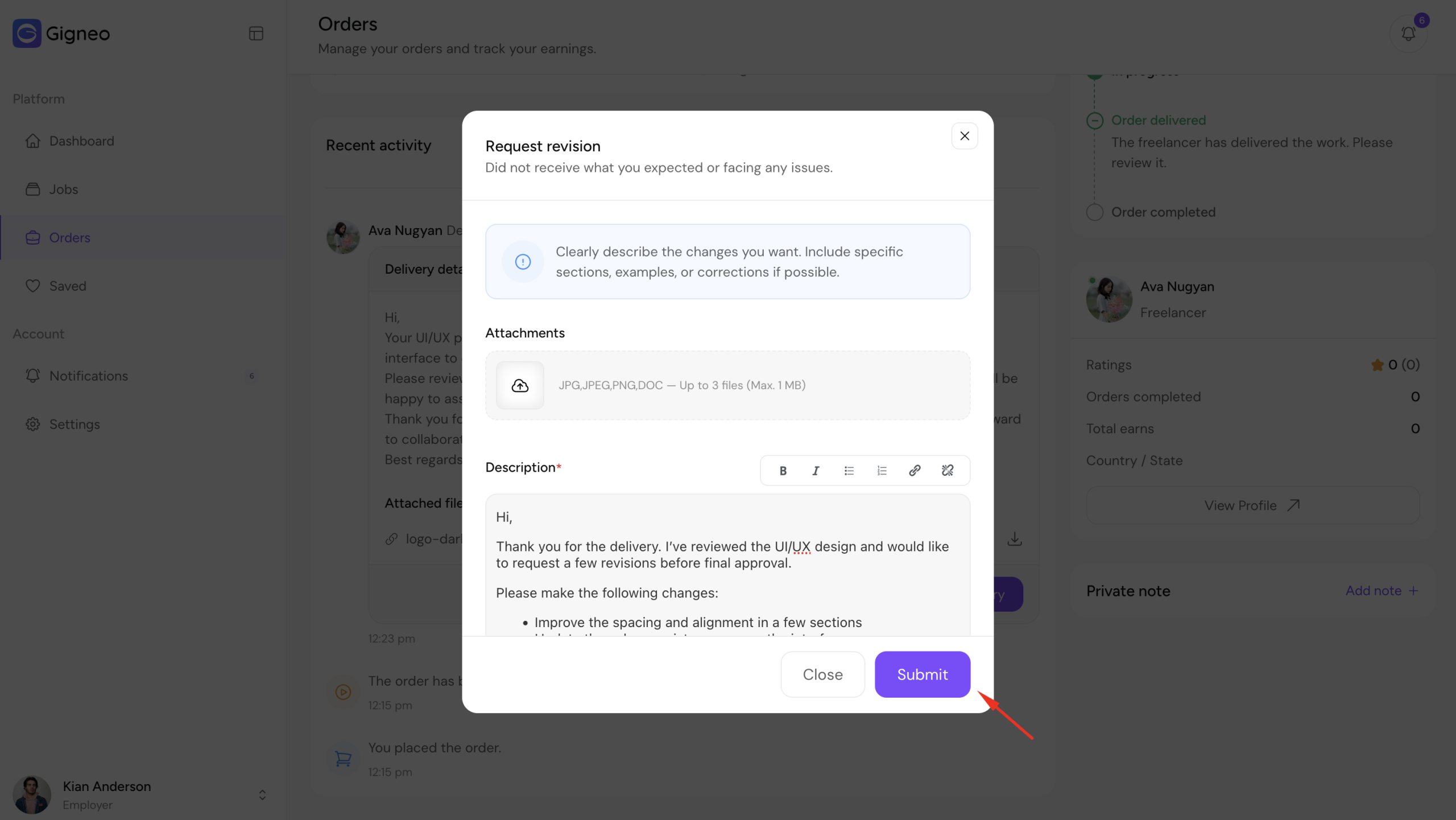
This revision request is then sent back to the freelancer.
The freelancer can review the revision instructions, make the requested changes, and submit the updated work again through the Deliver now process.
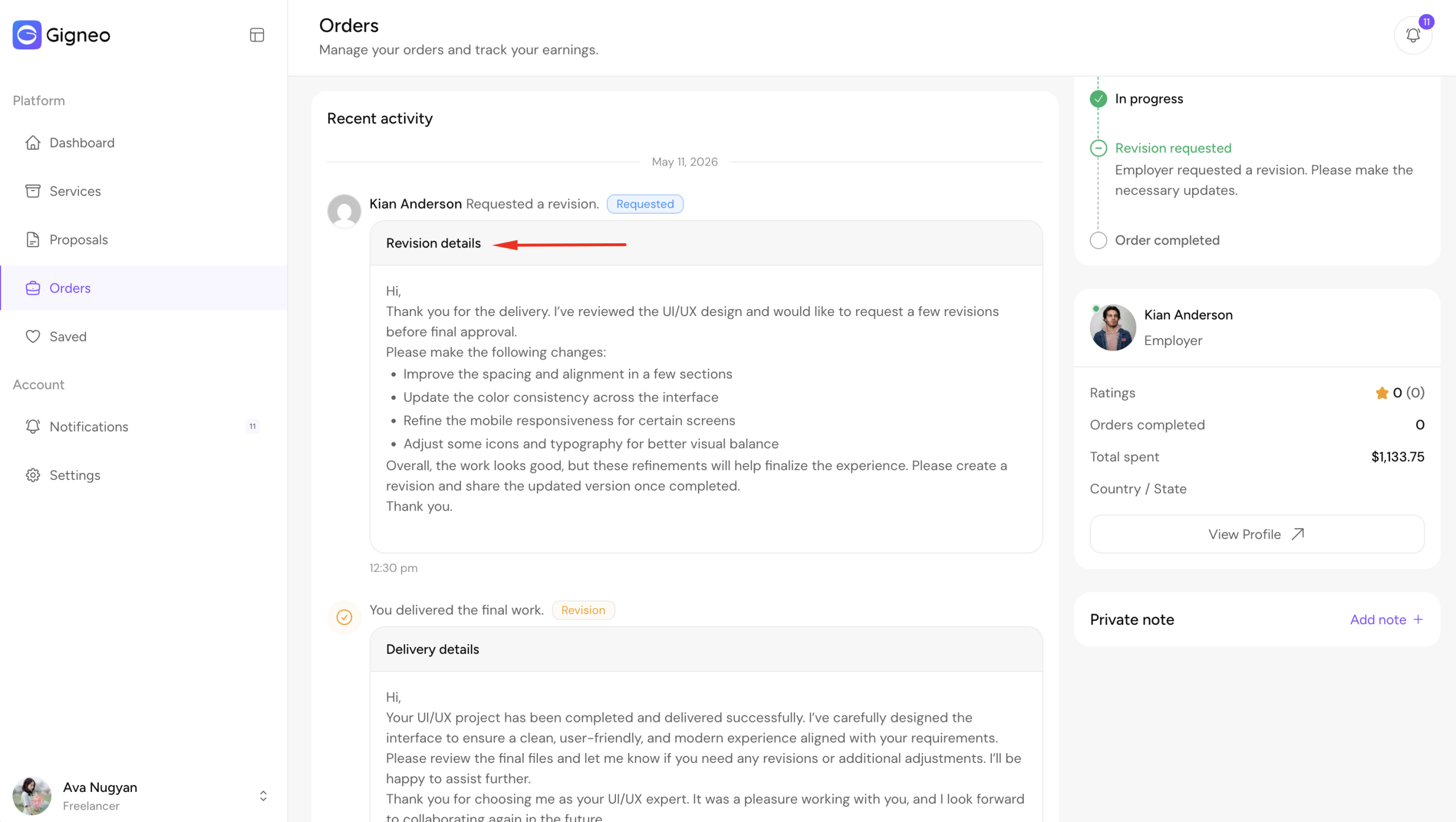
Revision requests are limited by the number of revisions included in the original service package or agreed project terms.
This workflow ensures clear collaboration and allows both parties to refine the project before final approval.
Approving Delivery
Once the revised work or final delivery meets all project requirements, the employer can approve the delivery.
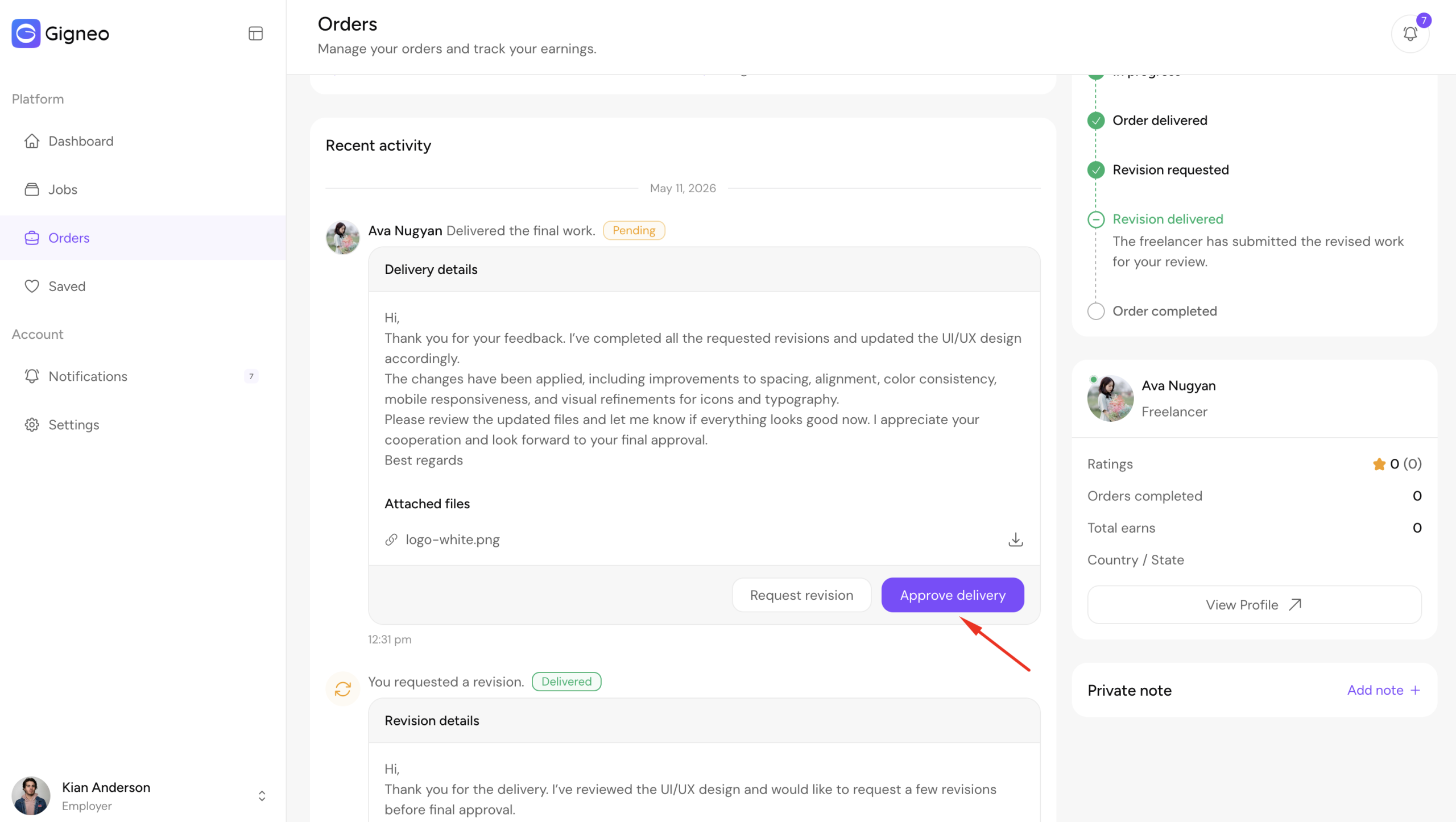
After approval, the order will be marked as completed.
The project payment process will then continue based on the platform’s order completion workflow.
Once the order is completed, both the employer and freelancer can leave reviews for each other.
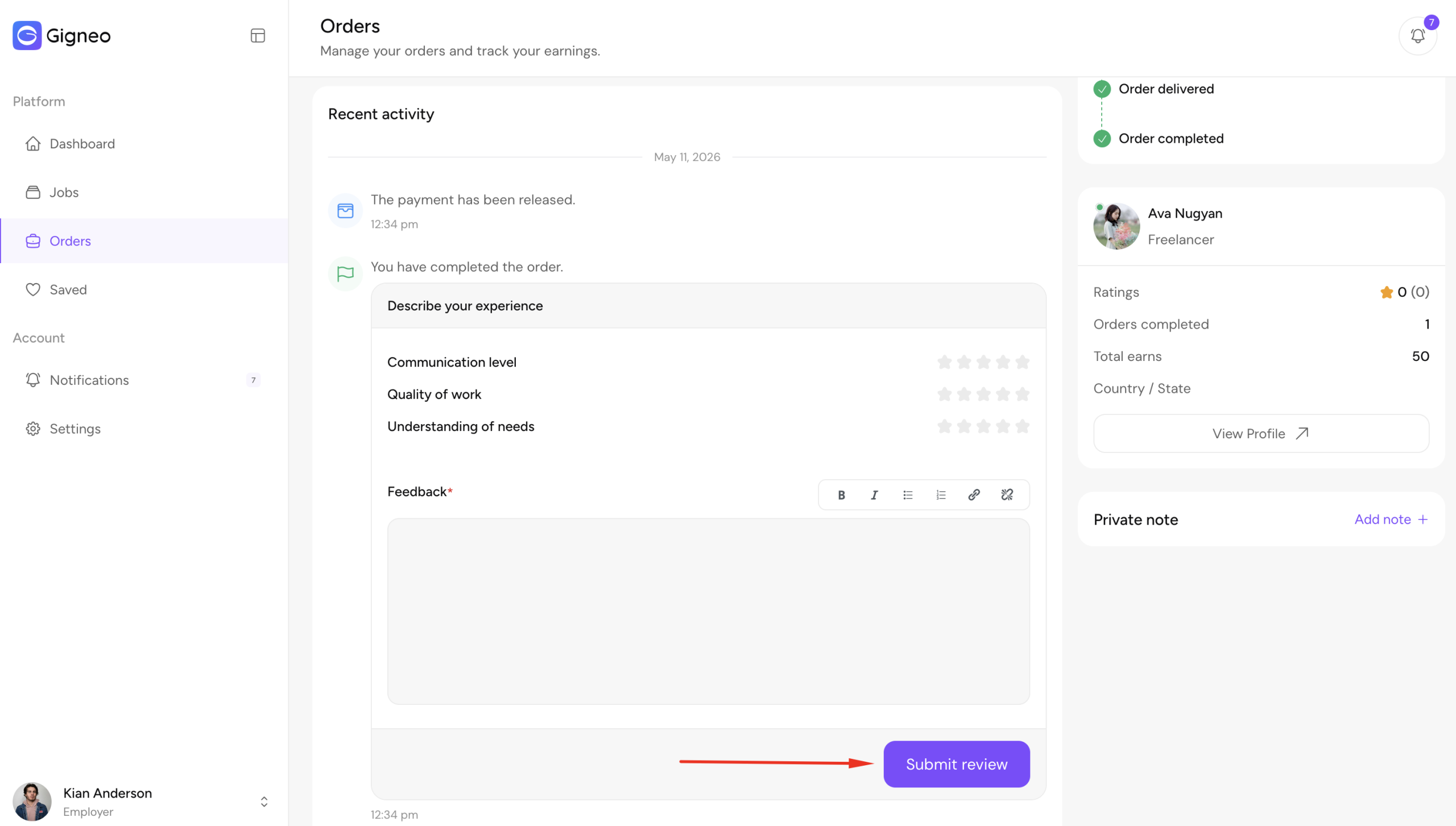
This allows both parties to share feedback based on their project experience.
Reviews help build trust across the marketplace and improve profile credibility for future work opportunities.
This final approval confirms successful project completion between both parties.
Order Cancellation
Gigneo provides a structured cancellation workflow for freelancers, employers, and administrators when an order cannot continue.
Freelancer Cancellation
Freelancers can cancel an active order directly from the order detail page.
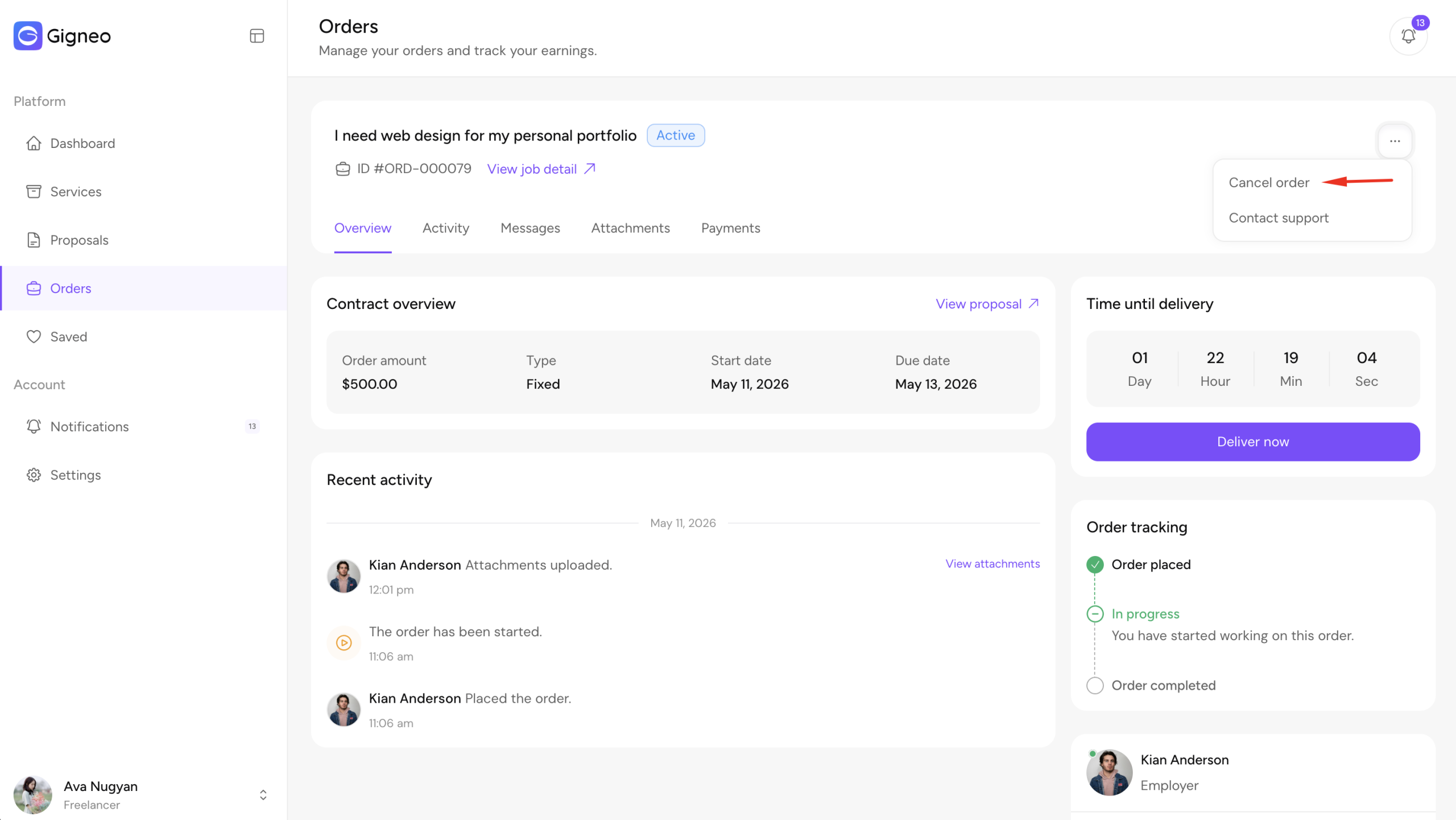
Once cancelled, the order payment is refunded back to the employer’s wallet balance.
The freelancer will also receive a cancellation record, which affects their cancellation rate on the platform.
This helps maintain accountability across the marketplace.
Employer Cancellation Request
Employers cannot directly cancel active orders.
Instead, they can submit a cancellation request to the freelancer from the order detail page.
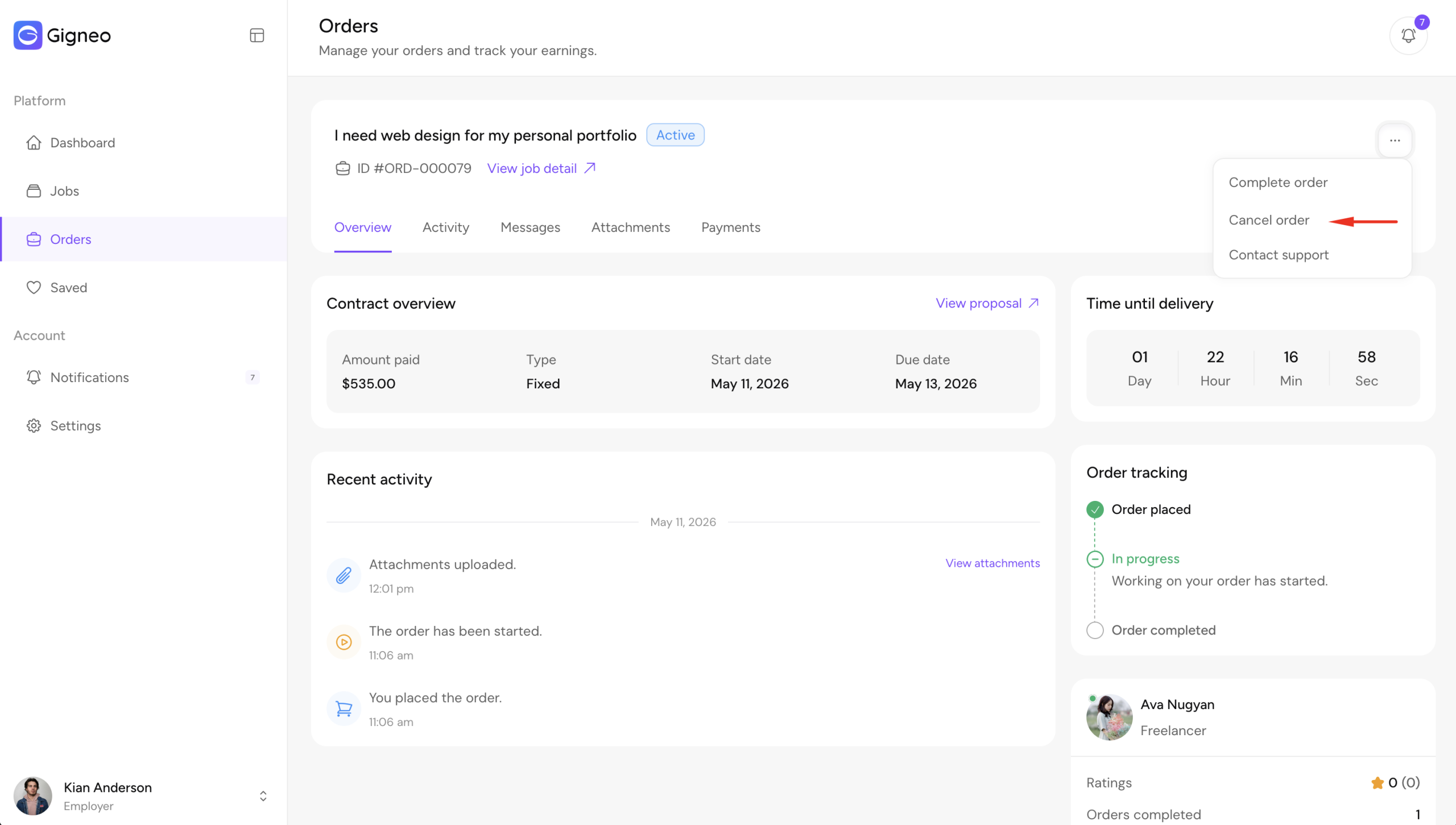
Clicking this button opens the cancellation request form.
In this form, the employer must select the cancellation reason and provide a description explaining why the order should be cancelled.
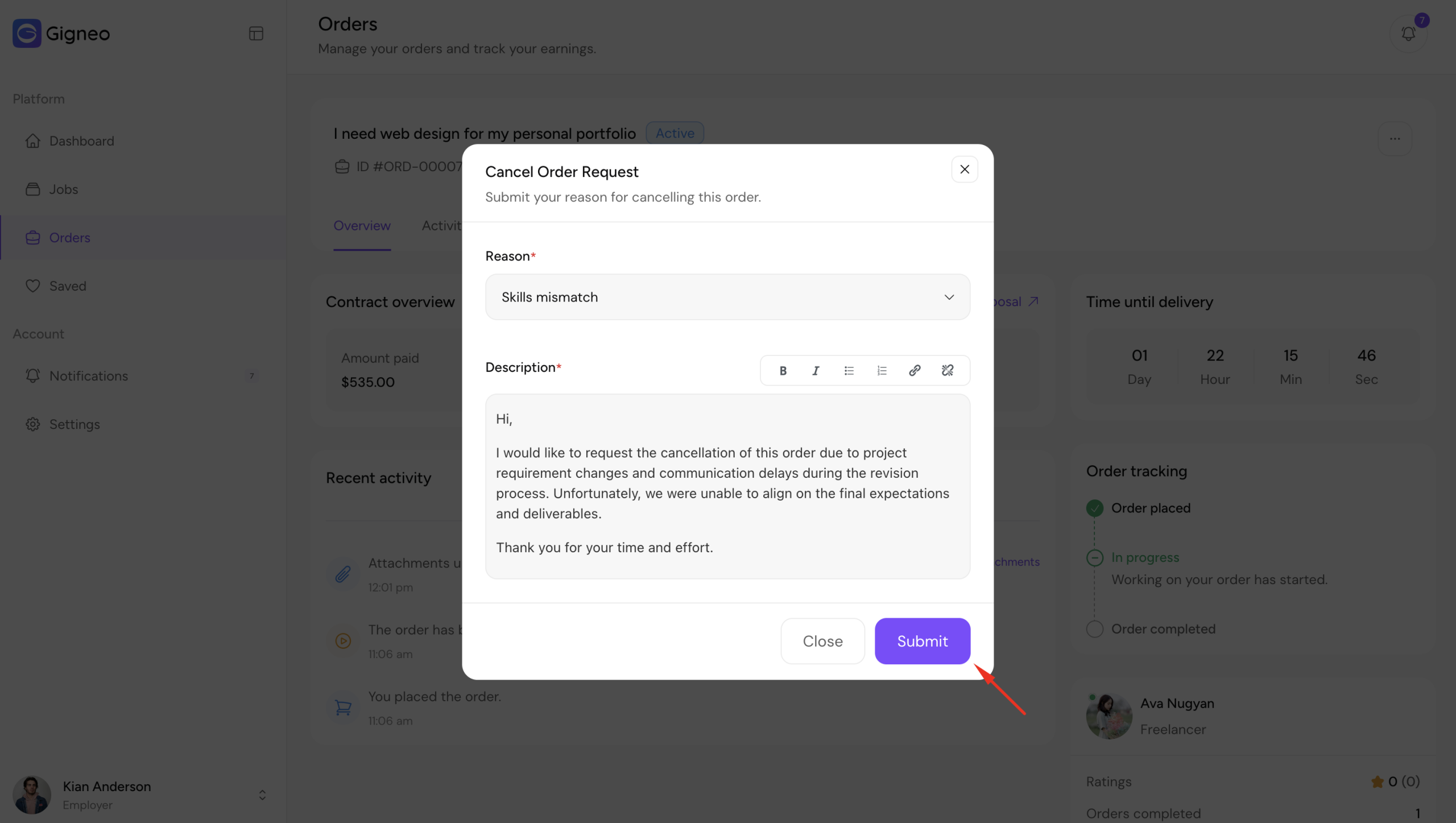
Once submitted, the cancellation request is sent to the freelancer for review.
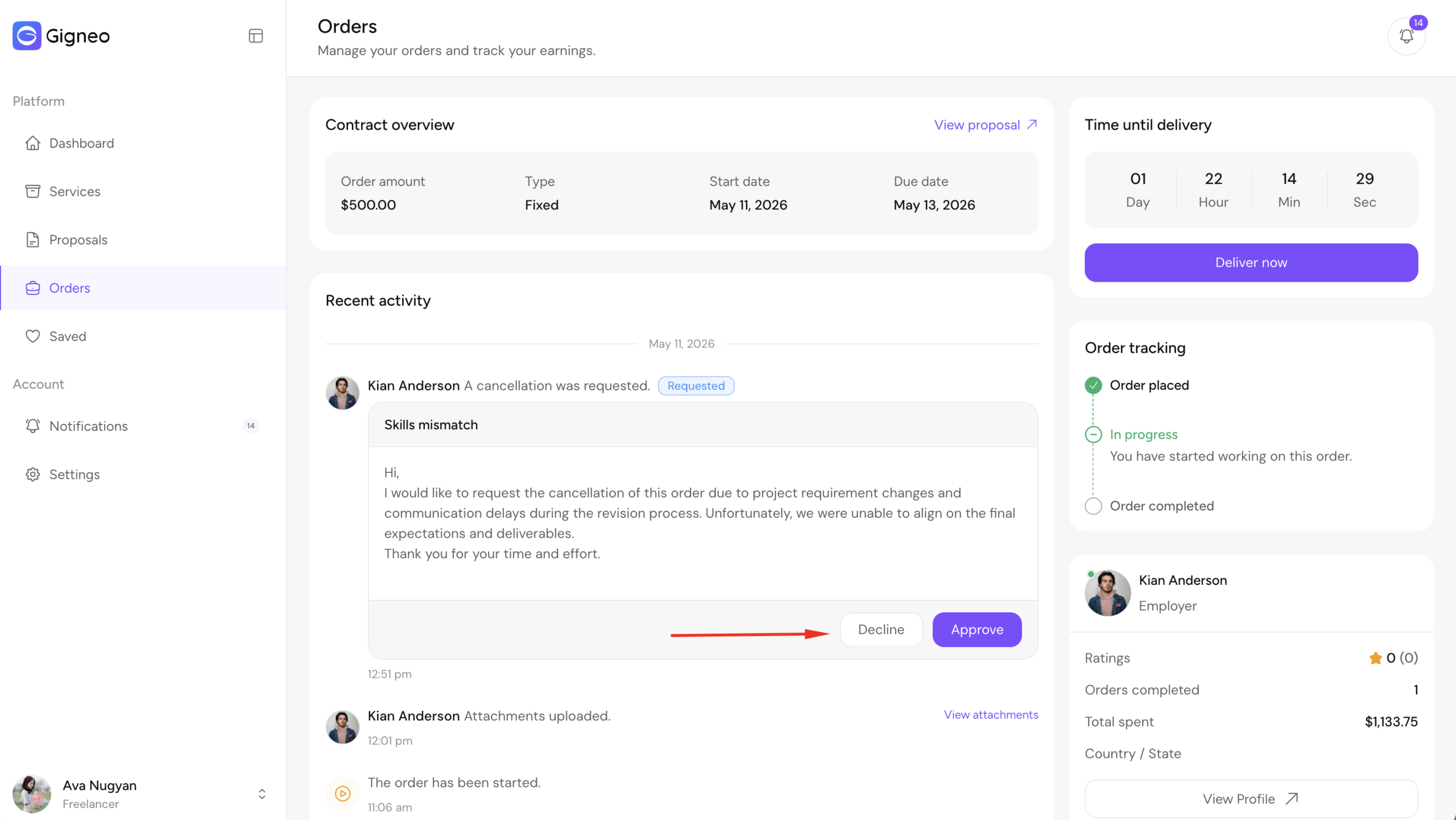
The freelancer can then approve or reject the request.
If approved, the order is cancelled and the payment is refunded to the employer.
If rejected, the order remains active until resolved manually by the administrator or through the dispute system if enabled.
Admin Resolution
If both parties cannot reach an agreement, the issue can be escalated for administrator review.
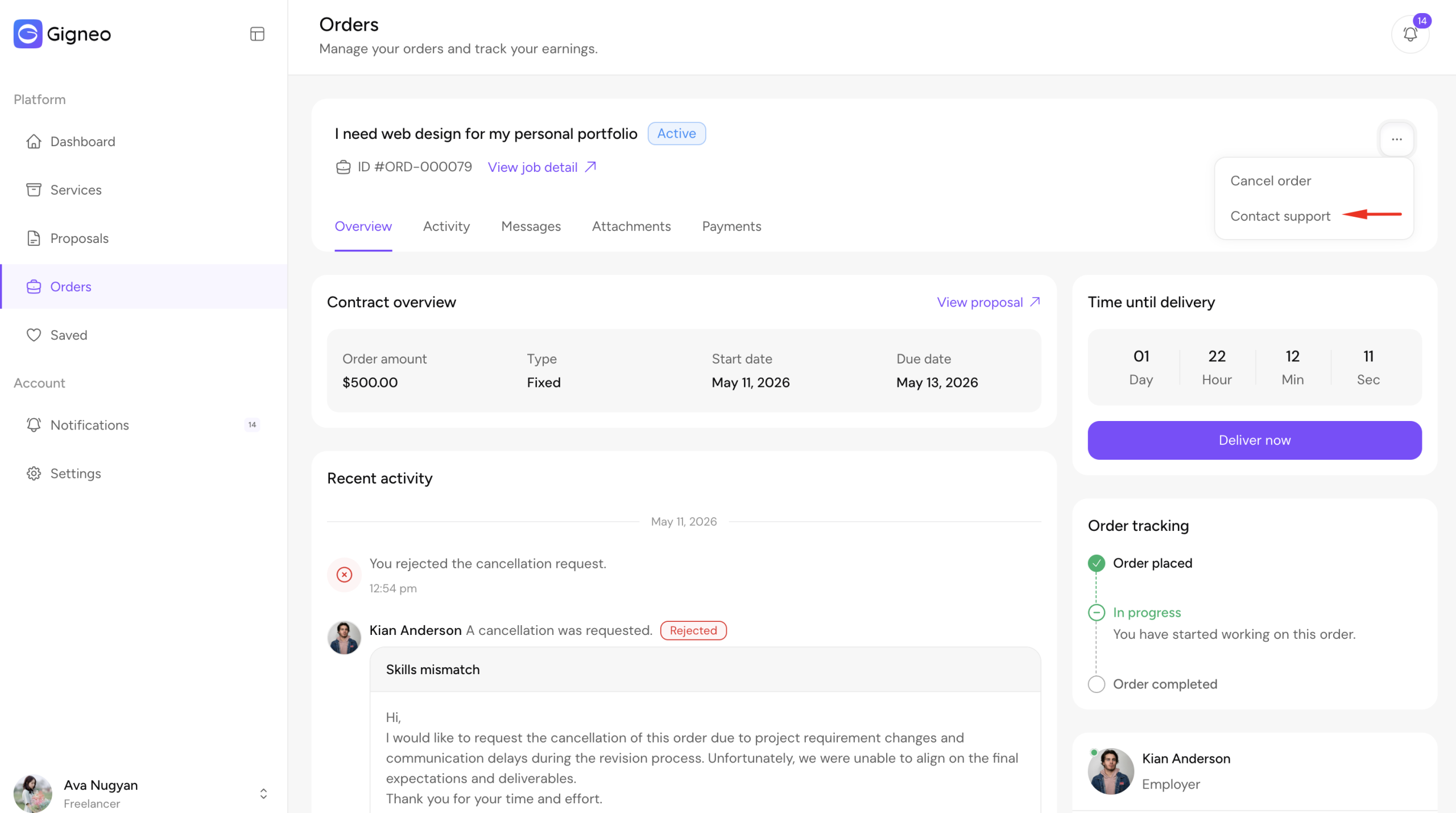
The administrator can review the full order details by navigating to Gigneo → Orders and opening the specific order.
From there, the administrator can review the complete order history including activities, messages, deliveries, revisions, and payment details before taking action.
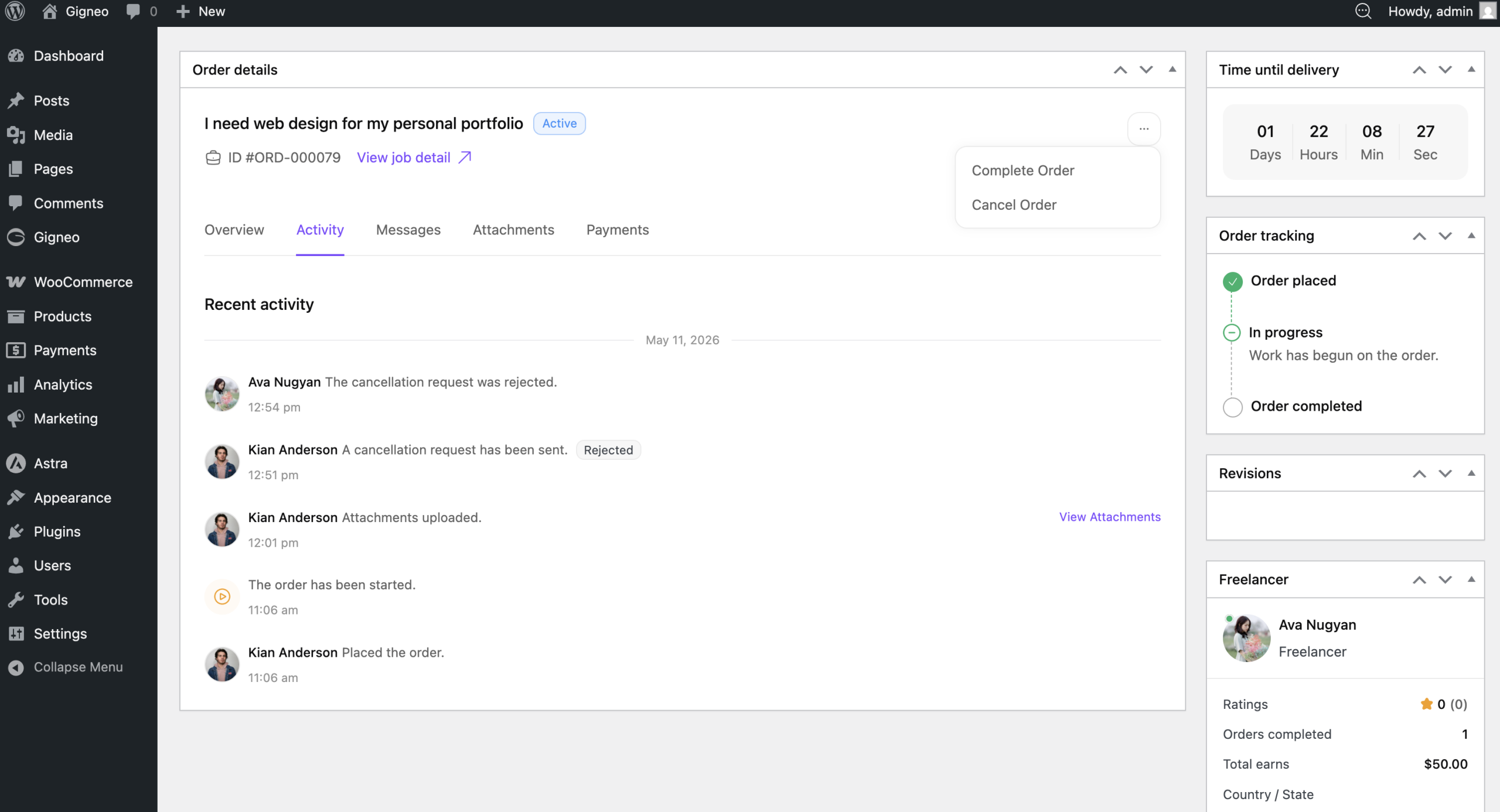
Based on the review, the administrator can either complete or cancel the order accordingly.
If the Dispute Module is active, freelancers and employers can open a dispute directly from the order page instead of contacting the administrator manually.
This allows disputes to be handled inside the order workflow for faster and more organized resolution.