
Employers can create and publish jobs directly from their dashboard.
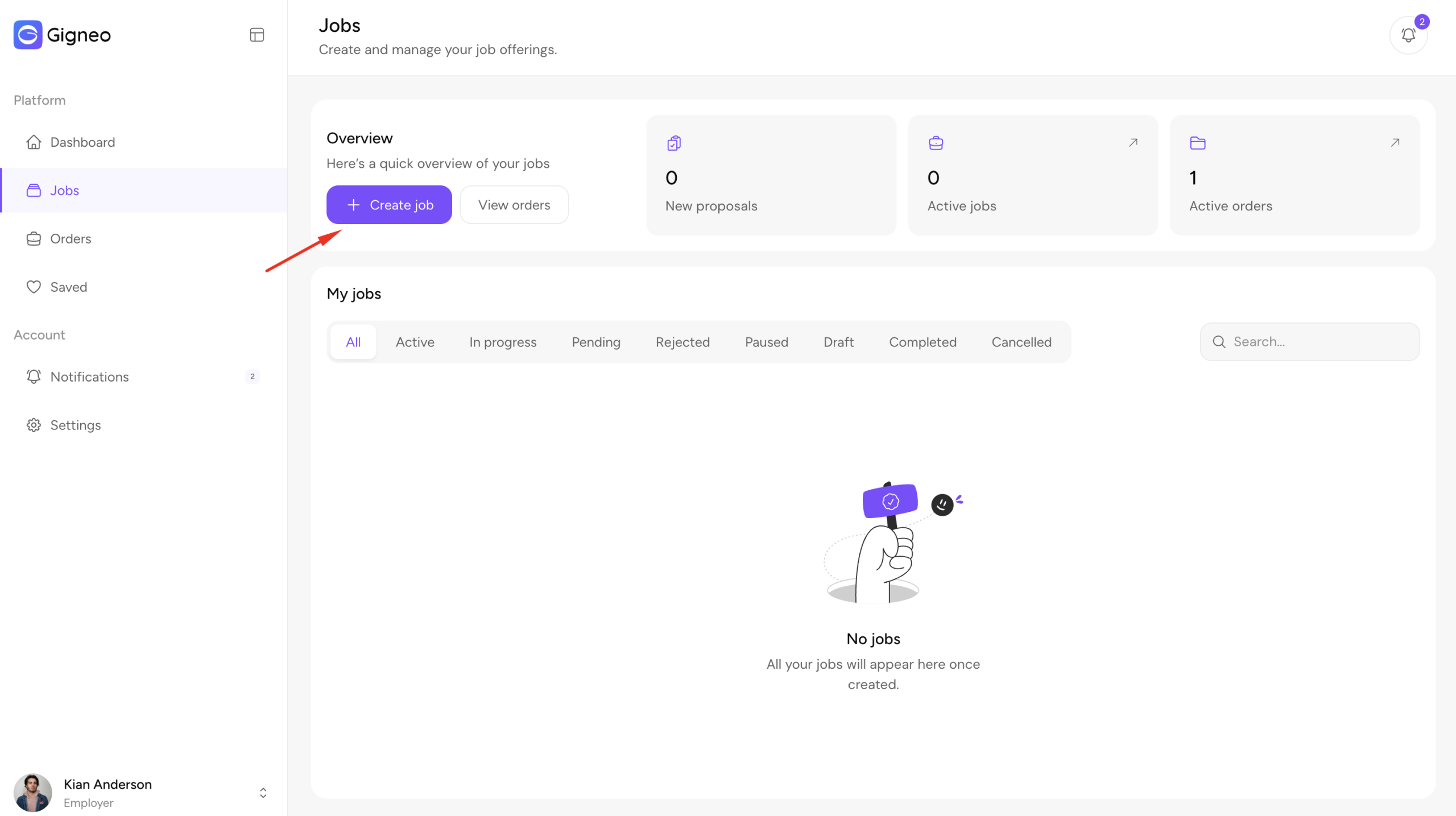
To create a new job, log in as an employer and navigate to Dashboard → Jobs.
From there, click the Create Job button.
The job creation process is divided into four steps: Basic, Pricing, Details, and Screening.
This structured workflow ensures all required information is completed before publishing.
Basic Step
The Basic step is where employers enter the core information for their job posting.
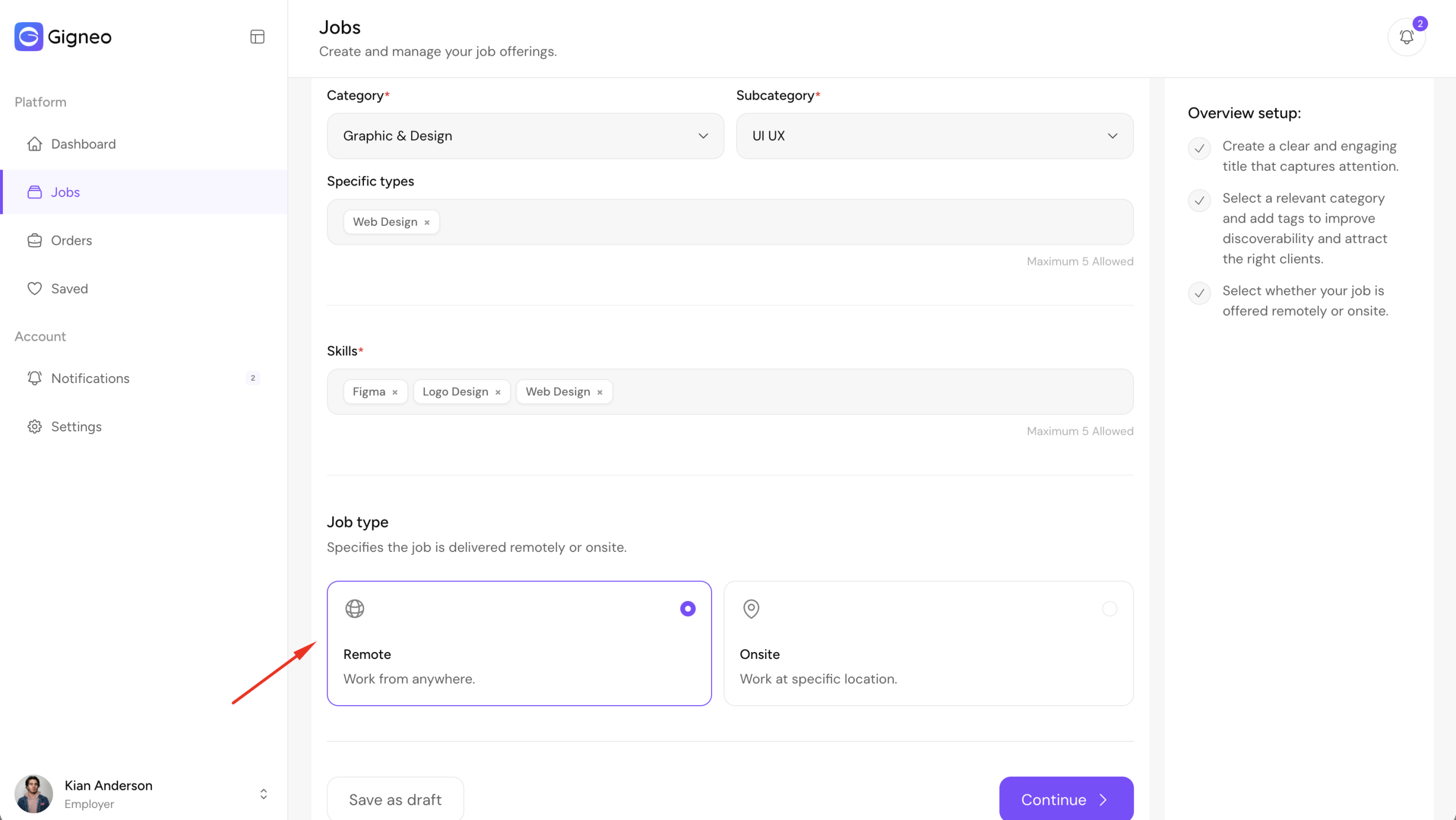
Here, users must enter the job title and select the appropriate category, subcategory, and specific types.
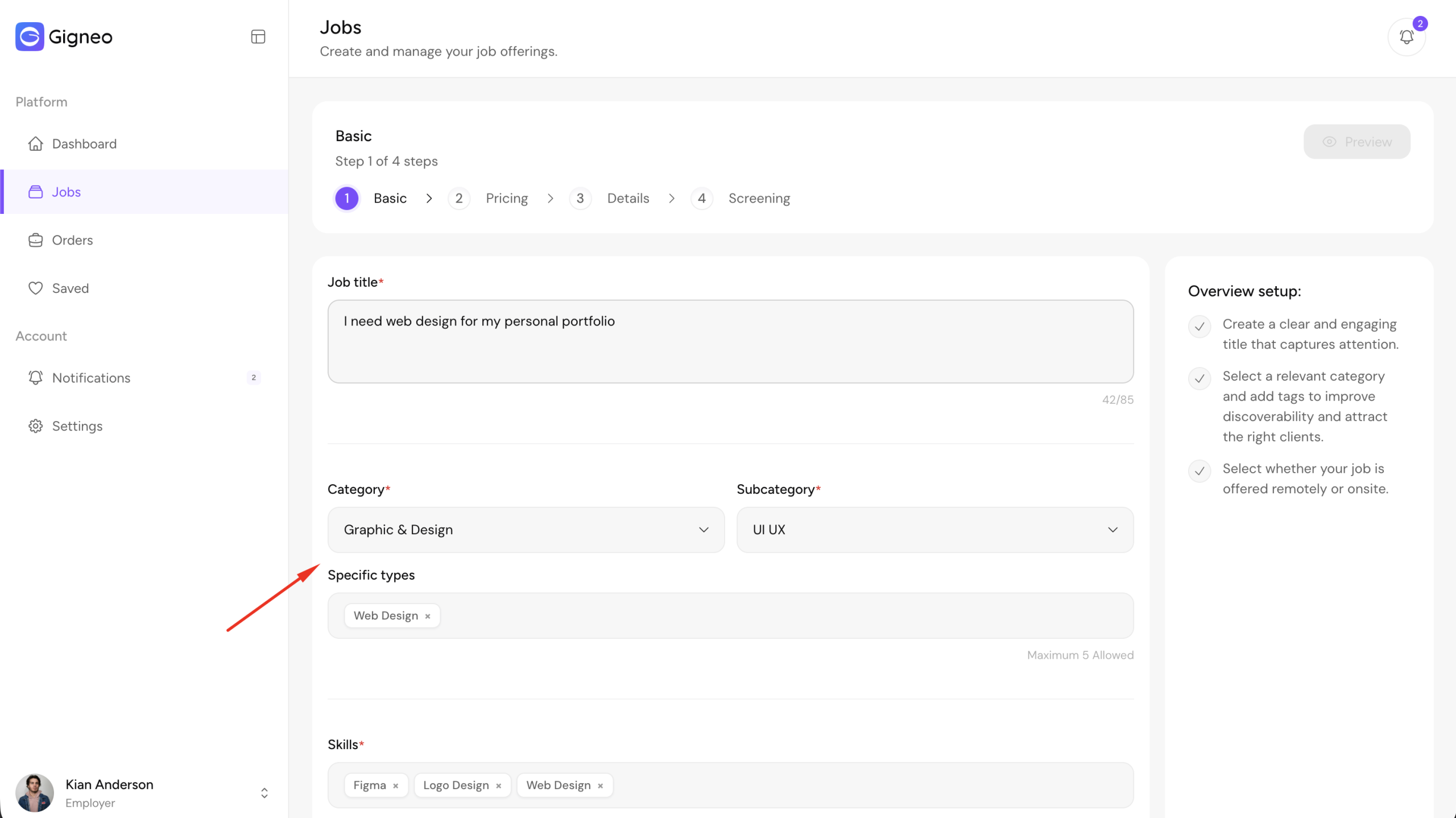
These categories are managed by the marketplace administrator from Gigneo → Categories.
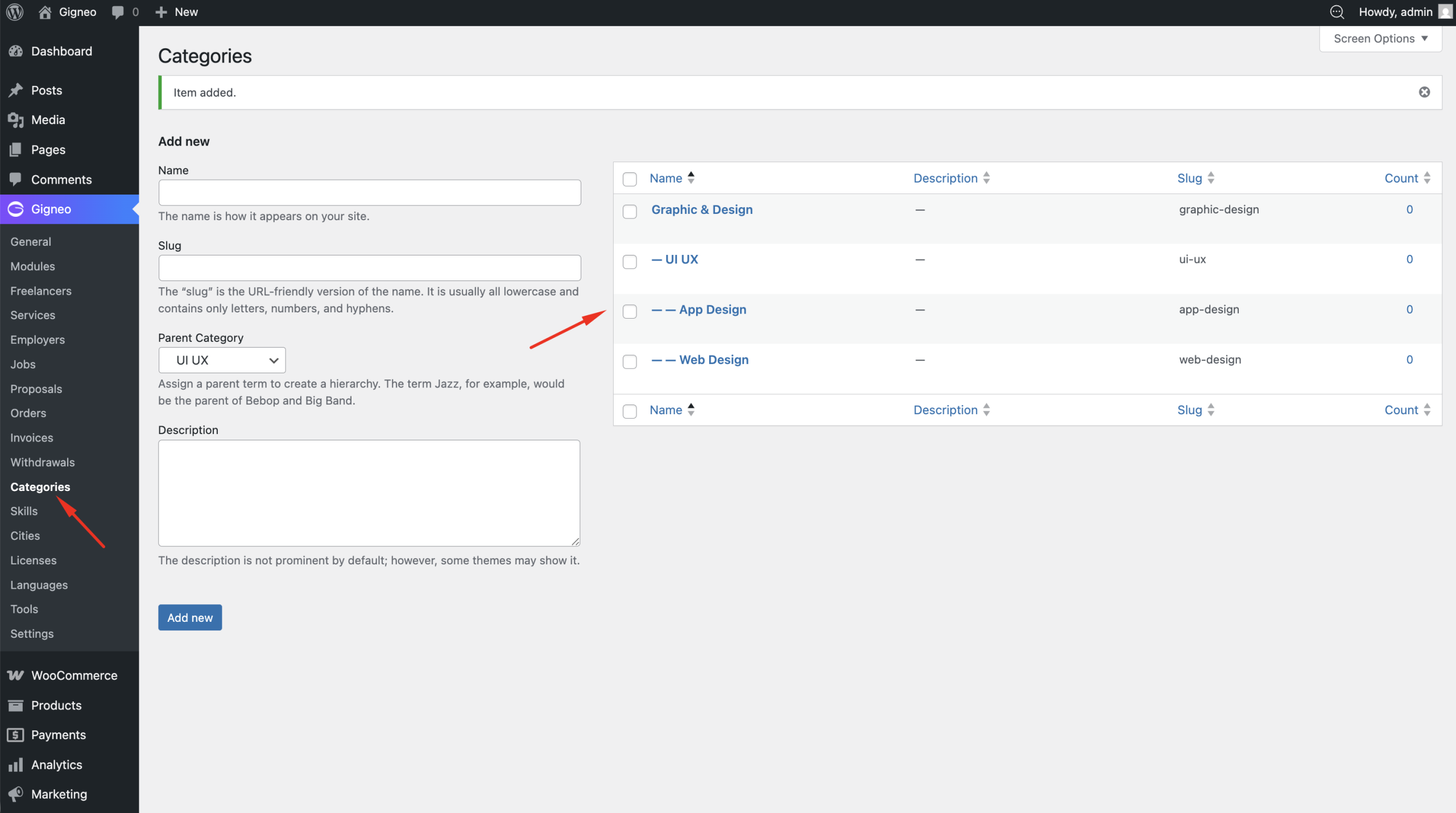
The category structure works the same as service creation:
- Category is the main parent category
- Subcategory is the child category
- Specific Types is the child of the selected subcategory
This structure helps organize jobs properly across the marketplace.
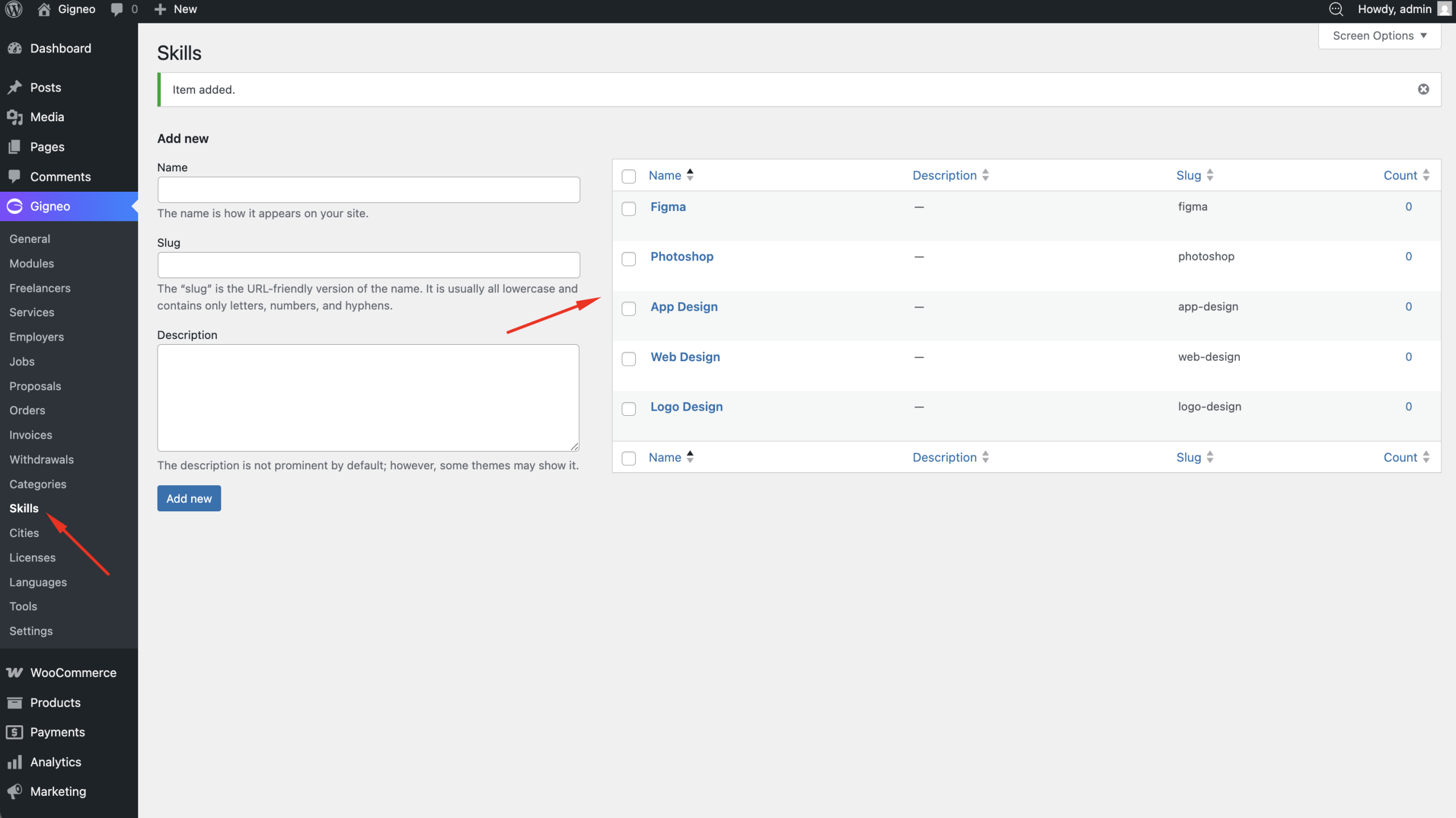
Employers can also select relevant skills for the job.
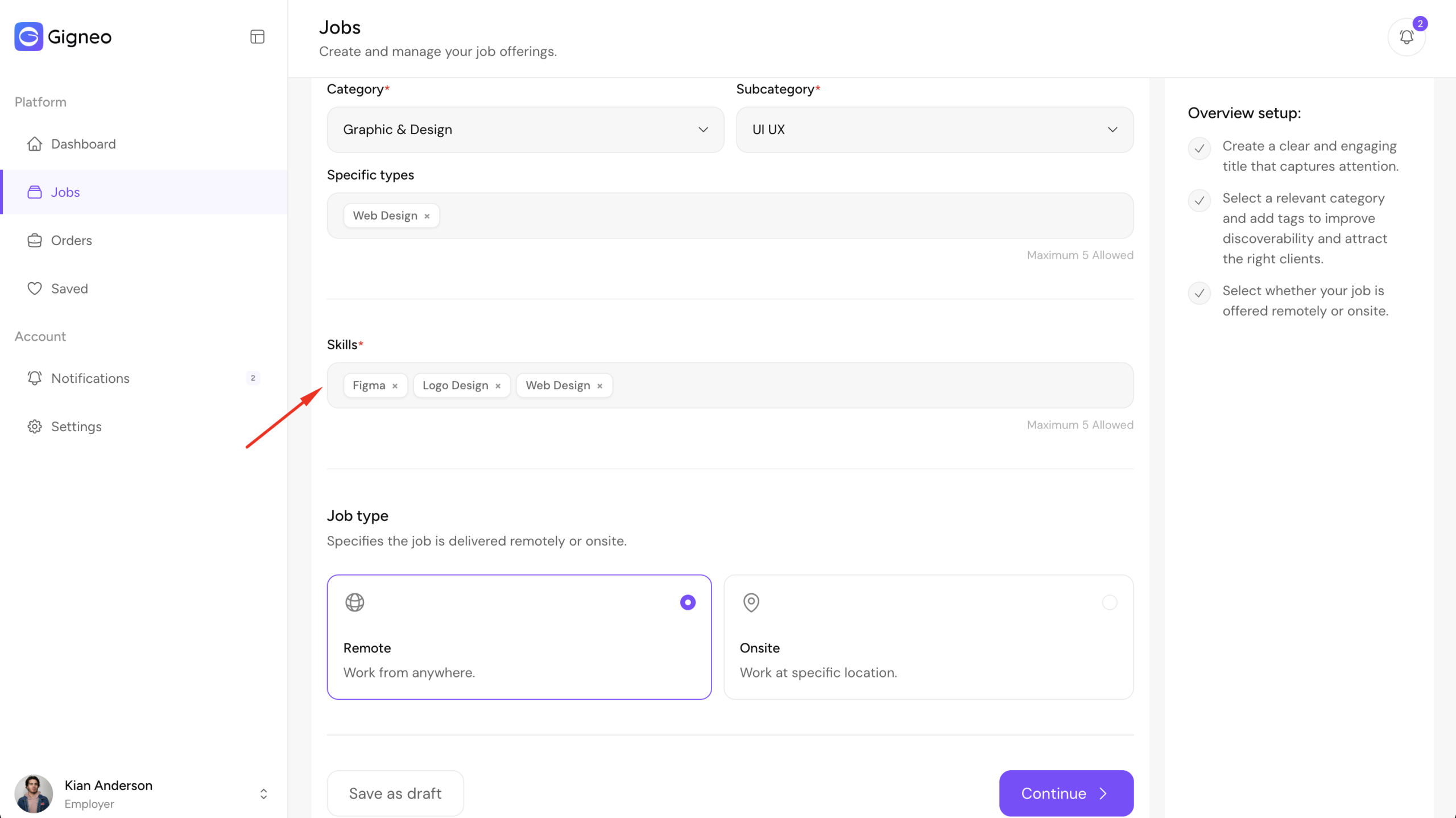
Skills are managed by the administrator and employers can choose only from the available skills added to the platform.
Next, employers must select the job type.
Available job type options depend on platform configuration.
The marketplace administrator controls these options from Gigneo → Settings → Jobs.
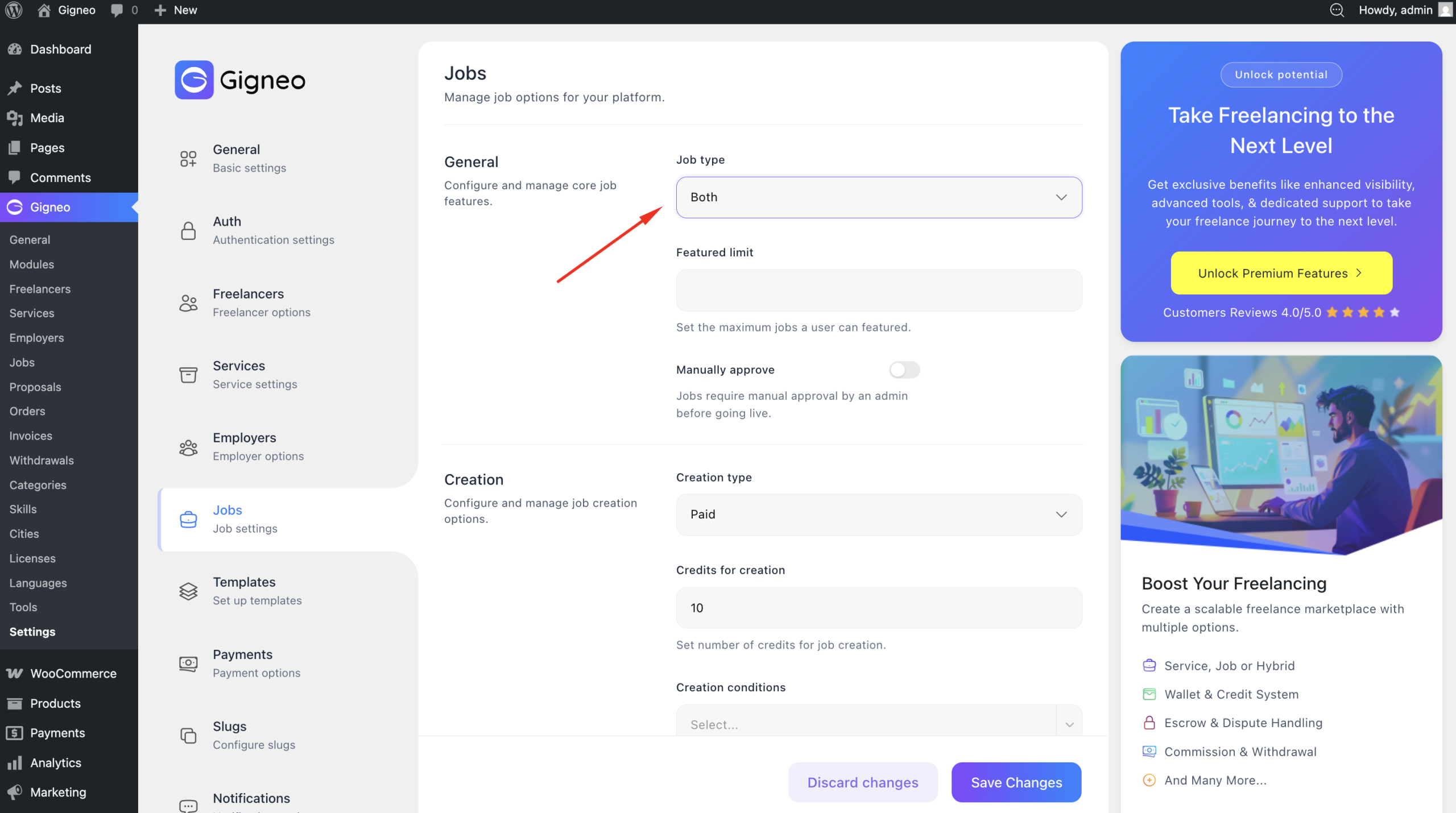
If both job types are enabled, employers can choose between Remote and Onsite during job creation.
If restricted by the administrator, only the allowed job type will be available.
The administrator can also configure job creation conditions from the same Jobs settings area.
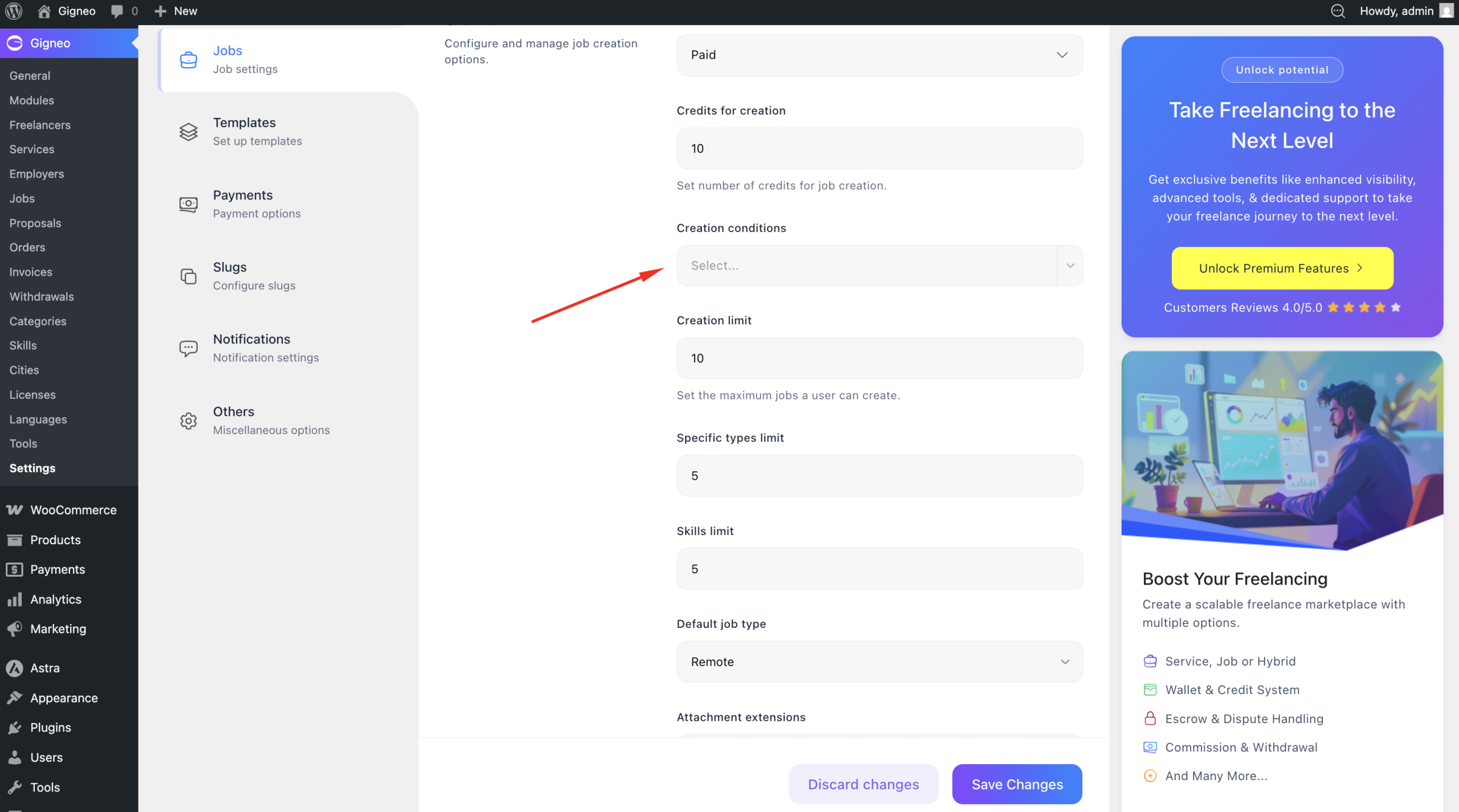
Employers can only proceed if the configured creation requirements are met.
Once all required information is completed in the Basic step, click Continue to move to the Pricing step.
Pricing Step
The Pricing step allows employers to define the project budget and expected completion timeframe.
Here, employers can set the total project budget and specify the project duration.
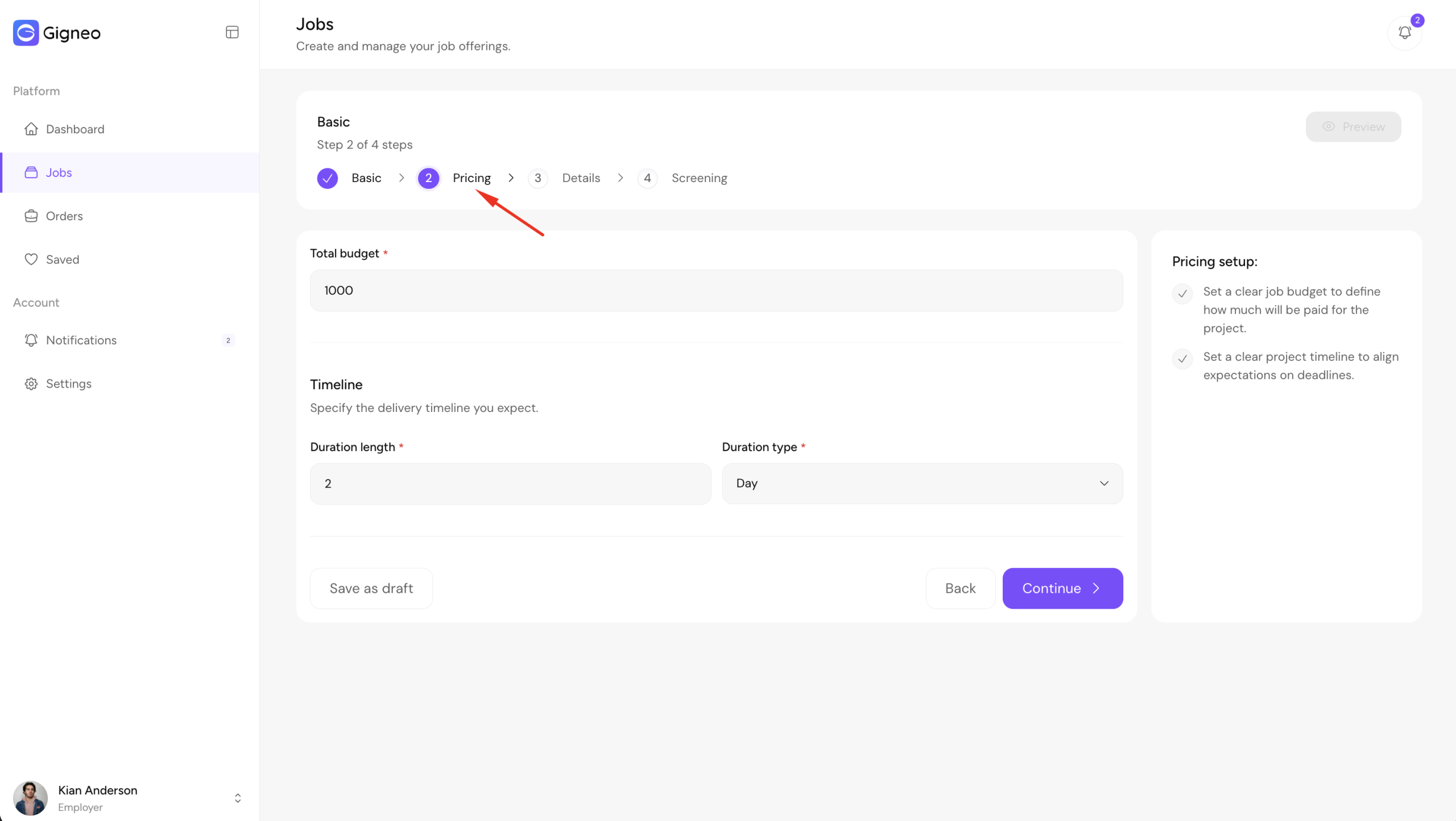
The total budget represents the amount allocated for the job.
This helps freelancers understand the project value before submitting proposals.
The duration field defines the expected timeframe for project completion.
This gives freelancers a clear understanding of delivery expectations before applying.
Once the pricing information is completed, click Continue to move to the Details step.
Details Step
The Details step allows employers to provide complete project information for freelancers.
Here, employers can add the job description, define the location, and upload attachments related to the project.
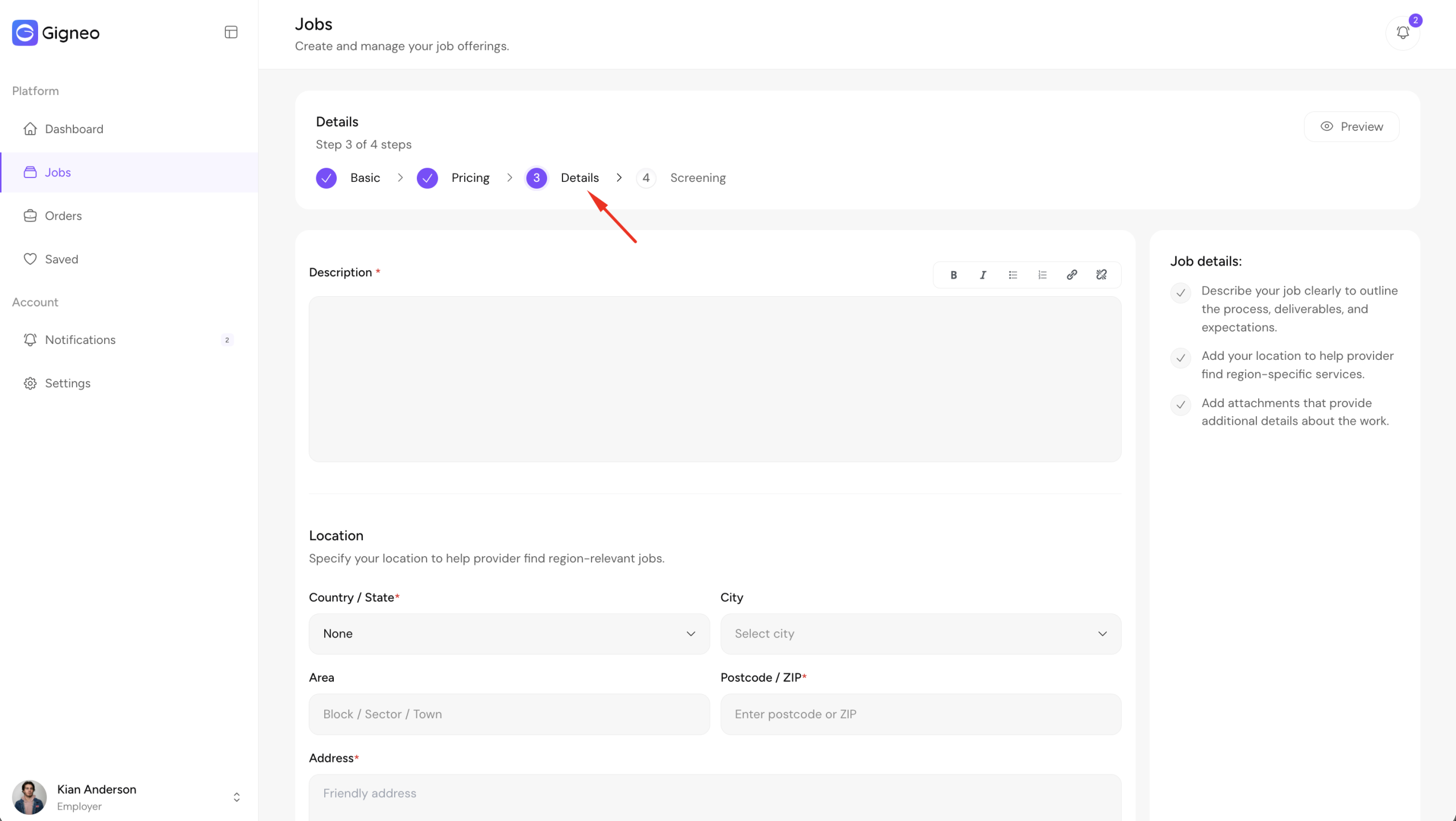
The job description should clearly explain project requirements, expectations, scope of work, and any important instructions freelancers need before submitting proposals.
A well-written description helps attract more relevant and higher-quality proposals.
The location field is especially important for onsite jobs, as it helps freelancers understand where the work will take place.
For remote jobs, location details can still be provided if relevant to the project.
Employers can also upload attachments such as project briefs, reference files, documents, or supporting materials.
These attachments help freelancers better understand project requirements before applying.
Once all details are completed, click Continue to move to the Screening step.
Screening Step
The Screening step allows employers to define the qualification requirements for freelancers applying to the job.
Here, employers can set the preferred experience level, define any required licenses, and configure freelancer preferences such as countries, languages, and language proficiency.
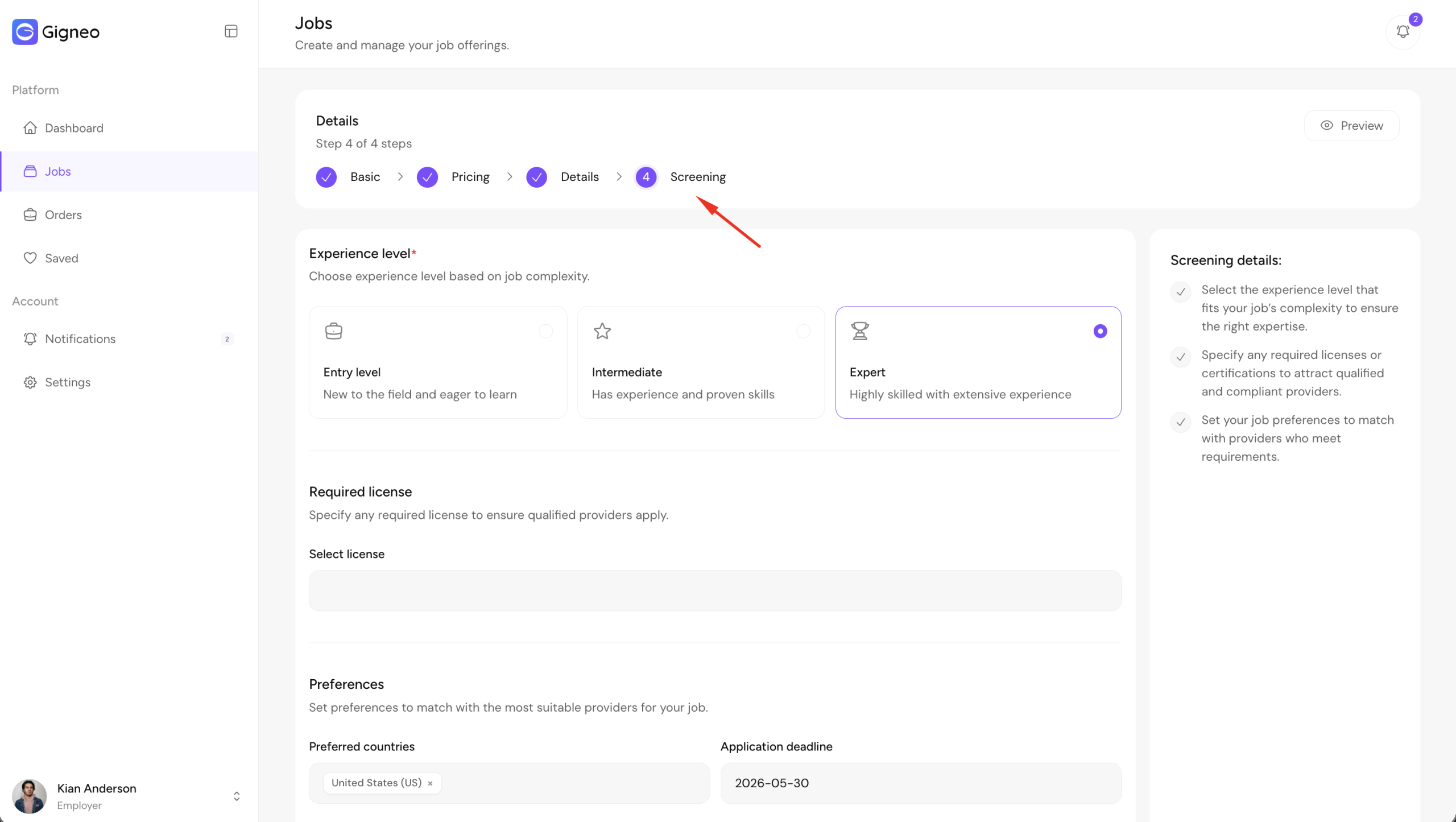
For experience level, employers can choose from: Entry Level, Intermediate & Expert
This helps target freelancers based on the complexity and expertise required for the project.
If the job requires professional certifications or specific qualifications, employers can select the required licenses.
Available licenses are managed by the marketplace administrator from Gigneo → Licenses.
Country preferences can also be used to target freelancers from specific locations.
In addition, employers can select preferred languages and define required proficiency levels for better communication and project collaboration.
Available language options are managed by the administrator from Gigneo → Languages.
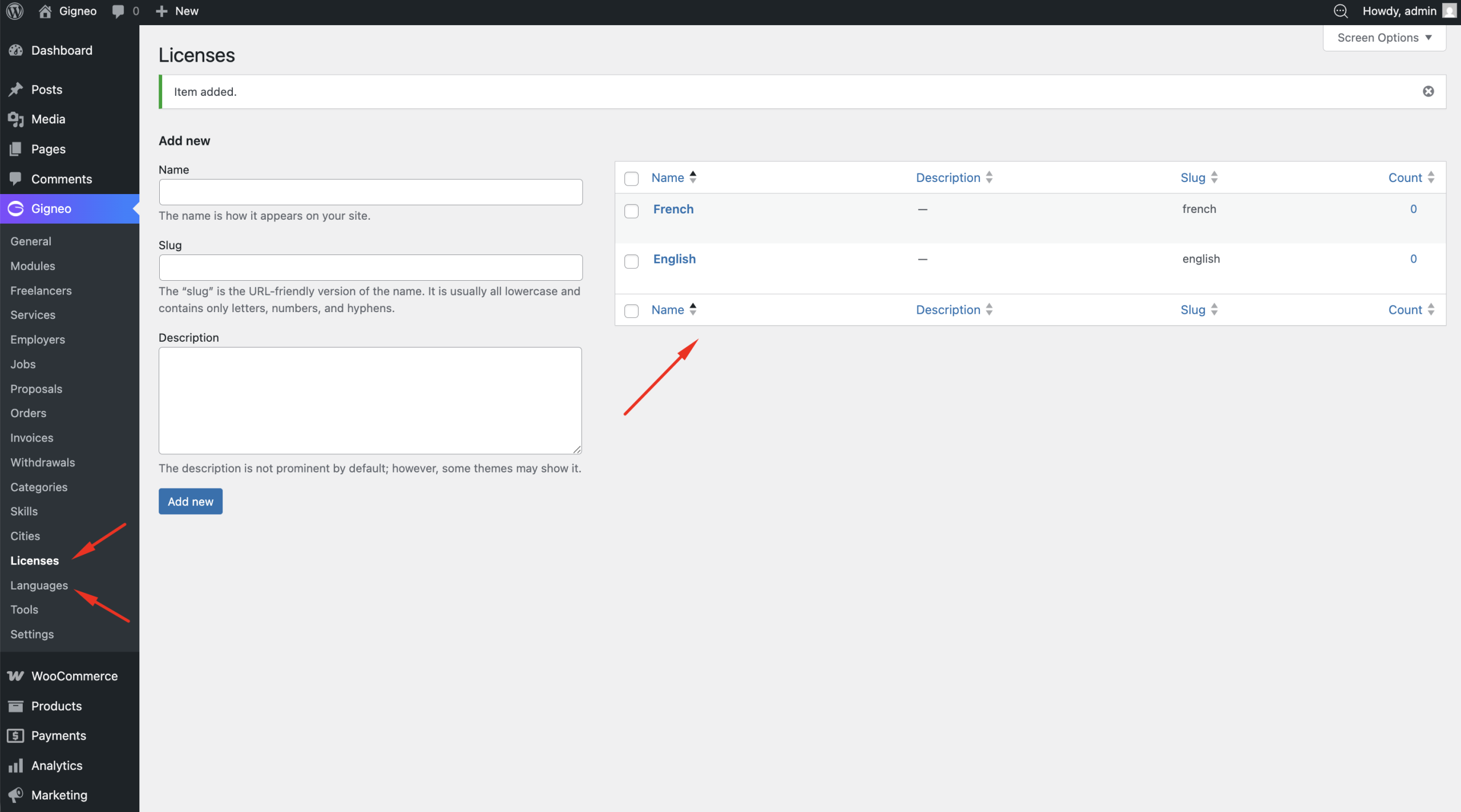
These screening filters help employers receive more relevant proposals from qualified freelancers.
Once all screening requirements are configured, the job is ready for submission and publishing.
Job Publishing
Once all job information is completed, employers can submit the job for publishing.
Job publishing can be configured as either free or paid, depending on marketplace settings.
If paid publishing is enabled, the marketplace administrator defines the number of credits required to publish a job from Gigneo → Settings → Jobs.
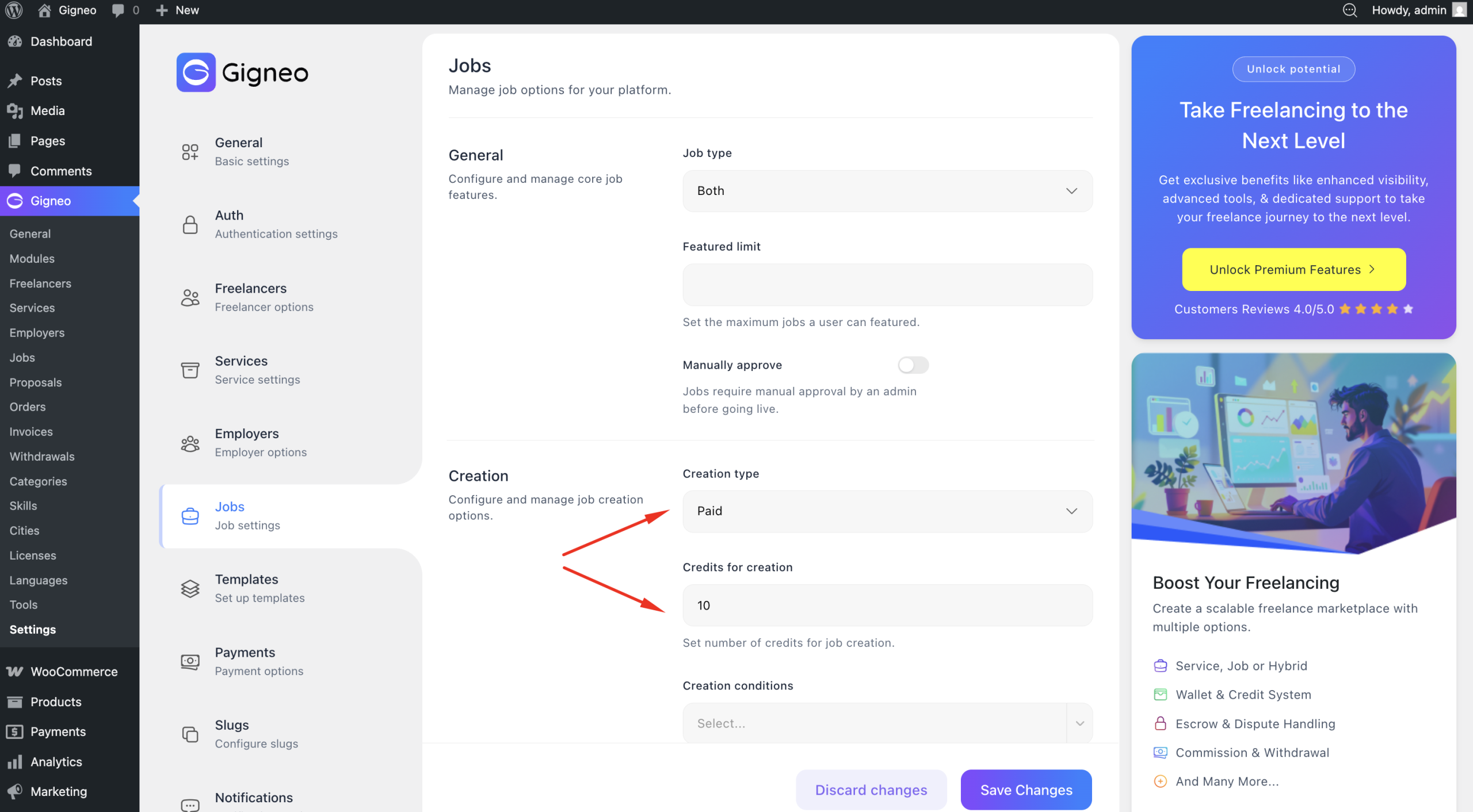
Employers must have sufficient credits available before submitting the job.
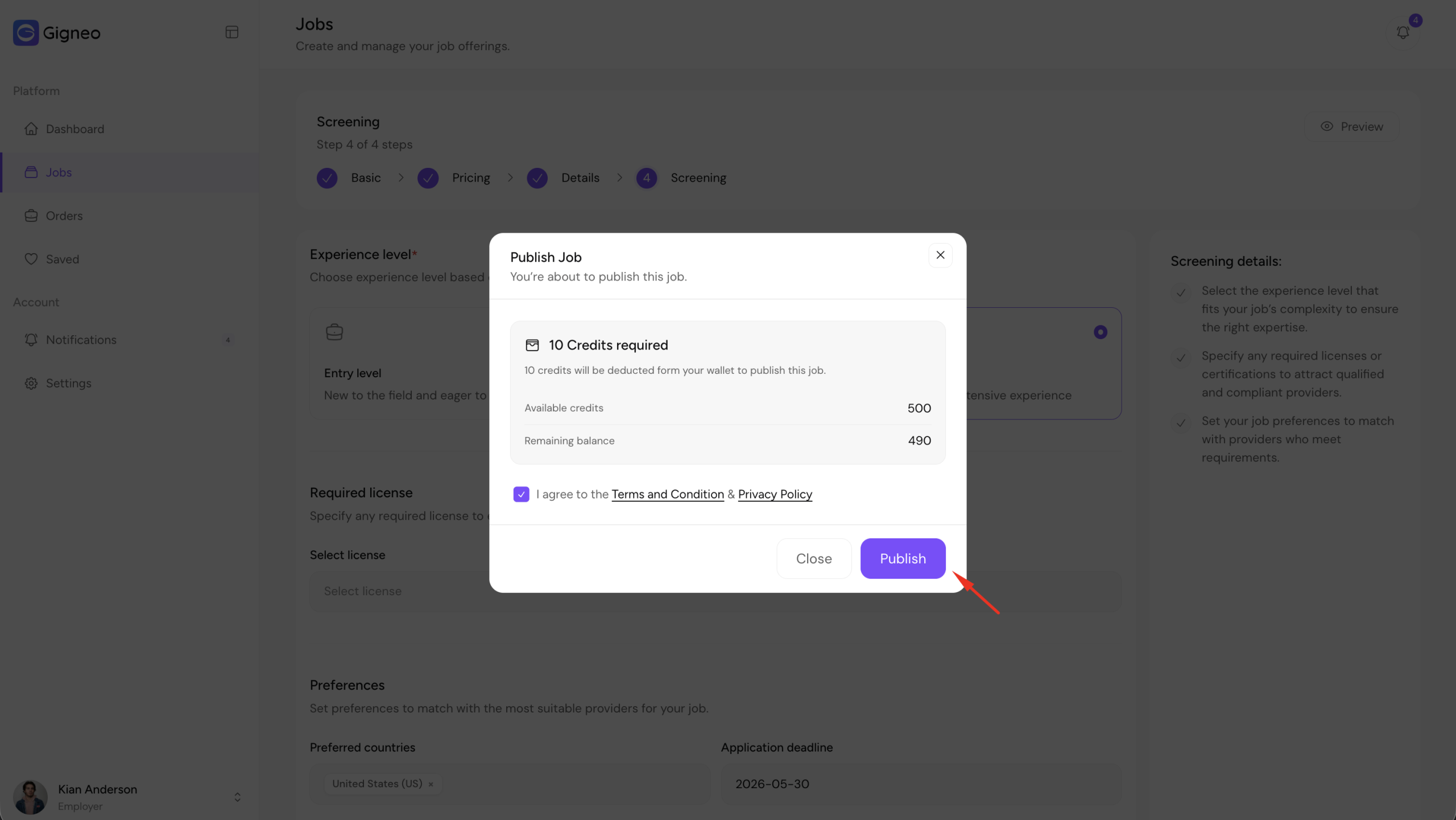
If the required credits are not available, the job cannot be published until enough credits are purchased.
The marketplace administrator can also enable manual approval for job publishing from Gigneo → Settings → Jobs.
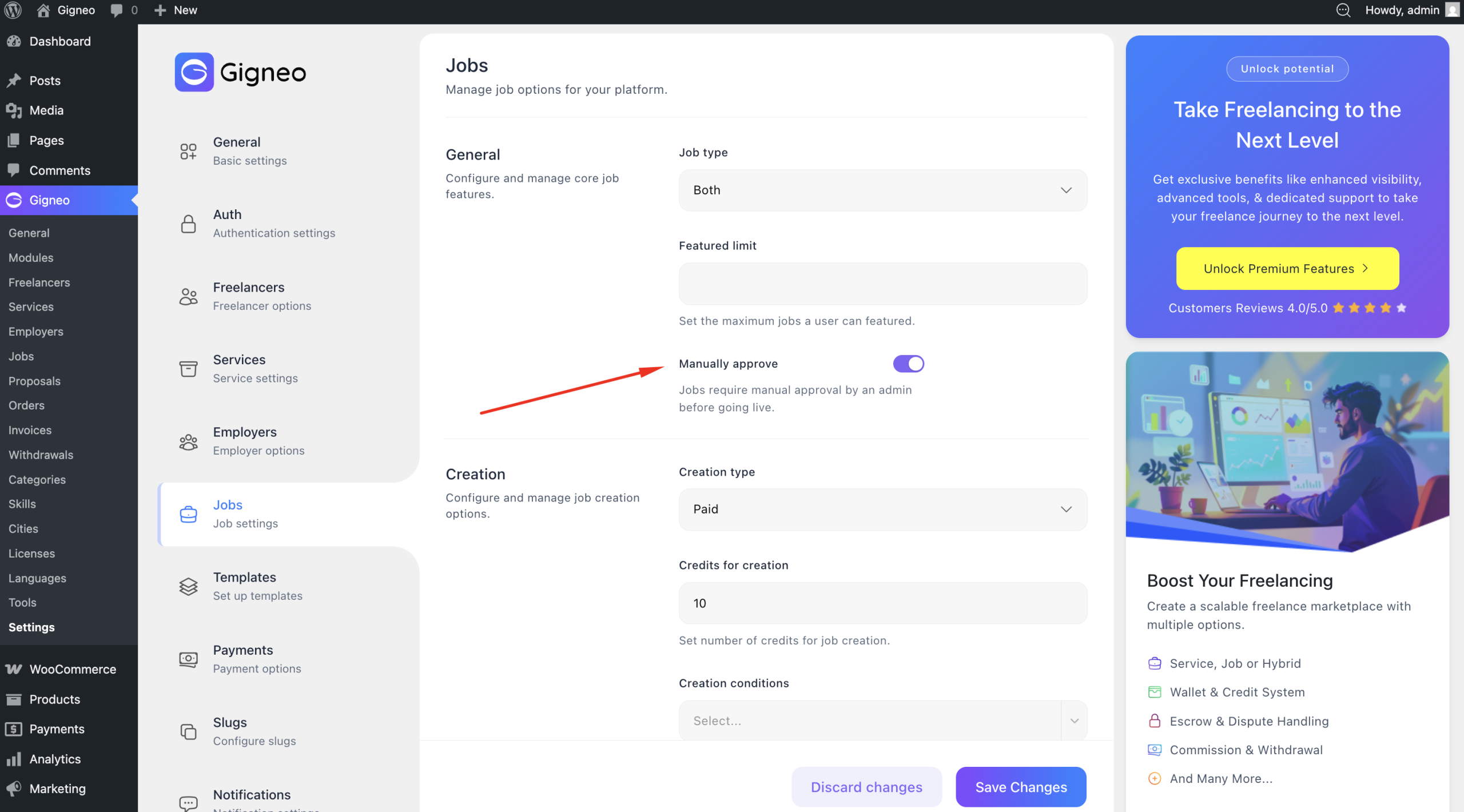
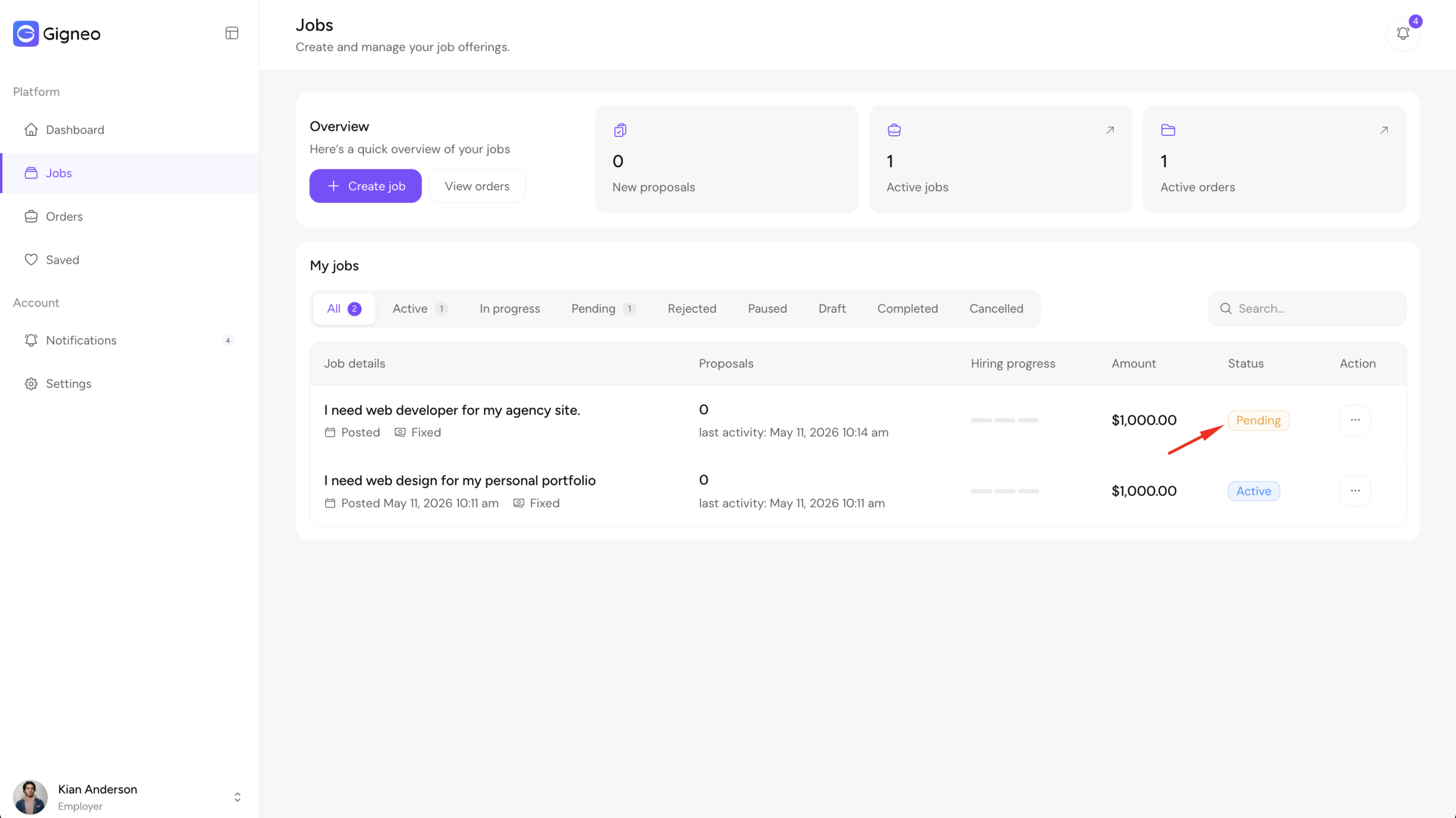
When manual approval is enabled, submitted jobs will not be published immediately.
Instead, the job is submitted for review by the administrator.
Employers can send their job for review once the creation process is completed.
Administrators can review submitted jobs by navigating to Gigneo → Jobs and opening the job review details.
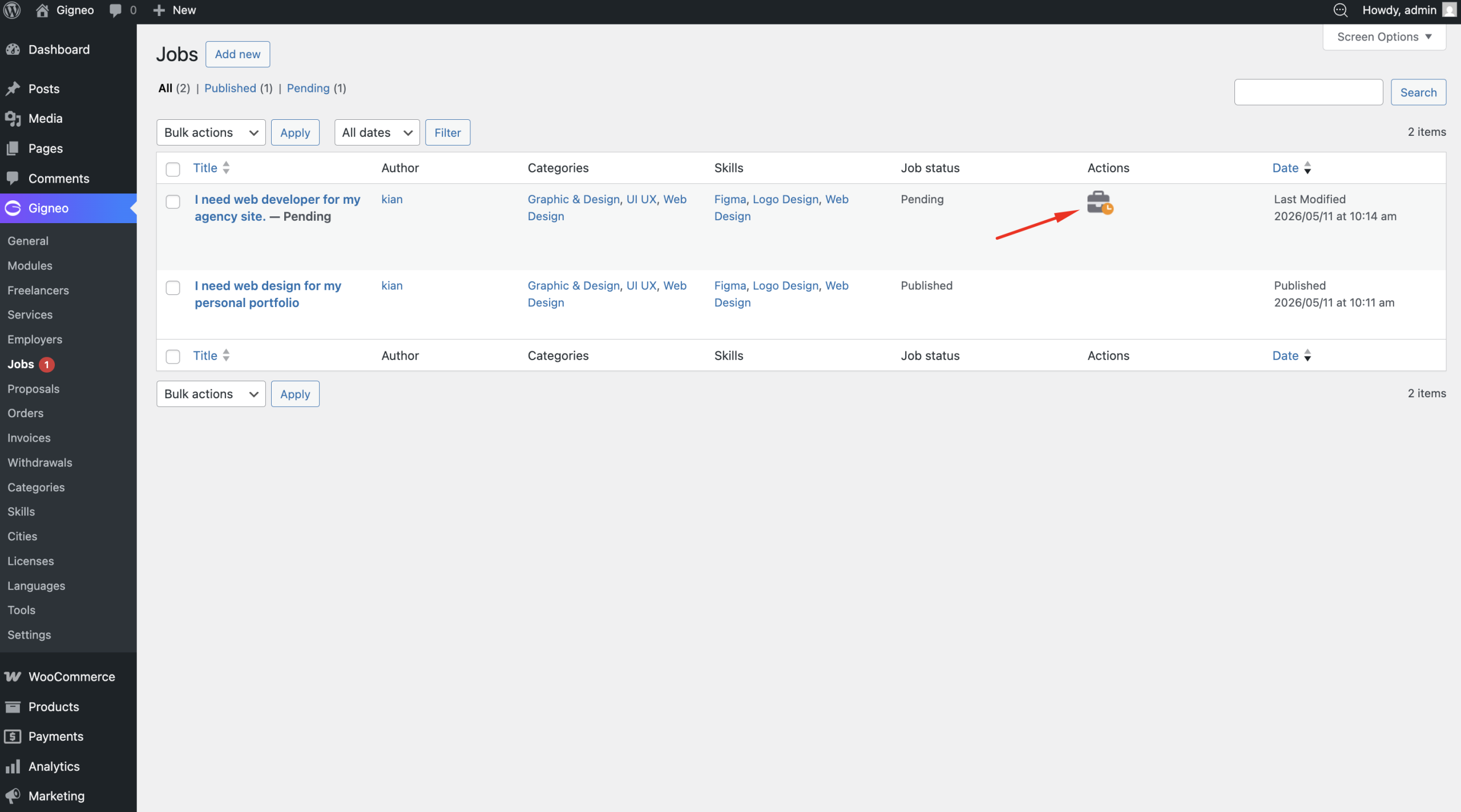
During review, administrators have the option to approve or reject the service:
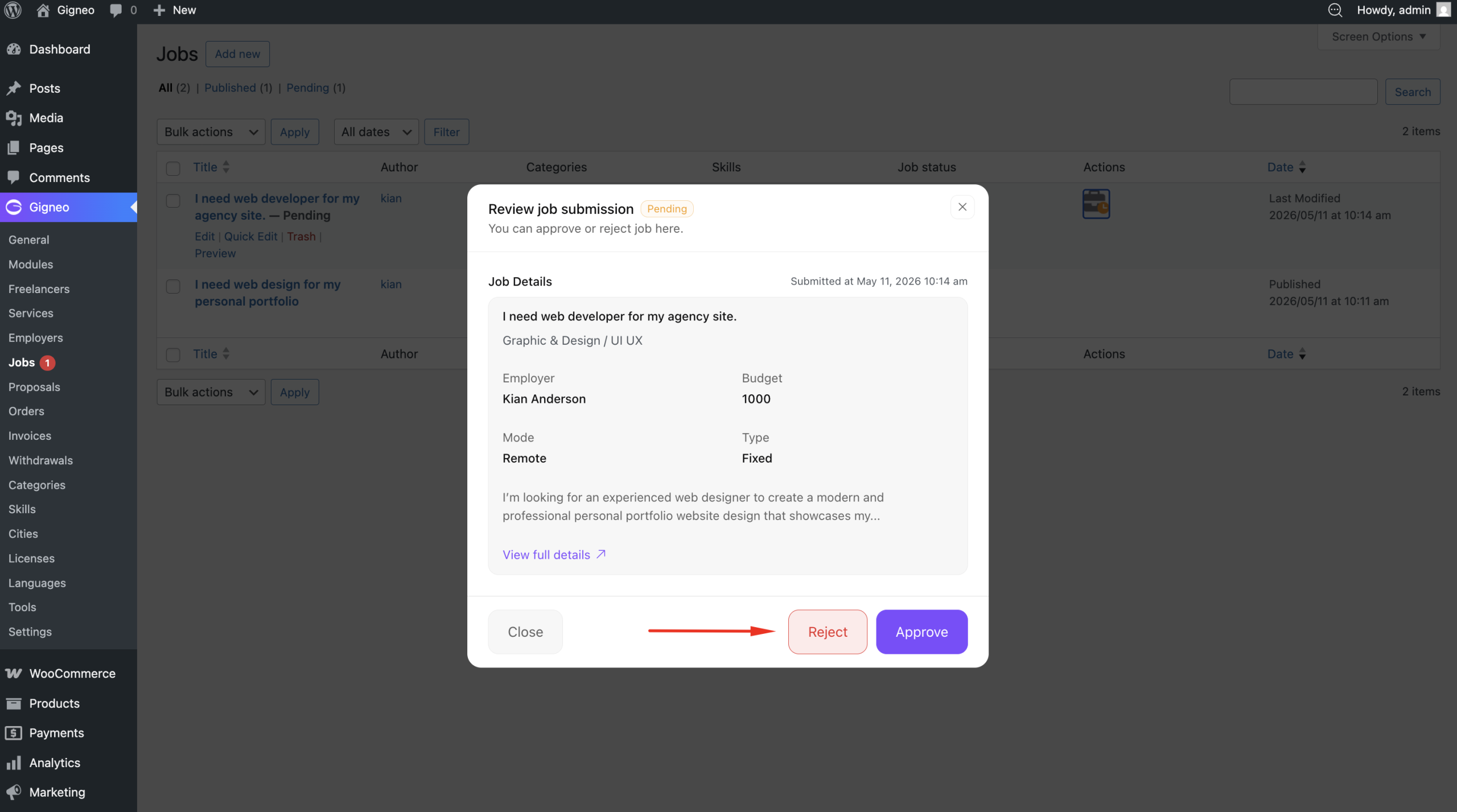
Approve – The job is published and becomes visible on the marketplace.
Soft Reject – The administrator can provide feedback or required changes. The employer can update the job based on the provided instructions and resubmit it for review.
Hard Reject – The job is moved to trash. The employer must create and submit the job again if they want it reviewed.
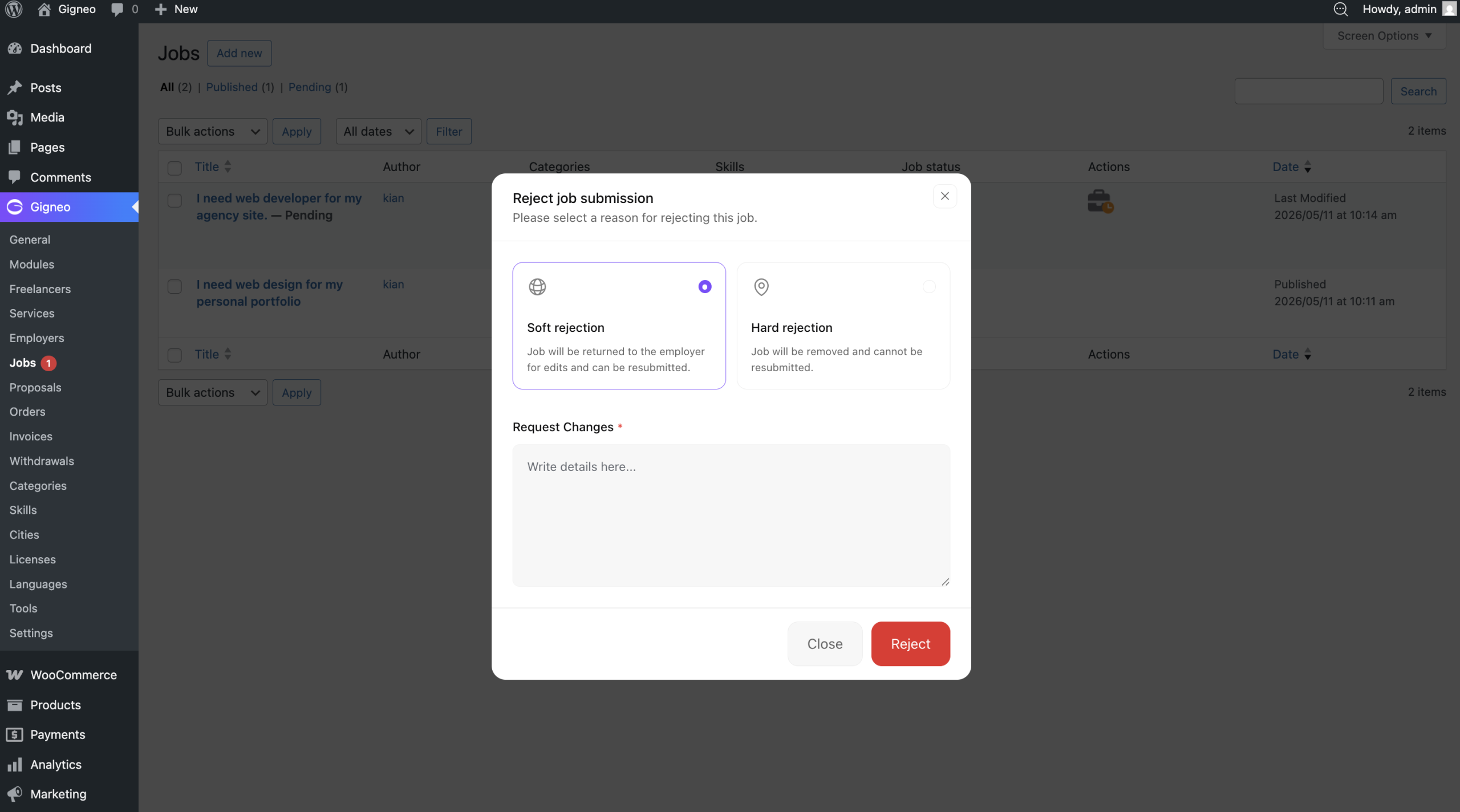
This review system helps maintain marketplace quality and ensures job postings meet platform standards before going live.