
The Multi Location module allows freelancers to offer a single service from multiple locations.
Instead of creating separate services for different cities or areas, freelancers can add multiple service locations to one listing, making it easier for customers to discover nearby services.
This is a Gigneo Pro module and requires a minimum Professional License or higher.
Enable the Module
Before using the Multi Location module, make sure your Gigneo Pro license is activated.
Navigate to:
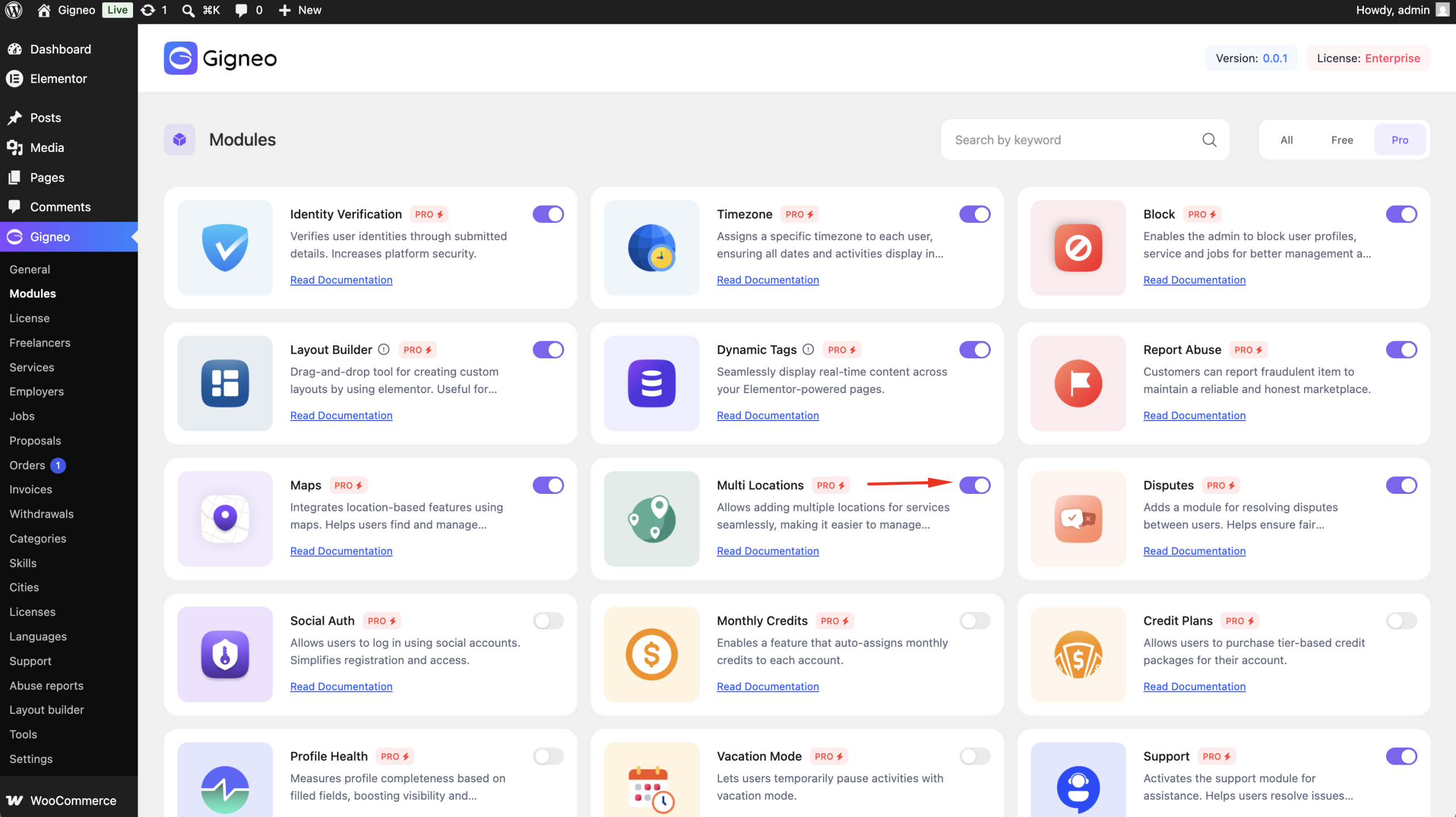
WP Admin → Gigneo → Modules
Enable the Multi Location module.
Configure Maximum Locations
Marketplace administrators can control how many locations a freelancer can add to each service.
Navigate to:
WP Admin → Gigneo → Settings → Services
Set the Maximum Service Locations limit according to your marketplace requirements.
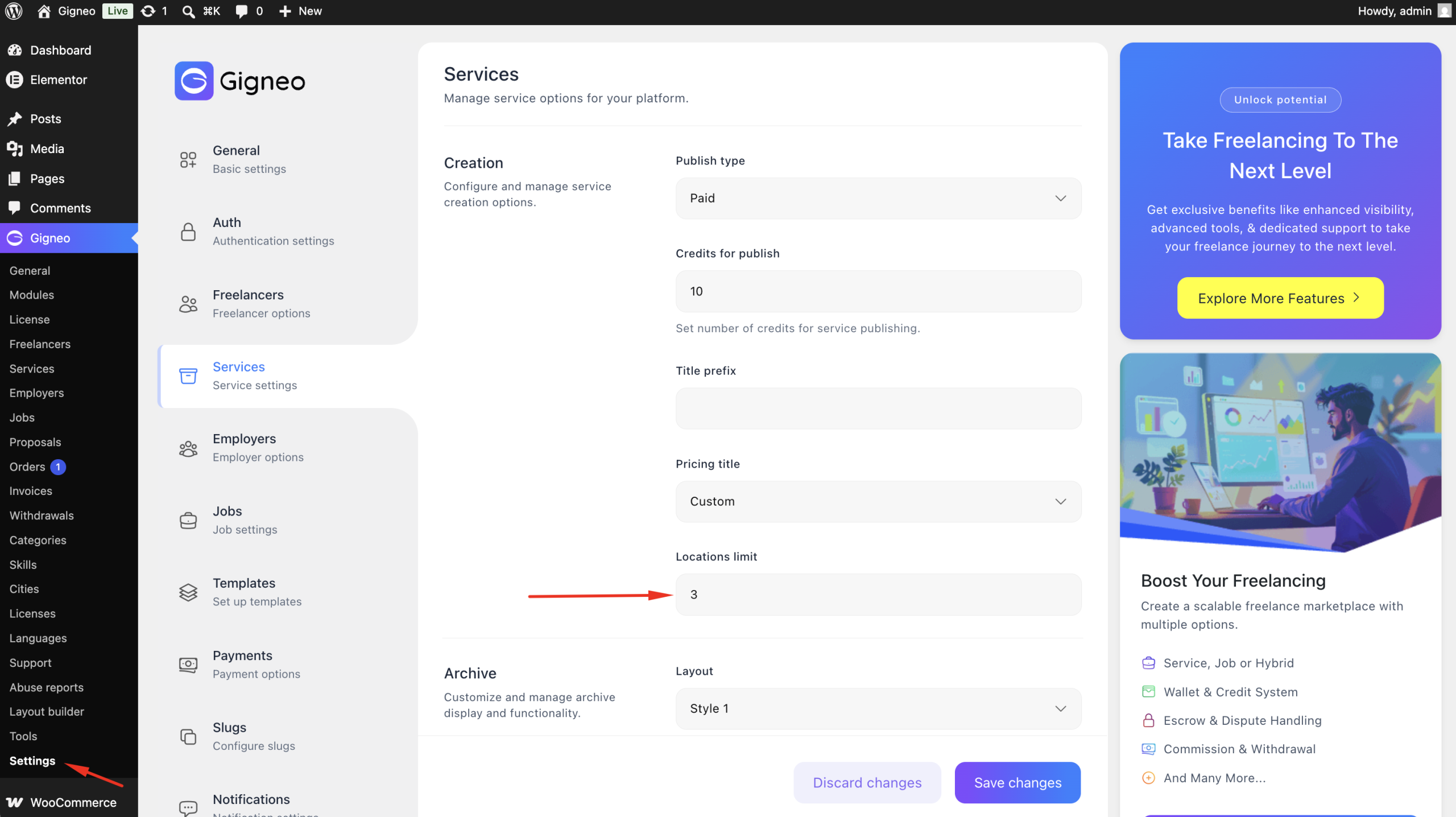
This limit applies to all service listings across the marketplace.
Add Multiple Service Locations
When creating or editing a service, freelancers can add multiple locations from the Location section.
Each location can be selected using the integrated Google Maps location picker.
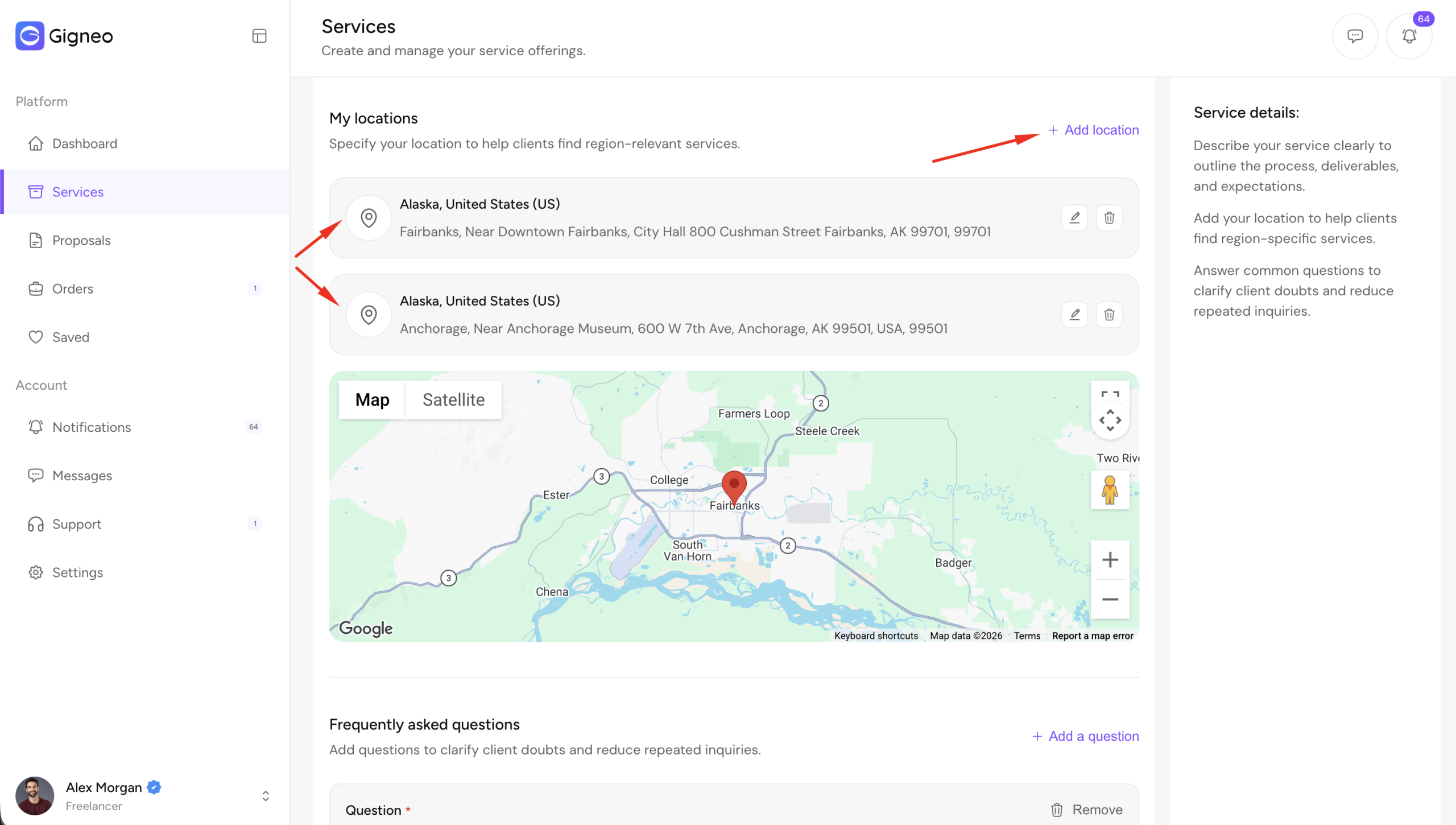
Users can add locations up to the maximum limit configured by the administrator.
Service Location Display
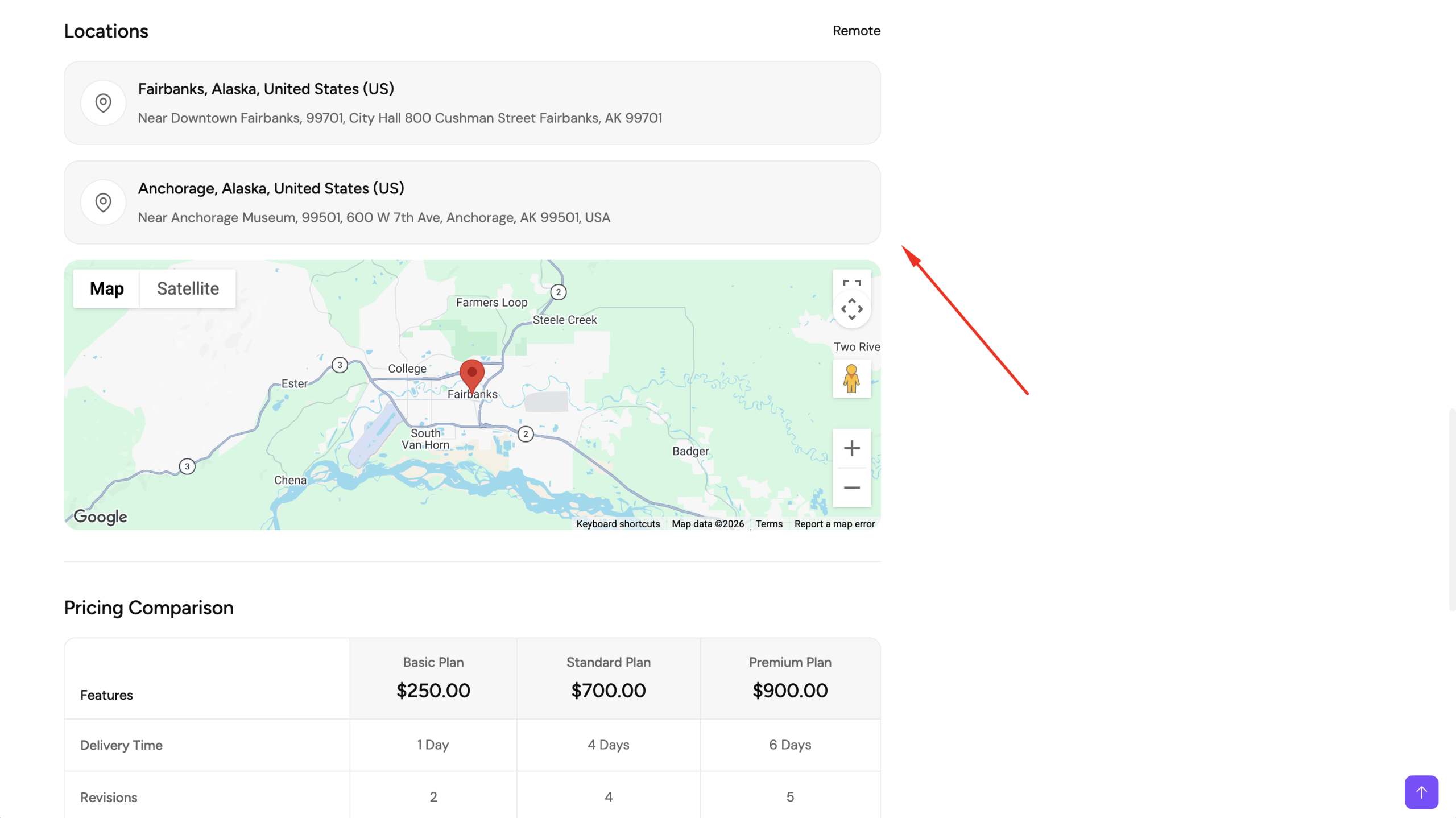
All configured locations are displayed on the service details page, allowing potential customers to view every area where the service is available.
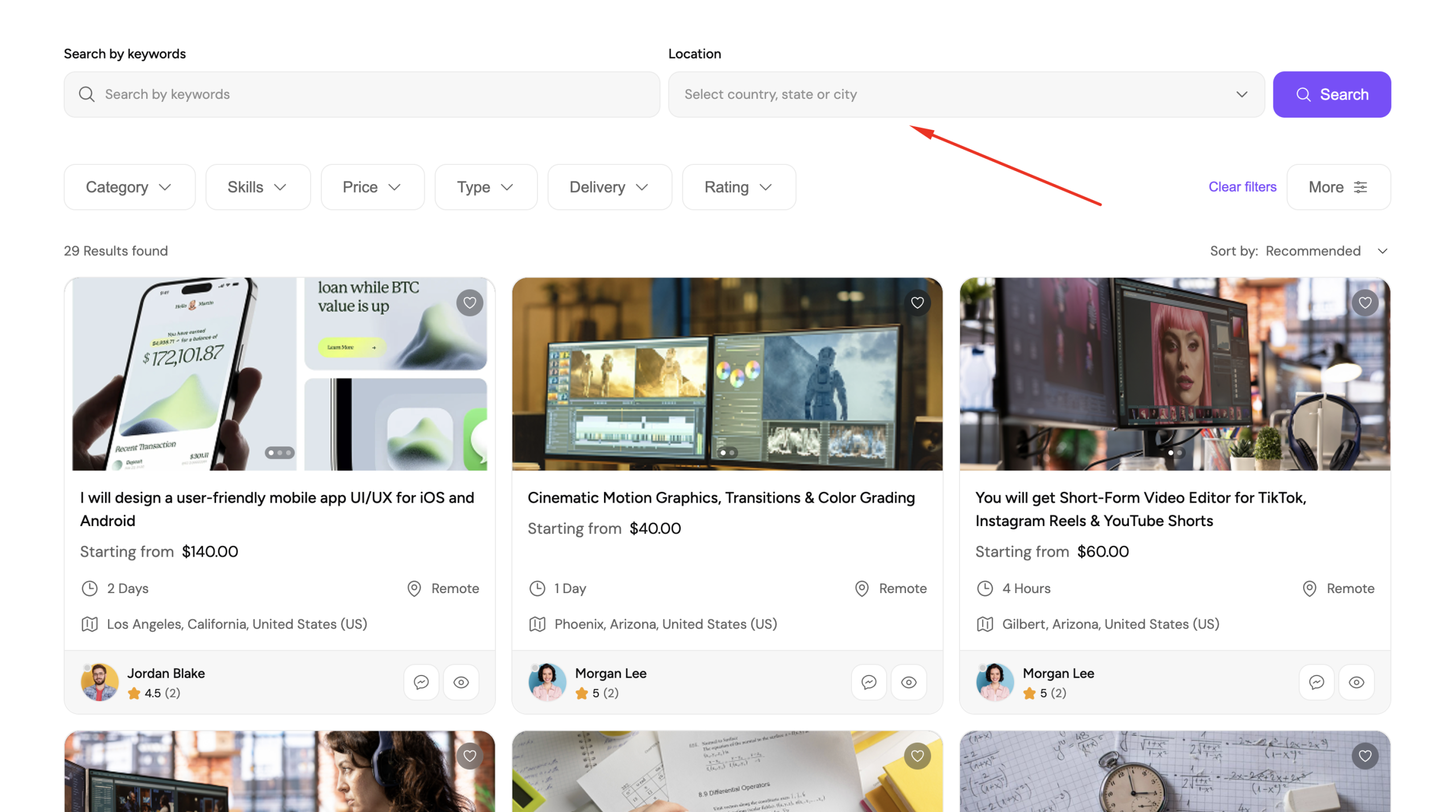
Location-Based Search
Each service location is included in the marketplace search.
Users can search for services by address, city, or nearby location, and services will appear if any of their configured locations match the search criteria.
Benefits
The Multi Location module allows freelancers to:
- Offer one service in multiple locations.
- Reach customers across different cities or regions.
- Avoid creating duplicate service listings.
- Improve visibility in location-based searches.
At the same time, administrators can control the maximum number of service locations available for each listing, keeping the marketplace organized and easy to manage.