
The Identity Verification module helps build a safer and more trusted marketplace by allowing freelancers and employers to verify their identity.
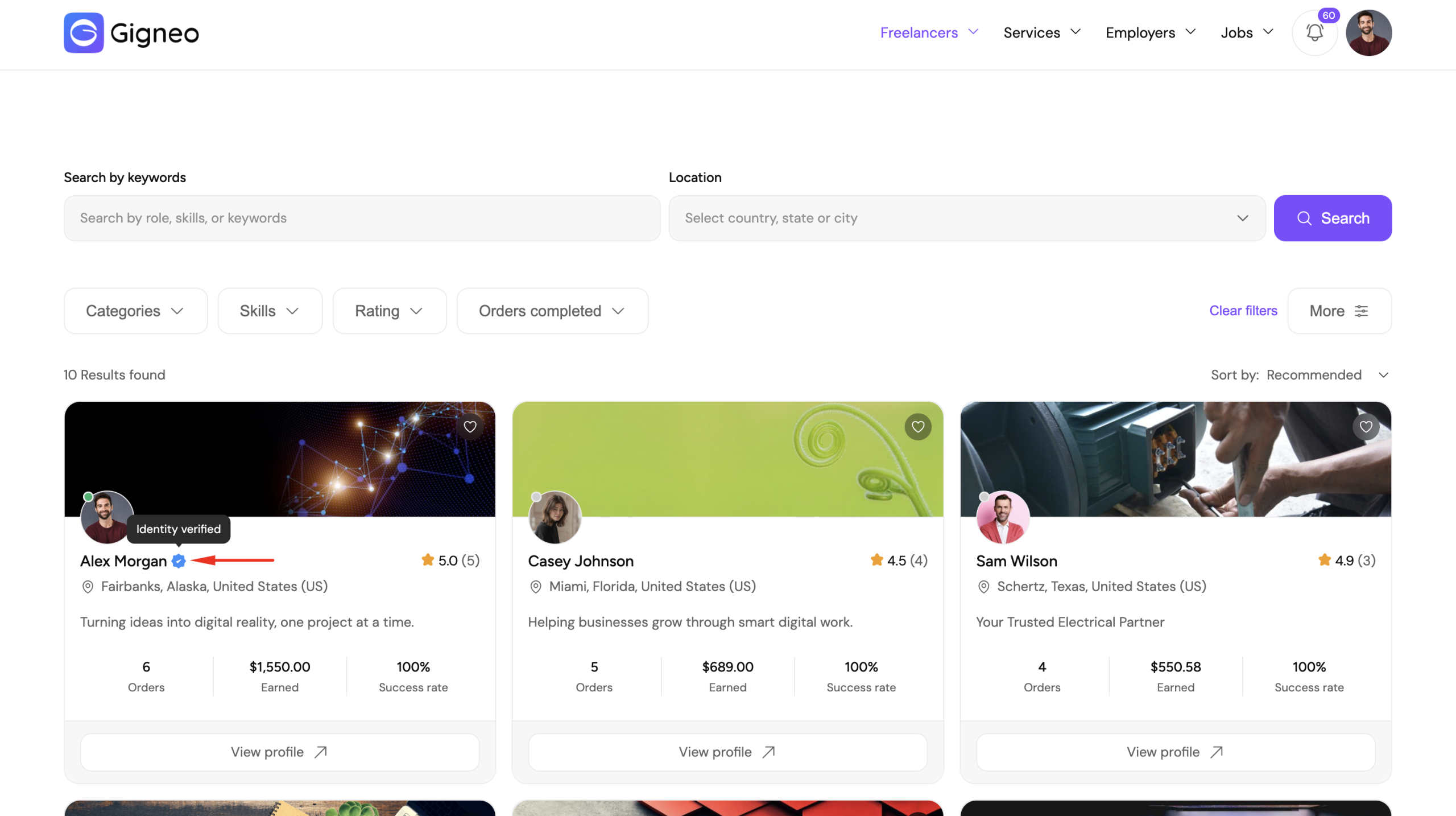
Verified users receive a verification badge on their public profile, helping increase credibility and confidence across the marketplace.
This is a Gigneo Pro module and requires a minimum Starter License or higher.
Enable the Module
Before using Identity Verification, make sure your Gigneo Pro license is activated.
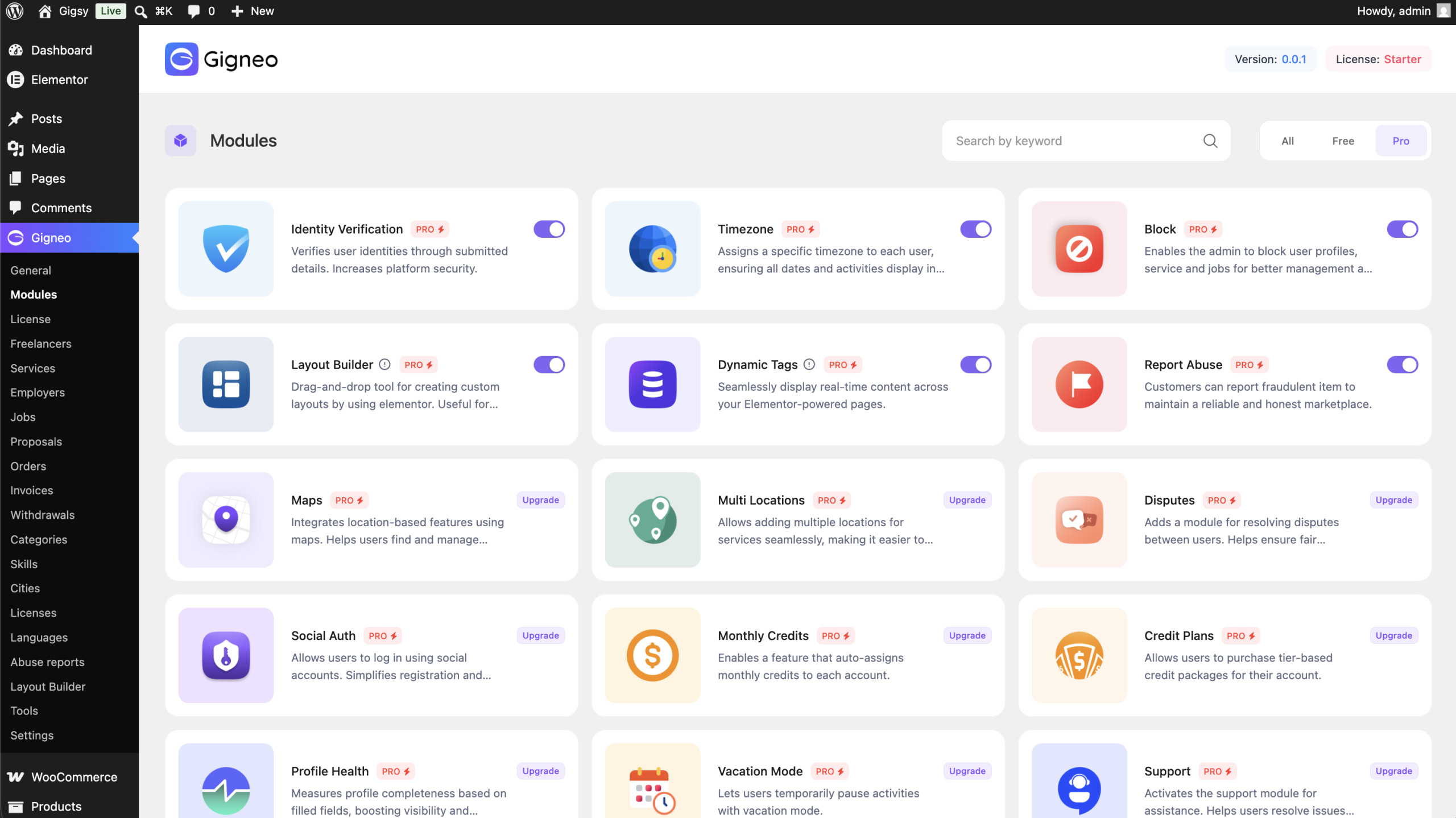
Navigate to:
WP Admin → Gigneo → Modules
Enable the Identity Verification module.
Configure Verification Settings
After enabling the module, navigate to:
WP Admin → Gigneo → Settings → Others
From here, administrators can configure:
- Enable or disable identity verification
- Configure verification options
- Manage verification workflow
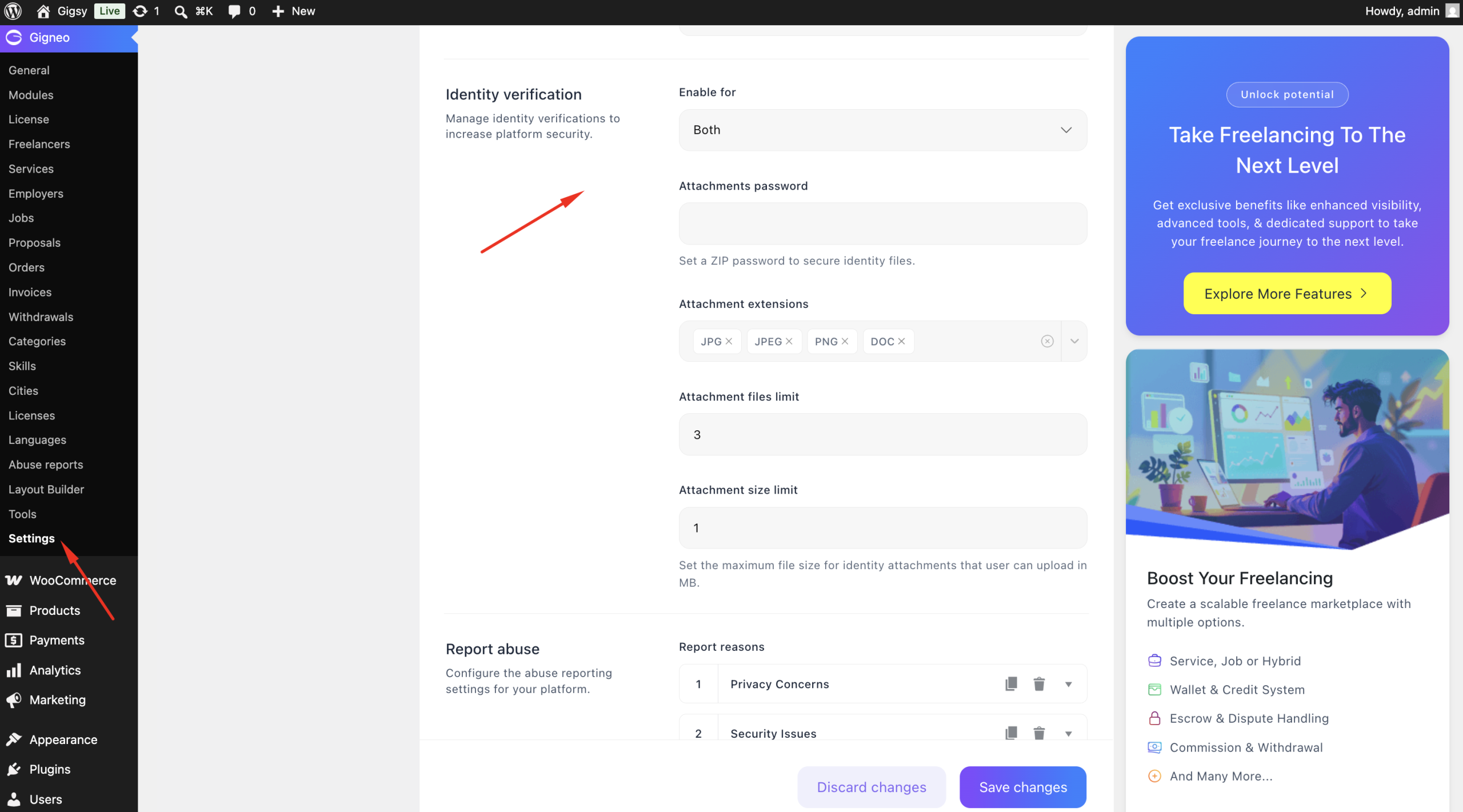
For additional privacy and security, administrators can enable the Password Protection option.
When enabled, users submitting identity verification documents must provide a password along with their uploaded files.
The uploaded documents are automatically compressed into a password-protected ZIP file, helping protect sensitive personal information during storage and review.
Administrators can use the provided password to securely extract and review the submitted documents.
Submit a Verification Request
Freelancers and employers can submit a verification request from:
Dashboard → Settings → Account
Users can upload the required verification documents and submit them for review.
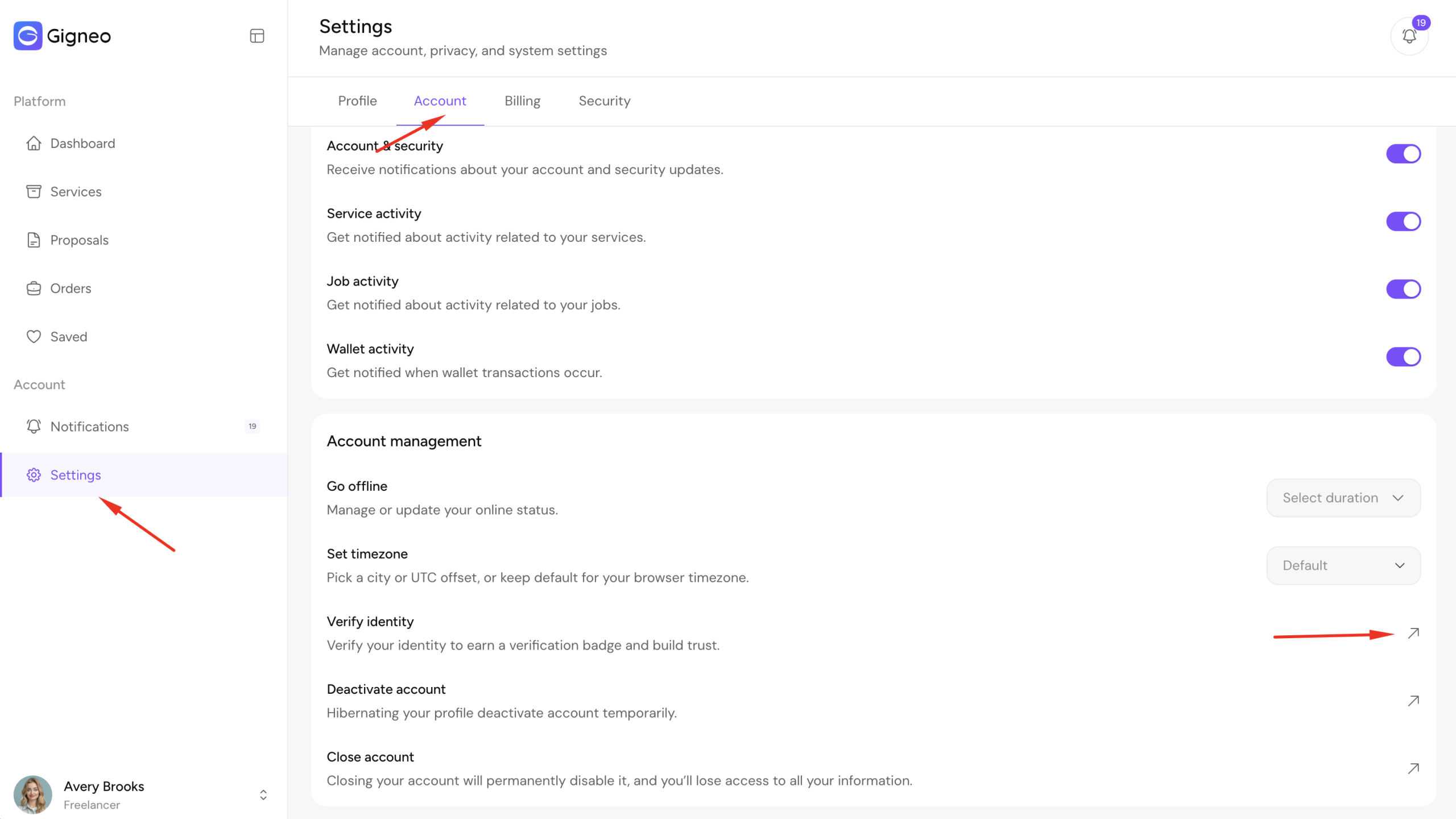
Once submitted, the request will remain pending until reviewed by an administrator.
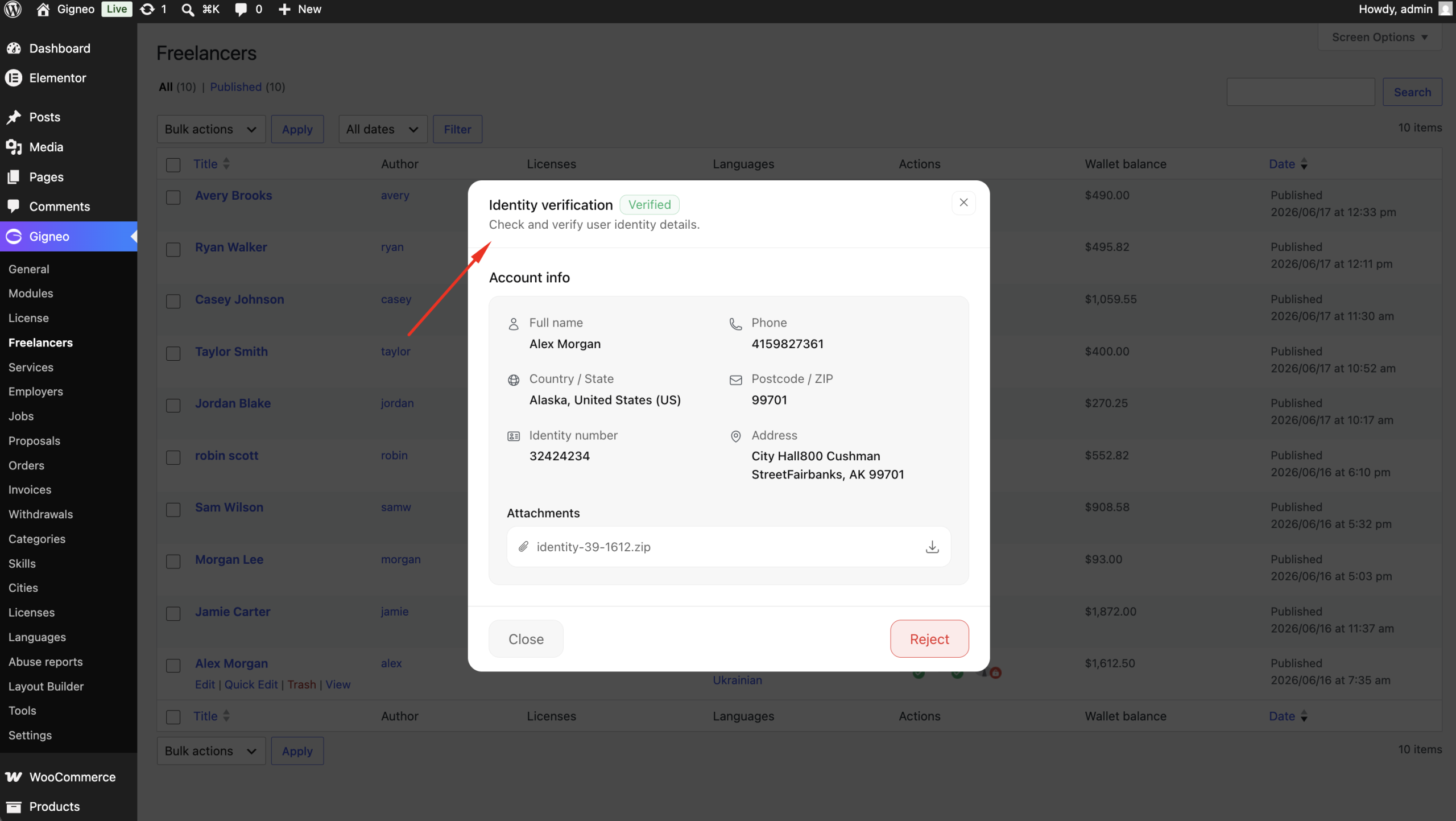
Review Verification Requests
Administrators can review all submitted requests from:
WP Admin → Gigneo → Freelancers/Employers
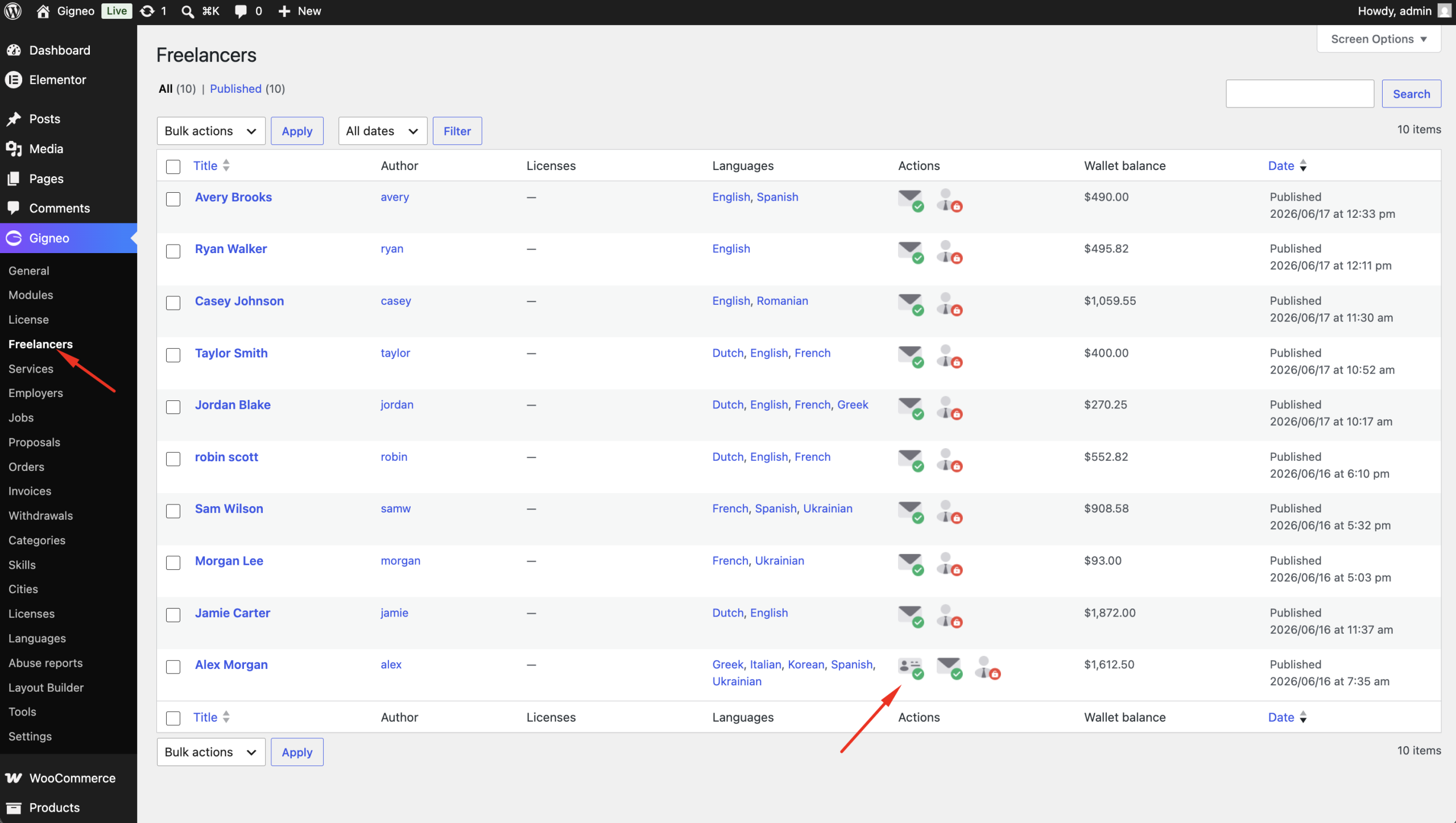
From here, administrators can:
- Review submitted documents
- Approve verification requests
- Reject verification requests
Verified Profiles
Once approved, the user receives a Verified badge on their marketplace profile.
This helps:
- Increase user credibility
- Build marketplace trust
- Help users identify verified freelancers and employers
Verification Status
Users can track the status of their verification request directly from their dashboard.
Possible statuses include:
- Pending
- Approved
- Rejected
If a request is rejected, the user can review the feedback and submit a new verification request.
This verification workflow helps marketplace administrators maintain a trusted and secure platform while giving users a simple way to verify their identity.